Appointments, courses & messages
How clients request and join sessions, work through courses and quizzes, ask chapter questions, and message your team.
These three pages are where the client talks to you and learns from you. Appointments and Courses follow the client's membership plan. Messages is always available.
Appointments
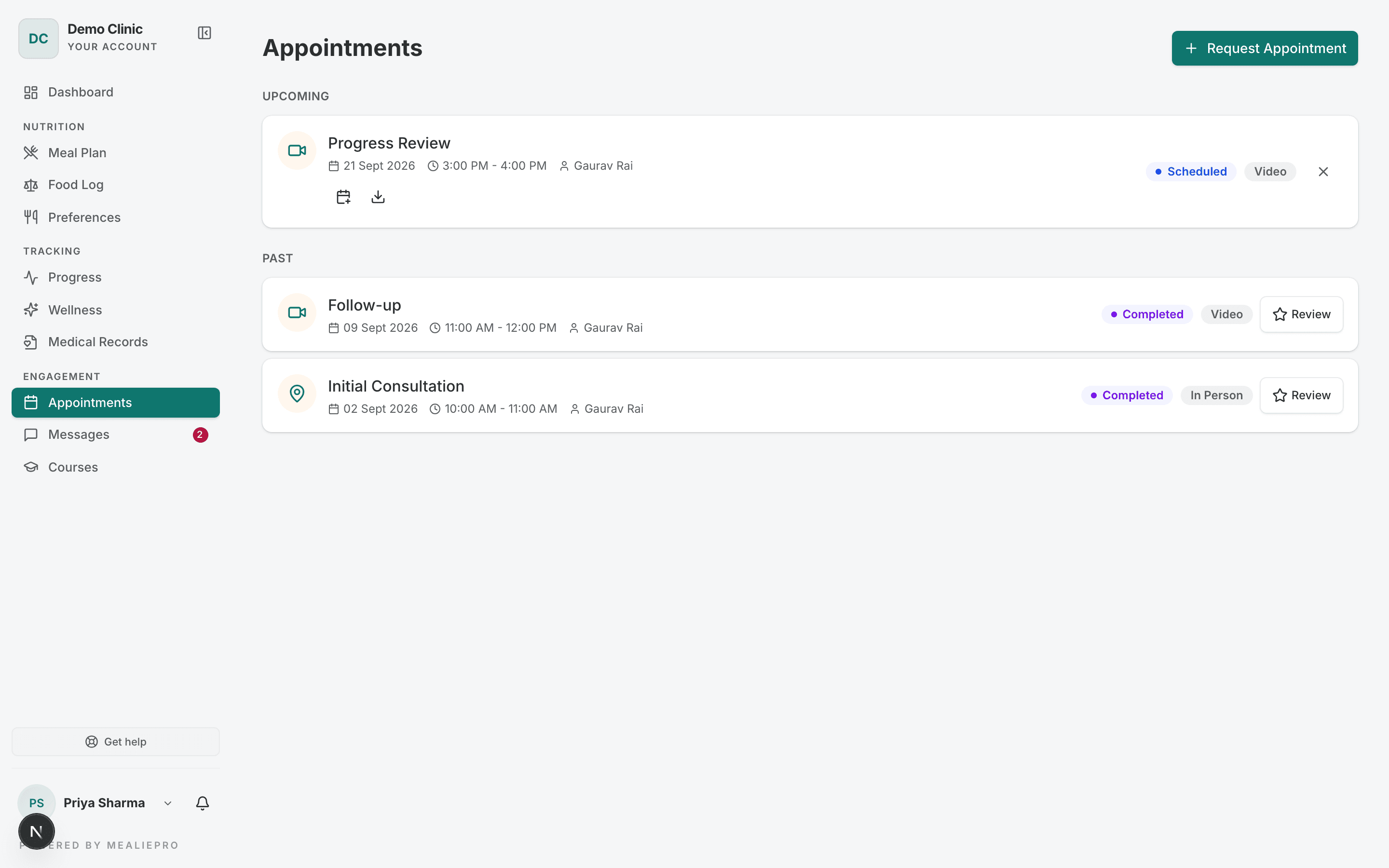
The Appointments page lists the client's sessions in three groups:
- Requested — "Awaiting approval from your dietician".
- Upcoming — approved sessions.
- Past — completed, cancelled and missed sessions.
Request an appointment
- The client clicks Request Appointment.
- Pick a Slot — the client picks an open slot. The arrows move one week at a time.
- Appointment Details — the client enters a Title (for example "Nutrition check-in"), picks the mode (Video, Phone or In Person) and can add Notes.
- Confirm & Submit — the client checks the details and sends the request.
The client sees "Appointment request sent!". The request shows under Requested until a staff member approves it. See Appointments.
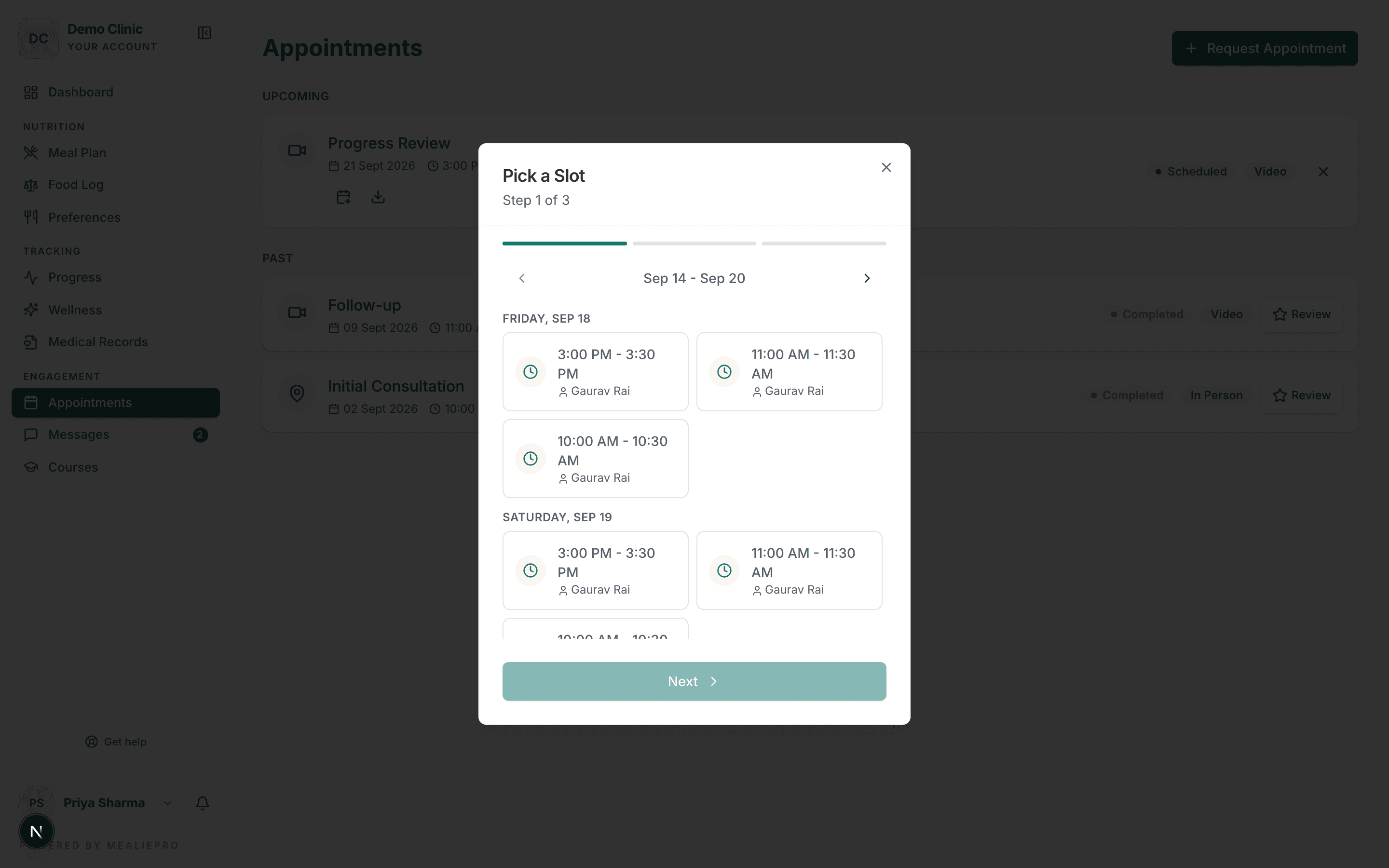
Tip: The client sees only the open slots of their assigned staff member. If a client says "no slots", check two things. Is a staff member assigned to the client? Does that person have open slots in the coming weeks?
If there are no slots, the window reads "No appointment slots available". It then shows your practice's phone and email, if you added them in Settings.
On each appointment
| Control | What it does |
|---|---|
| Join | Opens the first video link you added to the session. |
| More → Links | Shows the other links, for example a map location. |
| Calendar icons | Open in Google Calendar or Download .ics. |
| Cancel (✕) | Asks "Cancel Appointment". The client confirms, or clicks Keep Appointment. The client can cancel a session that is not completed, cancelled or a no-show. |
| Review | On a completed session. Opens Leave a Review — "How was your session?", 1 to 5 stars and an optional comment. |
Courses
The Courses page has the subtitle "Learn at your own pace". Each course card shows the progress, for example "1/3 chapters", and a button: Start course, Continue or Review course.
If the client has no courses, the page reads "No courses assigned yet".
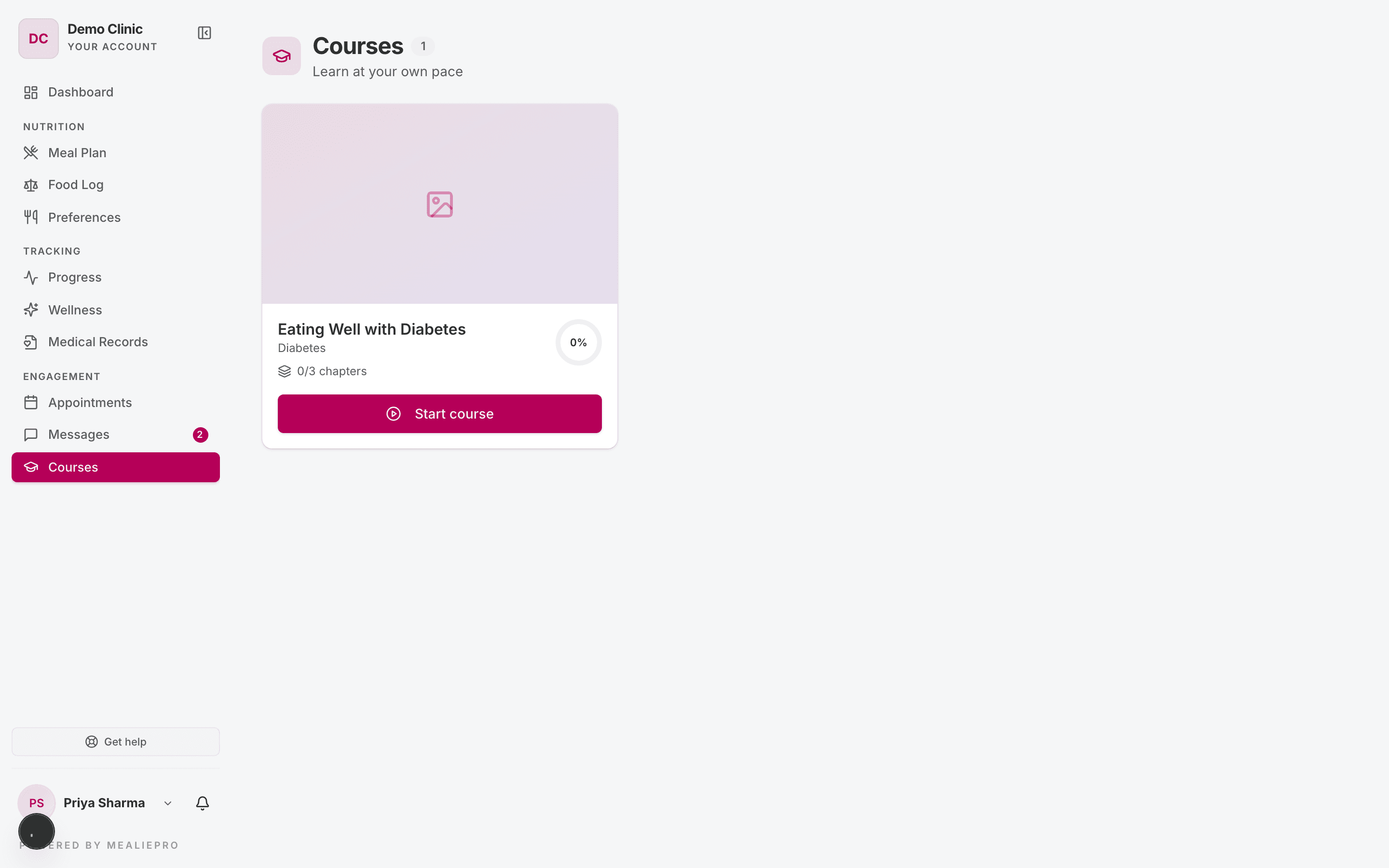
How a client gets a course
- You enrol the client on the course's Sharing tab.
- The client's membership plan includes the course. See Membership plans.
- The course is free, and the client clicks Start free on your landing page.
For all three, see Courses.
The course player
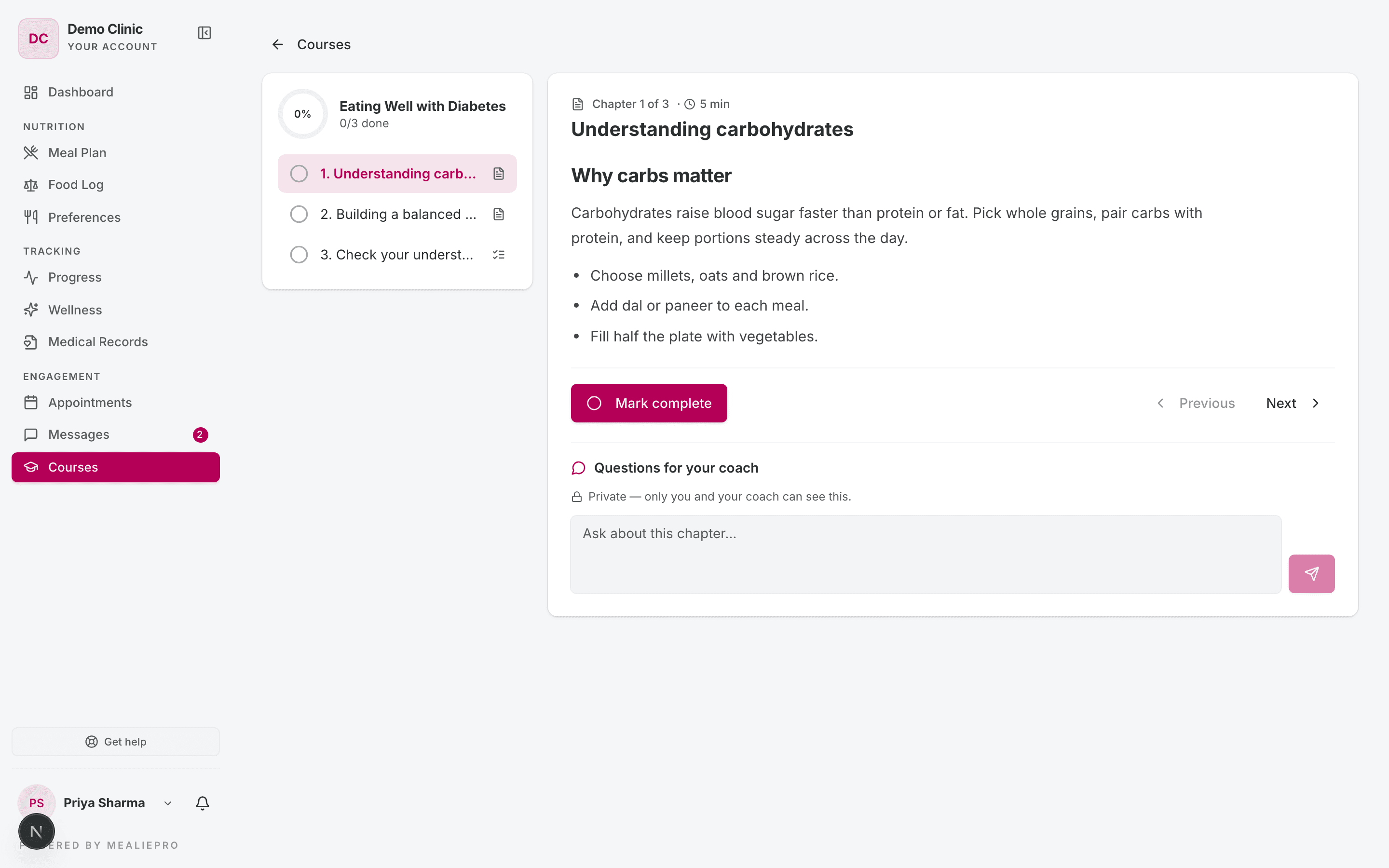
The left side lists the chapters. The right side shows the open chapter. The player opens at the first chapter that is not done.
| Chapter type | What the client does | How it counts as done |
|---|---|---|
| Text | Reads the lesson. | The client clicks Mark complete. |
| Video | Watches the YouTube video. | The client clicks Mark complete. |
| Reads the file in the page. Download and Open in new tab are also there. | The client clicks Mark complete. | |
| Quiz | Answers the questions. | The client passes the quiz. |
Previous and Next move between chapters.
Quizzes
A quiz chapter reads "Pass the quiz (pass mark%) to complete this chapter."
- The client clicks Start quiz.
- They answer each question. A question with more than one right answer says "Select all that apply."
- They click Submit answers. The button works only when every question has an answer.
The result reads Passed — chapter complete! or Not quite yet. The client sees your explanation for each question. A question counts only if the answer is fully right.
If the client did not pass, they click Try again. The page shows "Unlimited attempts — …" or "n of m attempts left", and the best score so far. A failed retry never removes a pass.
Questions for your coach
Under each chapter, the client sees Questions for your coach — "Private — only you and your coach can see this." The client types in Ask about this chapter… and sends it. They can delete their own questions.
The question goes to the client's assigned staff member. You answer on the course's Discussion tab. If the client has no assigned staff member, nobody gets an alert. See Courses.
When a course is not available
If the client opens a course they are not enrolled in, or a course you unpublished, they see "Course not available".
Messages
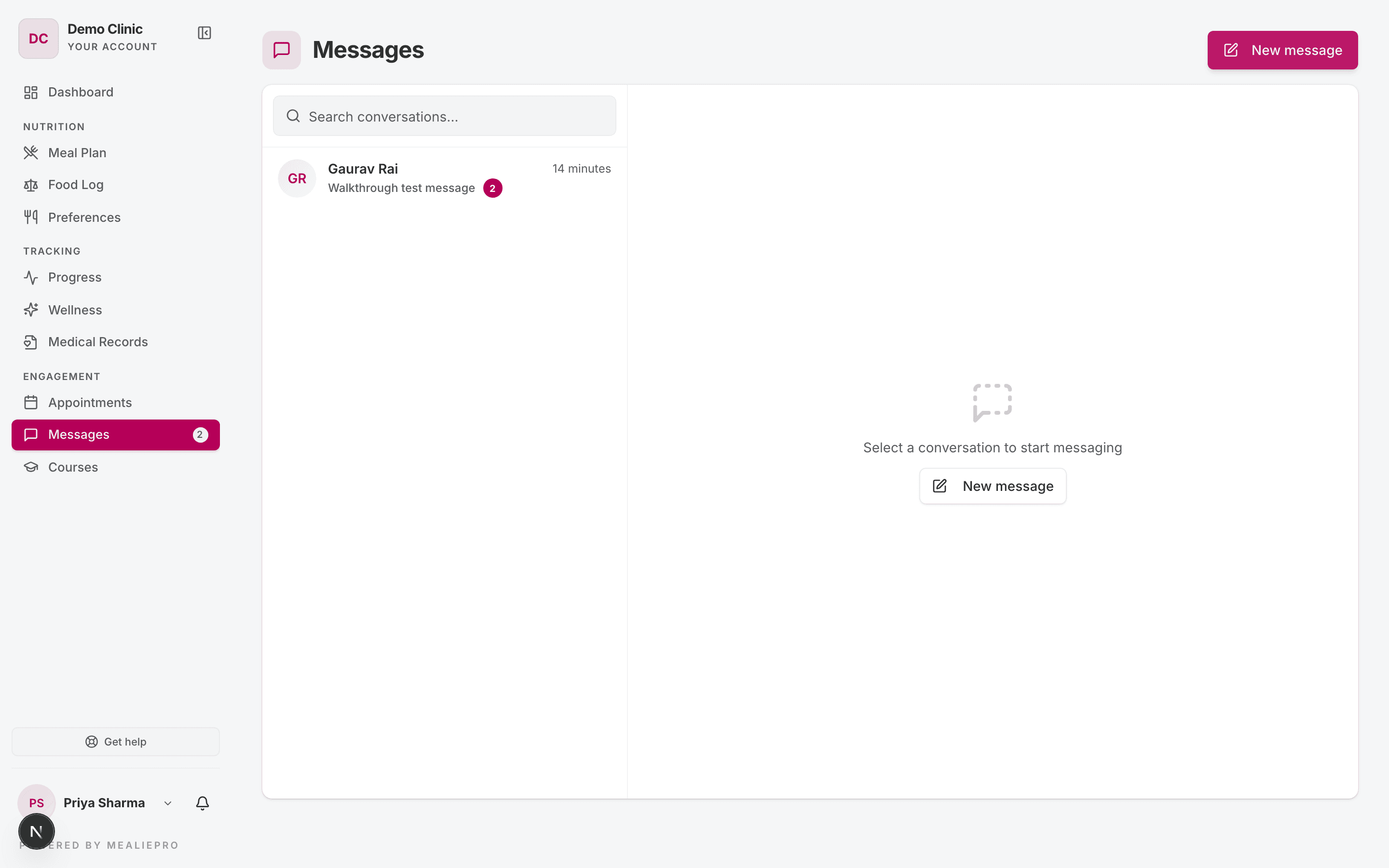
Messages is in every client's sidebar, whatever the plan. A number on the sidebar item shows unread messages.
Start a conversation
- The client clicks New message.
- The window reads "Pick someone to start a conversation with."
- The client picks a person. Their assigned staff member is first, with the label Your dietician.
A client can message any active staff member in your practice. If a conversation with that person exists, the portal opens it instead of starting a new one.
Chat
- Search conversations... filters the list by name or message text.
- The client types in Type a message.... Enter sends. Shift+Enter starts a new line.
New messages show within a few seconds. The page does not update at once. Message alerts are in the app only. We do not send message alerts by email.
Common workflows
A client says they cannot book
Check that the client has an assigned staff member, and that the staff member has open slots. Then check that the client's plan includes Appointments.
A client cannot see a course you shared
Check that the course is published. Then check that the client's plan includes Courses.
What's next
- Appointments — open slots, approve requests and add meeting links.
- Courses — build courses, quizzes and PDF chapters.
- Messages — the staff side of the chat.
- Records & profile — lab reports, questionnaires and settings.
Progress & wellness
How clients log measurements, what the Energy tab shows, and how they complete daily wellness tasks, trackers and affirmations.
Records, questionnaires & profile
How clients upload lab reports, fill in questionnaires, open resources, manage notifications, and edit their profile and food preferences.