What your clients see
A map of the client portal — the sidebar, the modules each membership plan unlocks, and the settings you control from the staff side.
Your clients use a separate portal. It has its own address, its own sign-in page and its own sidebar. This section shows the portal from the client's side, so you can answer "where do I find my plan?" without a screen share.
Each page in this section also tells you which staff setting controls what the client sees.
Where the portal lives
Clients sign in at the client address, not at the professional address.
| Portal | Who uses it | Example address |
|---|---|---|
| Professional portal | You and your team | business.mealiepro.com |
| Client portal | Your clients | client.mealiepro.com |
If your practice has its own domain (see White label), clients use that domain. A practice domain serves only the client portal.
Tip: If a client says "the page asks me for a work email", they are on the professional sign-in page. Send them the client address.
The client sidebar
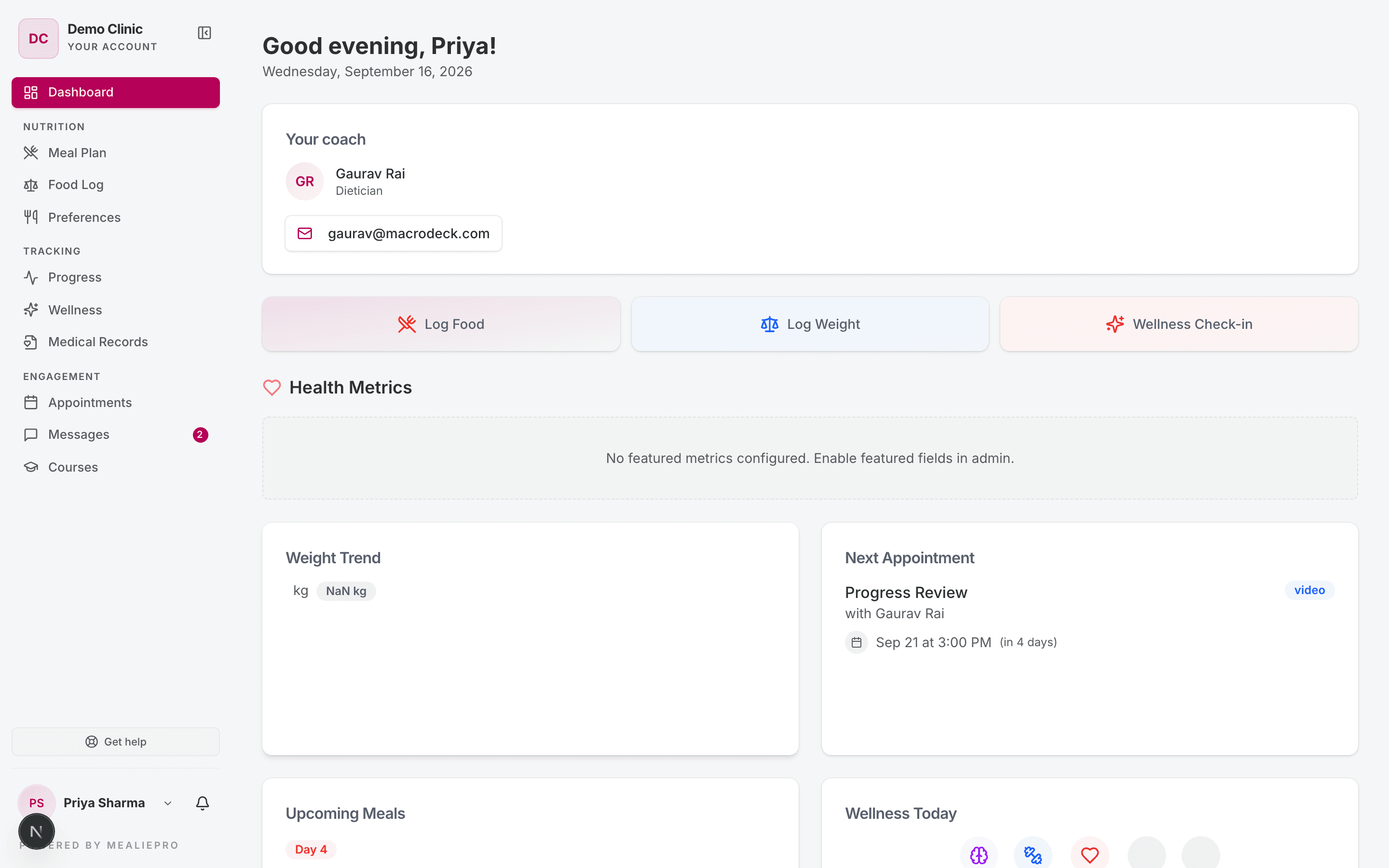
The label at the top of the sidebar reads Your account. The items are in three groups.
| Group | Item | What the client does there | Details |
|---|---|---|---|
| — | Dashboard | Sees today at a glance and their coach's contact details. | Dashboard |
| Nutrition | Meal Plan | Reads the active plan, recipes and your meal notes. | Meal plan & food log |
| Nutrition | Food Log | Ticks off what they ate and adds extras. | Meal plan & food log |
| Nutrition | Preferences | Edits their diet, cuisines and likes. | Records & profile |
| Tracking | Progress | Logs today's measurements. | Progress & wellness |
| Tracking | Wellness | Completes daily wellness tasks and trackers. | Progress & wellness |
| Tracking | Medical Records | Uploads lab reports. | Records & profile |
| Engagement | Appointments | Requests, joins and reviews sessions. | Appointments, courses & messages |
| Engagement | Messages | Chats with you and your team. | Appointments, courses & messages |
| Engagement | Courses | Works through the courses you share. | Appointments, courses & messages |
Two pages have no sidebar item: Assessments and Resources. Clients open them from a notification or a direct link. See Records & profile.
The client's name at the bottom of the sidebar opens a menu:
- My Profile — personal details. See Records & profile.
- Notification settings — which alerts they get, in the app and by email.
- Tutorials — turns the guided walkthroughs on or off.
- Sign out.
The bell icon next to the name shows new notifications. The Get help button above it sends a support ticket to us, the same as in your portal.
What a membership plan unlocks
A client's membership plan controls which modules they can use. You set this on the plan with Limit features for this plan.
- If the client has no plan, they get every module.
- If the plan does not limit features, the client gets every module.
- If the plan limits features, the client gets only the ticked modules.
Wellness and Courses also need your own subscription to include them.
| Module in the plan dialog | What the client gets |
|---|---|
| Meal Plan | The Meal Plan page. |
| Food Log | The Food Log page, and the Log Food shortcut on the dashboard. |
| Progress | The Progress page, and the Log Weight shortcut. |
| Wellness Plan | The Wellness page, and the Wellness Check-in shortcut. |
| Appointments | The Appointments page. |
| Courses | The Courses page. |
| Messaging | No effect. Messages is always available to every client. |
| Resources | The Resources page. |
| Assessments | The Assessments page, and the Pending Assessments count on the dashboard. |
Preferences and Medical Records are always available.
If a client opens a blocked page by its address, they see "This feature isn't included in your plan — redirecting…". The portal then sends them to the dashboard.
Tip: The dashboard cards (Weight Trend, Next Appointment, Upcoming Meals, Wellness Today) do not follow the plan. To hide a card for all clients, use the section switches on White label.
The dashboard
The dashboard greets the client by first name and shows the date. From top to bottom, it shows:
- An announcement banner, if your practice set one. The client can close it.
- The onboarding banner, until the client completes onboarding. See Onboarding.
- Your coach — the name, role, email and phone of the assigned staff member. A WhatsApp button shows when the phone number has a country code.
- Today's affirmation — from the client's affirmation deck. See Wellness.
- Shortcuts: Log Food, Log Weight and Wellness Check-in.
- Health Metrics — trends for key lab values from the client's medical intakes. It shows data only for the medical fields that the platform marks as featured.
- Weight Trend and Next Appointment.
- Upcoming Meals and Wellness Today.
- Counts: Pending Assessments, Food Logs Today and Streak Days.
If the client has no assigned staff member, the coach card reads "No coach assigned yet". To assign one, open the client's profile. See Clients.
What you control from the staff side
| Client sees | You change it here |
|---|---|
| Which modules appear | Membership plans → Limit features for this plan |
| Coach name and contact details | Clients → the client's profile → assigned staff member |
| Portal colour, wordmark, welcome text, dashboard sections | White label |
| The sign-in page design | White label → Login screens |
| Which alerts a client can switch off | Nothing — the client chooses. Some alerts are required. |
What's next
- How clients get in — invitations, sign-up links and password resets.
- Onboarding — the setup steps a new client completes.
- Membership plans — set which modules a plan unlocks.