White label
Put your own logo, colour and domain on the client portal, sign-in screens, emails and plan PDFs.
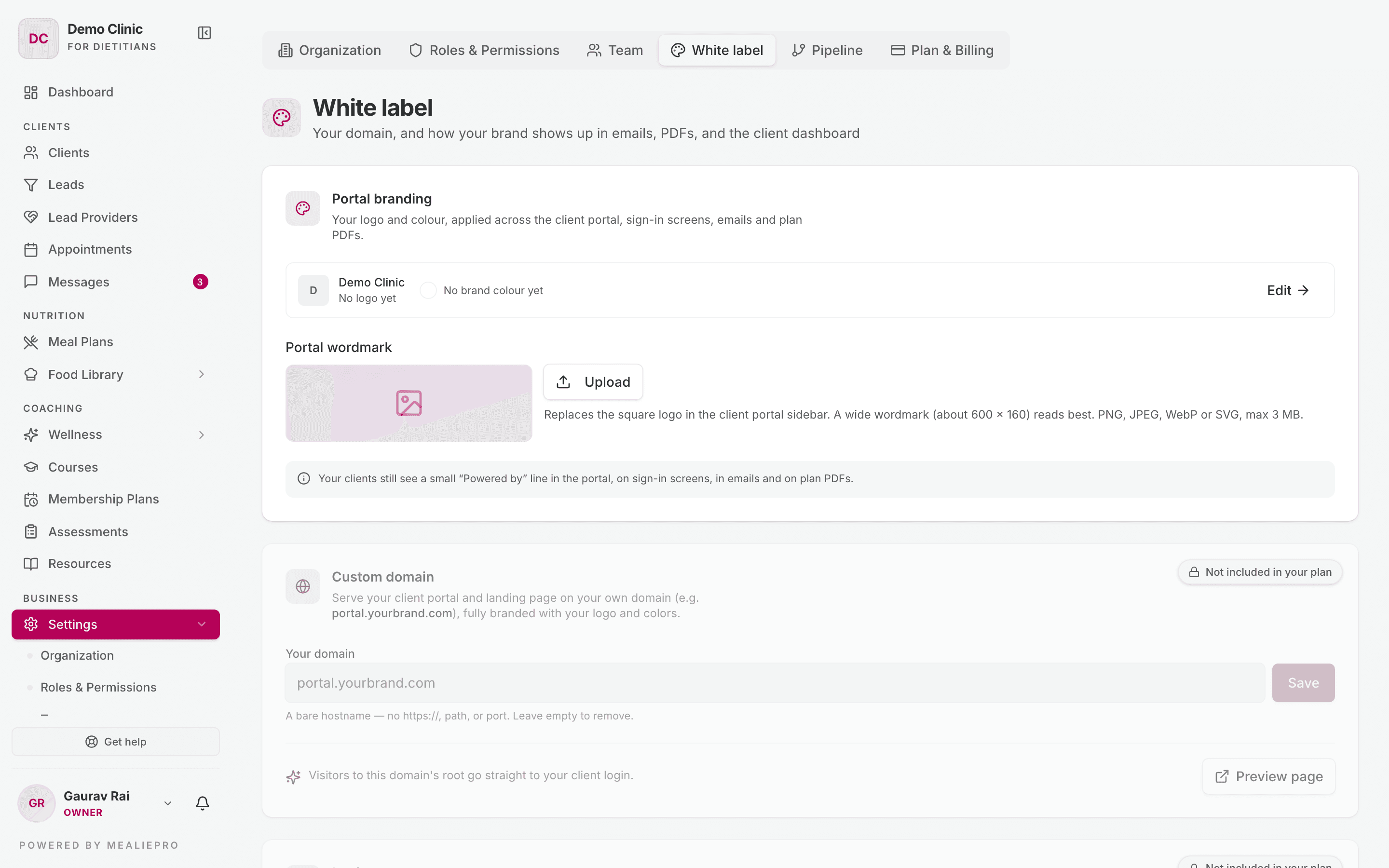
White label lets your clients see your brand instead of ours. You set it up in Settings → White label. Only owners and admins can open it.
White label comes in three levels. Each level includes everything in the level before it.
| Level | What you get |
|---|---|
| 1 — Branding | Your logo and brand colour on the client portal, sign-in screens, emails and plan PDFs. A small "Powered by" line stays on. You can also upload a Portal wordmark. |
| 2 — Advanced | Everything in Branding, plus your own custom domain, layouts for your login screens and PDFs, full control of emails and the client dashboard, and the choice to remove the "Powered by" line. |
| 3 — Landing Page | Everything in Advanced, plus the landing page builder for your public site. |
The White label tab shows every section, even the ones that your plan does not include. A section that your plan does not include is grey, has a Not included in your plan label, and does not accept changes.
To change your level, click Get help at the bottom of the sidebar and ask us. The tab has no upgrade button. Your current add-ons are listed in Billing & invoicing.
Each section has its own Save changes button. Click Discard to undo your edits in that section.
Portal branding
Level 1.
This section shows the logo and brand colour that clients see. You do not set them here:
- Your logo and Theme Color are in Settings → Organization. Click Edit on this card to go there.
You can upload one image here:
- Portal wordmark — a wide logo that replaces the square logo in the client portal sidebar. About 600 × 160 works best. Use a PNG, JPEG, WebP or SVG file of 3 MB or less.
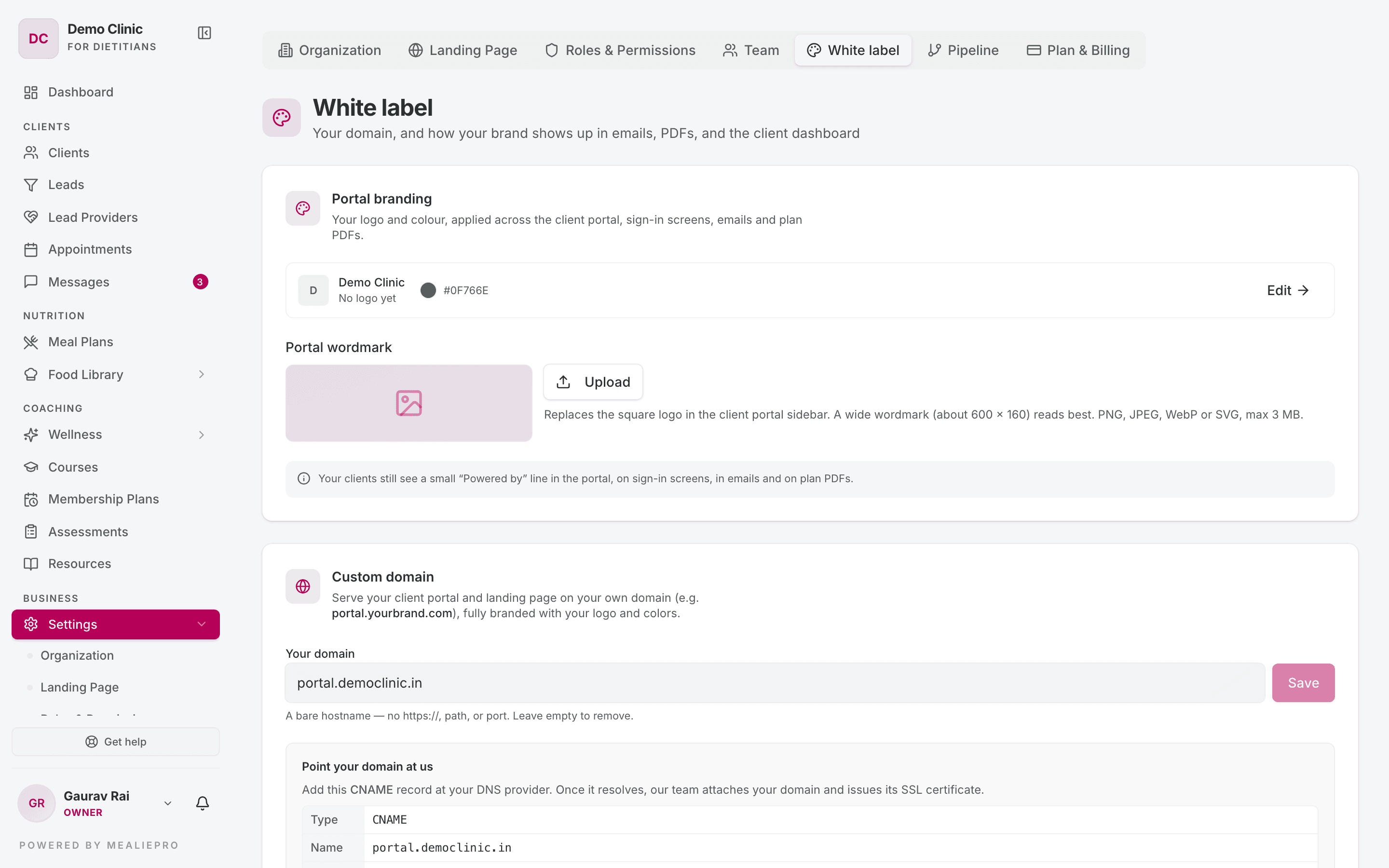
At level 1, clients still see a small "Powered by" line in the portal, on sign-in screens, in emails and on plan PDFs. To remove it, you need level 2.
Custom domain
Level 2.
Serve your client portal and your landing page on your own address, for example portal.yourbrand.com.
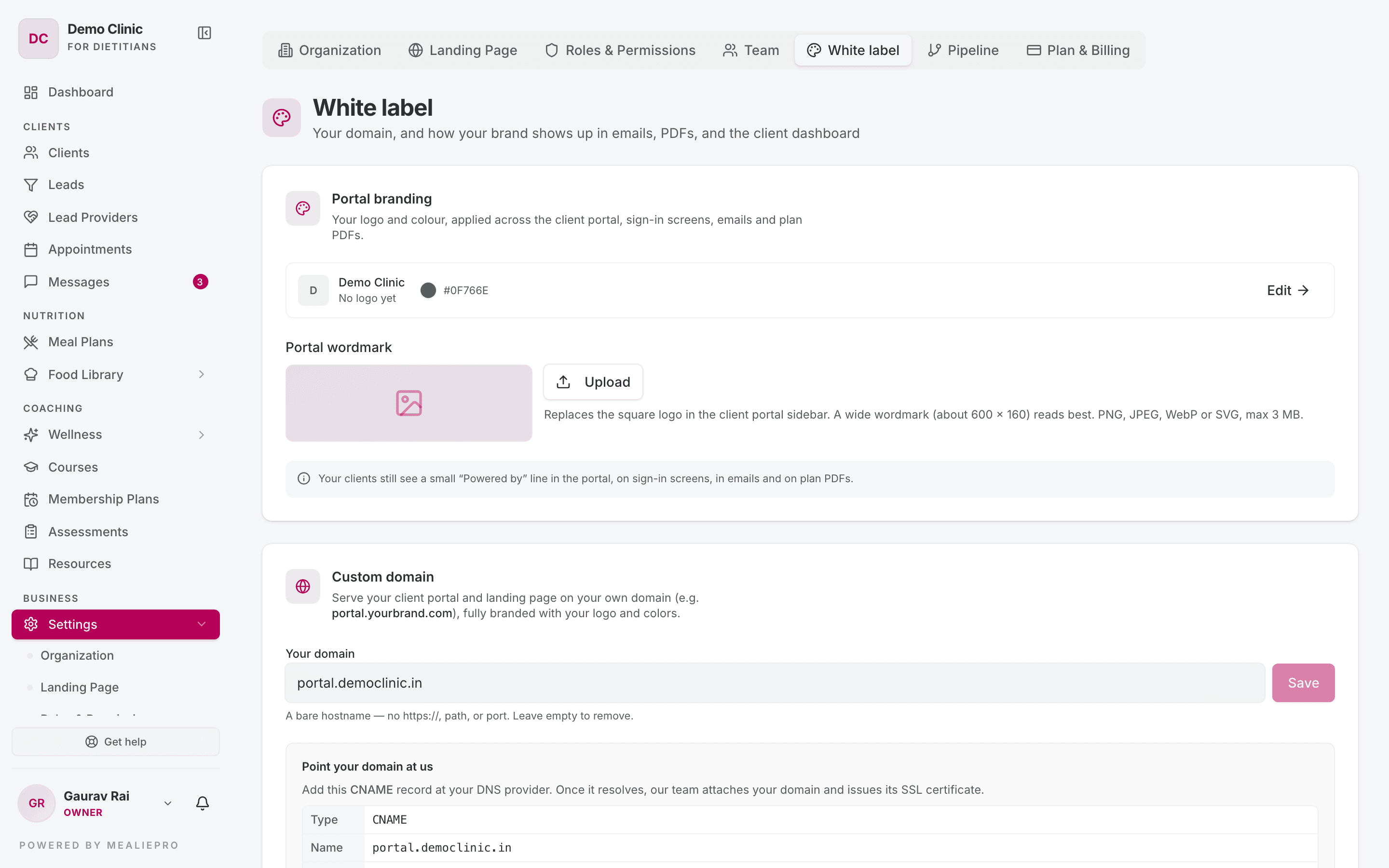
- Type the address in Your domain. Use the host name only — no
https://, path or port. - Click Save.
- Copy the CNAME record under Point your domain at us.
- Add that record at your DNS provider (where you bought the domain).
- Wait for the record to work. Our team then connects your domain and sets up its SSL certificate.
To remove the domain, clear the field and click Save.
What visitors see at the domain depends on your level:
- Level 2: the domain opens your client login.
- Level 3: the domain opens your published landing page.
Click Preview page to open the domain.
Some addresses are reserved. A domain cannot start with
business.,operations.,admin.orapi., because those names send people to the wrong part of the app.
If your plan drops below level 2, your domain stops showing your brand. Your saved settings stay, and they apply again when you upgrade.
Login screens
Level 2.
This section controls what your clients and staff see before they sign in on your own domain.
| Field | What it does |
|---|---|
| Layout | Classic (a centred card on a colour sweep — the default), Split (the form on one side and a full-height colour panel on the other), or Minimal (a plain background with your logo and the form). |
| Tagline | One line under your name on the sign-in screens. Leave it blank for none. |
| Show "Powered by" on sign-in | Turn it off to remove every mention of the platform from these screens. |
Level 2.
This section controls how your emails introduce you — invites, reminders and appointment confirmations. A Preview shows a sample email as you edit.
| Field | What it does |
|---|---|
| Header banner | A wide image at the top of every email. About 1120 × 280 works best. If you leave it empty, the email uses your logo. |
| Show the header banner | Turn it off to show your colour tile and organization name instead. |
| Accent color | The colour of buttons and highlights in your emails. Leave it empty to use your theme colour. |
| Sender name | The "From" name. Emails still send from our address. |
| Reply-to address | Where client replies go. Leave it empty to use the default. |
| Footer text | Text under your name in every email footer, for example your address and phone number. |
PDF exports
Level 2.
This section controls the cover and page design of the meal plans that you give to clients.
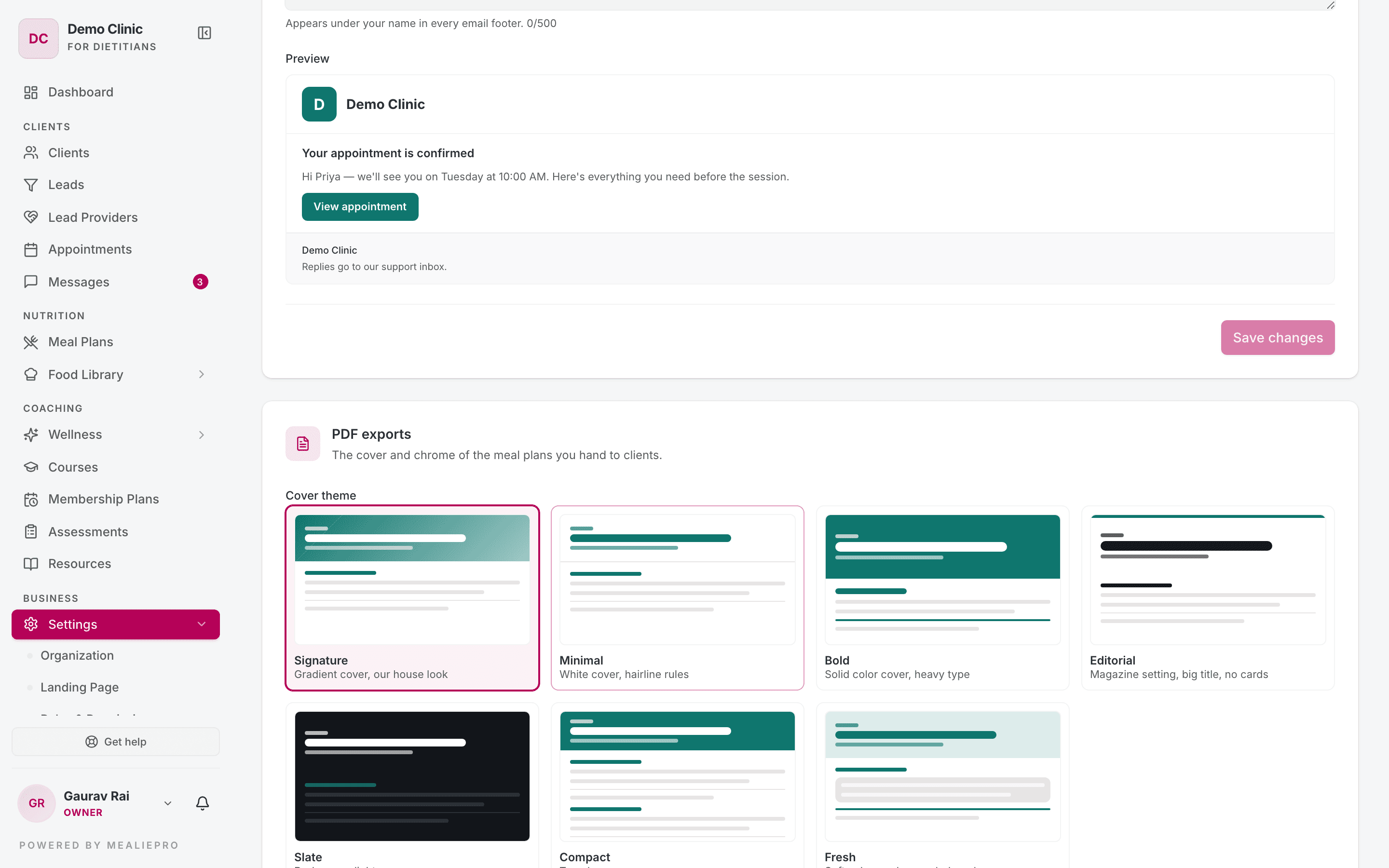
Cover theme — pick one of seven designs:
| Theme | Look |
|---|---|
| Signature | Gradient cover — our house look. The default. |
| Minimal | White cover, thin lines. |
| Bold | Solid colour cover, heavy type. |
| Editorial | Magazine layout, big title, no cards. |
| Slate | Dark cover, light pages. |
| Compact | Two days on each page, to save paper. |
| Fresh | Soft colour wash, rounded cards. |
Other settings:
- Show your logo on the cover
- Show "powered by" footer
- Cover quote — a line under the plan title on the cover.
- Footer text — printed at the bottom of every page.
To check your settings on a real plan, save your changes first, then click Download sample PDF.
Invoices have their own designs. Set them in Billing & invoicing.
Client dashboard
Level 2.
This section controls the first screen that your clients see when they sign in.
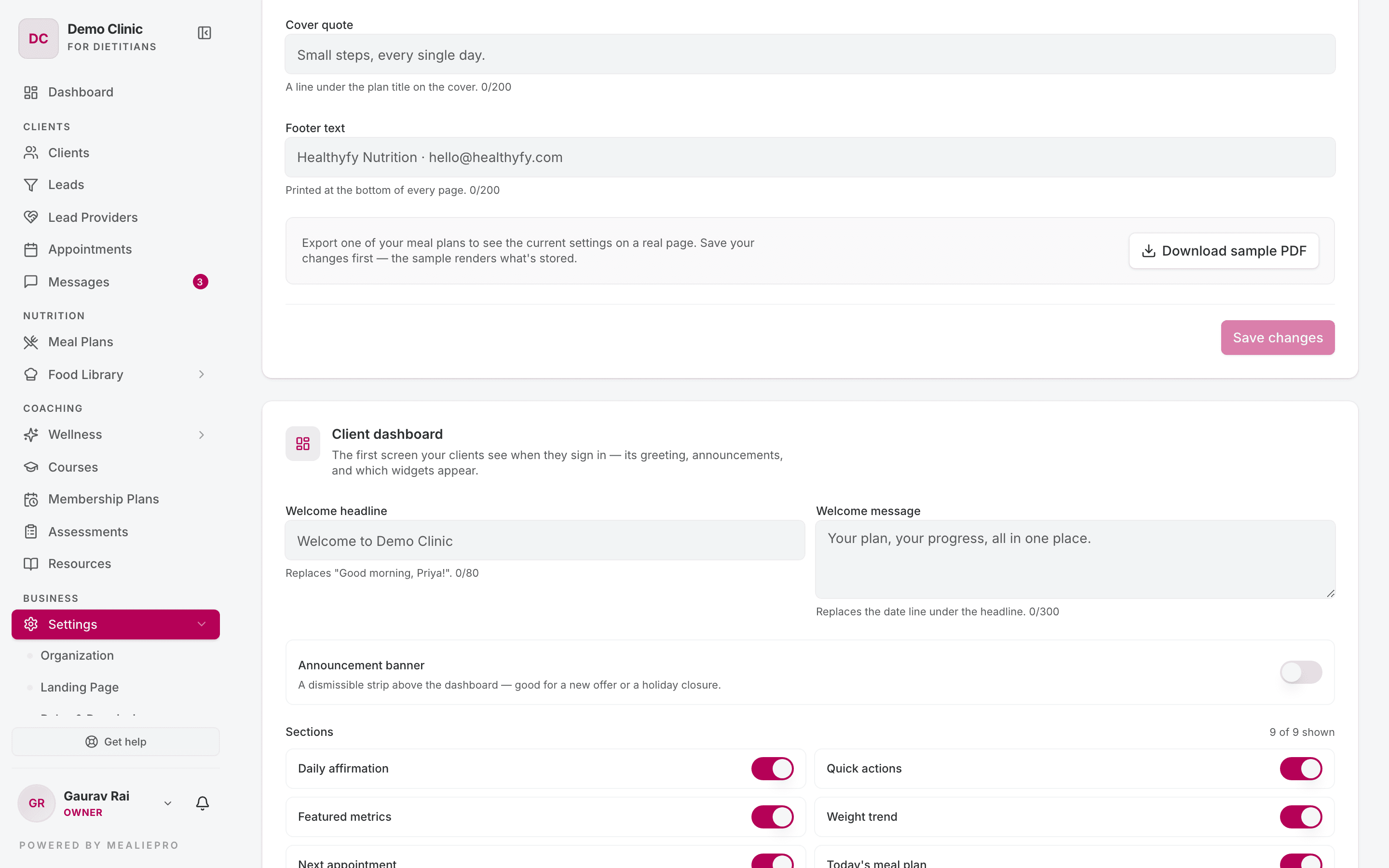
| Field | What it does |
|---|---|
| Welcome headline | Replaces the greeting, for example "Good morning, Priya!". |
| Welcome message | Replaces the date line under the headline. |
| Announcement banner | A strip above the dashboard that clients can close. Use it for an offer or a holiday closure. Type the message in Banner text. |
| Sections | A switch for each dashboard section: Daily affirmation, Quick actions, Featured metrics, Weight trend, Next appointment, Today's meal plan, Wellness score, Quick stats and Assigned coach. |
| Show "Powered by" in the portal | Also controls the line in the footer of your emails. |
When you hide a section, it disappears for every client in your organization. The data stays, and clients can still open it from the sidebar.
For what clients see, see Client portal.
Landing page
Level 3.
This card shows whether your public site is Published or a Draft, and its address. Click Open the builder to edit it. For the full guide, see Landing page.
Commission a custom page
Every level, including none.
If you already have a design — a graphic, a PDF, or a site that you like — we can build it for you as a one-off. We send you a quote before any work starts.
- Click Request a custom page.
- In What would you like built?, describe the page. Write at least 20 characters.
- Optional: add a Reference site and a Reply to email address.
- Click Attach artwork to add files. Use PNG, JPEG, WebP, GIF, PDF or ZIP files of up to 15 MB each.
- Click Send request.
Your requests show on the card with their status: Requested, Quoted, Approved, In progress, Delivered or Cancelled. To send another request, click Send another request.
Common workflows
I want clients to see my brand, not yours
- Upload your logo and set your Theme Color in Settings → Organization.
- At level 1, that is all you need. Your logo and colour appear across the portal, emails and PDFs.
- At level 2, also set the Email, PDF exports and Client dashboard sections.
I want my clients to log in at my own address
- You need level 2.
- Add the domain under Custom domain and click Save.
- Add the CNAME record at your DNS provider.
- Give your clients the new address after our team confirms that it works.
I want to hide the "Powered by" line
You need level 2. Then turn off each switch:
- Show "Powered by" on sign-in (Login screens)
- Show "powered by" footer (PDF exports)
- Show "Powered by" in the portal (Client dashboard — this also covers emails)
What's next
- Landing page — build and publish your public site.
- Billing & invoicing — your add-ons, and your invoice design.
- Settings & team — your logo and theme colour.
- Client portal — what your clients see.
- Meal plans — export a plan as a PDF.