Landing page
Build a public website for your practice from a template, feature your courses and plans, and publish it on your own domain.
The landing page builder gives your practice a public website. You pick a template, write your content, and publish the site on your own domain. Visitors can send you an enquiry, and each enquiry becomes a lead.
Open Settings → Landing Page. Only owners and admins can open it.
The Landing Page tab shows only if your plan includes it. The builder is white label level 3. If you do not see the tab, your plan does not include it.
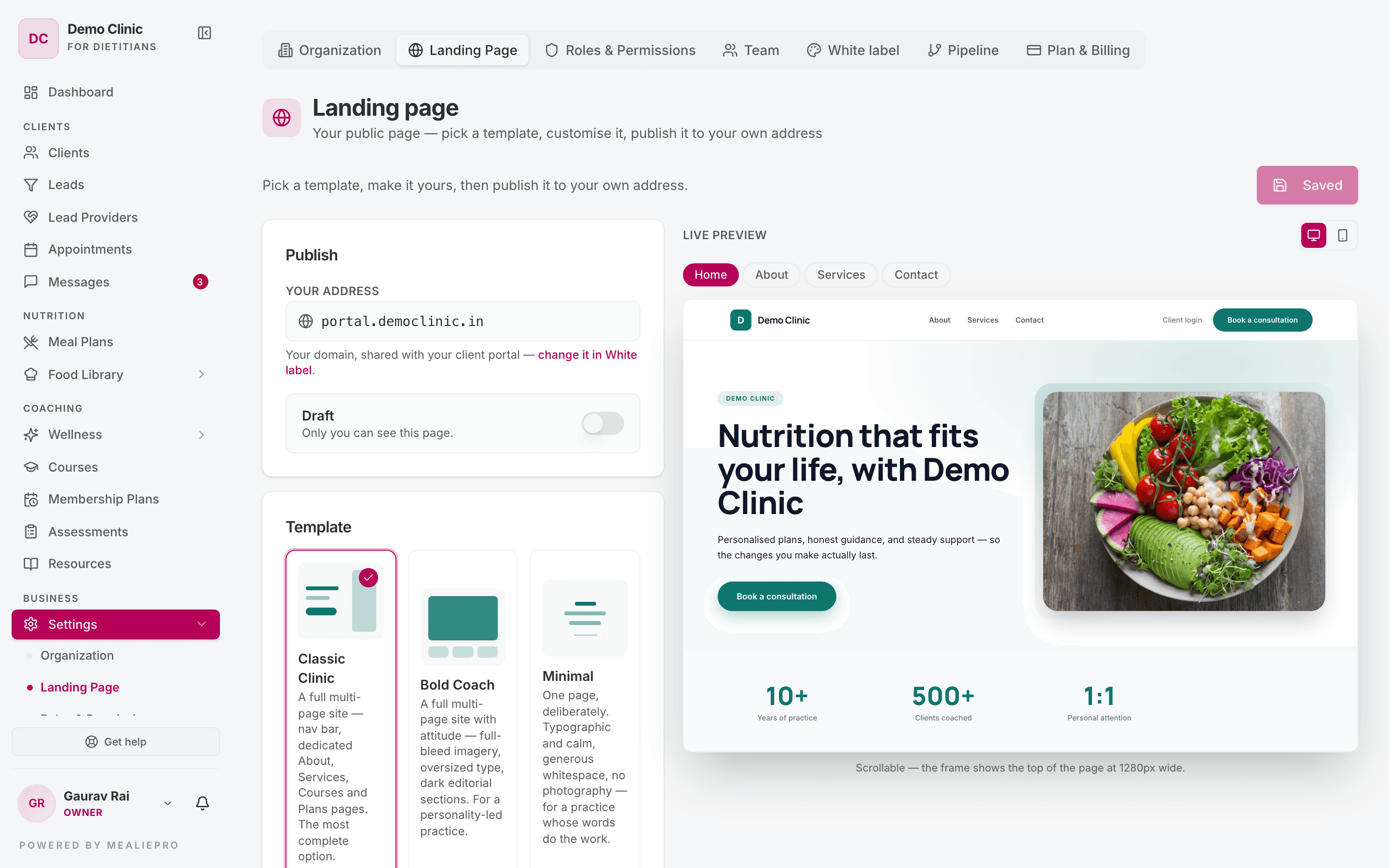
The page has two parts:
- On the left are the settings: Publish, Template, Look & feel, Content and Search engines.
- On the right is the Live preview. Use the page buttons (Home, About and so on) to preview each page. Use the icons at the top right to switch between desktop and mobile.
Click Save changes at the top of the page to save. The button shows Saved when there is nothing new to save.
1. Choose a template
Under Template, click a design. Your content stays the same when you change the template, so you can try each one.
| Template | Style |
|---|---|
| Classic Clinic | A full multi-page site with a menu, and separate About, Services, Courses and Plans pages. The most complete option. This is the default. |
| Bold Coach | A multi-page site with large images, big type and dark sections. For a practice led by a strong personality. |
| Minimal | One page only. Calm and typographic, with lots of white space and no photos. |
| Editorial | A multi-page magazine layout with a high-contrast serif font. For a practice that teaches and publishes. |
| Studio | A multi-page site that is dark and high-contrast, with rounded shapes and gradients. For transformation coaching. |
| Botanical | A multi-page site with arched images, soft curves and a rounded font. For gentle, whole-person work. |
A multi-page site can have these pages: Home, About, Services, Courses, Plans and Contact. A page shows in the menu only if it has content.
If we built a custom page for you, the Template section does not show. You still write your content and publish from this page. See Commission a custom page.
2. Set the look
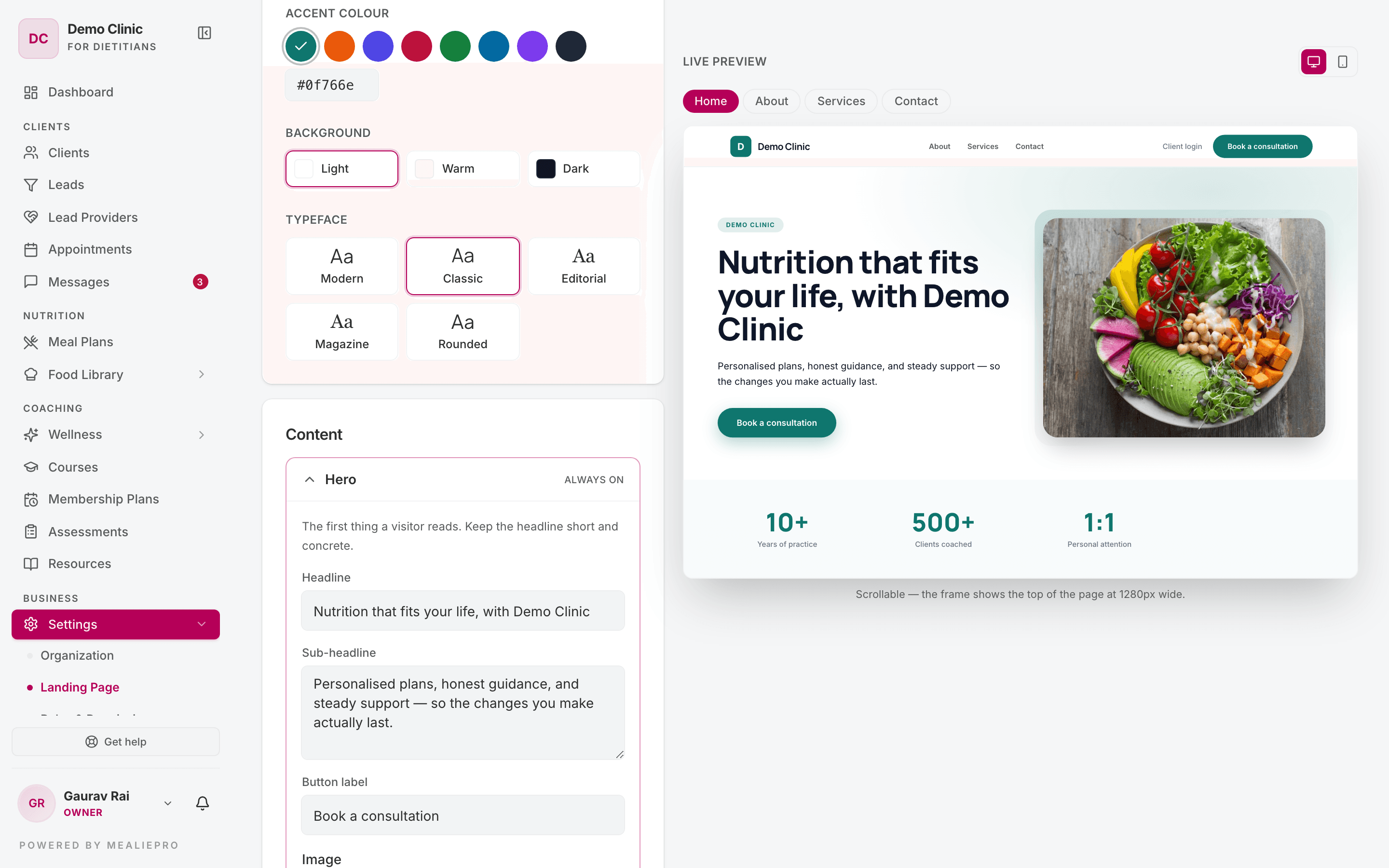
Under Look & feel:
- Accent colour — pick a preset or type a hex value.
- Background — Light, Warm or Dark.
- Typeface — Modern, Classic, Editorial, Magazine or Rounded.
3. Write your content
Under Content, each section of the site has its own row. Click a row to open it.
| Section | What to put in it |
|---|---|
| Hero | The first thing a visitor reads: a short headline, a sub-headline, a button label and an image. This section is Always on. |
| About | Who you are, and why someone should trust you with their health. |
| Services | What a client can book or buy. Up to 6 items. |
| Highlights | Numbers that build trust, such as years of practice or clients coached. Up to 4 items. |
| Courses | Your featured courses. See below. |
| Membership plans | Your featured plans. See below. |
| Testimonials | Quotes from your clients. Up to 4 items. Get their permission first. |
| Call to action | The closing request. Its button sends visitors to your enquiry form. |
For each section:
- Use the switch to show or hide it.
- Use the up and down arrows on a list item to move it. Use the remove icon to delete it.
- Use the Add … button to add an item. The button shows the maximum when the list is full.
- Upload an image in a PNG, JPEG or WebP file of up to 5 MB.
A row marked not in this template is a section that the current template does not show. Its content stays saved in case you change templates.
Feature courses and plans
The Courses and Membership plans sections do not have their own items. They show what you choose to feature:
- Courses — open a course, go to its Details tab, and turn on Feature on my website. Only published courses appear. If the course is also Free to join, visitors can sign up and start it at once. See Courses.
- Membership plans — open a plan and turn on Feature on my website. Plans are private until you feature them. If the plan has a price, the price shows. See Membership plans.
Nothing appears in these sections until you feature something.
4. Set the search engine text
Under Search engines:
- Page title — the title in search results and the browser tab. Up to 70 characters. If you leave it empty, your practice name is used.
- Description — one or two sentences under the title in search results. Up to 200 characters.
5. Publish
The Publish section shows Your address and the page status.
Your site uses the same domain as your client portal. You set that domain in Settings → White label. If you have no domain yet, the section says "Your page has nowhere to live yet." Click the link to add one. See Custom domain.
| Status | Meaning |
|---|---|
| Draft | Only you can see the page. |
| Live | Anyone with the address can see the page. |
| Live, but unreachable | The page is published, but it has no address, so nobody can reach it. This happens if you remove the domain after you publish. |
To publish, turn on the switch. You cannot turn it on until you add a domain. When the page is live, the section shows its address, with buttons to copy it and to open it.
To take the page down, turn off the switch.
Enquiries from your site
The Call to action button and the contact page send visitors to an enquiry form. The form asks for:
- Your name (always required)
- Email and Phone — required or optional, depending on your settings
- What would you like help with? (optional)
Visitors click Send enquiry. Each enquiry arrives the same way as a sign-up from your public lead signup link:
- If your plan includes Leads, the enquiry becomes a lead on your Leads board.
- If it does not, the person appears in your client list with the Free badge.
To choose which fields are required, go to Settings → Organization → Public lead signup and use Require email and Require phone. See Public lead signup.
Check that your buttons go somewhere. If public lead signup is off and your practice has no email or phone number, a yellow warning says "Your buttons have nowhere to send visitors." Turn on public lead signup, or add a contact email or phone number in Settings → Organization.
Tip: In the preview, the form works but sends nothing. It says "This is a preview, so nothing was actually sent."
Common workflows
I want a simple one-page site
- Pick the Minimal template.
- Fill in Hero, About and Call to action.
- Turn off the sections that you do not need.
- Click Save changes, then turn on the Publish switch.
I want to sell my 3-month program on my site
- Open Membership Plans, open the plan, and set its Display price (₹).
- Turn on Feature on my website and save the plan.
- In the landing page builder, turn on the Membership plans section.
- Check the Plans page in the preview, then click Save changes.
I want to know which campaign brings enquiries
Use tracking links. In Settings → Pipeline, add a source and copy its link. See Lead sources & tracking links.
What's next
- White label — add the domain that your site needs.
- Leads — follow up on the enquiries that your site brings.
- Courses and Membership plans — choose what to feature.
- Settings & team — public lead signup and required fields.