Membership plans & payments
Create the programs you sell, enrol clients, record payments, raise client invoices and control what each client sees in their portal.
A membership plan is a program that you sell to a client. It has a name, a length in days and, if you want, a price. A "3‑Month Plan" is a plan of 90 days. You create each plan one time, then you enrol clients into it.
A plan does two jobs:
- Money — the price, the payments and the invoices for each client.
- Access — which parts of the client portal the client can use.
This is not your subscription. A membership plan is what your clients pay you. Your own subscription to the product is in Settings › Plan & Billing. A meal plan is a third, different thing — see Meal plans.
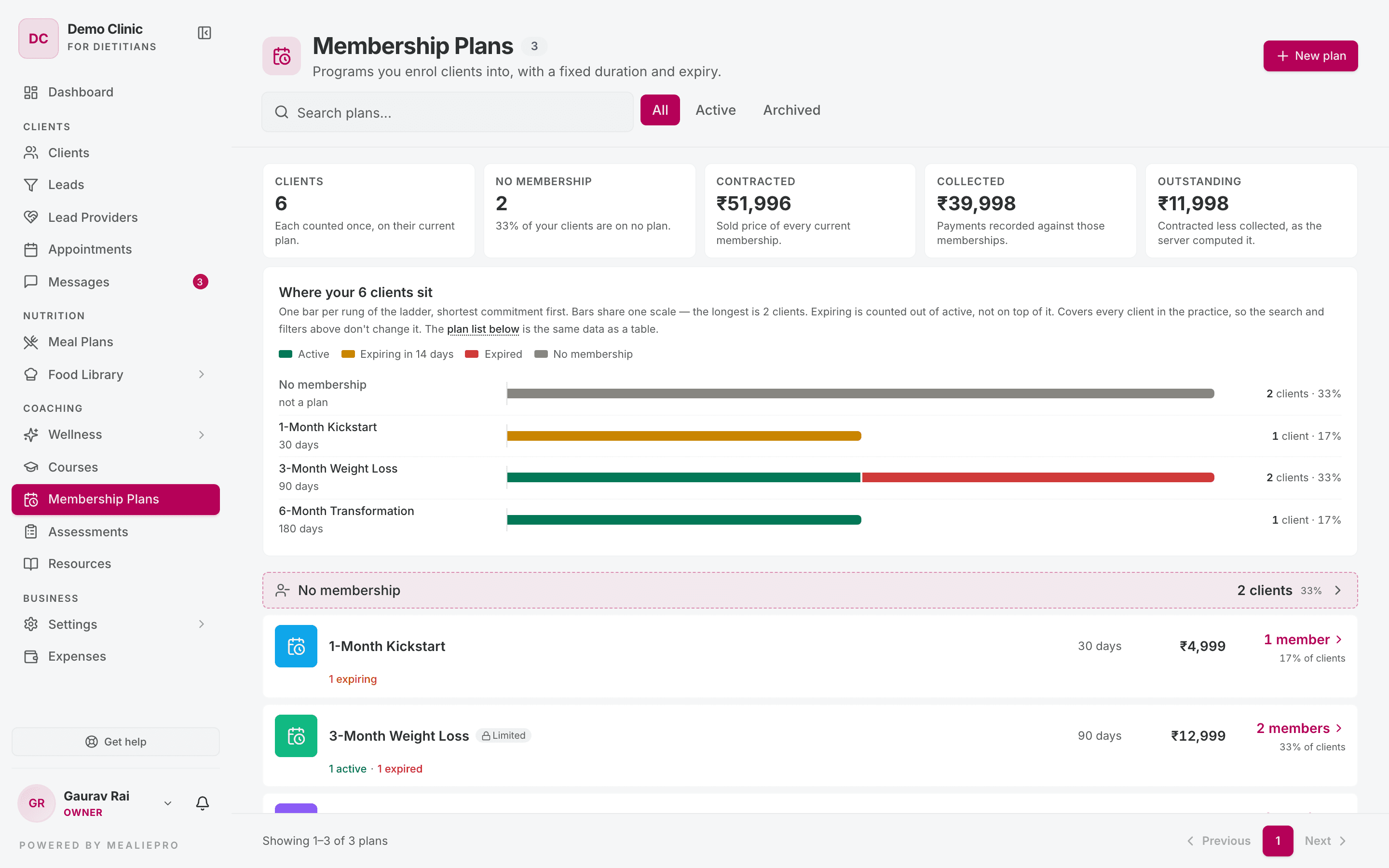
Open Membership Plans in the sidebar, under Coaching. The page subtitle is "Programs you enrol clients into, with a fixed duration and expiry."
Note: Only roles with the Manage Membership Plans permission can use this page and the client's Membership tab. By default, these are Owner, Admin and Dietician. Other roles see the sidebar item, but the page does not load its data.
1. Create a plan
Click New plan. The dialog is called Create a membership plan.
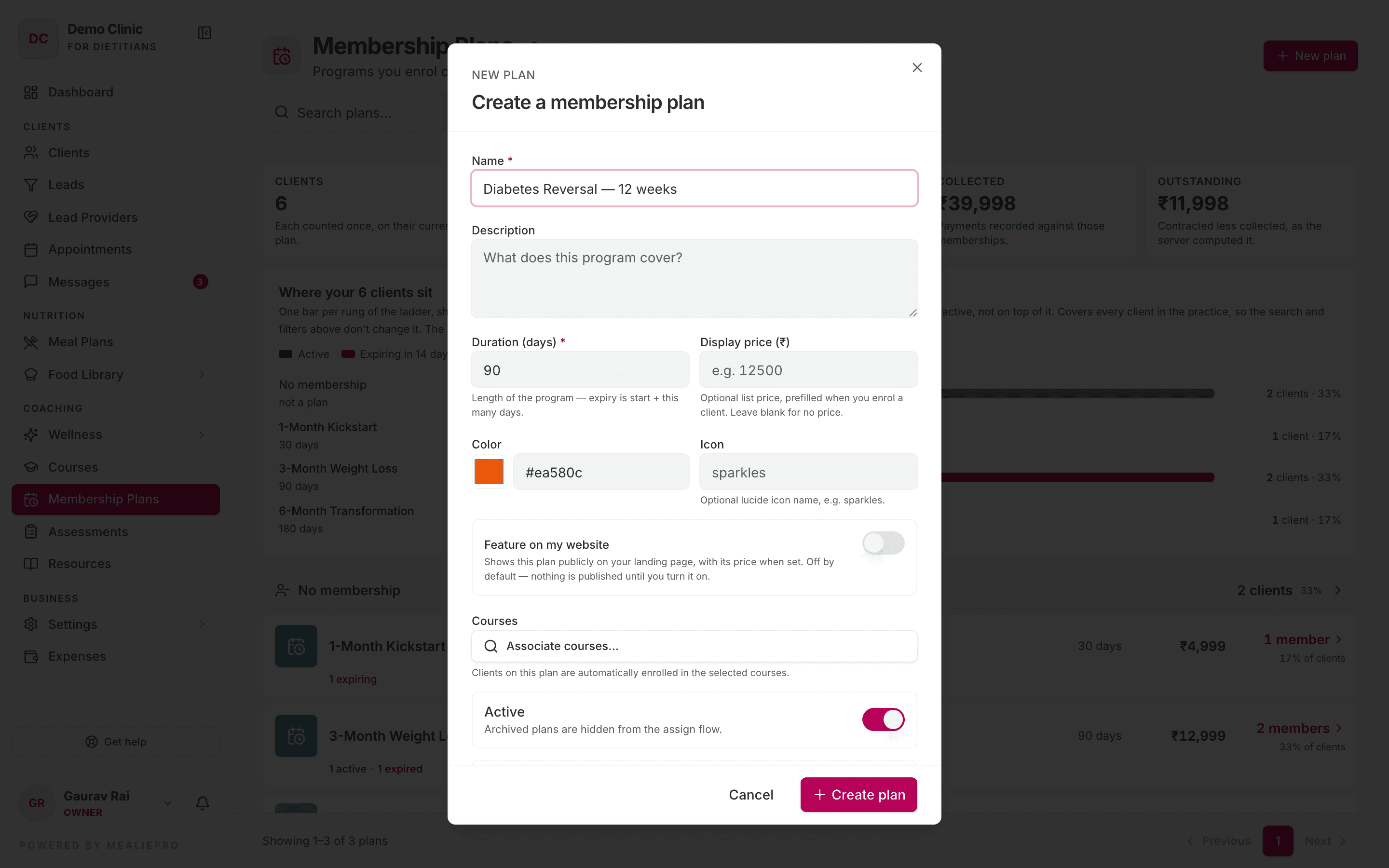
| Field | Notes |
|---|---|
| Name | Required. For example 3‑Month Weight Loss. |
| Description | What the program includes. Optional. |
| Duration (days) | Required. The default is 90. The expiry date is the start date plus this number. |
| Display price (₹) | Optional. "Optional list price, prefilled when you enrol a client." Leave it empty if the plan has no price. |
| Color | A color that helps you find the plan in lists. |
| Icon | Optional. An icon name, for example sparkles. |
| Feature on my website | Shows the plan, with its price, on your landing page. Off by default. |
| Courses | Optional. "Clients on this plan are automatically enrolled in the selected courses." Shows only if your subscription includes courses. |
| Active | "Archived plans are hidden from the assign flow." |
| Limit features for this plan | Choose which parts of the portal the client can use. See Limit what a client can see. |
Click Create plan.
Tip: Keep Feature on my website off for a plan that has a client's name in its title. The switch is off by default for this reason.
Limit what a client can see
Turn on Limit features for this plan. Then tick the modules that clients on this plan can use:
| Module | Description in the app |
|---|---|
| Meal Plan | Assigned meal plan |
| Food Log | Daily food logging |
| Progress | Weight, measurements & photos |
| Wellness Plan | Daily wellness tasks |
| Appointments | Booking & scheduling |
| Courses | Assigned education courses |
| Messaging | Chat with their dietician |
| Resources | Assigned educational content |
| Assessments | Questionnaires & check-ins |
When you turn the switch on, every module is ticked. Untick the modules you do not want.
- If the switch is off, clients get every module that your subscription includes.
- If a client has no plan, they also get every module.
- Wellness Plan and Courses also need your own subscription to include them.
- Preferences and Medical Records are always available to clients.
- Messages is always available to clients, also when you untick Messaging.
When a module is blocked, it disappears from the client's sidebar. If the client opens its address, the app sends them back to their dashboard. A plan with limits shows a Limited badge in the list.
2. Read the page
The figures at the top
The top of the page shows five figures for your whole practice. The section is hidden while you have no clients.
| Figure | What it means |
|---|---|
| Clients | "Each counted once, on their current plan." |
| No membership | Clients who are not on a plan. |
| Contracted | "Sold price of every current membership." Memberships with no price are left out, and the figure says how many. |
| Collected | The payments you recorded. |
| Outstanding | What clients still owe. If clients paid more than they owe, this shows Overpaid. |
Below the figures, the chart "Where your N clients sit" shows one bar for each plan and one for No membership. Each bar has three parts: Active, Expiring in 14 days and Expired. Search and filters do not change the chart.
The plan list
Use "Search plans..." and the tabs All · Active · Archived.
Each plan row shows:
- the name, with a Limited or Archived badge,
- the duration and the price (no price shows nothing, not ₹0),
- N members and the share of your clients — click it to open the Clients list filtered to this plan,
- a status line: "N active · N expiring · N expired · past: N completed, N cancelled".
The first row, No membership, links to the clients without a plan.
Click a plan row to edit the plan.
3. Enrol a client
You can enrol a client in two places:
- When you add the client — the last step of the add‑client wizard is Plan.
- Later — open the client's Membership tab and click Assign a plan. If the client already has a plan, the button is Change plan (plan active) or Renew plan (plan expired).
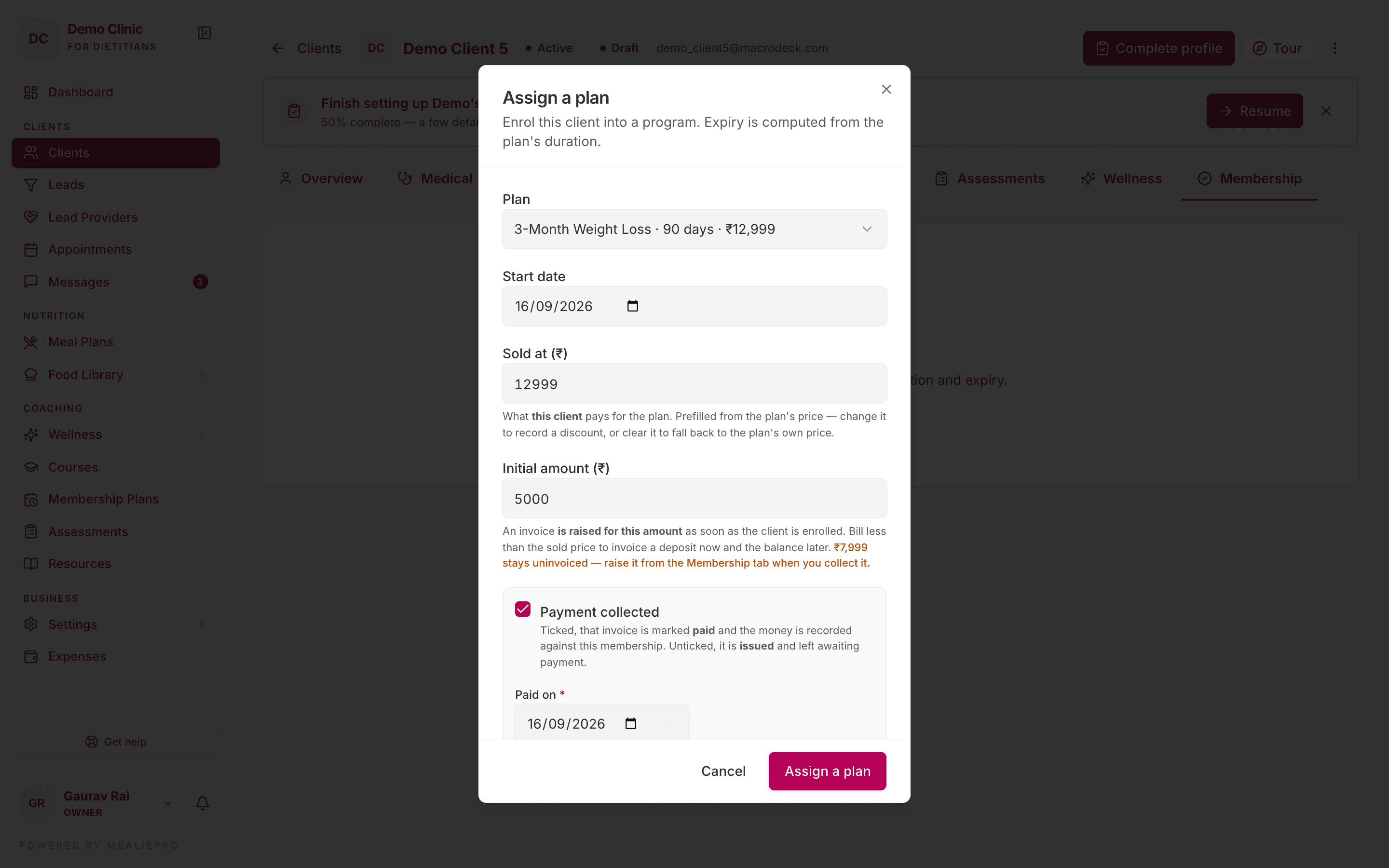
The Assign a plan dialog has these fields:
| Field | Notes |
|---|---|
| Plan | Only active plans show. |
| Start date | Today by default. |
| Sold at (₹) | "What this client pays for the plan." The plan's price fills it in. Change it to record a discount. Clear it to use the plan's own price. |
| Initial amount (₹) | The amount of the first invoice. It is the same as Sold at unless you change it. Enter less to invoice a deposit now and the balance later. |
| Payment collected | Tick it if the client paid at signup. Then enter Paid on, Method and Reference. |
| Email this invoice to the client | Off by default. Tick it to send the invoice PDF to the client. |
The dialog shows the Computed expiry. Click Assign a plan, Change plan or Renew plan to save.
Important: When a plan has a price, enrolment always raises an invoice. Payment collected decides only the invoice status: Paid if ticked, Issued if not. A plan with no price, or a price of ₹0, raises no invoice.
If your GST & invoicing details are not complete, the app still enrols the client, but it cannot raise the invoice. The dialog shows a warning with Open billing settings. The add‑client wizard does not show this warning, so check the Invoices list after you add a client. Complete the details, then use Create invoice on the Membership tab. See Billing & invoicing.
Note: A renewal or a change starts a new enrolment. The old plan is closed automatically. The client can have only one active plan.
4. The Membership tab
Open the client and go to the Membership tab.
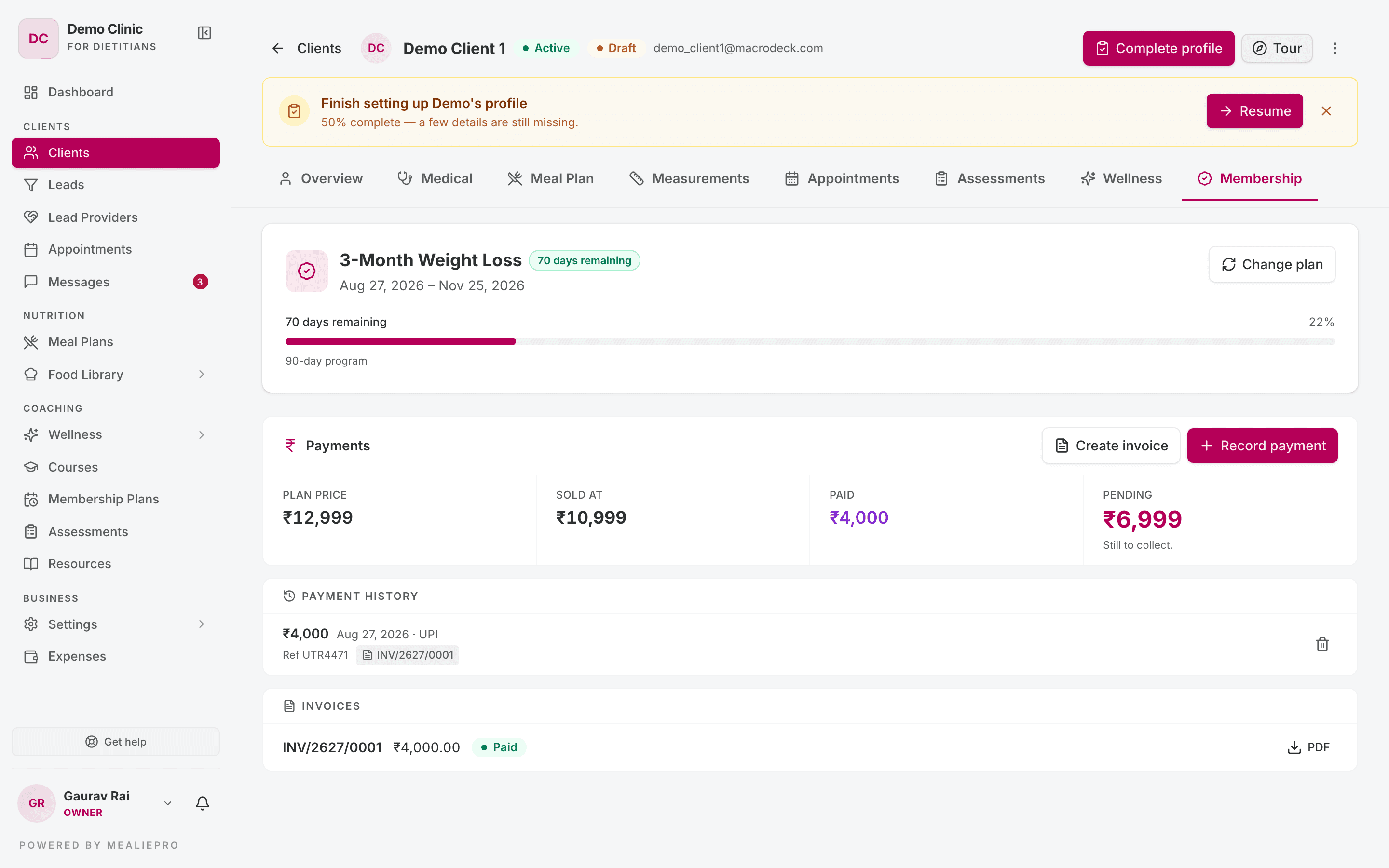
- The plan card — the plan name, a status badge, the dates and a progress bar. Badges: Active, Expires today, Expires in N days (14 days or less), N days remaining, Expired.
- Payments — four figures: Plan price, Sold at, Paid, and the balance. The balance shows Pending, Fully paid, Overpaid, or Not set when the membership has no price.
- Payment history — each payment with its date, method, reference, invoice number and the staff member who recorded it.
- Invoices — each invoice with its number, amount, status and a PDF button.
- Plan history — past plans, with "Sold at ₹X · paid ₹Y · ₹Z pending".
5. Record a payment
- On the Payments card, click Record payment.
- The Amount (₹) is the outstanding balance. Enter less for a part‑payment.
- Set Paid on. It cannot be a future date.
- Pick the Method: UPI, Bank transfer (NEFT / RTGS / IMPS), Cash or Cheque.
- Optional: enter the Reference ("UTR / cheque no. / receipt") and Notes.
- Click Record payment.
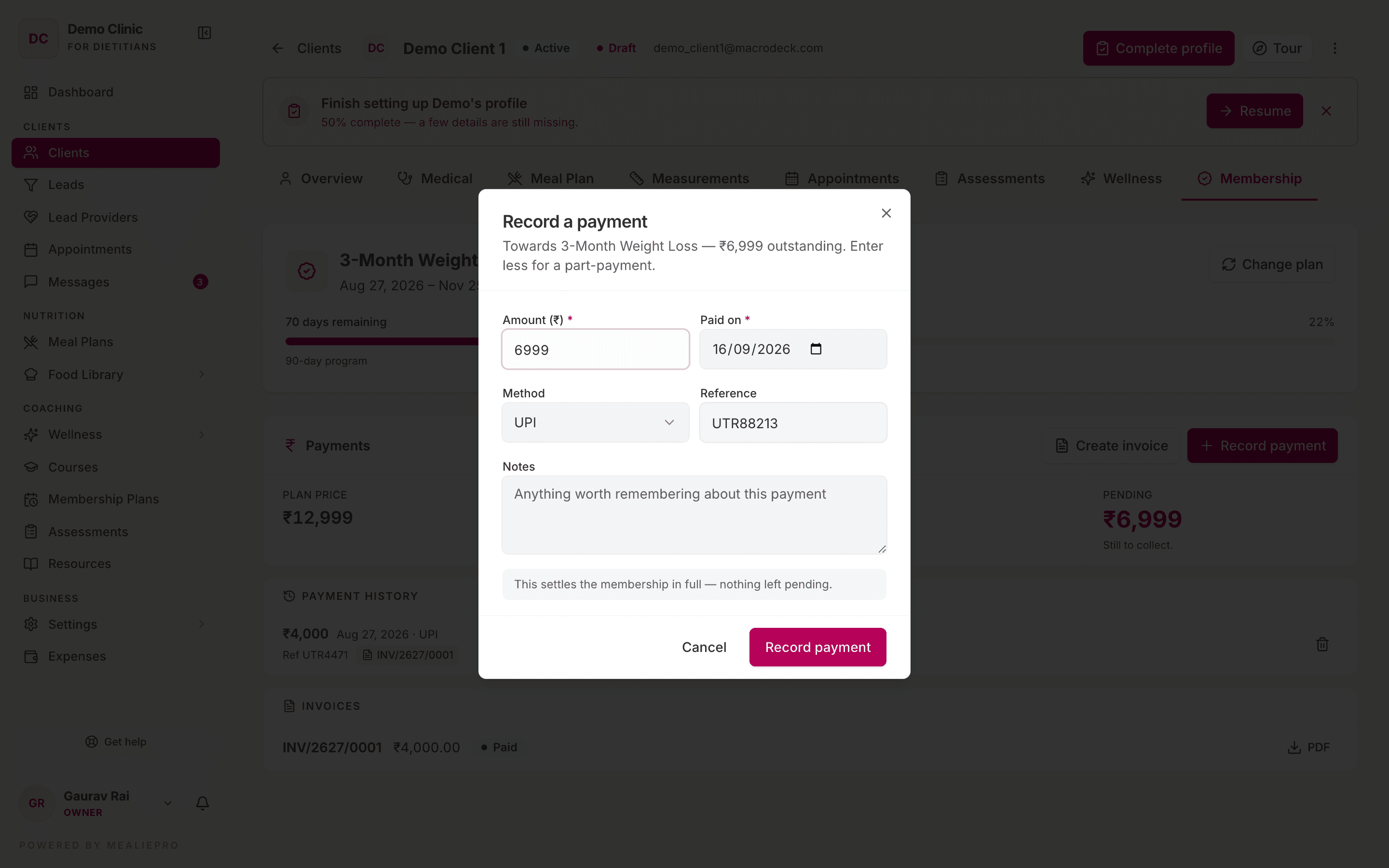
The dialog shows the balance after the payment, or tells you when the payment is more than the sold price.
The app links the payment to the oldest open invoice of the membership. When the payments cover that invoice, the invoice changes to Paid.
Correct a mistake: You cannot edit a payment. Click the delete icon, confirm "Delete this payment?" with Delete payment, then record the payment again.
If the client came from a lead provider, each payment can earn that provider a commission.
6. Invoice a client
An invoice is the record of the sale. It is not a reminder of what the client still owes.
- On the Payments card, click Create invoice.
- The dialog "Create and issue an invoice?" shows the amount. The amount is the part of the sold price that no invoice covers yet.
- Optional: tick Email this invoice to the client. If you do not tick it, the app sends nothing.
- Click Create invoice.
The app gives the invoice a number (for example INV/2627/0001) and issues it at once. You cannot edit an issued invoice. Click PDF to download it.
The dialog tells you when there is nothing to invoice:
- "This membership has no price set…" — set a sold‑at price first.
- "This membership has already been invoiced in full…"
What goes on the invoice depends on your GST & invoicing details:
| Your practice | The invoice |
|---|---|
| Has a GSTIN | A GST tax invoice at the standard rate. |
| Has no GSTIN | A plain INVOICE at zero tax. |
The invoice design and accent color also come from your billing settings.
What client invoices do not do:
- The app does not send reminders for unpaid client invoices.
- Clients cannot see their invoices in the client portal. Send the PDF, or tick the email box.
7. When a plan expires
Every night, the app marks plans that reached their end date as Expired.
- The client's food log becomes read‑only. The client keeps their history but cannot add new entries.
- The client's assigned staff member gets a notification. If the client has no assigned staff member, nobody gets it.
- Nothing is deleted.
The dashboard lists plans that expire in the next 14 days. Use it to renew a plan before it expires.
To continue, open the client's Membership tab and click Renew plan.
8. Archive a plan
You cannot delete a plan that has enrolments. Archive it instead:
- Click the plan row to open it.
- Click Archive in the dialog footer.
The plan leaves the assign list. Clients on it keep their enrolment and their history. To use the plan again, click Restore.
Common workflows
"Set up the three packages I sell"
- Click New plan. Enter 1‑Month Kickstart, 30 days, and the price.
- Do the same for 3‑Month Plan (90 days) and 6‑Month Transformation (180 days).
- Give each plan a different color.
- Every new client now gets a plan at the last step of the add‑client wizard.
"Sell a 3‑month plan at a discount, with a deposit"
- Open the client's Membership tab and click Assign a plan.
- Pick the plan. Change Sold at (₹) to the discounted price.
- Set Initial amount (₹) to the deposit.
- Tick Payment collected and enter the payment details.
- Save. The deposit invoice is Paid, and the balance stays uninvoiced.
- When the client pays the balance, click Record payment, then Create invoice.
"The client paid in full at signup"
- Click Assign a plan and pick the plan.
- Leave Initial amount (₹) as it is.
- Tick Payment collected and save. The invoice is Paid.
"The Create invoice button says my billing details are incomplete"
Click Open billing settings and complete the fields marked Required to invoice. A GSTIN is not required. See Billing & invoicing.
"I entered the wrong payment amount"
Delete the payment in Payment history, then record it again with the correct amount.
"I stopped selling a package"
Open the plan and click Archive. It leaves the assign list. Everyone on it keeps their enrolment.
What's next
- Clients — the add‑client wizard and the Membership tab.
- Billing & invoicing — your GST details and invoice design.
- Courses — link courses to a plan.
- Landing page — show your plans on your website.
- Client portal — what a client sees with each module.
- Lead providers — commissions on client payments.