Your dashboard
What each part of the staff dashboard shows, which clients it counts, and where each link goes.
The dashboard is the first page you see after you sign in. It shows the clients who need you today, your schedule, and the plans that end soon.
Click Dashboard at the top of the sidebar to open it from any page.
1. The greeting and the tour
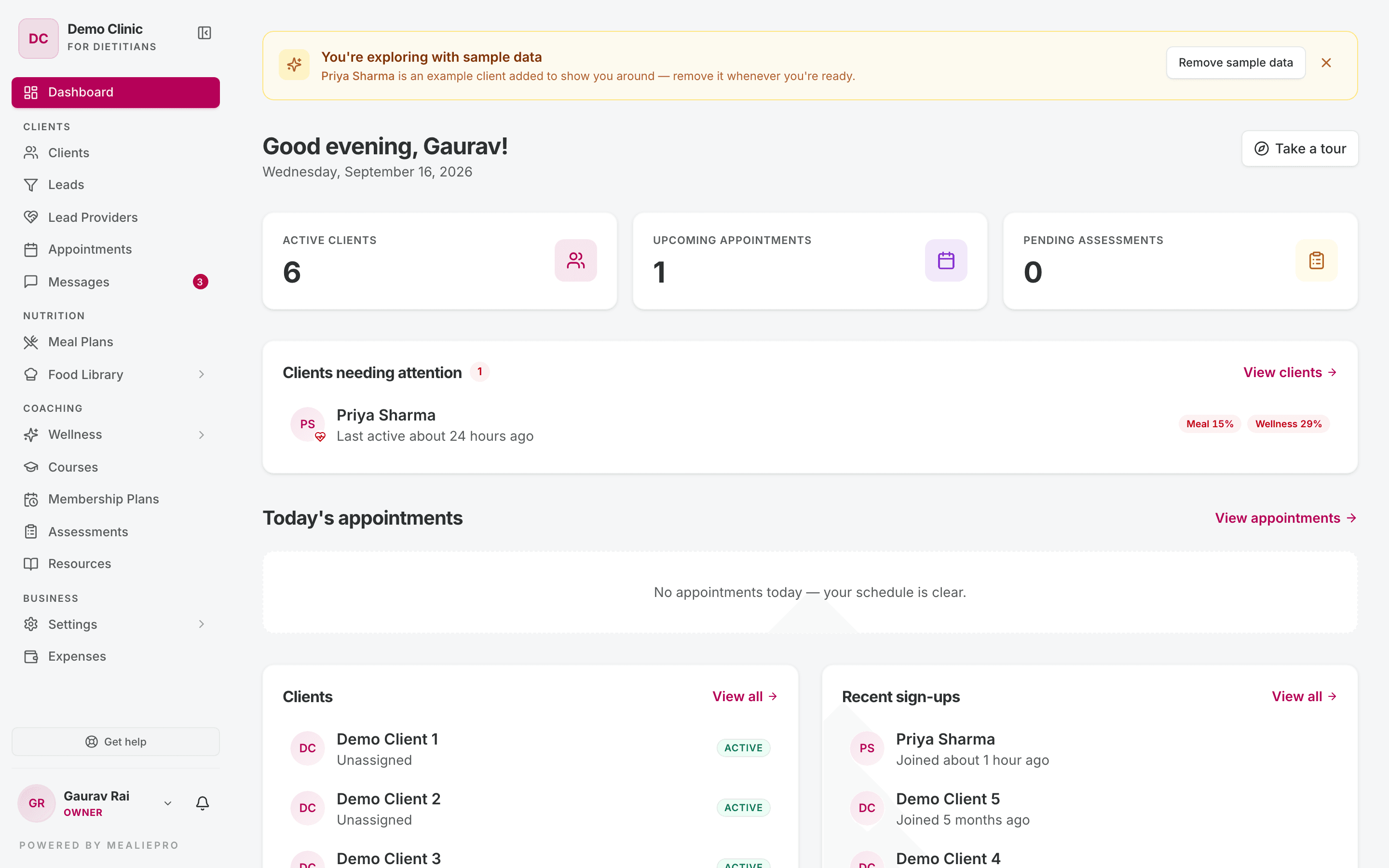
The top of the page shows a greeting with your first name and today's date. For example: "Good morning, Priya!".
Click Take a tour to replay the Getting started tour. The tour points at the real controls on your screen: the dashboard, clients, calendar, meal plans, the food library, settings, and Get help. The last step has an Add my first client button.
Tip: To stop tours that start on their own, open the account menu at the bottom of the sidebar and click Tutorials. See Notifications › Tutorials.
2. The sample data banner
A new practice starts with one example client, Priya Sharma. While that sample data exists, a yellow banner says "You're exploring with sample data".
- Click Remove sample data to go to Settings › Organization. You remove the data there. Only owners and admins see this button.
- Click × to hide the banner. It comes back in your next session until the sample data is removed.
Full steps: Settings › Organization.
3. The three number cards
| Card | What it counts | Click it to open |
|---|---|---|
| Active clients | Clients with the Active status. | Clients |
| Upcoming appointments | Appointments in the next 7 days that are not cancelled, completed or no-show. | Appointments |
| Pending assessments | Questionnaires that you sent and that the client has not started. | Assessments |
4. Clients needing attention
This panel lists clients who do not follow their plans. It uses the last 14 days.
- A client shows here when their combined score is below 60%.
- The worst score comes first. The panel shows 8 clients. A +N more link opens the full client list.
- Each row shows when the client was last active, or "No recent activity".
- Each row has one chip for Meal and one for Wellness. A chip shows only if the client has that kind of plan.
| Chip colour | Adherence |
|---|---|
| Green | 80% or more |
| Amber | 60% to 79% |
| Red | Below 60% |
If no client is below the limit, the panel says "Everyone's on track". Click View clients to open the client list.
Tip: Meal adherence compares the client's food log with their active meal plan. Wellness adherence counts the wellness tasks they complete. See Client portal for what the client logs.
5. Today's appointments
This panel lists today's appointments in time order. Each row shows the time, the client, the title and the mode: In person, Video or Phone. Pending appointments show in a lighter colour.
If you have no appointments today, the panel says "No appointments today — your schedule is clear." Click View appointments to open the calendar.
6. Clients and Recent sign-ups
Two panels show side by side:
- Clients shows 6 clients in name order. Each row shows the assigned staff member ("with …") or "Unassigned", and the client's status.
- Recent sign-ups shows the 5 newest clients and when each one joined.
Click View all on either panel to open the full client list.
7. Expiring & expired plans
This panel shows membership plans that need a renewal.
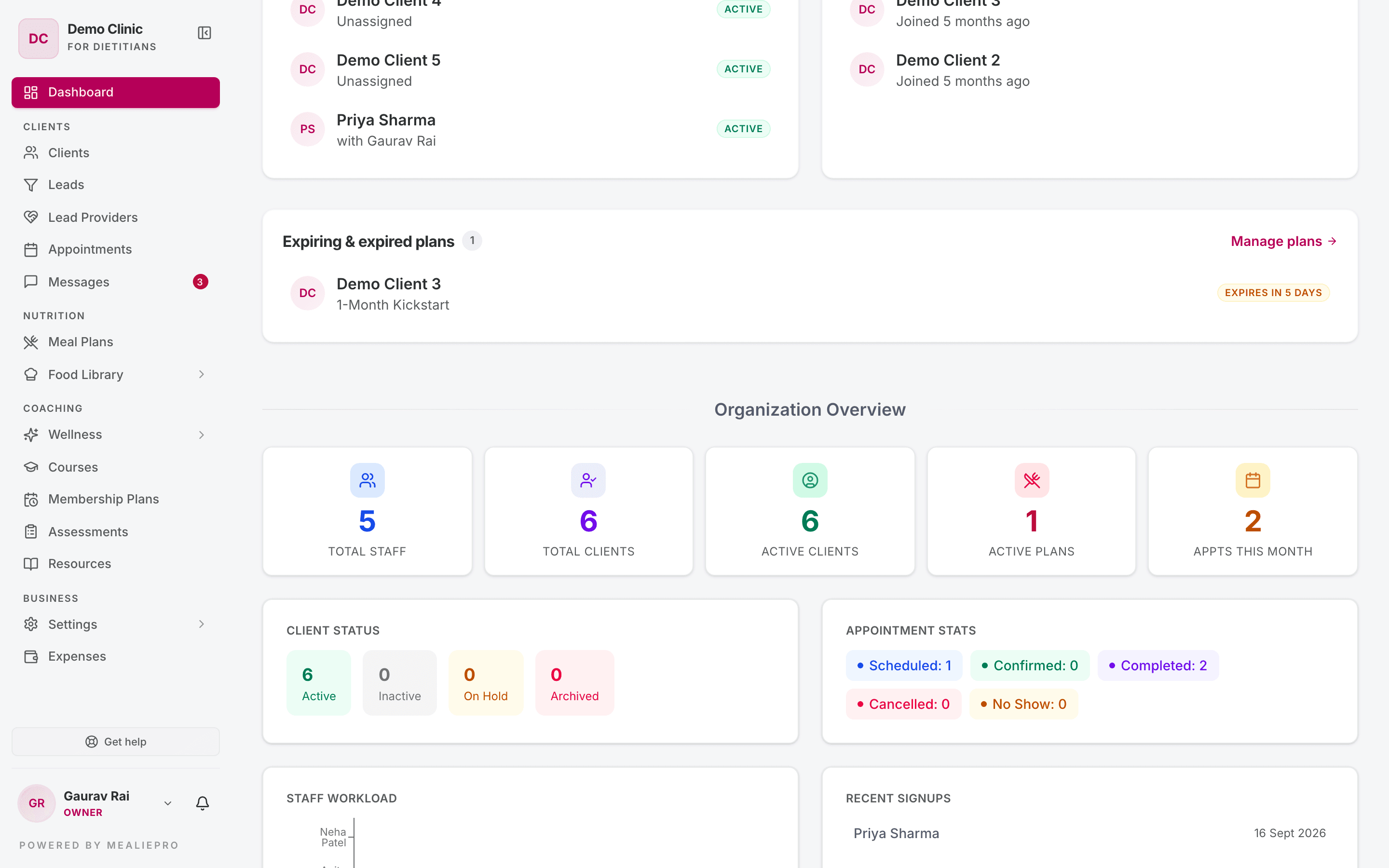
- Expired plans come first, with a badge such as "Expired 3 days ago" or "Expired today".
- Plans that end in the next 14 days come next, with a badge such as "Expires in 5 days".
- The panel shows up to 10 of each. A +N more line shows the rest.
Click a row to open that client. Click Manage plans to open Membership Plans. If no plan ends soon, the panel says "No plans expiring soon."
8. Organization Overview (owners and admins)
Owners and admins see one more section at the bottom of the page.
| Part | What it shows |
|---|---|
| Total Staff, Total Clients, Active Clients | Counts for the whole practice. |
| Active Plans | Active meal plans. |
| Appts This Month | Appointments in the current month. |
| Client Status | Clients by status: Active, Inactive, On Hold, Archived. |
| Appointment Stats | Appointments by status. |
| Staff Workload | A bar chart of assigned clients for each staff member. |
| Recent Signups | The newest clients, with their join date. |
Why a coach sees different numbers
The dashboard counts only the clients that you are allowed to see.
- If your role can see all clients, the cards and panels count the whole practice.
- If your role can see only your own clients, Active clients and Clients needing attention count only the clients assigned to you.
- In the same case, Upcoming appointments and Today's appointments show only the appointments booked with you.
- Pending assessments and Expiring & expired plans always count the whole practice.
So two staff members can see different numbers on the same day. This is correct. To change what a role can see, go to Settings › Roles & Permissions.
Common workflows
I want to start my day
- Open Dashboard.
- Read Clients needing attention. Send a message to each client in red. See Messages.
- Read Today's appointments.
- Read Expiring & expired plans. Renew the plans that end soon.
A client's plan expired yesterday
- In Expiring & expired plans, click the client.
- Open the Membership tab.
- Click Renew plan. See Membership plans.
What's next
- Clients: open and edit a client.
- Appointments: set your availability and book sessions.
- Membership plans: renew and change plans.
- Notifications: choose which updates you get.