Settings & team
Set up your practice profile, invite and remove staff, control what each role can do, and configure your lead pipeline.
Settings holds everything about your practice as an organization: its profile, its people, their permissions, and your subscription. It is in the Business group of the sidebar.
Only owners and admins can open Settings. Other roles do not see it in the sidebar. If they open the address directly, they see "Access Denied — Only owners and admins can manage settings."
Settings has up to seven tabs. Each tab is also a link under Settings in the sidebar.
| Tab | What it is for |
|---|---|
| Organization | Your practice profile, logo, locations, public lead signup and sample data. |
| Landing Page | Your public marketing site. This tab shows only if your plan includes the landing page builder. See Landing page. |
| Roles & Permissions | What each role can see and do. |
| Team | Your staff members and pending invitations. |
| White label | Your own domain, and your brand on emails, PDFs and the client portal. See White label. |
| Pipeline | The stages and sources behind your Leads board. |
| Plan & Billing | Your subscription, and the GST details for your invoices. See Billing & invoicing. |
Two more settings pages open from your user menu (click your name at the bottom of the sidebar), not from a tab:
- Notification settings — which updates you get, and how. Every staff member can open it. See Notifications.
- Tutorials — switch the guided walkthroughs on or off. See Getting started.
Organization
The profile of your practice. Clients see these details, and the product uses them as defaults.
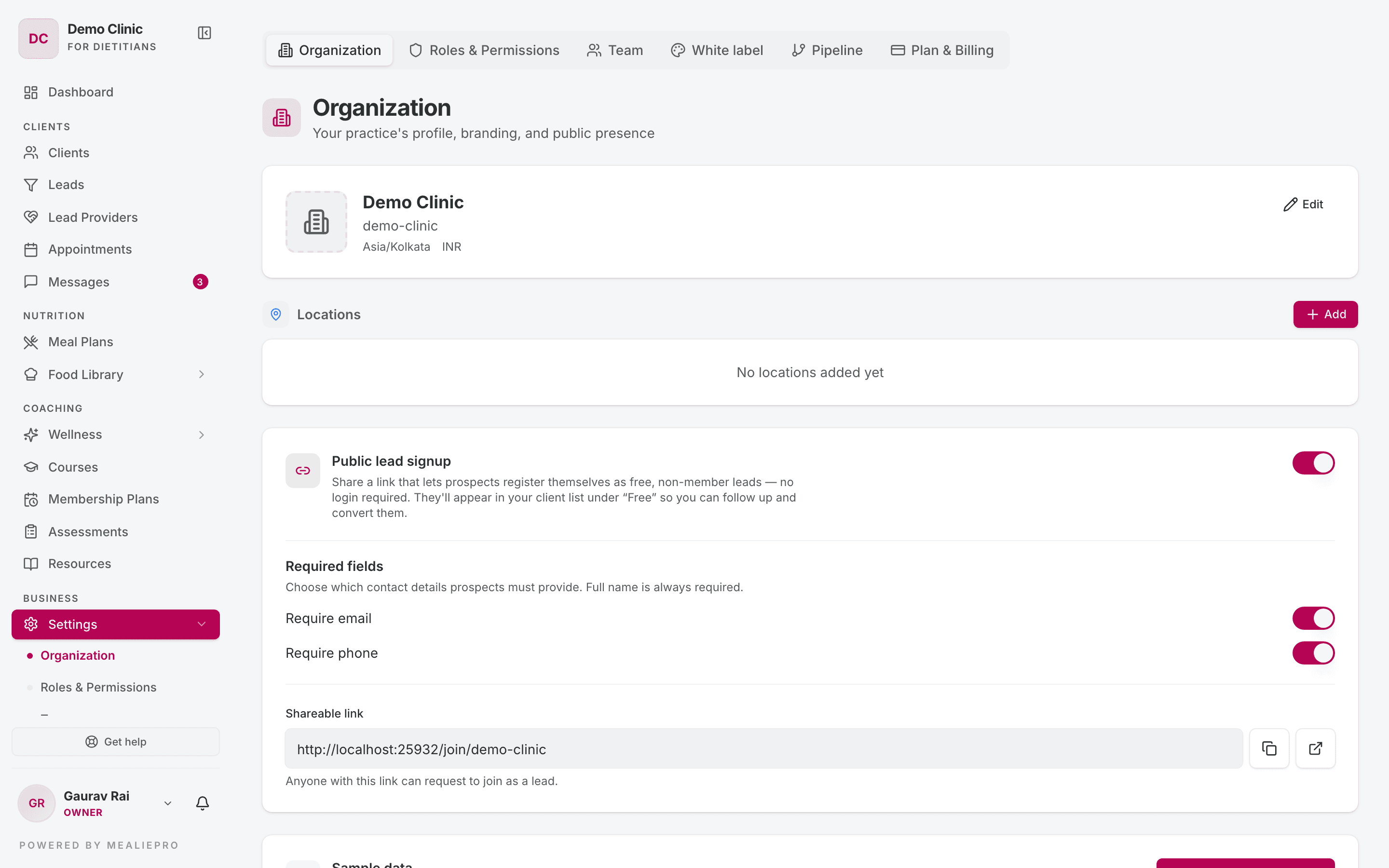
Profile and logo
The top card shows your practice name, timezone and currency. Click Edit to open the Edit Organization form, then click Save.
| Field | What it does |
|---|---|
| Logo | Click Upload logo (or Change logo). Use a PNG, JPG, WebP or SVG file of 3 MB or less. |
| Organization Name | The name clients see. |
| Phone / Phone (Secondary) | Contact numbers for your practice. |
| Email, Website | Public contact details. |
| GST Number | Your GSTIN, if you have one. For invoices, set it in Billing & invoicing instead. |
| Timezone | Used for appointments, reminders and dates. |
| Currency | INR, USD, EUR, GBP, AED, SGD or AUD. |
| Theme Color | Pick a preset or type a hex value. This is your brand colour. |
Tip: Your logo and theme colour appear on the client portal, emails and PDFs only if your plan includes white label. See White label.
Locations
If you work from more than one clinic, add each one under Locations:
- Click Add.
- Fill in Location Name, the address, Phone, Email and Google Maps URL.
- Set the hours for each day. Click Close to mark a day as closed. Click Open to change it back.
- Click Add Location.
To remove a location, click its delete icon and confirm.
Public lead signup
Turn on Public lead signup to get a link that prospects can use to register themselves. They do not need to log in.
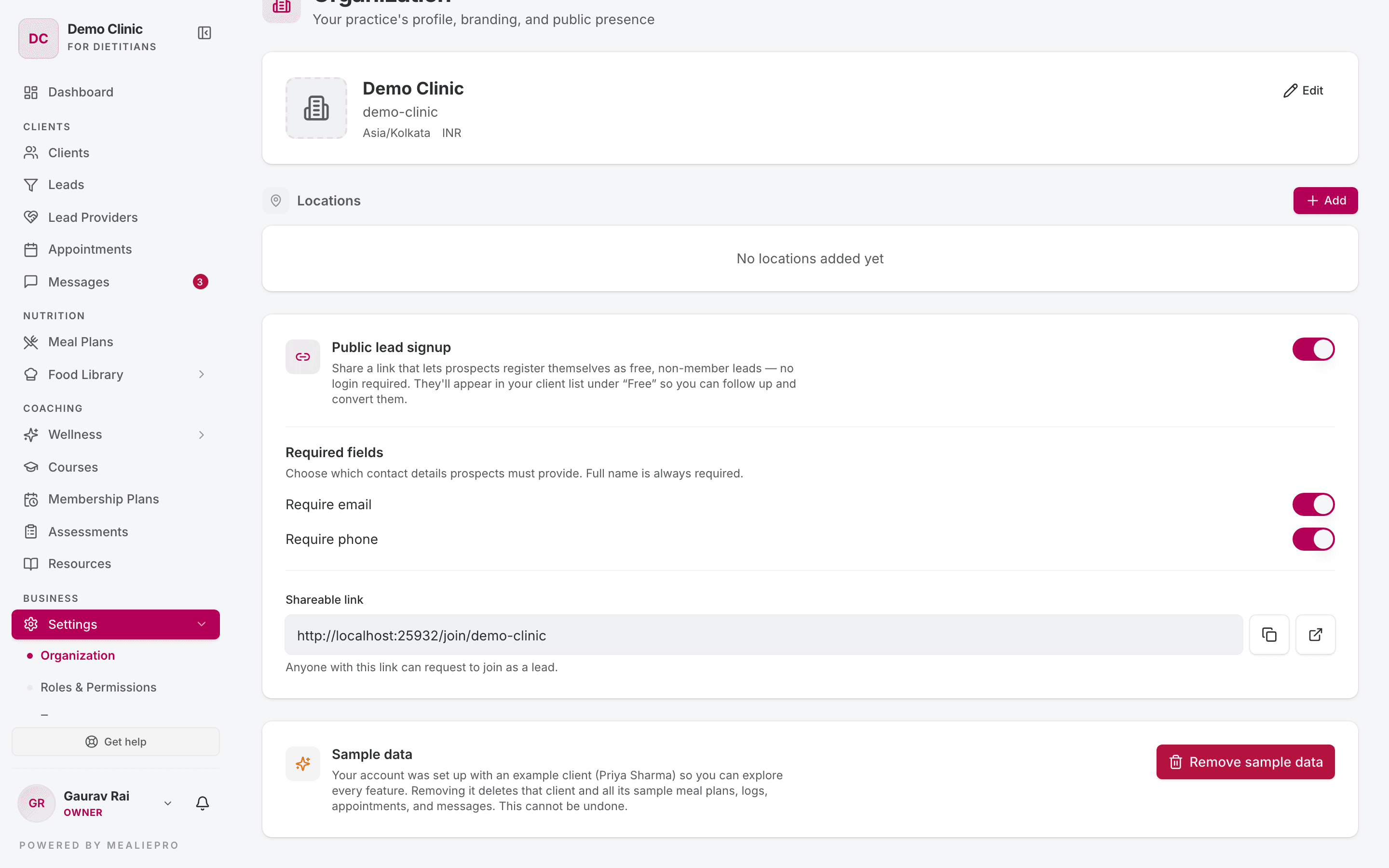
When the switch is on, two more controls appear:
- Required fields — use Require email and Require phone to choose what a prospect must give. Full name is always required. The same rules apply to the contact form on your landing page.
- Shareable link — copy the link, or open it in a new tab. Anyone with this link can ask to join as a lead.
Where the new sign-ups go depends on your plan:
- If your plan includes Leads, each sign-up becomes a lead on your Leads board.
- If it does not, each sign-up appears in your client list with the Free badge.
Tip: Add
?src=<code>to the link to record where each lead came from. The Pipeline tab gives you a ready-made link for each source.
Sample data
New practices start with an example client, Priya Sharma, and her sample meal plans, logs, appointments and messages. When you are ready to work with real clients, click Remove sample data and confirm.
Removing sample data is permanent. You cannot undo it.
Roles & permissions
A role is a set of permissions. Each staff member has one or more roles.
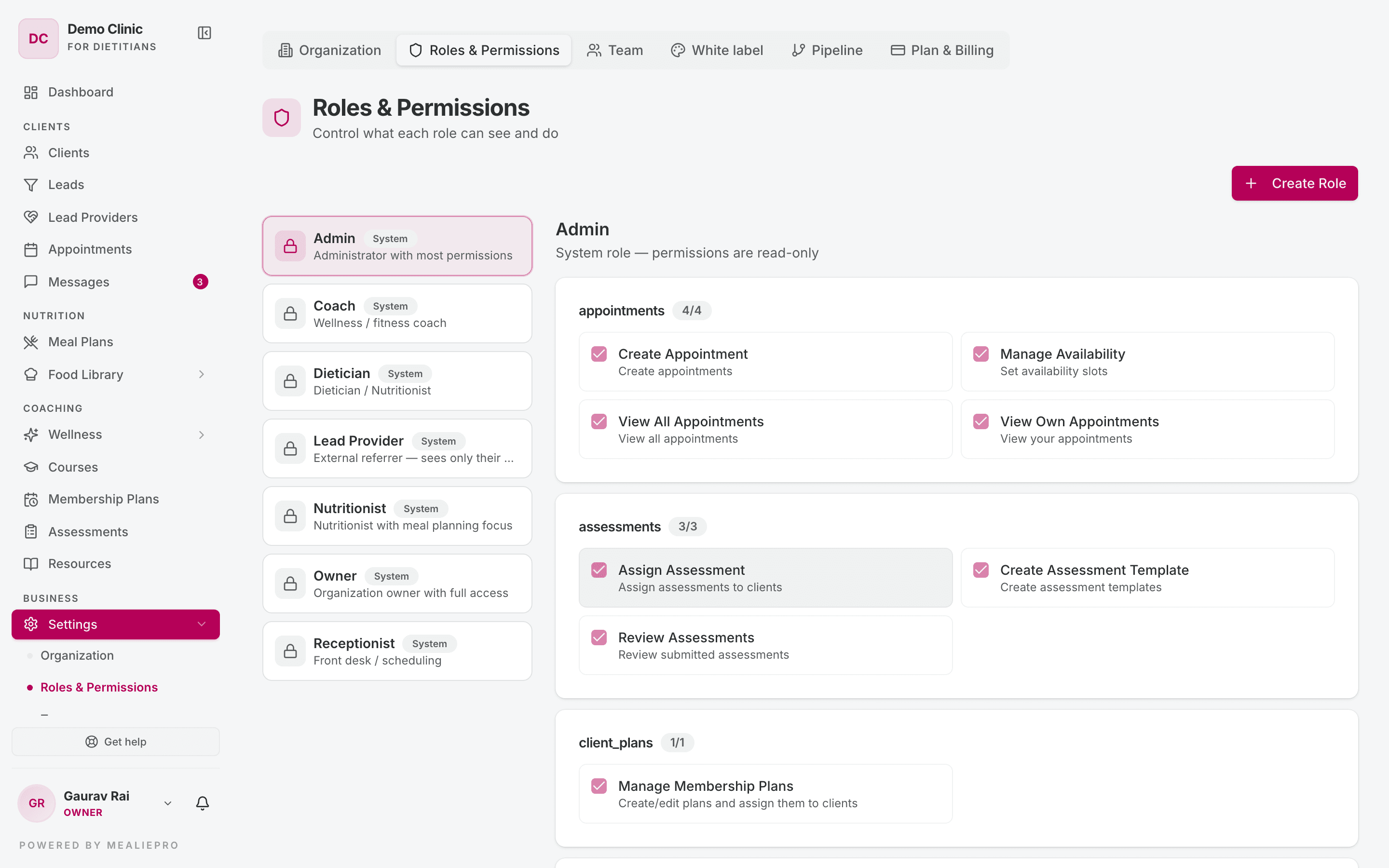
There are two kinds of role:
- System roles have a System badge. You cannot change their permissions. The system roles are Owner, Admin, Dietician, Nutritionist, Coach, Receptionist and Lead Provider.
- Custom roles are roles that you create. You choose their permissions.
Lead Provider is for people outside your practice who refer clients to you, such as a gym trainer. It gives access to their own referrals only, and it does not use a staff seat. See Lead providers.
Click a role on the left to see its permissions on the right. The permissions are in groups, such as appointments, assessments and client plans. Each group shows how many permissions are on.
Create a custom role
- Click Create Role.
- Type a Role Name (for example, "Junior Dietician") and an optional Description.
- Click Create Role.
- Tick the permissions that the role needs. Use Select all or Deselect all for a full group.
- Click Save Permissions.
Delete a custom role
Click the delete icon next to the role, then click Delete Role.
Remove the role from every member first. You cannot delete a role while a member holds it. The confirmation dialog does not tell you this — the delete fails instead.
Tip: The sidebar and the buttons on each page follow a member's permissions. A member with a read-only role sees the pages, but not the create or edit buttons.
Team
Your staff members and the invitations that they have not yet accepted.
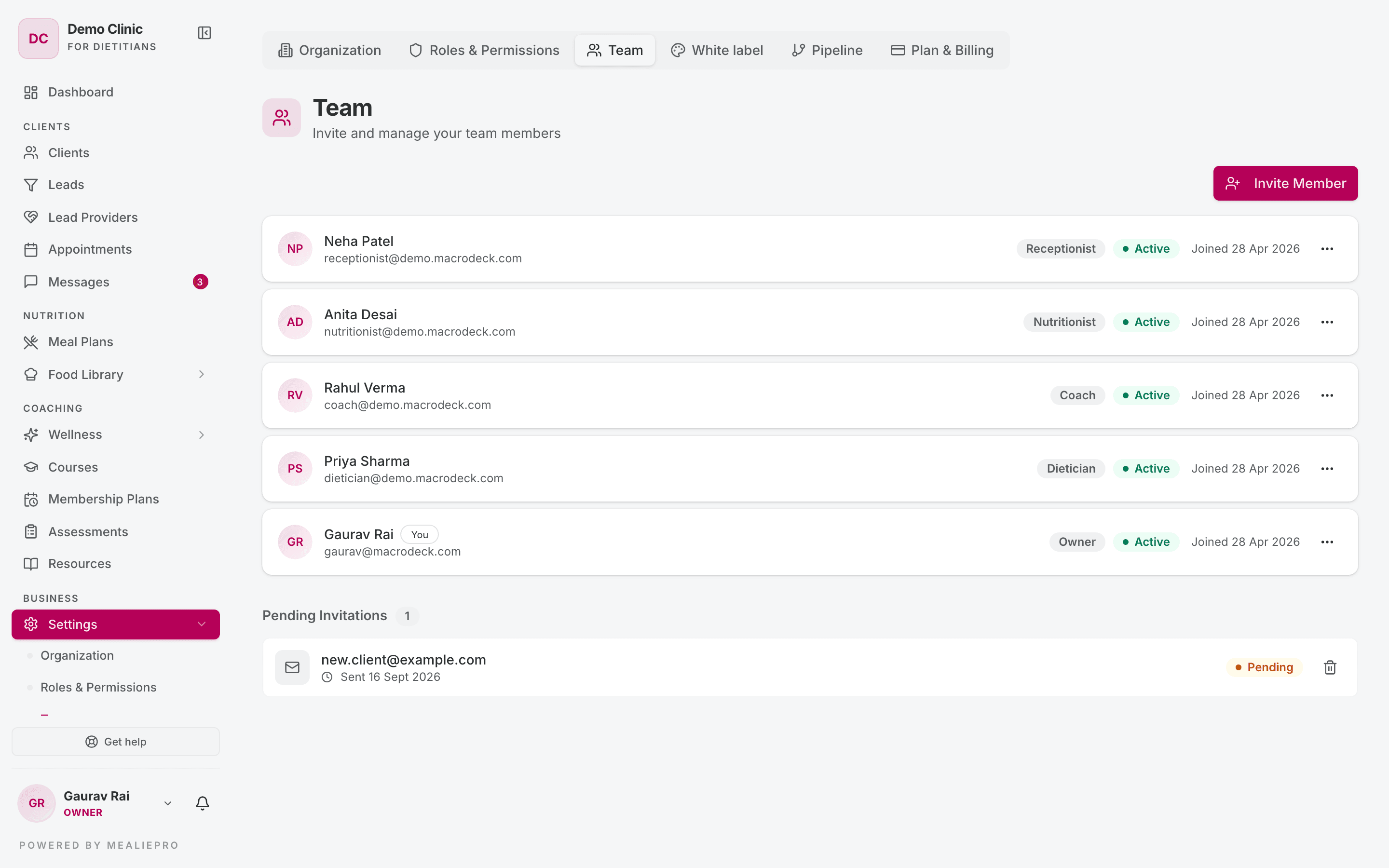
Each row shows the member's name, email, role badges, status (Active or Inactive) and join date. Your own row has a You badge.
Invite a member
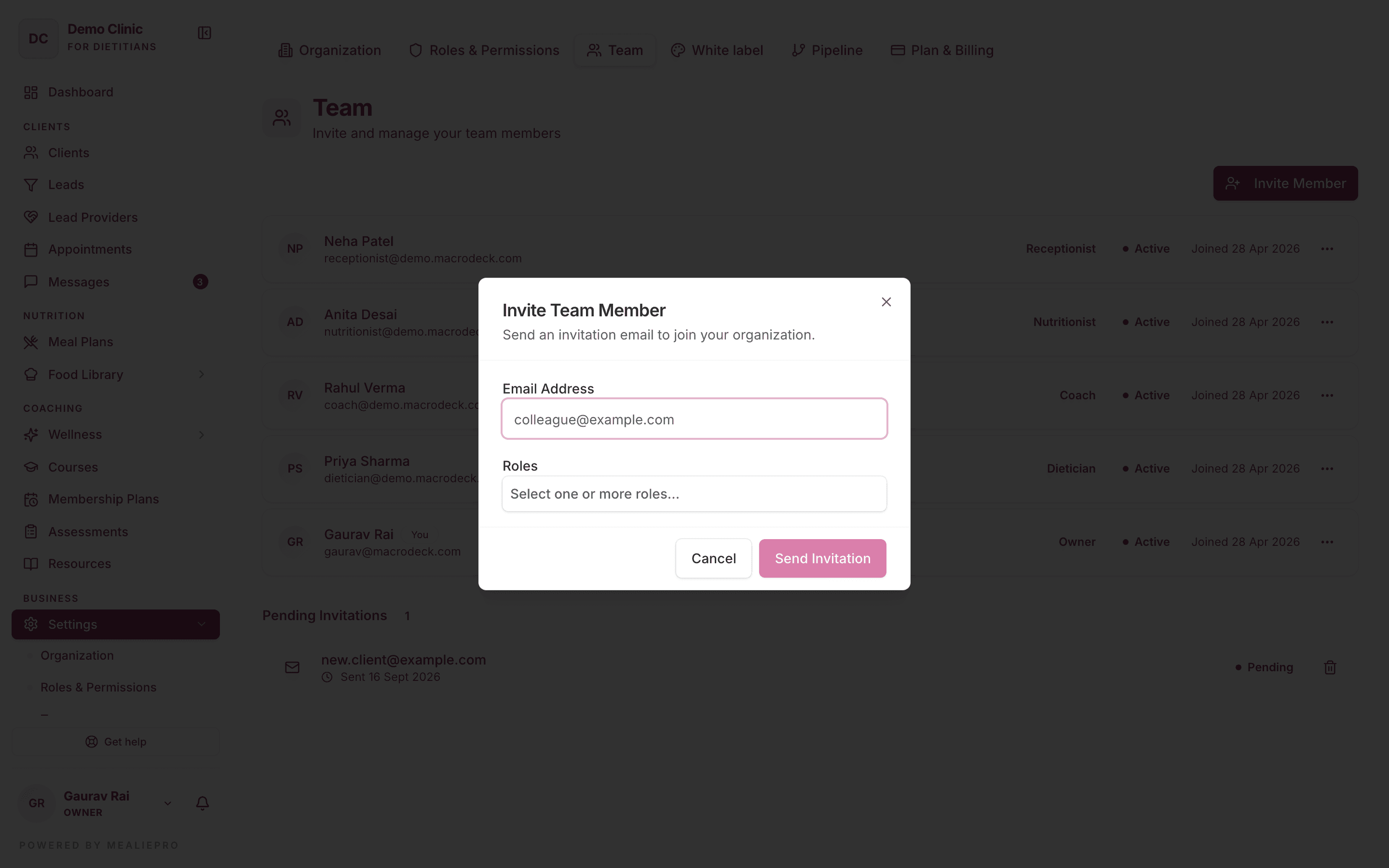
- Click Invite Member.
- Type the Email Address.
- Select one or more Roles.
- Click Send Invitation.
The person gets an email with a link. Until they accept, the invitation shows under Pending Invitations. For what the invited person sees, see Accepting an invitation.
- An invitation link is valid for 30 days.
- To send the email again, invite the same address again. The person gets the same link, and its expiry date moves forward. The link that they already have continues to work. You can also change their roles this way.
- To cancel an invitation, click its delete icon. The link stops working immediately.
If you see "Your plan allows N staff members (currently M)", all your staff seats are in use. Inactive members do not use a seat. Deactivate a member you no longer need, or check Plan & Billing.
Edit a member
- Click the ⋯ menu on the member's row.
- Click Edit Member.
- Change their Roles. A member must have at least one role.
- Use the Active Status switch to deactivate or reactivate them. Inactive members cannot sign in, but their history stays.
- Click Save Changes.
A member can have more than one role, for example Dietician and Admin. They get every permission from every role that they hold.
Remove a member
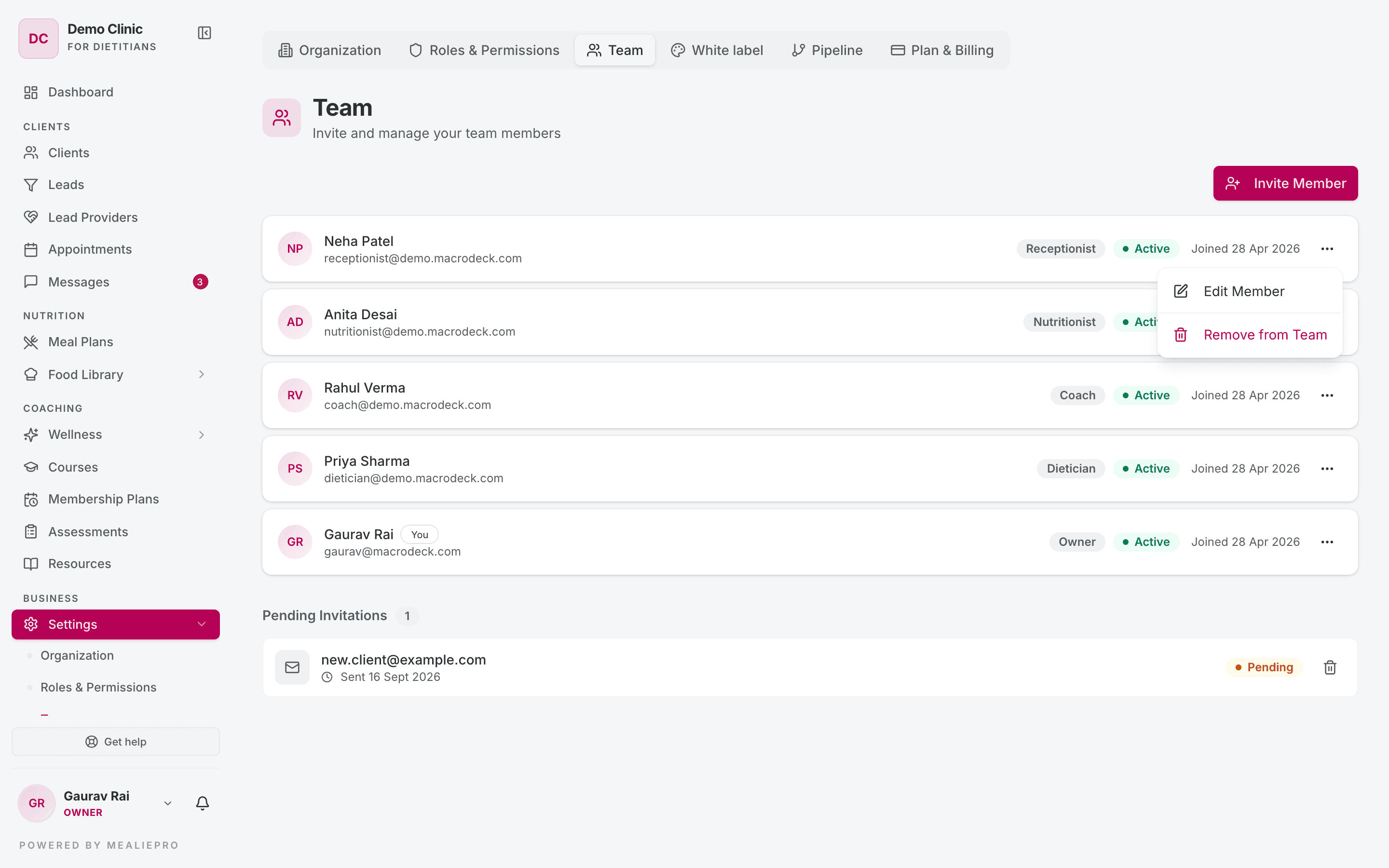
- Click the ⋯ menu on the member's row.
- Click Remove from Team.
- Read the confirmation. It tells you if any clients are assigned to this member.
- Click Remove Member.
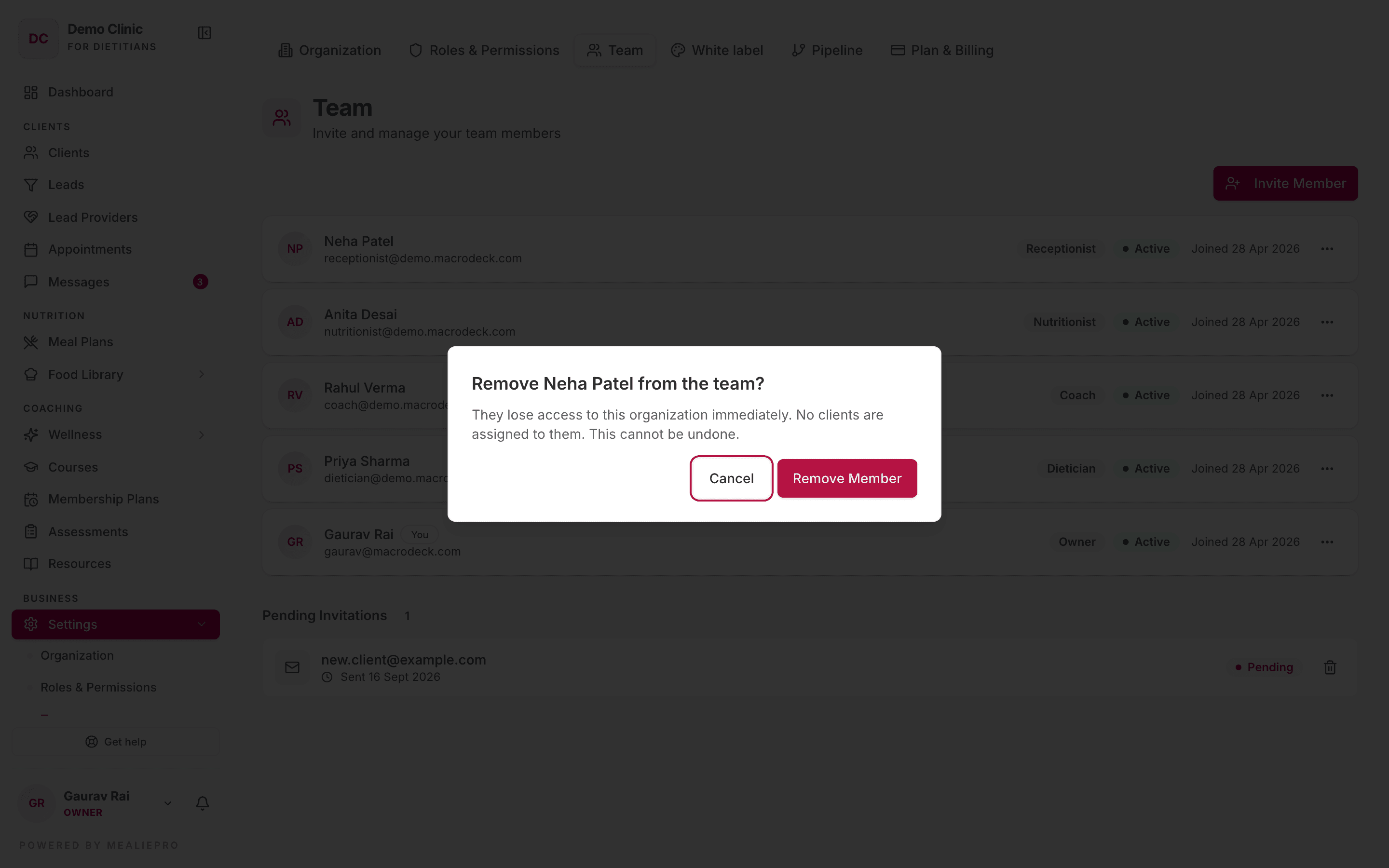
The member loses access immediately. Their assigned clients become unassigned. You cannot undo this.
When you cannot deactivate or remove a member
Some rows cannot be deactivated or removed. The app shows the reason:
| Case | What to do |
|---|---|
| The member is an owner | Give the owner role to someone else first. Then remove the role from this member, and deactivate or remove them. |
| The member is the last active member | Add or reactivate someone else first. An organization with no active member locks everyone out. |
| The row is your own | Ask another owner or admin to do it. Your own row has no Active Status switch. |
Pipeline
The Pipeline tab controls your Leads board. It is available only if your plan includes Leads.
Stages
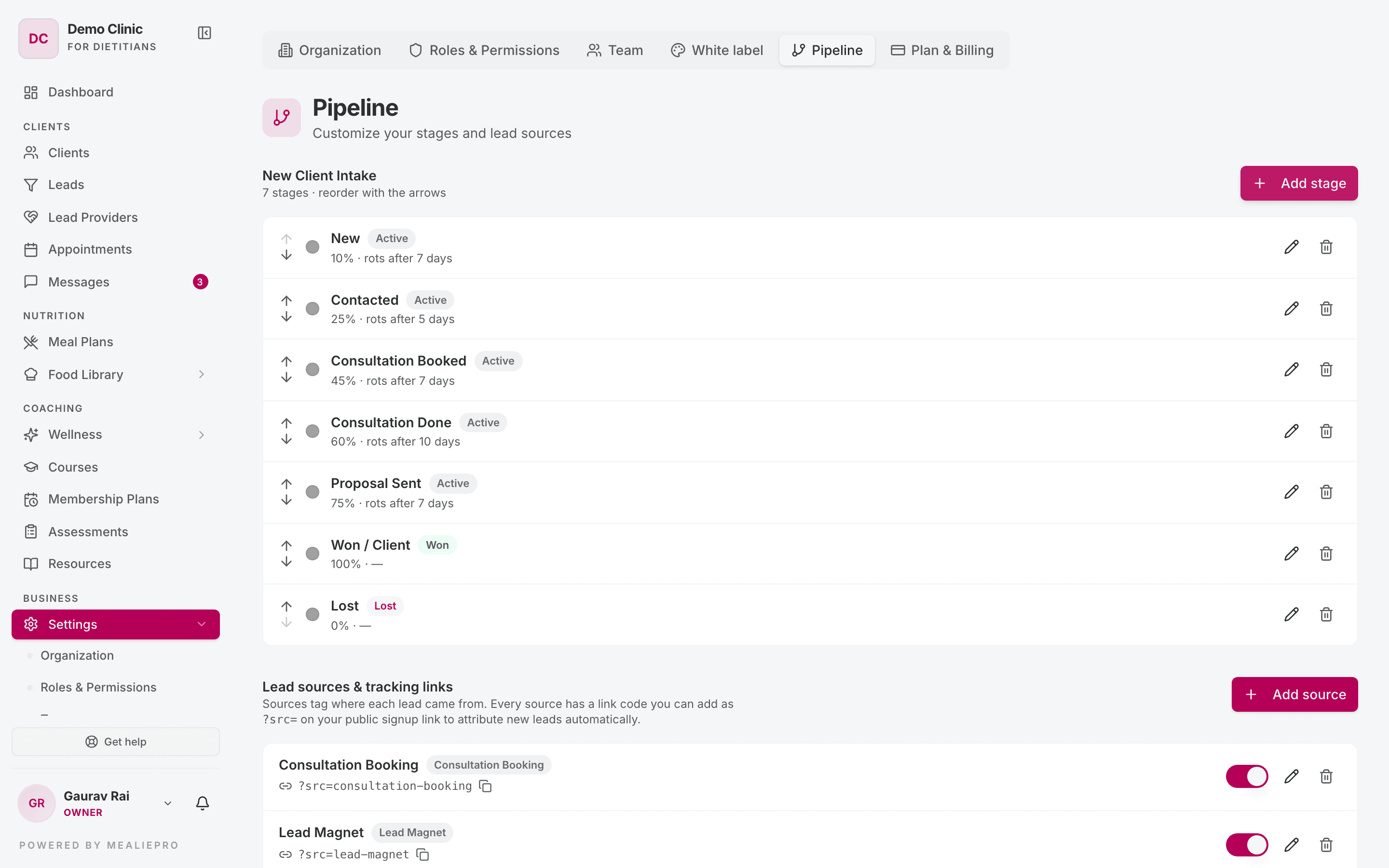
The heading is the name of your pipeline, for example New Client Intake. Below it is the list of stages, which are the columns on your board.
- Reorder a stage with the up and down arrows.
- Add a stage with Add stage.
- Edit a stage with its pencil icon.
- Delete a stage with its delete icon. Move all leads out of the stage first.
Each stage has these settings:
| Field | What it does |
|---|---|
| Name | The column title. |
| Type | Active, Won or Lost. |
| Probability % | How likely a lead at this stage is to become a client. |
| Rotting days | The number of days a lead can stay here before the board flags it. Leave it blank for no alert. |
| Color | The stage colour. |
| Funnel stage (for reporting) | One of New, Contacted, Consultation Booked, Consultation Done, Proposal, Won, Lost or Nurture. This keeps reports consistent, whatever you name your columns. |
Lead sources & tracking links
A source records where a lead came from. Each source has a link code. Add the code as ?src=<code> to your public signup link, and new leads from that link get the source automatically.
- Click Add source. Fill in Name, Link code, Kind, When someone joins from this link and an optional description.
- Click the copy icon on a source to copy its full tracking link.
- Use the switch on a source to make it inactive. Inactive sources stop matching
?src=links, and new leads get Website Form instead. - You cannot delete a source that is already on a lead. Make it inactive instead.
The Kind values are Consultation Booking, Lead Magnet, Instagram DM, Website Form, Referral, Paid Ad, Affiliate, Event, Manual, CSV Import, API and Other.
When someone joins from this link
Each source decides what a signup from its link becomes.
| Option | What happens |
|---|---|
| Add as a lead (default) | The person is a new lead on your Leads board. Your team follows up. |
| Create client and send invite | The person is added to your Clients list straight away. They get an email invite to set up their account. They do not go on the Leads board. |
A source that creates clients shows a Creates client tag in the list.
- The Website Form source also controls your signup link without a
?src=code. - If the person is already an open lead, that lead moves to Won and links to the new client.
- If the person is already your client, nothing changes and no invite is sent.
- If you are at your plan's client limit, or the person gave no email, they come in as a lead instead. The lead's timeline says why.
Tip: Use Create client and send invite for a link you only give to people who have already agreed to work with you, for example after a consultation.
Tip: If public lead signup is off, a yellow warning shows above your sources. Tracking links do not capture leads until you turn it on in the Organization tab.
Plan & Billing
This tab shows your subscription, your add-ons and your usage limits. It also holds the GST & invoicing details that appear on every invoice you raise.
For the full guide, see Billing & invoicing.
What's next
- Billing & invoicing — your plan, and the details that your invoices need.
- White label — your domain and your brand on everything clients see.
- Landing page — build and publish your public site.
- Leads — the board that the Pipeline tab controls.
- Appointments — the team members you add here hold appointment slots.
- Getting started — the five-minute setup, from start to finish.