Appointments
Publish availability, book clients into slots, manage each appointment, and see what clients see.
Scheduling starts with slots. A staff member publishes the times they are free. Then clients request those slots, or you book a client into one. Create slots first, and the rest follows.
Open Appointments in the sidebar, in the Clients group.
The Appointments page
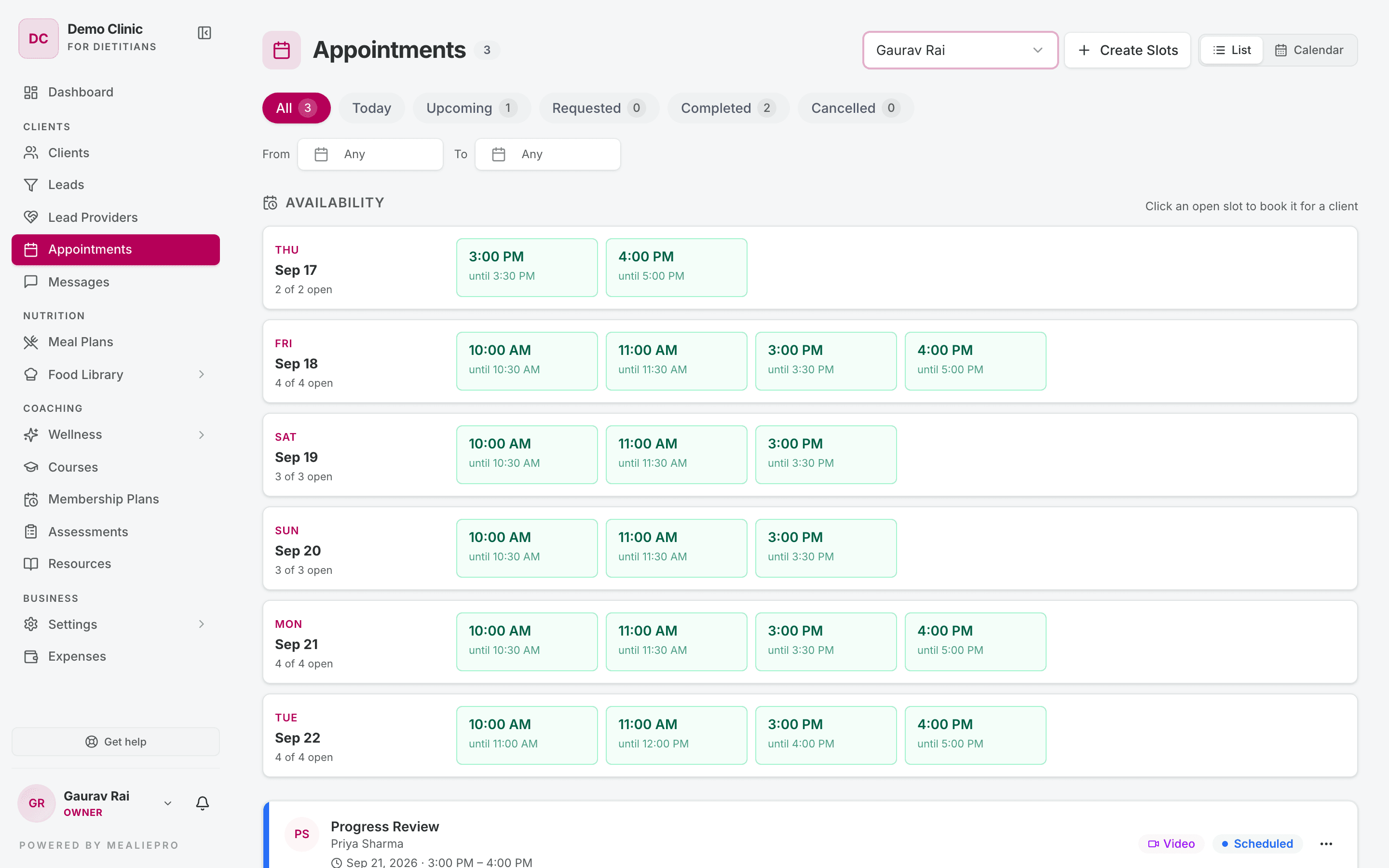
At the top right, Select member picks whose schedule you see. The slots, the appointments and the calendar all show that member only. If the page is empty, select a different member.
The page has two views:
- List — appointments in tabs: All · Today · Upcoming · Requested · Completed · Cancelled. Each tab shows a count. Use From and To to limit the dates. Clear dates removes the limit.
- Calendar — a month, week or day calendar. It opens in week view.
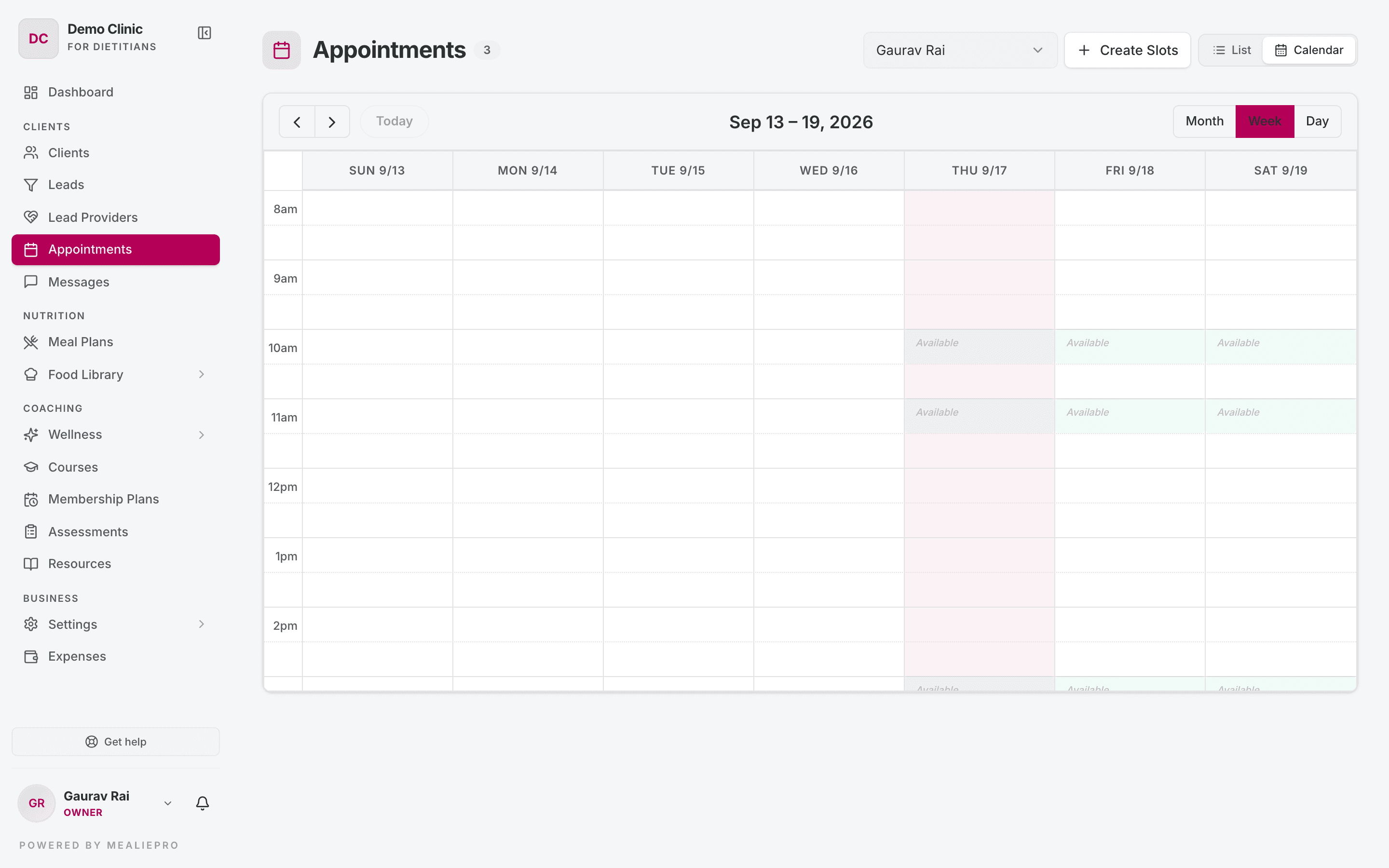
On the calendar, click an open slot to book it. Click a booked slot to open its appointment.
The Availability section shows the open slots of the selected member. It shows on the All, Today and Upcoming tabs. If there are no slots, it says "No slots in this range".
1. Publish availability
Click Create Slots. The Create Availability Slots dialog makes many slots at the same time.
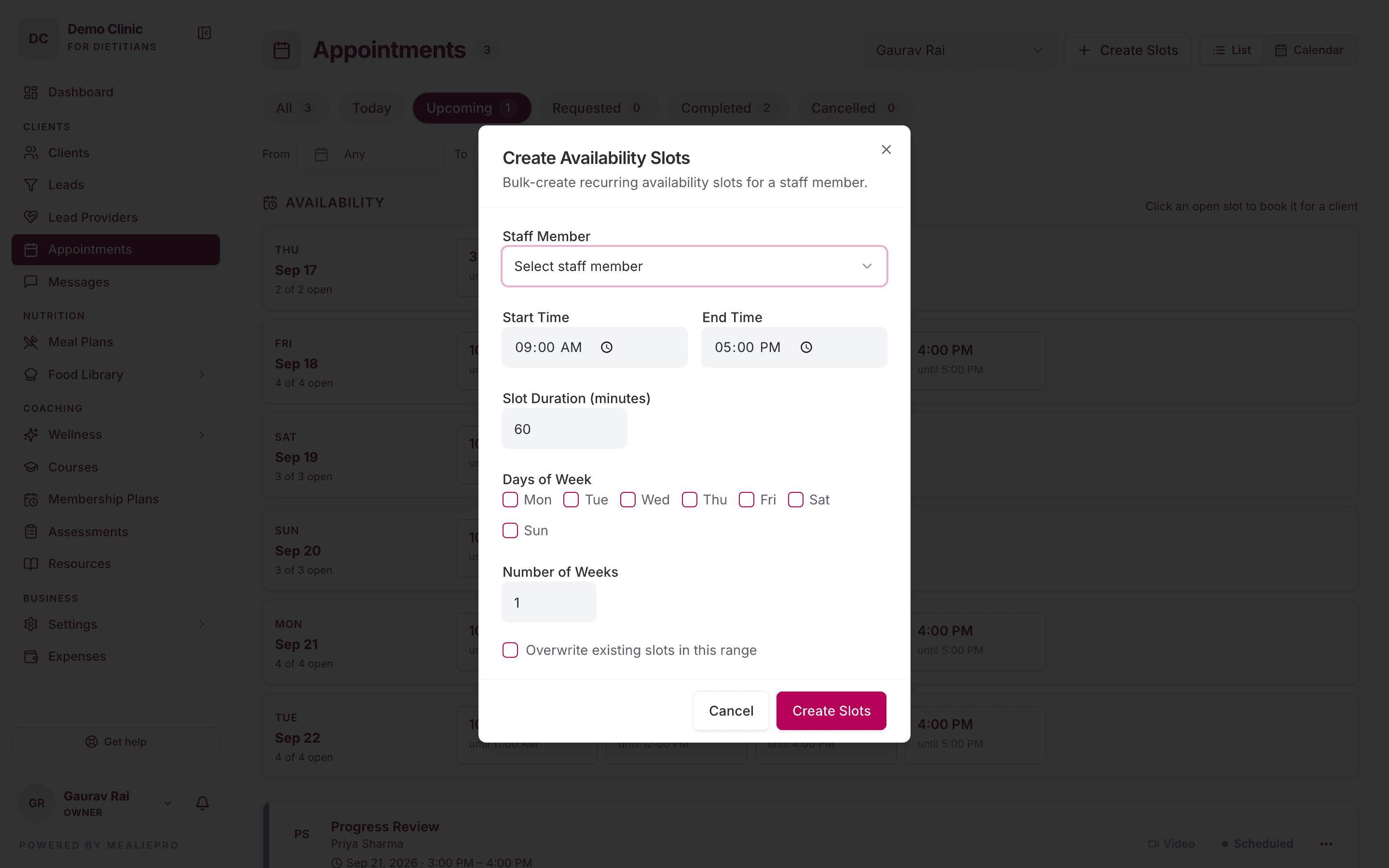
| Field | Notes |
|---|---|
| Staff Member | Who the slots are for. The list shows owners, admins, dieticians and coaches. |
| Start / End Time | The daily window, for example 09:00–17:00. |
| Slot Duration (minutes) | The length of each slot, from 15 to 480. The default is 60. |
| Days of Week | The days to repeat on. Select at least one day. |
| Number of Weeks | How many weeks ahead to create, from 1 to 52. |
| Overwrite existing slots in this range | Replace the slots in this range instead of adding to them. |
Click Create Slots. The app divides the window into slots on each selected day, for each week.
You can create slots for yourself or for another team member. You need the permission to manage availability. The owner, admin, dietician, nutritionist and coach roles have it by default.
If no one can hold slots, the page says No eligible team member yet. Add an owner, admin, dietician or coach in Settings › Team.
2. Book a client into a slot
Click an open slot in the Availability list or on the calendar. The Book this slot dialog opens.
- Client — search for the client and select them.
- Title — for example "Initial Consultation".
- Mode — Video, In Person or Phone.
- Notes — optional internal notes.
- Click Book Slot.
To remove a slot that you published by mistake, click Delete slot in the same dialog. The app asks Delete this slot? Click Delete to confirm, or Keep slot.
Book from this page. The client's Appointments tab lists their appointments, but it does not show slots. Its Schedule button opens this page.
3. Approve client requests
Clients can request a slot from their portal. Their requests go to the Requested tab.
Open a request and click Approve or Cancel.
4. Manage an appointment
Click an appointment to open its details: status, client, staff member, date and time, mode and notes.
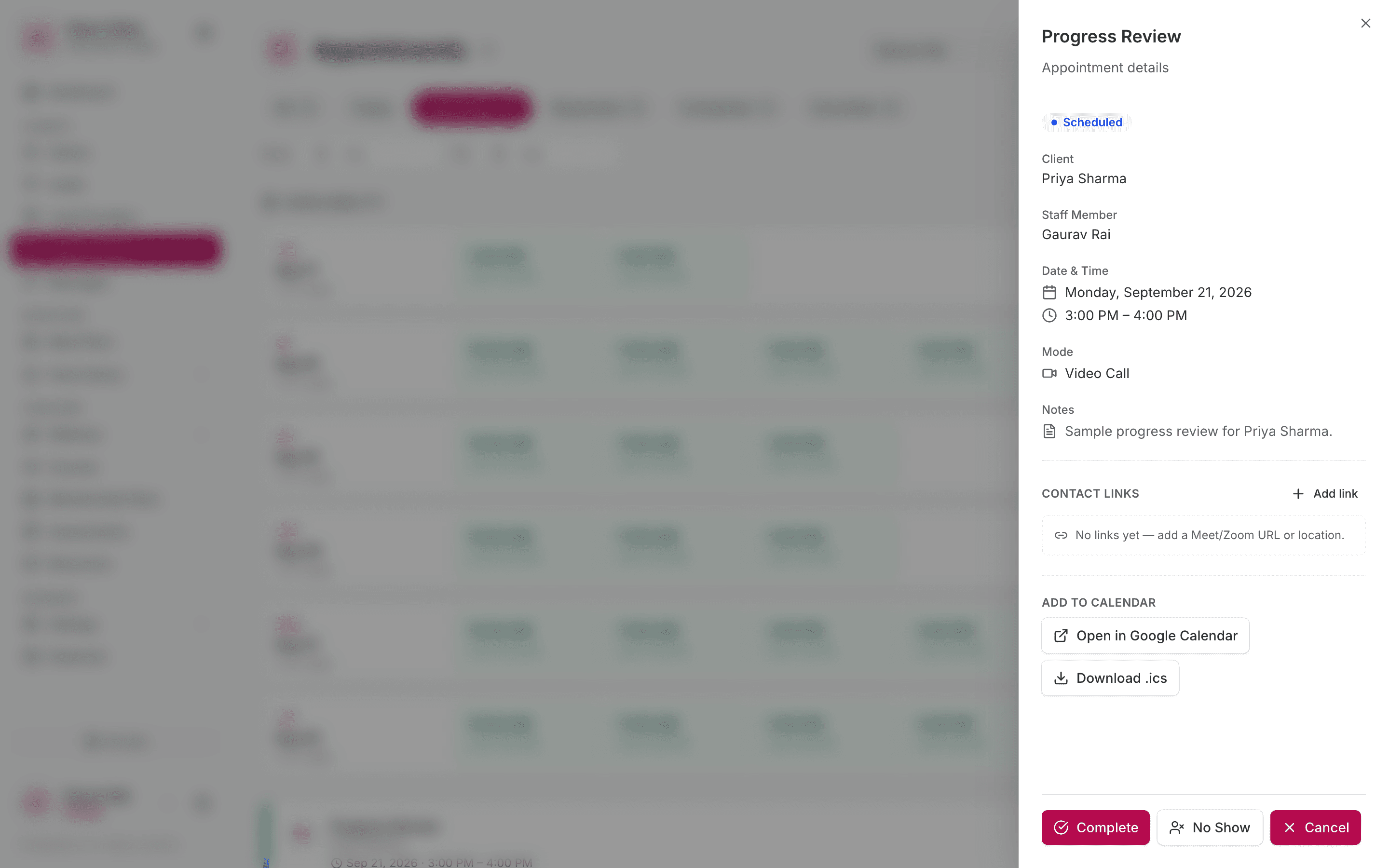
The buttons depend on the status:
| Status | Buttons |
|---|---|
| Requested | Approve, Cancel |
| Scheduled, Confirmed or Rescheduled | Complete, No Show, Cancel |
| Completed or Cancelled | None. You cannot change the appointment. |
When you click Complete, the browser asks for optional notes about the session.
Contact links
The Contact Links section holds the links for the session. The client sees the same links.
- Click Add link.
- Select the Kind: Google Meet, Zoom, Microsoft Teams, Calendar, Location or Custom.
- Enter the URL. A Custom link also needs a Label.
- Save.
Add to Calendar
Use Open in Google Calendar or Download .ics to put the appointment in your own calendar.
Reviews
When you mark an appointment Complete, the client can review it. In their portal, the appointment shows Leave a Review in the Past list. The client gives 1 to 5 stars and an optional comment.
Staff screens do not show these reviews.
What clients see
Clients open Appointments in their portal. The page has three sections: Requested, Upcoming and Past.
To request a session, the client clicks Request Appointment. The dialog has three steps:
- Pick a Slot — one week at a time.
- Appointment Details — title, mode and optional notes.
- Confirm & Submit.
If you have no open slots, the dialog shows your clinic's phone and email instead.
A client can Join a video session, see its links, and Cancel an appointment that is not complete.
If the client's membership plan does not include Appointments, the page is hidden from them. For more, see Client portal.
Common workflows
Set up my week and take bookings
- Click Create Slots.
- Select yourself, 09:00–17:00, 60 minutes, Monday to Friday, 4 weeks.
- Tell your clients to use Request Appointment in their portal.
- Approve each request in the Requested tab.
- Add a Google Meet link to each video session.
Book a follow-up during a session
- Open Appointments and select yourself in Select member.
- Click an open slot on the calendar.
- Search for the client, enter a title and select the mode.
- Click Book Slot.
What's next
- Settings › Team — add the staff who hold availability.
- Clients — each client's appointments are on their profile.
- Membership plans — control which clients can book.
- Notifications — reminders about upcoming appointments.