Generating & checking plans
Let the app build a meal plan from a client's profile, check it against their health, and fix or regenerate parts of it.
The app can build a full meal plan for a client in a few seconds. It uses the client's diet type, allergies, health conditions, taste profile and calorie targets. It then checks the plan against a set of rules and shows you each problem. You can fix problems, regenerate parts of the plan, or edit meals by hand.
All of this happens in the plan workspace. The workspace uses the same grid as the template editor, so everything in Meal plans also works here.
1. Before you start
Set these on the client's profile first. The plan is only as good as this data.
| Data | Where to set it | Why it matters |
|---|---|---|
| Diet type (required) | Client Overview tab › Taste Profile card | The app does not generate a plan without it. |
| Allergies | Client Overview tab › Conditions, Allergies & Medications card | The app removes every food that contains an allergen. |
| Conditions and medications | The same card | The app avoids foods that are bad for a condition, and prefers foods that help. |
| Goal, weight, height, activity | Add client wizard or Edit profile | These set the calorie and macro targets. |
| Likes and dislikes | Taste Profile card | The app prefers liked foods and avoids disliked foods. |
If the diet type is empty, the client's Meal Plan tab shows Diet type not set. The Generate a fresh plan option is then blocked.
Tip: If a client's condition has no food rules in the library, the plan shows a warning: "'<Condition>' has no food rules in the library, so it did not shape this plan". To make the condition count, tag ingredients or foods for it in the Food library.
2. Start a plan for a client
- Open the client, then open the Meal Plan tab.
- Click New meal plan.
- Select how to start. See the table below.
- Optional: open Dishes to avoid and select dishes to keep out of this plan.
- Click Continue.
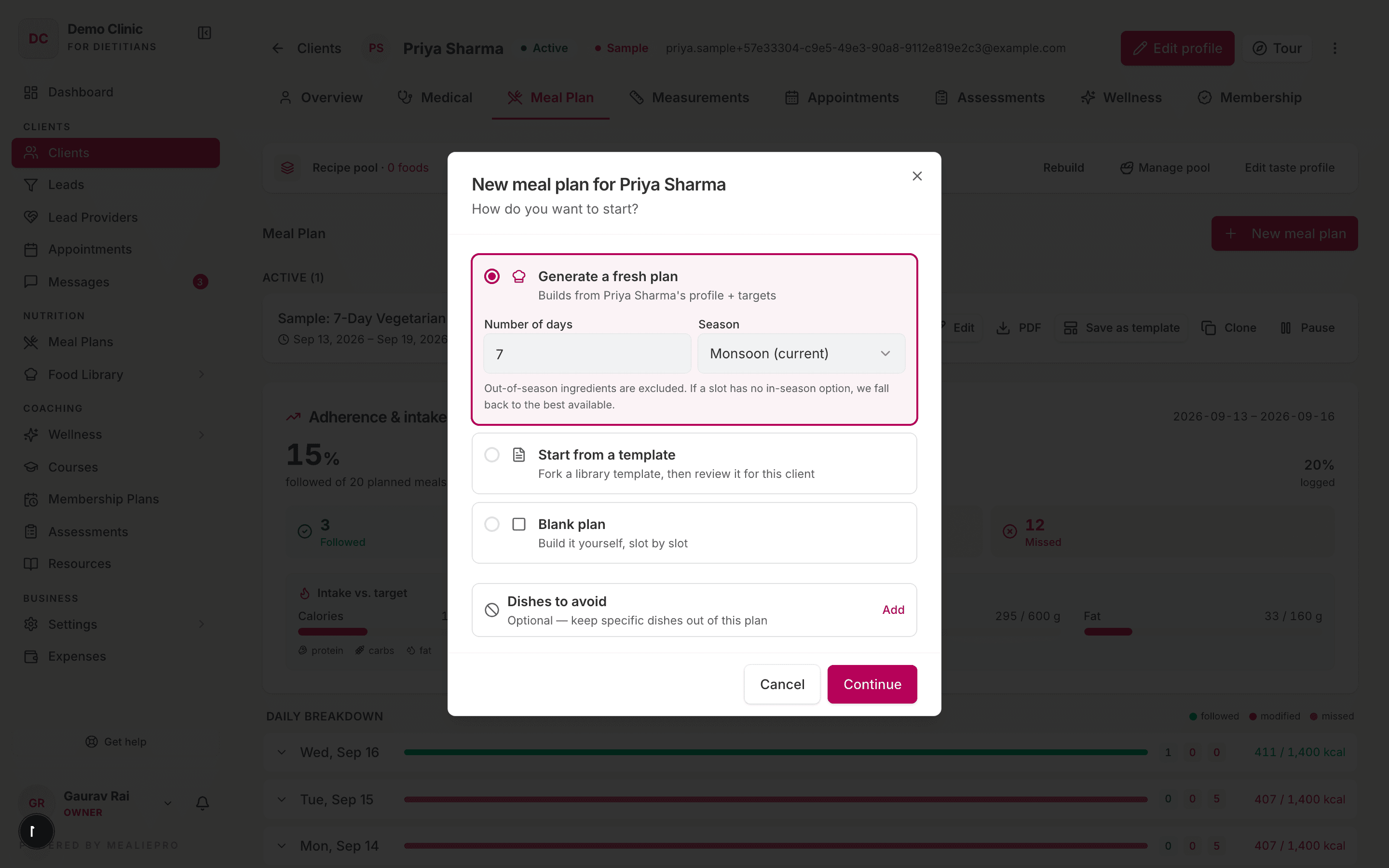
| Option | What it does |
|---|---|
| Generate a fresh plan (default) | Builds a new plan from the client's profile and targets. Set Number of days (1 to 90, default 7) and Season. |
| Start from a template | Copies a library template, then checks it against this client. See Check a template for a client. |
| Blank plan | Opens an empty grid. You pick every food. |
Season is the current season by default. The app does not use ingredients that are out of season. If a meal has no in-season option, the app uses the best available one. The seasons are Spring (Feb–Mar), Summer (Apr–Jun), Monsoon (Jul–Sep), Autumn (Oct–Nov) and Winter (Dec–Jan).
While the app builds the plan, a progress screen shows five steps: "Analyzing profile & nutrition targets", "Selecting dishes from the food pool", "Balancing macros across the week", "Running nutrition & rule checks" and "Finalizing your plan".
If the app cannot build the plan, the dialog shows the reason. For example, it can say that no food fits a meal. Fix the cause, then try again.
The new plan opens in the workspace. It is a Draft until you assign it.
3. The plan workspace
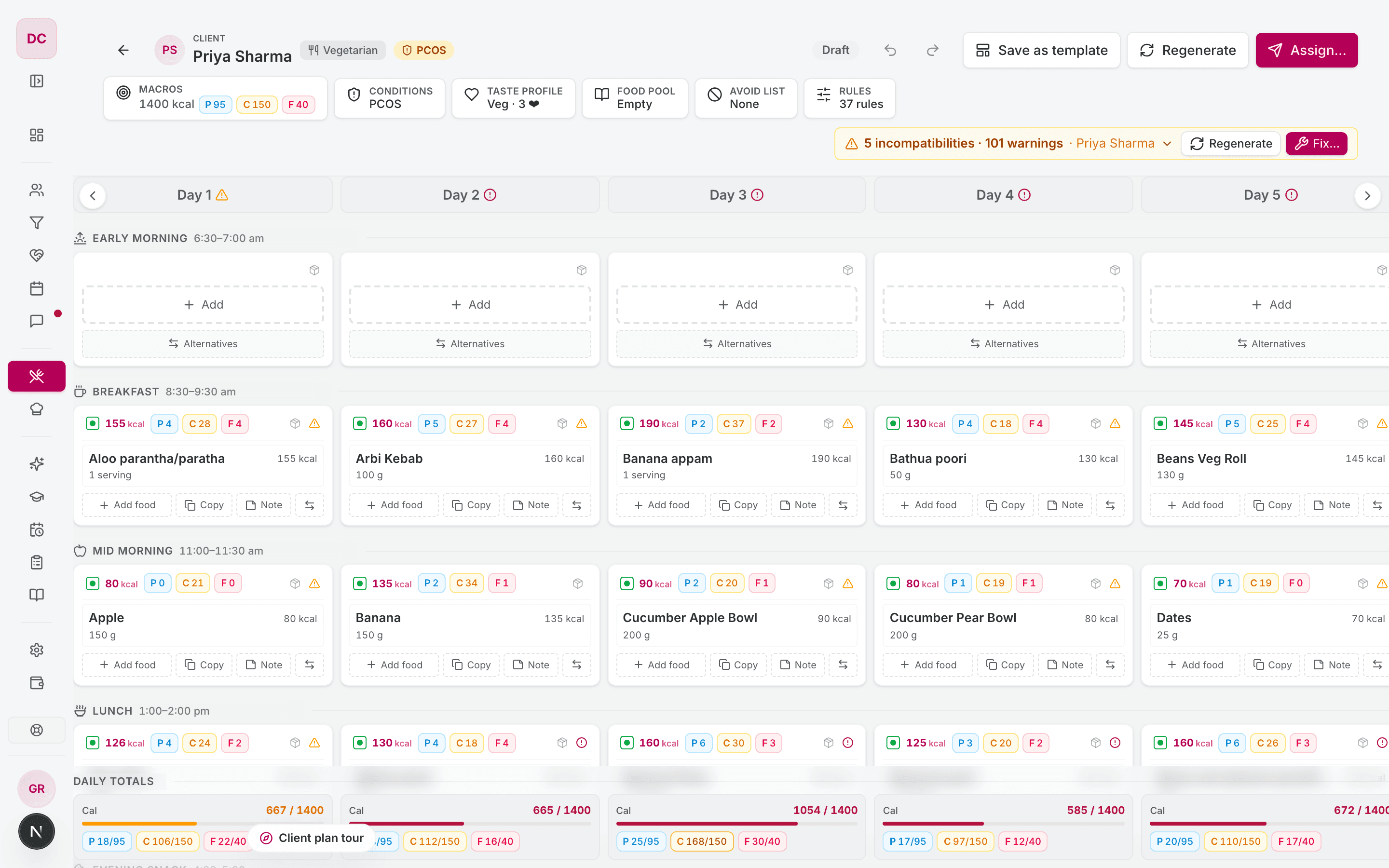
The header
| Control | What it does |
|---|---|
| Client name and badges | Shows the client, their diet type and their conditions. |
| Draft / status | The status of this plan. |
| Undo / Redo | Undoes or redoes your last edits. |
| Save as template | Copies this plan into your template library. See Meal plans. |
| Regenerate | Rebuilds all or part of the plan. See Regenerate. |
| Assign… | Opens the Assign Meal Plan dialog. See Meal plans. |
The app saves each edit to a client plan immediately. There is no Save button for client plans.
The editor buttons
The row below the header has buttons that open small panels. Each button shows its current value.
For a client plan
| Button | What you can change |
|---|---|
| Macros | The client's daily calories, protein, carbs and fat. |
| Conditions | The client's conditions and allergies. |
| Taste profile | The client's diet type and food likes. |
| Food pool | The foods that the app can use for this client. |
| Avoid list | Dishes to keep out of this plan only. |
| Rules | The rules that check this plan. See The rules. |
For a template (open a generated template from Meal Plans)
| Button | What you can change |
|---|---|
| Targets | The template's daily calories, protein, carbs and fat. |
| Conditions | The conditions that the template is written for. |
| Avoid list | Dishes to keep out of this template. |
| Rules | The rules that check this template. |
A template in the workspace also has Auto-save, Save and Publish, the same as the template editor.
When you close a panel, the app checks the plan again.
4. Check the plan
The app checks the plan after each change. You do not need to start a check.
- Each day header shows a mark: ✓ for no problems, a warning icon, or an error icon.
- Each cell with a problem shows a warning or error icon. Click the icon to see the problems.
- The summary at the right of the editor buttons shows the number of problems. Click it to open the list.
| Severity | Meaning |
|---|---|
| Error | A hard problem, for example an allergen or the wrong diet type. Fix it before you assign the plan. |
| Warning | A soft problem, for example a meal that is above its calorie target. Use your judgement. |
The list groups problems by day. Plan-wide problems are at the top. Click a problem to go to its cell.
To fix only the listed meals, click Fix these. The app rebuilds only those meals.
5. Regenerate
You can rebuild all of the plan or only part of it.
Change one meal
In a cell, click Alternatives. The Alternatives panel shows the current meal at the top, then five other meal options.
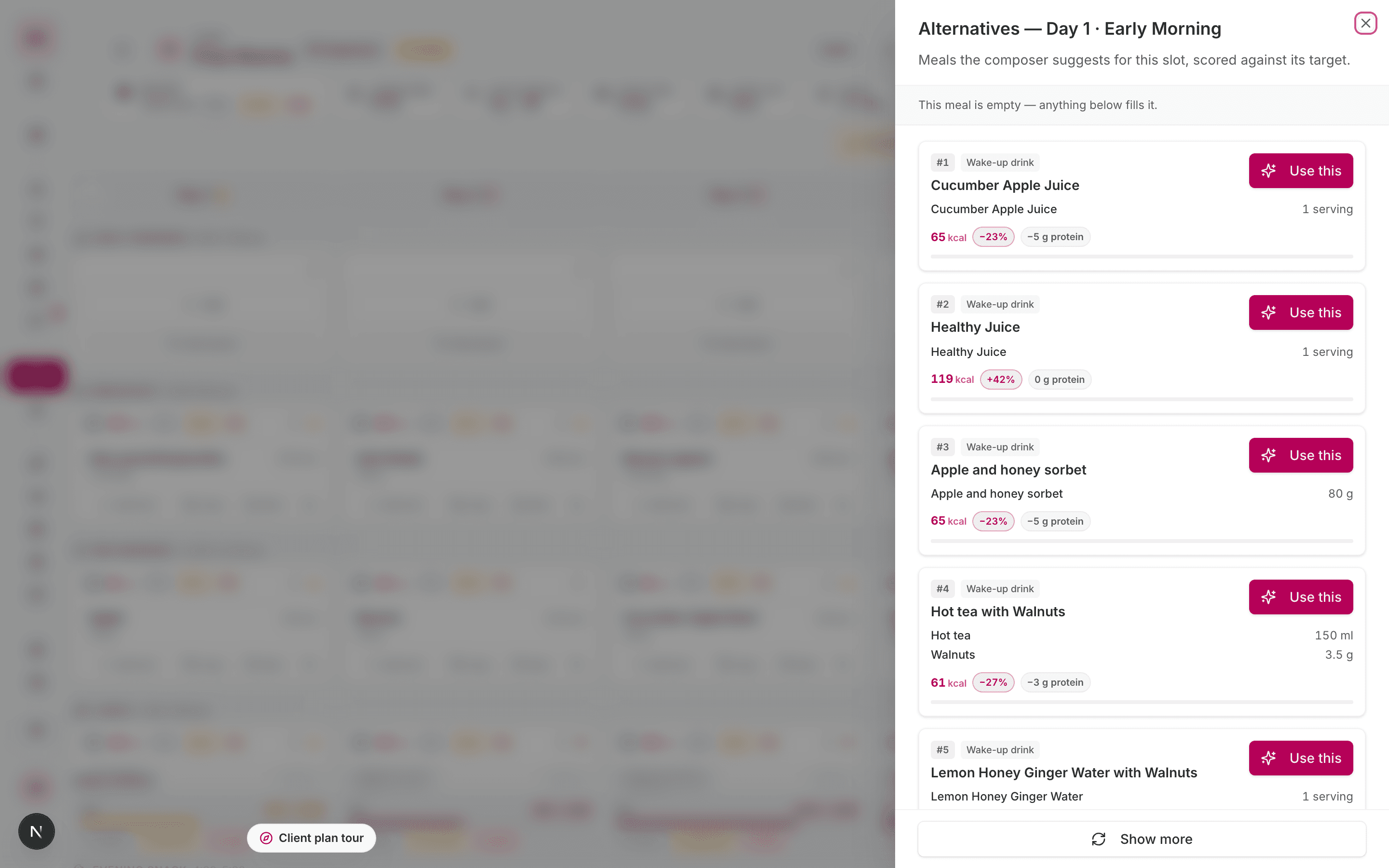
Each option shows its calories and protein against the meal's target, and a match score. To see five more options, click Show more. To use an option, click Use this.
If no other option fits, the panel says so. This happens when the rules, the client's exclusions and the food pool leave no other choice.
A meal that you pick here is not locked. If you want to keep it, lock the cell. See Meal plans.
Rebuild rows or the whole plan
- Click Regenerate in the header.
- Select what to rebuild.
- Set the options.
- Click the button at the bottom.
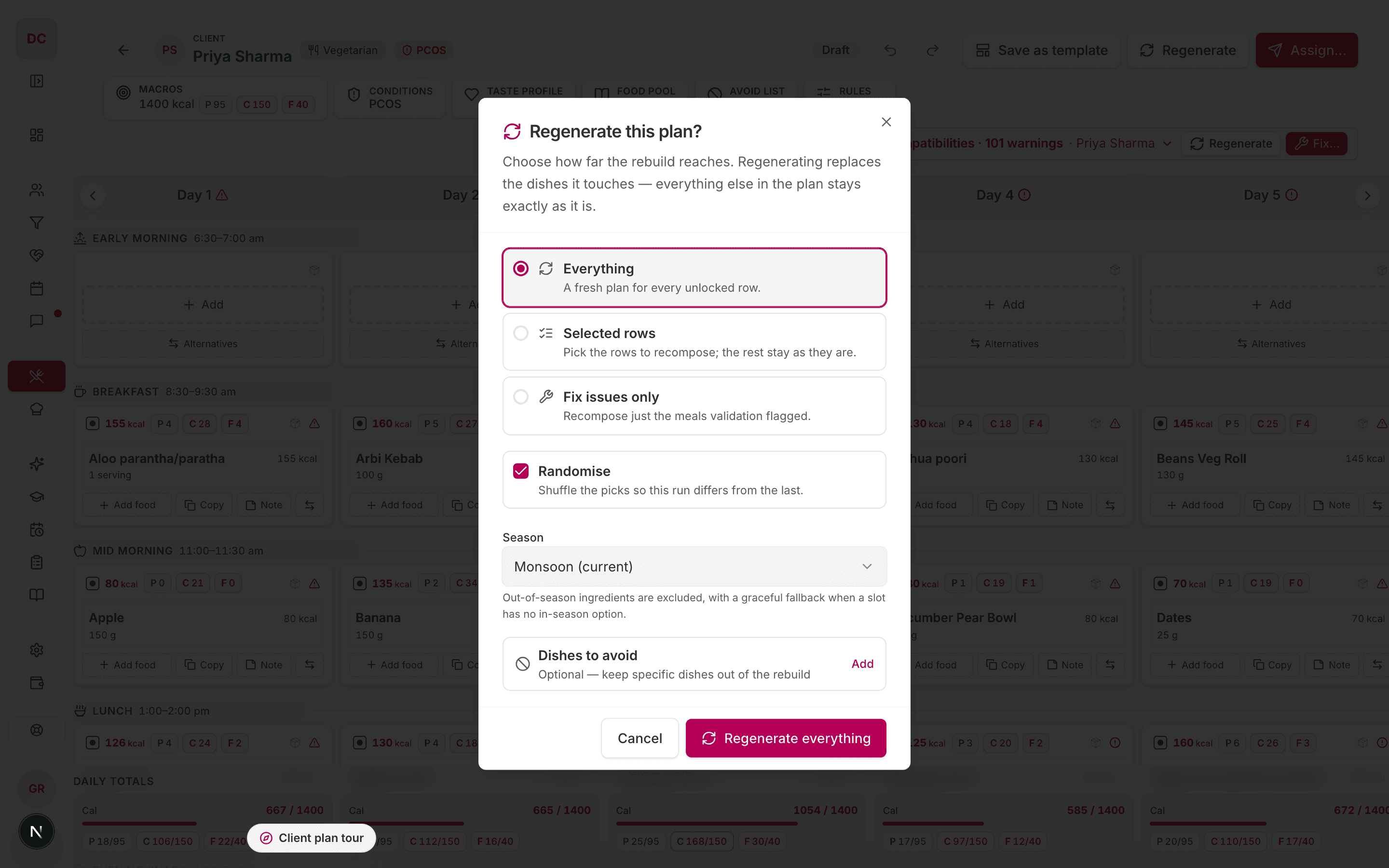
| Option | What it does |
|---|---|
| Everything | Builds a new plan for every row that is not locked. |
| Selected rows | Rebuilds only the rows that you select. If you select a locked row, the app rebuilds it anyway. Locked cells stay the same. |
| Fix issues only | Rebuilds only the meals that have problems. This option is disabled when there are no problems. |
| Randomise | Picks different foods from the last run. It is on by default for Everything. |
| Season | The season to plan for. |
| Dishes to avoid | Dishes to keep out of the rebuild. Changes save immediately. |
The button text changes to match your choice: Regenerate everything, Regenerate 2 rows or Fix issues.
Other ways to regenerate:
- In a row's Slot settings, click Regenerate this row.
- In the problem list, click Fix these.
Custom rows are never rebuilt. Locked rows and locked cells keep their meals.
6. Check a template for a client
Use this when you want to give a client a template, but the template may not suit their health.
- On the client's Meal Plan tab, click New meal plan.
- Select Start from a template, then select the template.
- Click Continue.
The workspace opens with a review bar. The bar shows, for example, "5 incompatibilities · 101 warnings". Click the bar to see the list. If there are no problems, it shows "No incompatibilities for this client".
Fix the plan
- On the review bar, click Fix….
- Select how much the app can change. See the table below.
- Click Preview changes.
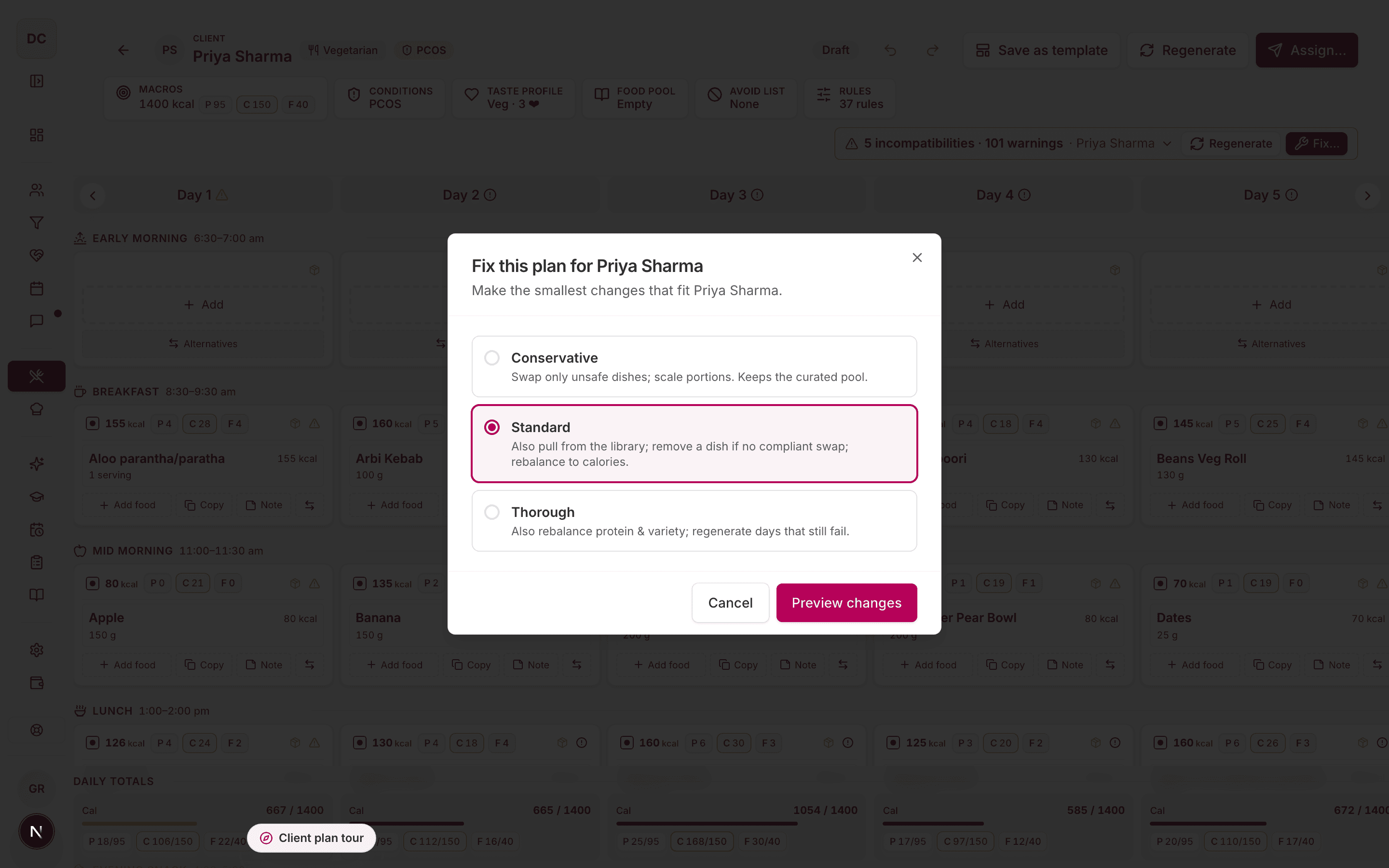
| Level | What the app does |
|---|---|
| Conservative | Swaps only unsafe dishes and scales portions. It uses only the foods already in the plan. |
| Standard (default) | Also uses foods from the library, removes a dish if no safe swap exists, and balances calories. |
| Thorough | Also balances protein and variety, and rebuilds days that still fail. |
The preview shows how many dishes the app replaced, scaled and removed (no substitute), and how many issues remain.
- If problems remain, click Try Standard or Try Thorough.
- To keep the changes, click Apply & assign. The Assign Meal Plan dialog opens.
- To stop, click Discard.
If other clients use this template, the app makes a copy for this client. The other clients' plans do not change.
To rebuild the plan instead of fixing it, click Regenerate on the review bar.
7. The rules
Click Rules to see every rule that checks the plan. Some rules are locked on. You can turn off or change the numbers of other rules. Your changes apply to this plan only.
| Rule group | What the rules check |
|---|---|
| Diet and allergies | The client's diet type (veg, non-veg, vegan, egg, Jain). No allergens. Both are locked on. |
| Season | No out-of-season ingredients. Locked on. |
| Health conditions and medications | No foods on a condition's avoid list, and no foods that conflict with a client medication. The app prefers foods that help a condition. |
| Structure | Each meal has the right kinds of food. A meal has a maximum number of dishes. |
| Calories and macros | Each meal is near its calorie target. Each day is near the daily calories, protein, carbs and fat targets. |
| Meal combinations | Sensible plates. For example: one wet protein dish per meal, a limit on gravies and rich food, only one fermented dairy item, no curd with fish, a minimum amount of protein, and a limit on grain items per meal. |
| Frequency and variety | How often non-veg and eggs appear in the week. No meat or fish at breakfast. The app avoids repeating recent dishes. |
| Preferences | The client's likes, dislikes and preferred proteins. |
| Verified foods only | Uses only foods that a library editor checked. |
The Rules panel also has Meal template pool and Food preferences sections.
Verified foods only
This rule is on by default. The plan then uses only verified foods. If there are not enough verified foods to build the plan, the app stops and tells you. It does not use unchecked foods instead. To use all foods, turn this rule off in the Rules panel.
8. How targets are calculated
The app calculates the daily targets from the client's profile:
- Calories come from the client's body size, age, sex, activity level and goal.
- Protein is the client's weight multiplied by a value for their goal. For a muscle-gain client who is extremely active, the value is 2.0 g per kg.
- Fat is 20% of the calories.
- Carbs are the remaining calories.
If you change the goal, weight or activity, the targets change. You can also type each target yourself on the client's Targets card, or in the workspace Macros panel. See Clients.
Common workflows
"I need a 7-day plan for a new diabetic client"
- On the client's Overview tab, make sure that the diet type is set and Diabetes is in the conditions.
- On the Meal Plan tab, click New meal plan.
- Keep Generate a fresh plan and 7 days. Click Continue.
- Look at the problem list. For an error, click it, then use Alternatives or Replace on the dish.
- To fix many meals at once, click Fix these.
- Click Assign…, then Start today, then Assign Plan.
"I like the plan, but I want different dinners"
- Lock any dinner that you want to keep.
- Click Regenerate, then Selected rows.
- Select Dinner.
- Click Regenerate 1 row.
"This template does not fit my new client"
- Click New meal plan, then Start from a template, then Continue.
- Click Fix…, then Conservative, then Preview changes.
- If problems remain, click Try Standard.
- Click Apply & assign.
"The generate option is blocked"
The client has no diet type. Click Set diet type on the Meal Plan tab, then set it on the Taste Profile card.
What's next
- Meal plans — edit the grid, assign, schedule and export.
- Food library — verify foods, and tag ingredients for conditions and medications so the rules have data.
- Clients — set the diet type, conditions and targets.
- Settings — change what each role can do.