Food library
Find, add and edit the foods and ingredients that go into every meal plan, and tag them for health conditions and medications.
The food library holds every food that you can put in a meal plan. It also holds the ingredients that those foods are made from. The meal plan rules read the health data on foods and ingredients, so good library data gives safer plans.
Open Food Library in the sidebar, under Nutrition. It has two tabs: Foods and Ingredients.
| Tab | What it holds |
|---|---|
| Foods | Dishes and items that go into a meal, for example Palak paneer or Apple. Each food has calories and macros per serving. |
| Ingredients | The raw items that foods are made from, for example Spinach or Paneer. Ingredients carry the health condition and medication tags. |
You build meal plans directly from foods. See Meal plans.
Shared foods and your foods
The library has two kinds of rows:
| Badge | What it means |
|---|---|
| Shared | Part of the shared library. Every practice can use it. Only library editors can change it. |
| Yours | Belongs to your practice. Only your team sees it. |
To change a shared food for your practice, make your own copy first:
- On the Foods list, click Save to library on the row.
- On a food's page, click Clone to Business Library.
The copy is a Yours food. You can then edit it. By default, only owners and admins can do this.
1. Foods
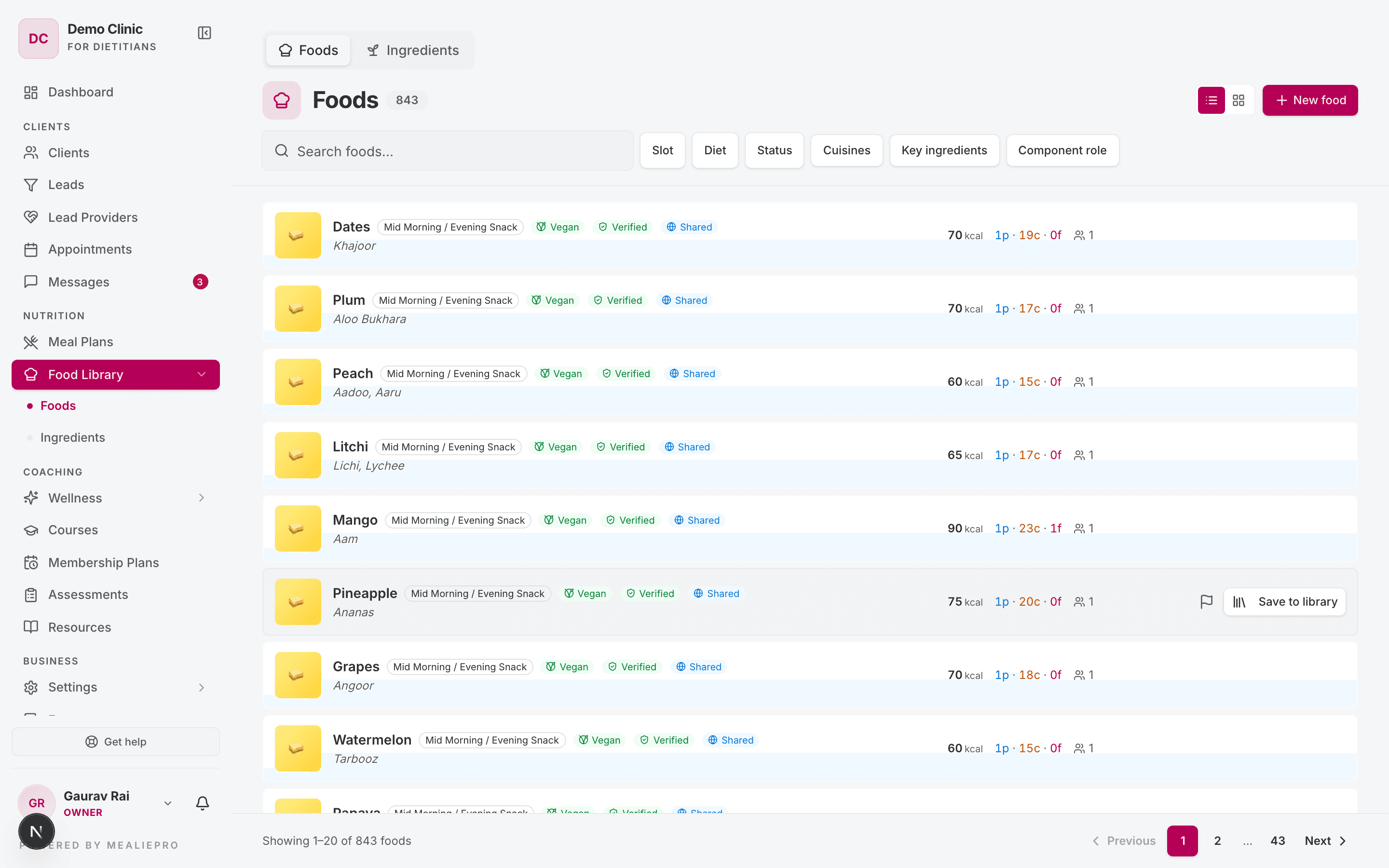
Each row shows the food name, its other names, its meal slots, diet badges, Verified and Shared or Yours. The right side shows calories, protein, carbs and fat per serving.
Use the list and grid buttons at the top right to change the view.
Filters
| Filter | Options |
|---|---|
| Search | "Search foods..." — matches the name. |
| Slot | All slots, or one meal slot. |
| Diet | Any diet, Vegetarian, Non-vegetarian, Vegan. |
| Status | Any status, Verified only, Unverified only. |
| Cuisines | One or more cuisines. |
| Key ingredients | One or more main ingredients. |
| Component role | The kind of food, for example grain or protein. |
Add a food
- Click New food.
- Type the Title. This field is required.
- Optional: type a Description, the Servings, and select a Slot.
- Turn Vegetarian on or off.
- Click Create food.
The food page then opens. Add the ingredients, nutrition, method and photos there.
Tip: You can also add a food while you build a plan. In the Add a food dialog, click New food. See Meal plans.
By default, owners, admins, dieticians and nutritionists can add foods.
The food page
Click a food to open its page.
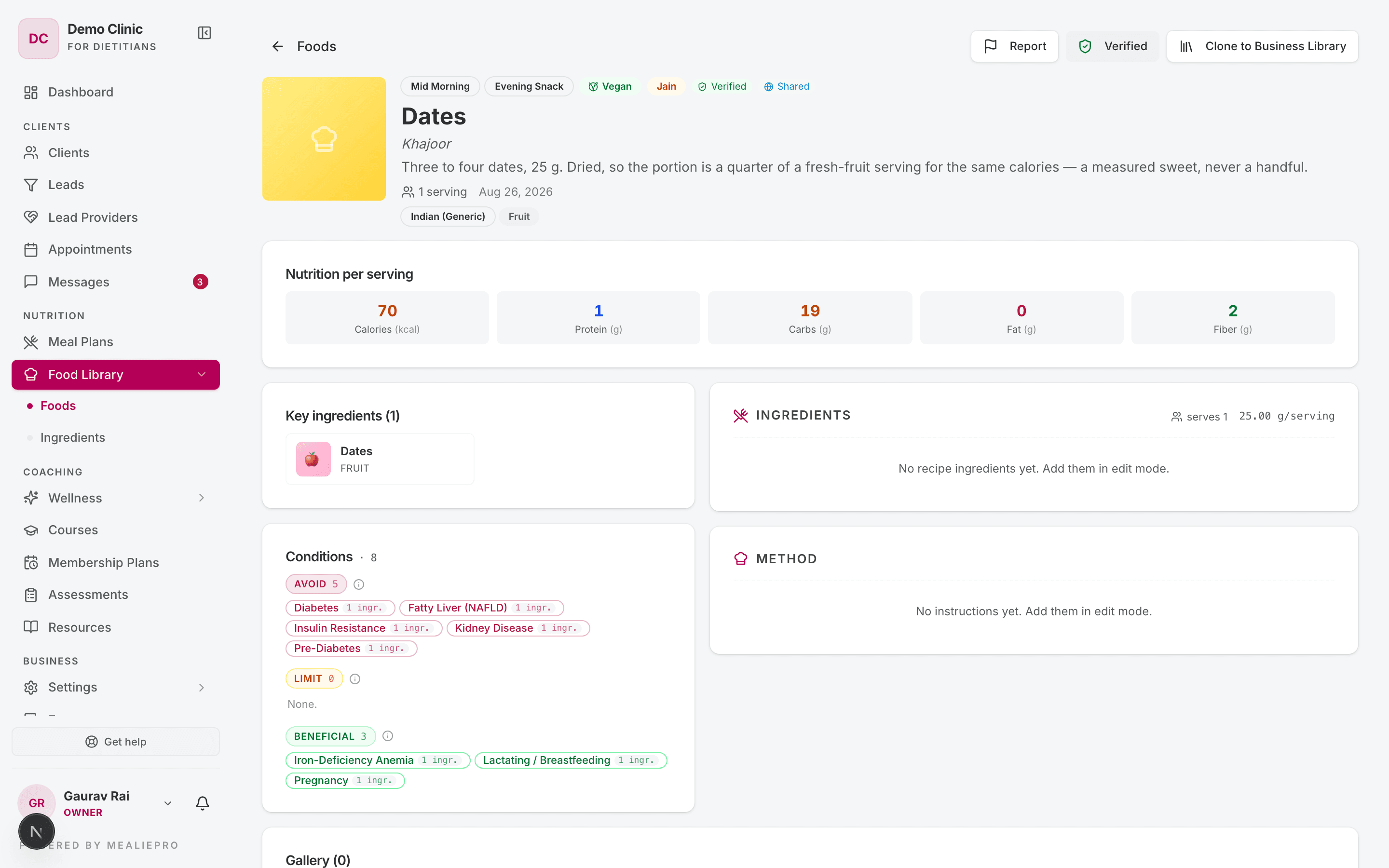
The page shows:
| Card | What it shows |
|---|---|
| Header | Photo, name, other names, description, meal slots, diet badges, cuisines. |
| Nutrition per serving | Calories, Protein, Carbs, Fat and Fiber. |
| Key ingredients | The main ingredients of the food. |
| Ingredients | The recipe ingredients and the serving size. |
| Method | The cooking steps. |
| Conditions | The health conditions that the food is bad or good for. See below. |
| Gallery | Photos. |
The header has these buttons:
| Button | Who sees it | What it does |
|---|---|---|
| Report | All staff | Sends a correction to the library team. |
| Mark verified / Verified | Owners, admins and library editors | Marks the food as checked. Click again to remove the mark. |
| Clone to Business Library | Owners, admins and library editors | Copies a shared food into your practice. |
| Edit | Users who can edit this food | Opens edit mode. Click Save or Cancel when you finish. |
| Flag for deletion / Restore | Users who can edit this food | Hides the food from lists, or shows it again. |
In edit mode you can change the Title, Regional name, Description, Prep (min), Cook (min), Servings, Serving size and Unit. Edit mode also shows two more cards:
- Classification — Slots (meal times), Component types (HMRE) and Cuisines (tags).
- Dietary flags — Vegetarian, Vegan, Jain, Contains egg, Halal.
Tip: Clients see the recipe only when the food has ingredients or a method. If both are empty, clients see no recipe.
The Conditions card
The Conditions card has three groups:
| Group | Meaning |
|---|---|
| Avoid | Do not give this food to a client with this condition. |
| Limit | Give this food only in small amounts. |
| Beneficial | This food helps with this condition. |
Most rows come from the food's ingredients. Each of these rows shows the number of ingredients that caused it. You can also add a row by hand. Hand-added rows show "Manually added — not derived from ingredients."
If a condition is in Avoid, the app does not show it in Beneficial.
2. Ingredients
Each ingredient row shows the category, the veg or vegan badge, the number of conditions, the season badge, Verified, and Shared or Yours.
Filters: search, Category, Status and Interactions (medications).
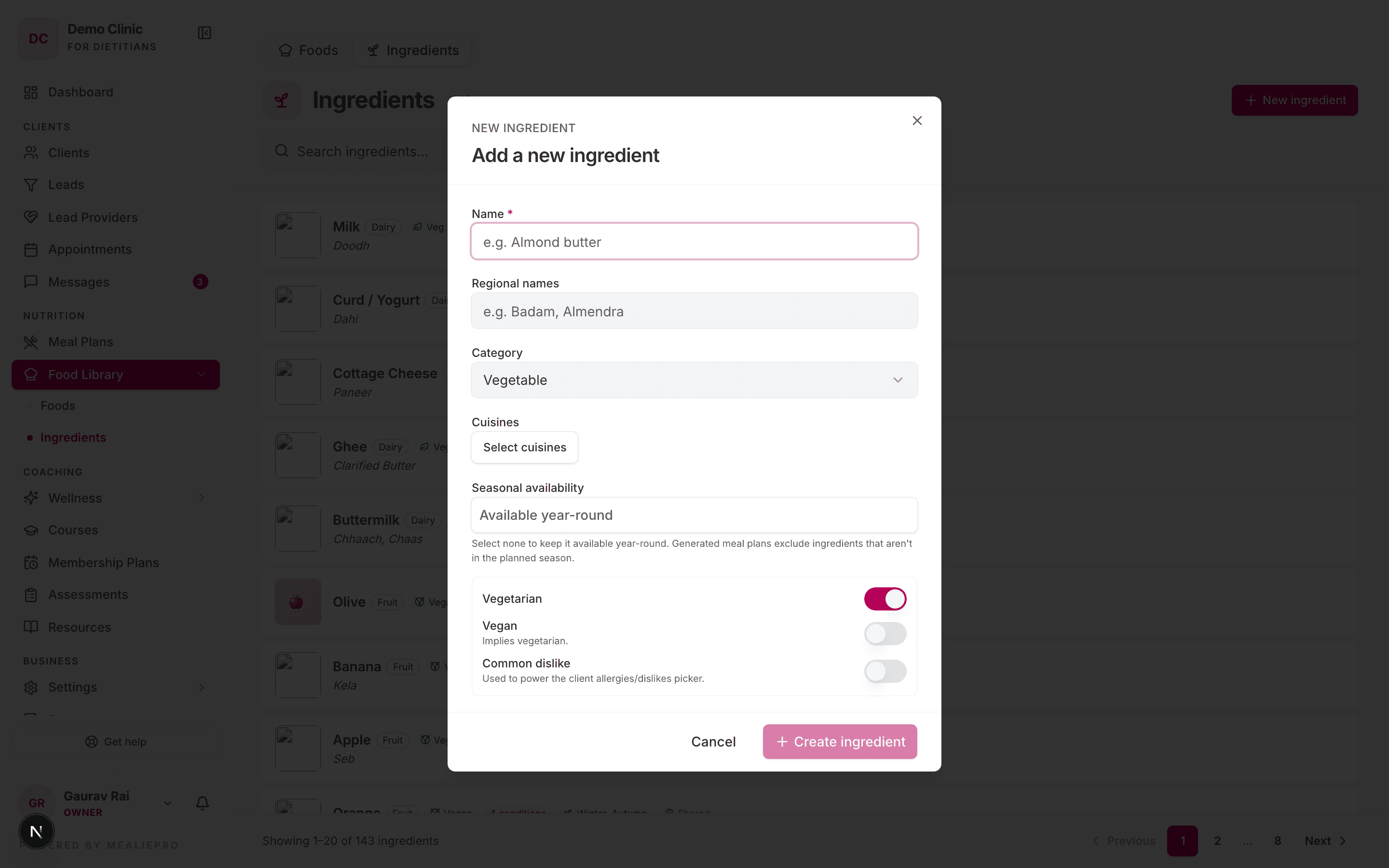
Add an ingredient
- Click New ingredient.
- Type the Name. This field is required.
- Optional: type Regional names, and select a Category and Cuisines.
- Optional: select the Seasonal availability. See below.
- Set Vegetarian, Vegan and Common dislike.
- Click Create ingredient.
Common dislike adds the ingredient to the list that you use to record a client's dislikes.
To change an ingredient, click its row. The dialog title changes to Edit ingredient, and the button changes to Save changes.
Seasons
The app uses five seasons, on the Indian calendar:
| Season | Months |
|---|---|
| Spring | February – March |
| Summer | April – June |
| Monsoon | July – September |
| Autumn | October – November |
| Winter | December – January |
If you select no season, the ingredient is available all year. The row shows "All seasons" only when you select all five. When the app builds a plan, it does not use out-of-season ingredients.
3. Tag ingredients for conditions and medications
These tags are how the meal plan rules know what is safe. Foods get their condition rows from their ingredients.
- Create the ingredient and save it.
- Click the ingredient row to open it again.
- Use the Conditions and Medication interactions sections.
Tip: These two sections show only when you edit an ingredient that already exists. They do not show in the New ingredient dialog.
Medication interactions
- In Medication interactions, click Add.
- Select a medication. If it is not in the list, click Add new medication.
- Optional: type a note, for example "Vitamin K source — keep intake stable".
- Click Flag interaction.
To add a new medication, type the Brand name, an optional Generic name, and click Create medication.
The medication classes are: Antidiabetic, Antihypertensive, Statin / Lipid, Anticoagulant, Thyroid, Steroid, Psychiatric / MAOI, PPI / Antacid and Other.
When a client takes a medication, the plan avoids foods that interact with it. You record a client's medications on their Overview tab, in the Conditions, Allergies & Medications card. See Clients.
Custom conditions
If a condition is not in the list, your team can add it. In a client's conditions picker, type the name, then click Add "<name>" as new. Custom conditions show a Custom badge.
Tip: A new condition has no food rules. It does not change a plan until you tag ingredients or foods for it. The plan shows a warning for such a condition.
4. Report incorrect data
If you find an error in a shared food, send a report:
- Click the flag icon on the food row, or Report on the food page.
- In What's wrong?, select a reason: Incorrect macros / calories, Wrong name or typo, Outdated information, Duplicate of another food, or Something else.
- In Details, say what is wrong. This field is required.
- Click Send correction.
The message "Thanks — your correction was sent to the library team." confirms that the report was sent.
5. Verify foods and ingredients
A Verified food or ingredient was checked for accuracy. The Verified foods only rule uses this mark. See Generating & checking plans.
To verify a food or ingredient:
- Open it.
- Click Mark verified. The button changes to Verified.
To remove the mark, click Verified again.
By default, only owners and admins can verify rows in their own practice. Only library editors can verify shared rows. Users who can verify also see who verified the row and when.
6. For library editors
Library editors look after the shared library for all practices. They also see:
- Pending deletion and Reported filters on the lists.
- A Correction reports card on each food page, with each report's status, reporter and practice. Click Mark as done to close a report.
- A Duplicate button, which copies a food inside the shared library.
- The Meal Templates page and the Combinations card on each food.
Some practices have a Library Editor role. Members with only this role see Foods, Ingredients and Meal Templates, and nothing else. They can add foods and edit foods that are not yet verified. They cannot verify, and they do not see the Conditions card.
Common workflows
"A shared food has the wrong calories"
- Open the food.
- Click Report.
- Select Incorrect macros / calories, and type the correct values and your source.
- Click Send correction.
To use the correct values now, click Clone to Business Library and edit your copy.
"I want grapefruit kept away from clients on statins"
- Open Ingredients and click Grapefruit.
- In Medication interactions, click Add.
- Select a statin medication, then click Flag interaction.
Plans for clients who take that medication now avoid foods with grapefruit.
"My client's condition does not change the plan"
The condition has no food rules. Tag the ingredients that are bad or good for the condition. Then regenerate the plan.
What's next
- Meal plans — put foods into a plan.
- Generating & checking plans — see how the rules use this data.
- Clients — record a client's conditions, allergies and medications.