Clients
Add a client with the 3-step wizard or an invite link, then work with the client profile — tabs, targets, medical history and the actions menu.
The Clients page is your client list. Each client has a profile with one tab for each part of their record. Use this page to add clients, invite them to the client portal, and keep their record current.
Open Clients in the sidebar, in the Clients group.
The Clients list
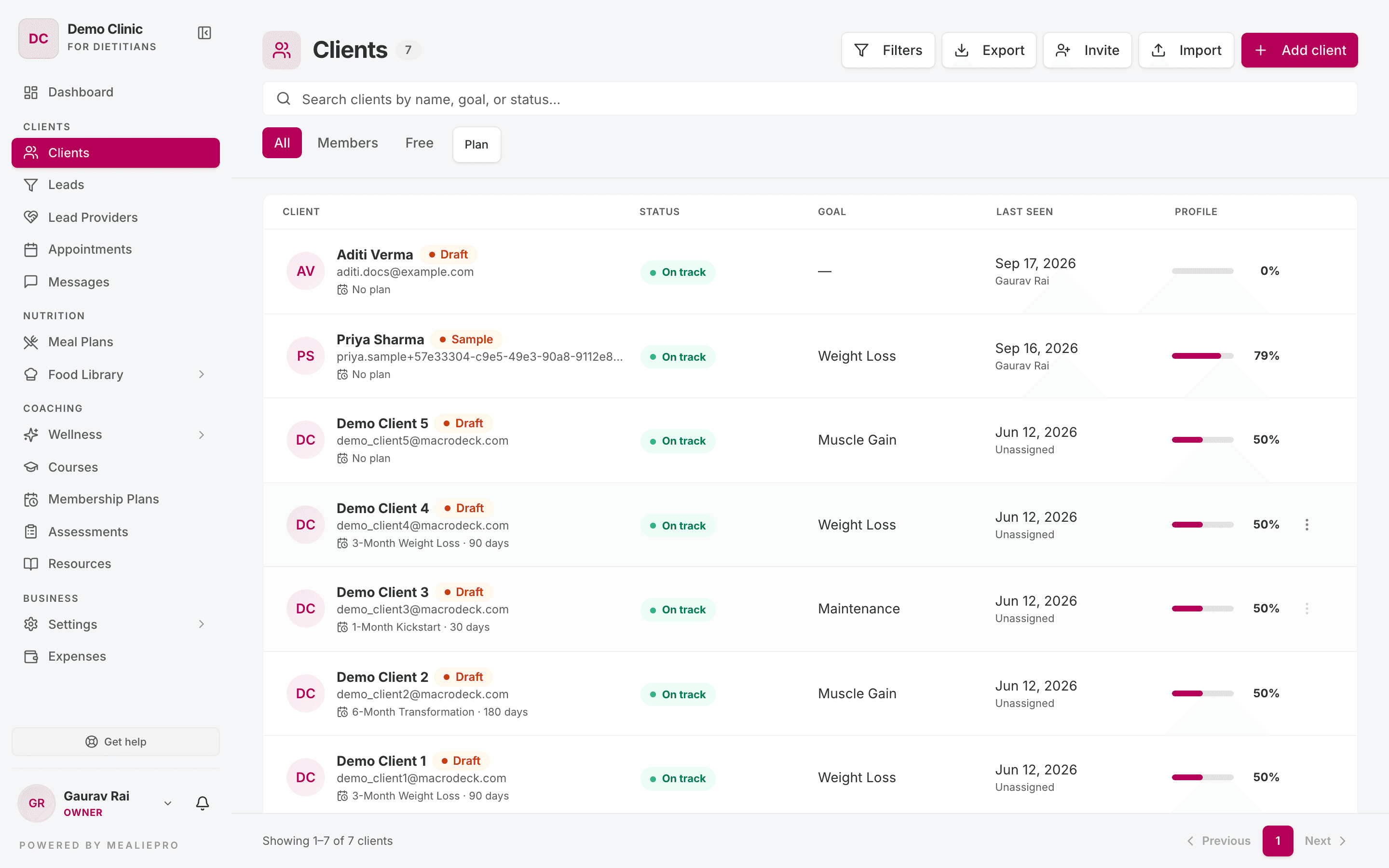
The toolbar has five buttons:
| Button | What it does |
|---|---|
| Filters | Opens the Filter by panel. Filter by Status, Goal and Assigned to. Reset clears the filters. |
| Export | Downloads a CSV of the clients that the list shows now, with your filters applied. |
| Invite | Creates an invite link for a new client. See Invite a client. |
| Import | Adds many clients from a CSV file. See Bulk import (CSV). |
| Add client | Opens the 3-step wizard. See Add a client. |
Below the toolbar:
- Search — type a name, goal or status.
- All · Members · Free — Members are clients on a membership plan. Free clients came in through your public signup link and have no plan.
- Plan — show the clients on one membership plan, or the clients with No plan.
The Status filter shows Active clients by default. Its other values are On hold, Needs check-in, Archived and All statuses. If a client is missing from the list, set Status to All statuses.
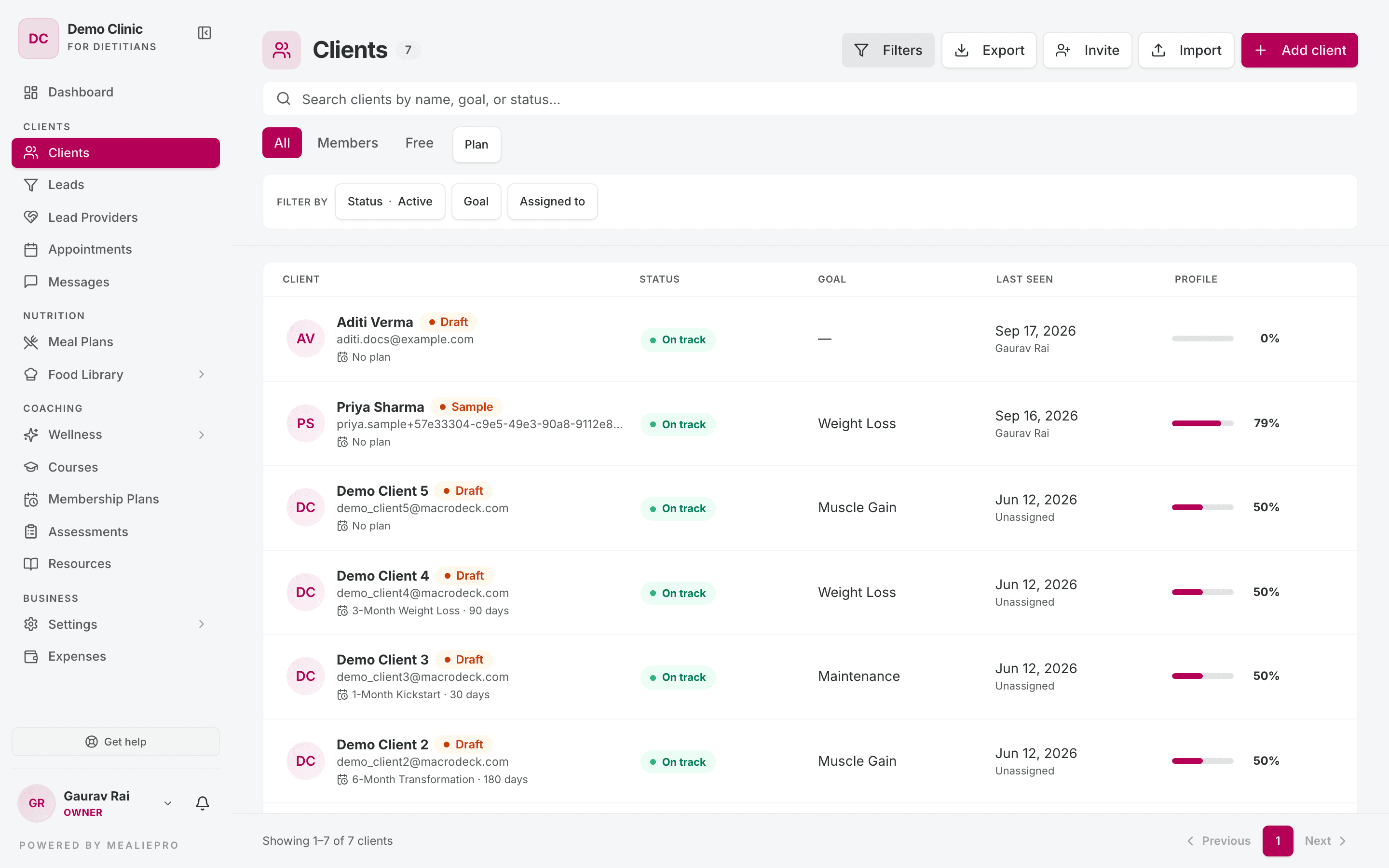
Each row shows the client, their status, goal, when they were last seen, and how complete their profile is. A row can also show a badge:
| Badge | Meaning |
|---|---|
| Invited | You created an invite for this client. They have not signed up yet. |
| Draft | The client's profile is not complete. |
| Free | The client came in through your public signup link. |
| Sample | Example data that came with your account. |
Under the name, the row shows the client's membership plan and its length, or No plan.
Add a client
Click Add client. The wizard has three steps: Identity → Goals & body → Plan.
The wizard saves as you go. It creates the client when you click Create & continue on step 1. Each later step saves when you click Next or Done.
If you close the wizard before the end, it asks Finish later? Click Finish later to keep the client as a Draft. Click Keep editing to go back.
To continue a draft, open the client. Then click Complete profile in the header, or Resume on the banner. The wizard opens on the first step that is not complete.
Step 1 — Identity
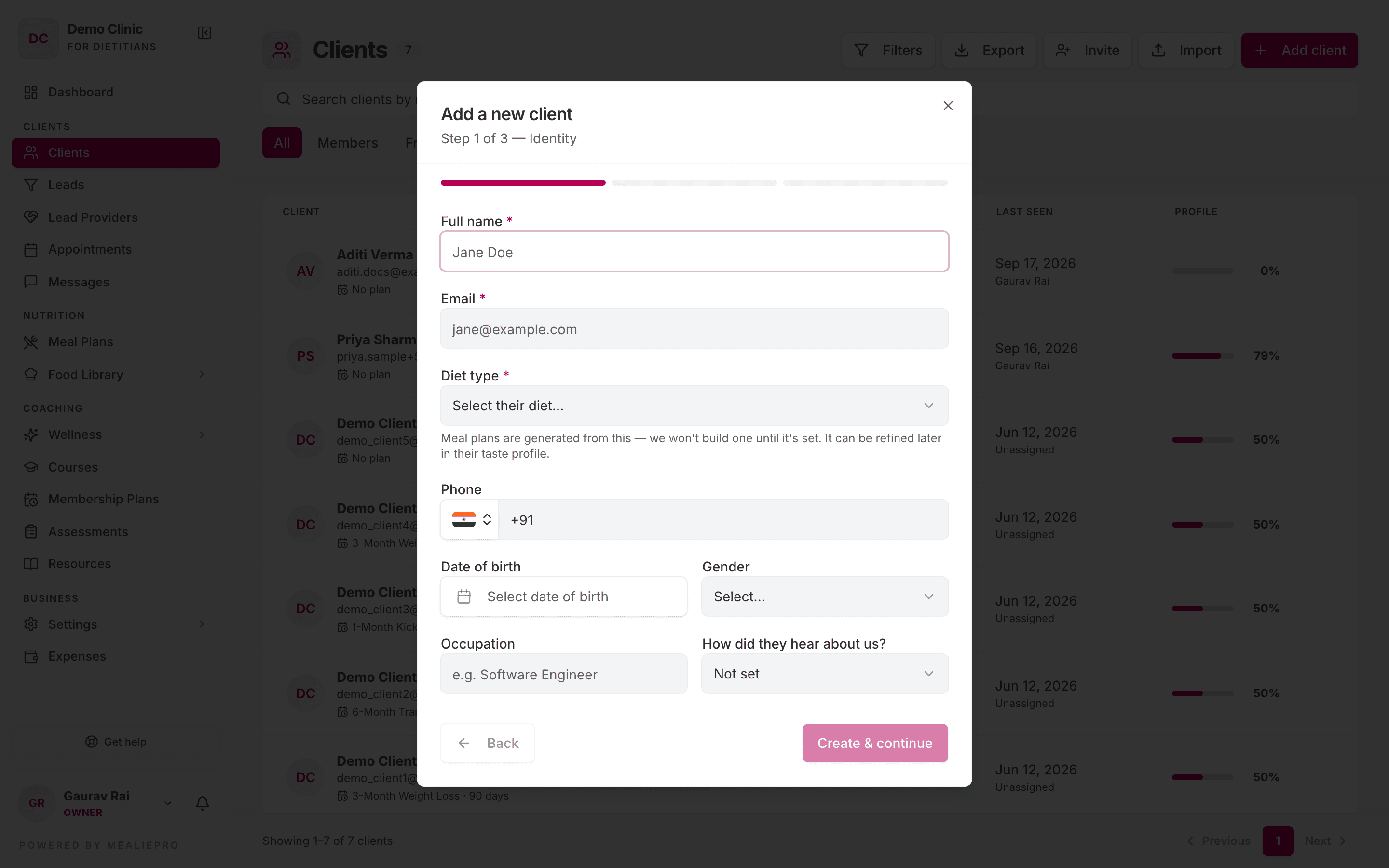
Three fields are required:
| Field | Why it is required |
|---|---|
| Full name | Identifies the client. |
| The client's login for the client portal. | |
| Diet type | Meal plans are generated from this. The app does not build a meal plan until it is set. |
Phone is optional. If you enter a phone number, it must be valid. The other fields on this step are optional too. Date of birth and Gender feed the calorie and macro targets.
Tip: If the client has no email, use an address you control, for example
clientname@yourclinic.com. You can change the email later in Edit profile › Identity & contact, but only until the client claims their account.
Step 2 — Goals & body
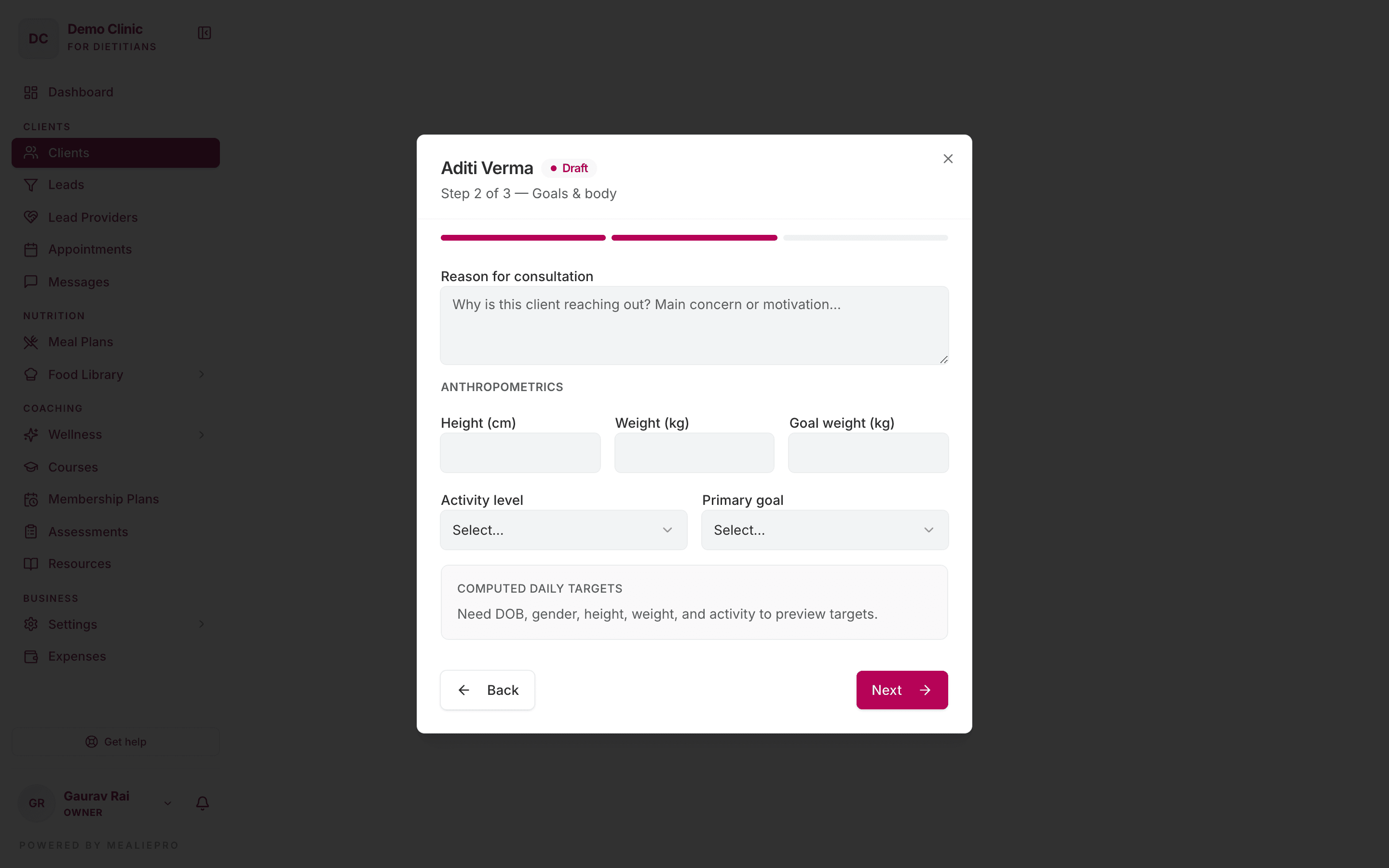
Enter the client's reason for consultation, height, weight and goal weight. Then set their Activity level and Primary goal.
- Suggested — above Primary goal, a hint suggests a goal from the difference between the current weight and the goal weight.
- Computed body composition — shows BMI, LBW (Boer) and IBW (Broca).
- Computed daily targets — shows the calorie and macro targets. This panel needs date of birth, gender, height, weight and activity. Until it has all five, it says "Need DOB, gender, height, weight, and activity to preview targets."
If a target looks wrong, correct the input. The targets calculate again from the inputs.
Step 3 — Plan
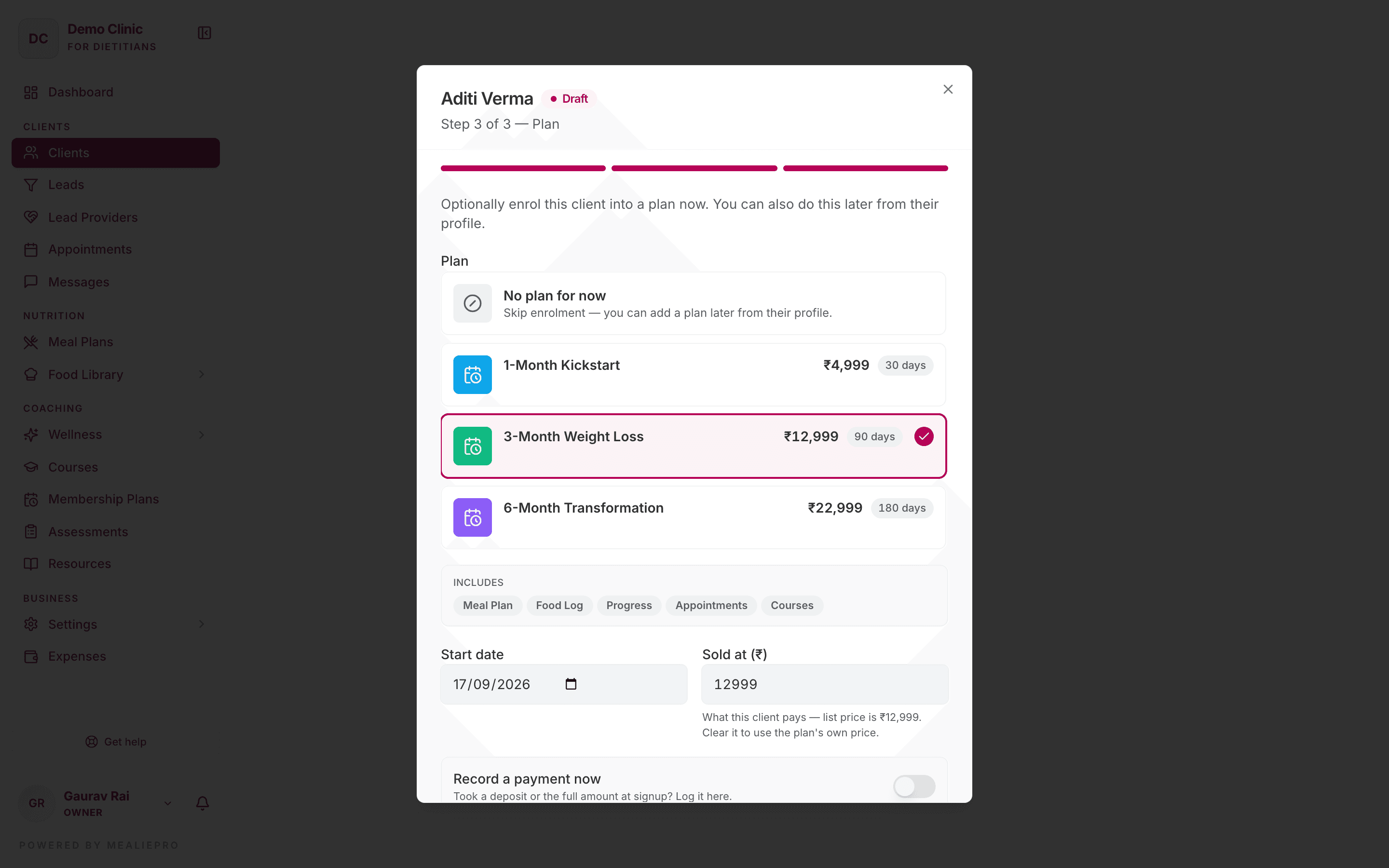
Enrol the client on one of your membership plans, or select No plan for now.
| Field | What it does |
|---|---|
| Plan | The membership plan. The Includes box lists the client-portal features that the plan gives. It shows All features if the plan does not limit features. |
| Start date | The first day of the plan. The Plan expiry preview shows the end date. |
| Sold at (₹) | The price you sold the plan for. It starts with the plan's list price. Change it to record a discount. |
| Record a payment now | Turn this on if the client paid at signup. Enter the payment details. The form shows how much stays pending. |
Click Done. The client's profile opens.
If you have no active plans, the step says "No active plans yet — create one under Membership Plans to enrol clients."
This is not your subscription. A membership plan is the program you sell to the client. Your own subscription is under Settings › Plan & Billing.
Who the new client is assigned to
The app assigns each new client to a coach:
- If your practice has exactly one coach, new clients go to that coach. This is true even when a receptionist adds the client.
- If not, the client goes to the staff member who added them.
The same rule applies to CSV import and to lead conversion.
Invite a client
Use Invite when you want the client to register themselves.
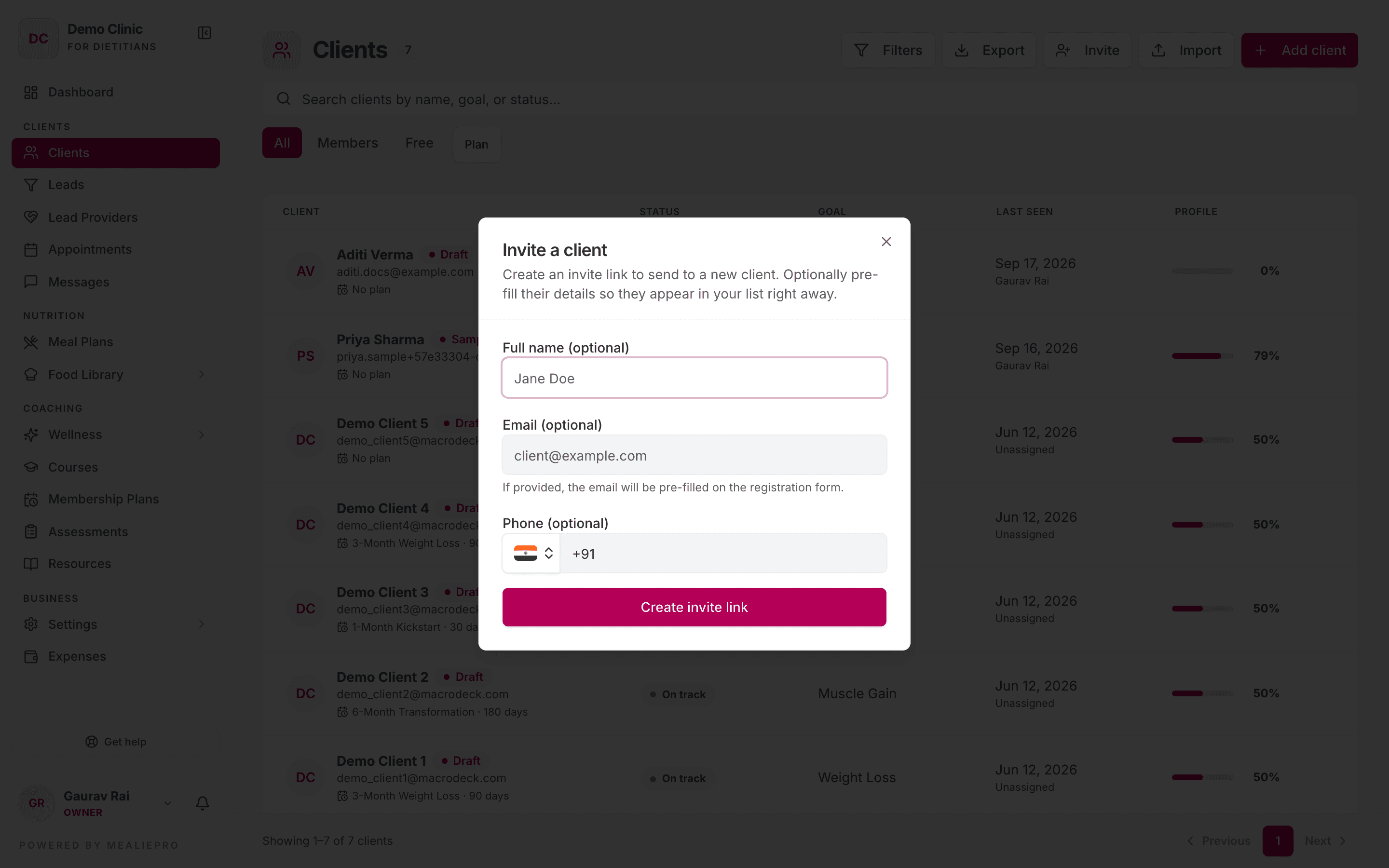
- Click Invite.
- Optionally, enter the client's Full name, Email and Phone.
- Click Create invite link.
- Copy the link and send it to the client. The dialog shows when the link expires.
The email is optional. If you enter an email, two more things happen:
- The client shows in your list immediately, with the Invited badge.
- You can tick Also send them an invite email. The app then emails the link to the client.
The client opens the link, creates a password and starts their onboarding. See Client portal › Getting access.
The sign-up banner
If a client has not signed up, their profile shows "This client hasn't signed up yet". The banner has two buttons:
- Copy link — copies the invite link.
- Send invite — emails the link. After the first email, the button is Resend invite.
A resend uses the same link. The link stays valid for 30 days after the last send. When the client signs up, the banner changes to Signed up, with the date the client was last seen.
The client profile
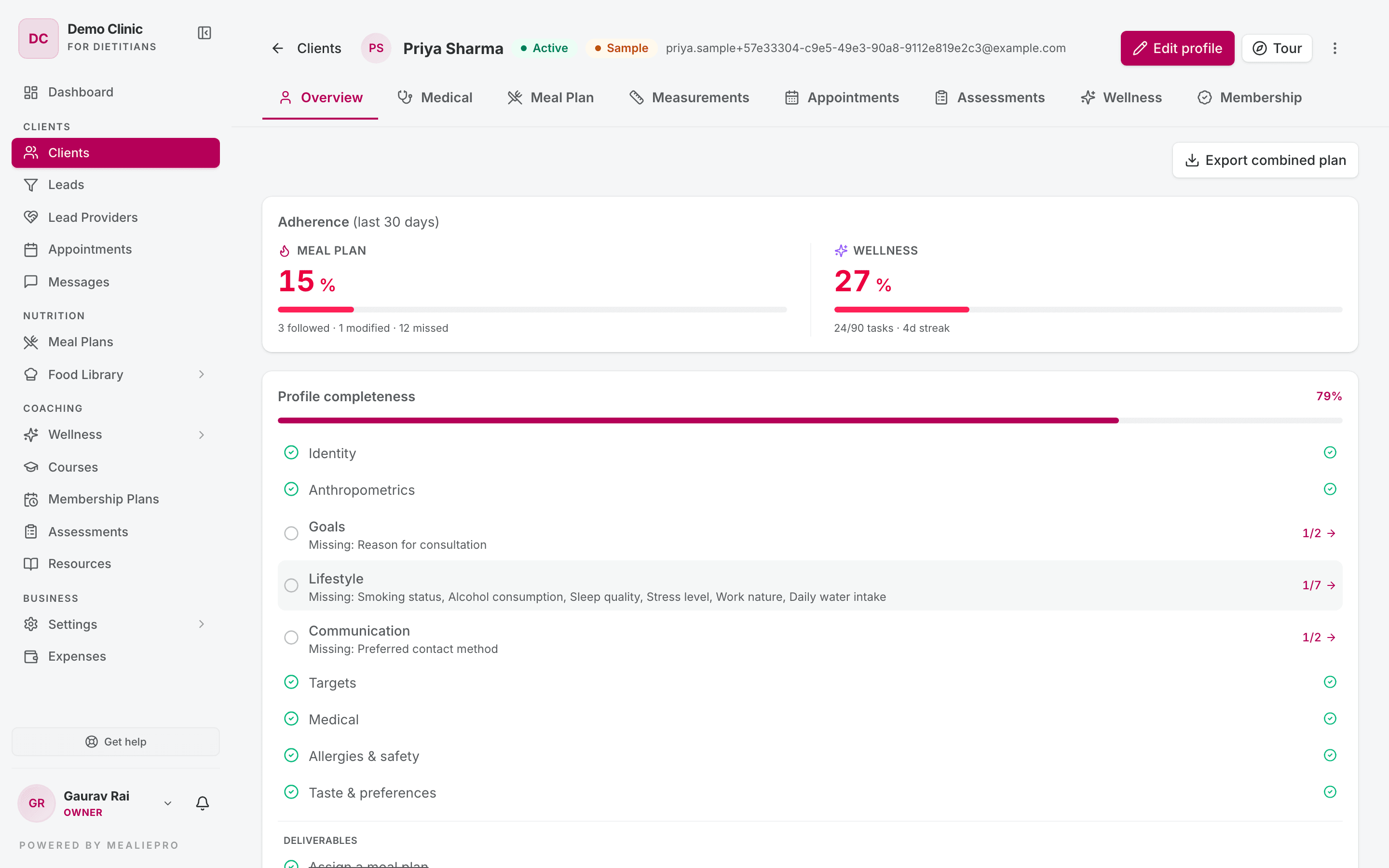
The header shows the client's name, status and email. It has three controls:
- Edit profile — opens the profile editor. For a draft client, this button is Complete profile.
- Tour — starts a short walkthrough of the profile.
- ⋮ — the actions menu. See Deactivate or delete a client.
The tabs are Overview · Medical · Meal Plan · Measurements · Appointments · Assessments · Wellness · Membership. The Wellness tab shows only if your plan includes the wellness module.
Edit profile
Click Edit profile to open the profile editor. It has six sections:
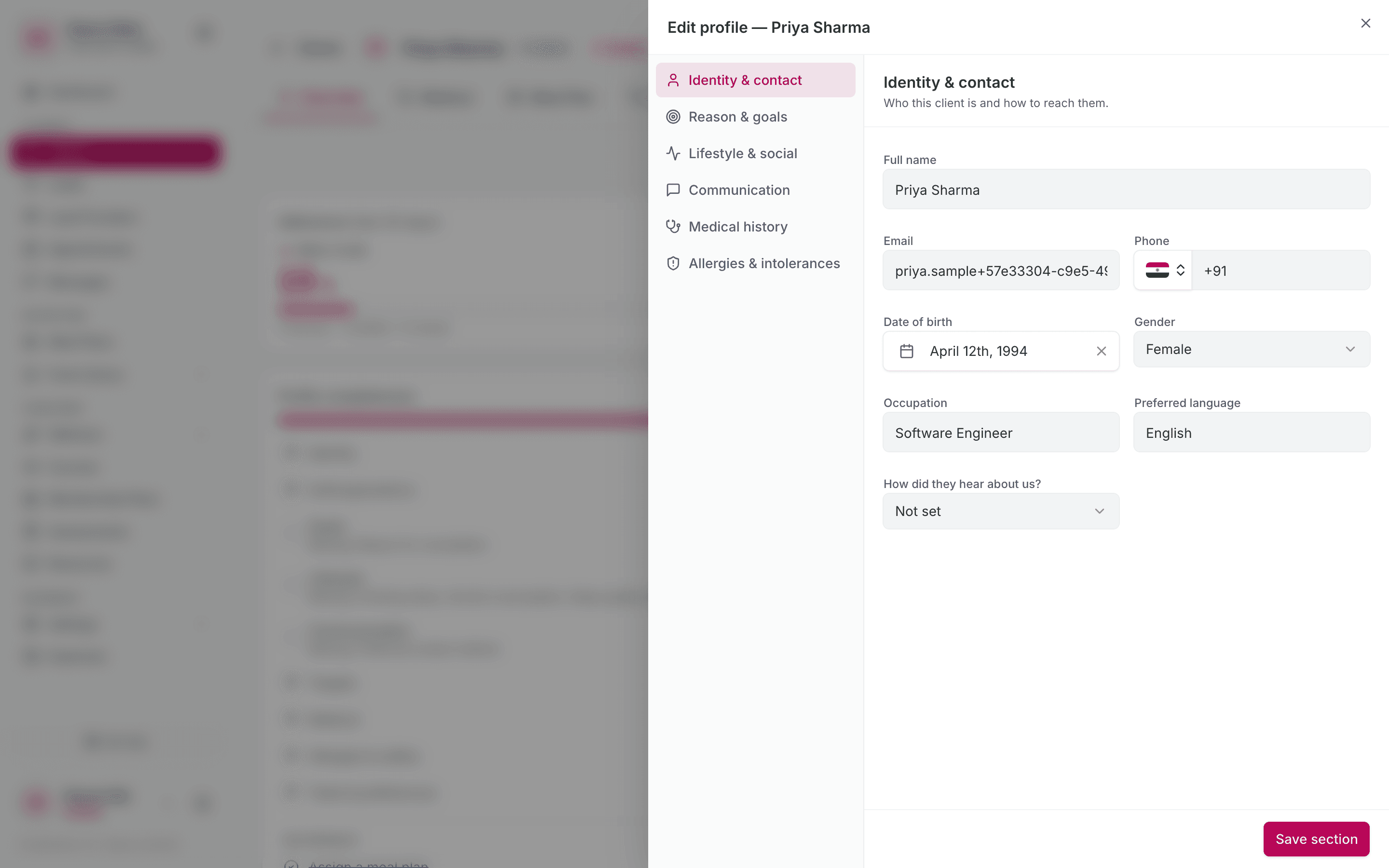
| Section | What it holds |
|---|---|
| Identity & contact | Name, email, phone, date of birth, gender, occupation, preferred language, and how they heard about you. |
| Reason & goals | Reason for consultation and goals. |
| Lifestyle & social | Smoking, alcohol, stress level, sleep quality, average sleep, daily water, Work nature and clinical notes. |
| Communication | Preferred contact method and reminder settings. |
| Medical history | Conditions and medications, supplements, family history and life stage. |
| Allergies & intolerances | Food allergies and intolerances. Meal plans always avoid these. |
Click Save section to save the section that is open.
Work nature has these values: Desk Job, Homemaker, Field Work, Physical Labor and Mixed.
Overview
The Overview tab shows the whole client on one page. From top to bottom:
- Export combined plan — downloads one PDF with the meal plan, wellness tasks and affirmations. The button shows only if the client has an active meal plan.
- Adherence — how well the client followed the meal plan and wellness tasks in the last 30 days.
- Profile completeness — which parts of the profile are missing.
- The client summary and the Active meal plan.
- Courses — the courses the client is enrolled in.
- Profile & preferences — the Targets, Taste Profile, Conditions, Allergies & Medications, and lifestyle cards.
- Health snapshot — medical highlights, appointments and measurements.
If a lead provider referred the client, the Overview shows Referred by and the provider's name. If nobody is credited, owners and admins see a Referred by a lead provider? picker. You can credit a provider one time only.
Targets
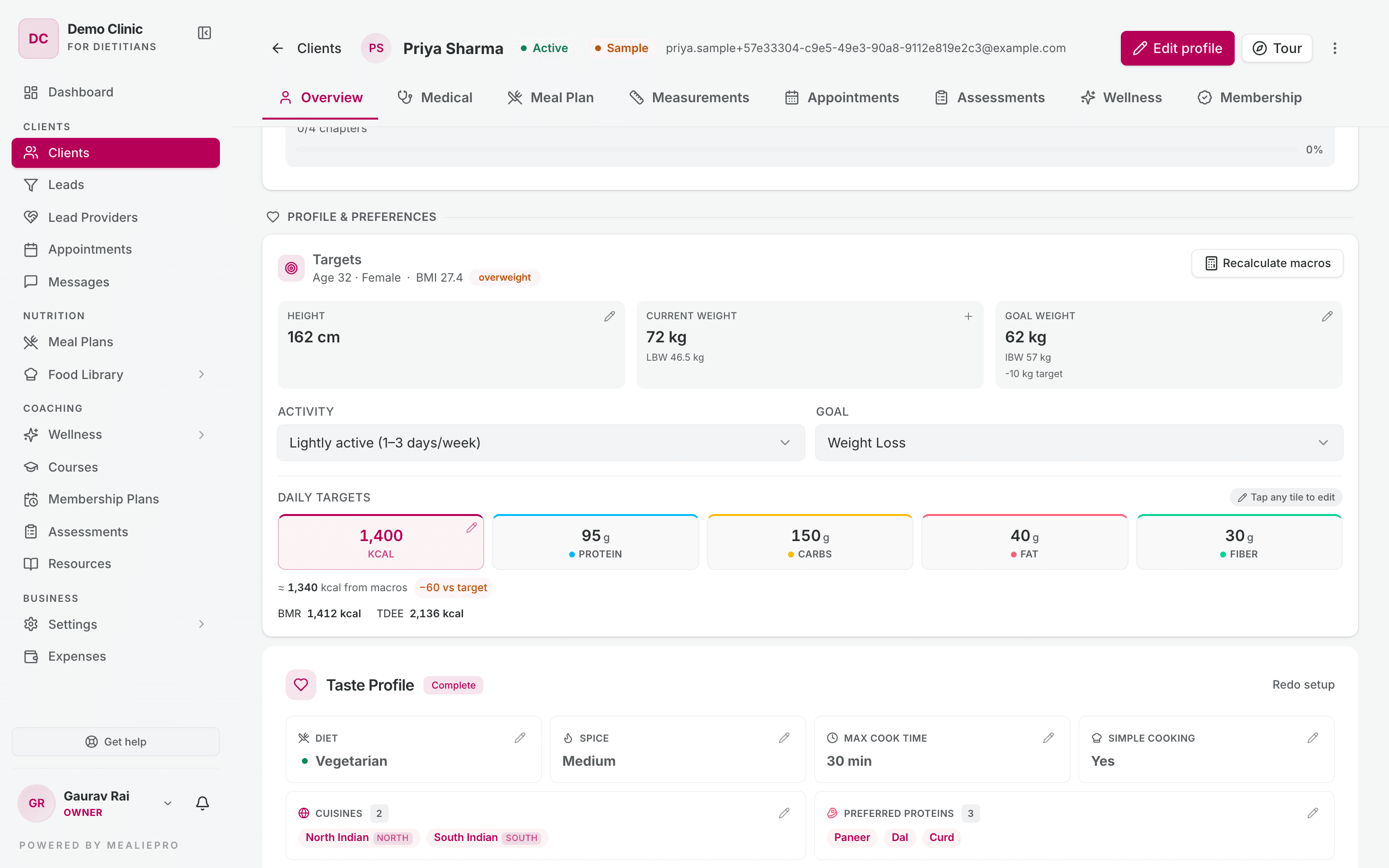
The Targets card shows the daily kcal, protein, carbs, fat and fiber targets. Every value is editable:
- Click a tile.
- Type the new value. The value must be more than zero.
- Save.
A value you type stays as you set it. Later profile edits do not change it. Only Recalculate macros replaces it. That button asks Recalculate macro targets? and warns that manual edits will be lost.
The card also checks that protein, carbs and fat add up to the kcal target (4 kcal per gram of protein and carbs, 9 per gram of fat). If they do not match, the check turns amber.
For how the app calculates the targets, see Generating & checking plans › How targets are calculated.
Taste Profile
The Taste Profile card shows Diet, Spice, Max cook time, Simple cooking, Cuisines, Preferred proteins, Non-veg, Likes, Dislikes and Meal sizes. Redo setup starts the taste-profile questions again.
To set likes and dislikes, open Likes & dislikes. Click thumbs up or thumbs down on a food. Each choice saves immediately — the footer says "Changes save as you pick". Click Done to close.
Tip: A dislike is a preference. To keep a food out of every plan, add it as an allergy or intolerance.
Conditions, Allergies & Medications
This card holds the clinical facts that meal plans must respect.
- Conditions — pick from the condition list. If a condition is missing, click Add new condition and enter a name and a category. Your new condition shows a Custom tag.
- Medications — pick from the medication list. If a medication is missing, click New medication. Enter the brand name, the generic name (optional) and the class.
- Allergies — foods the client must never get.
Family history is in Edit profile › Medical history › Family / hereditary. Pick a condition and, optionally, the relative. Family history does not restrict meal plans. It is a risk factor only.
Medical
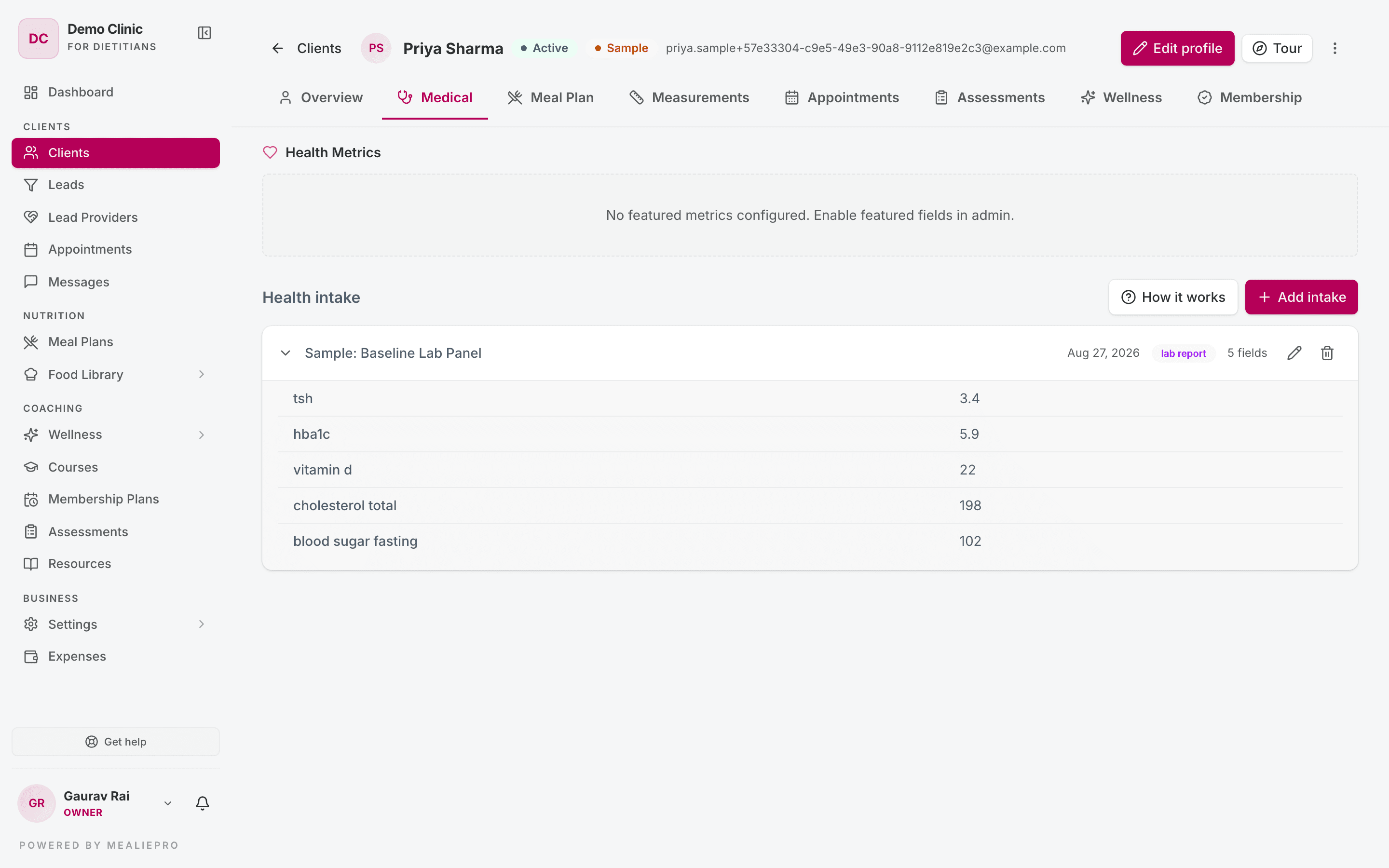
The Medical tab has two parts:
- Health Metrics — the featured lab values, for example HbA1c. If no fields are featured, this area is empty.
- Health intake — a list of medical intakes, for example a blood test. Click an intake to see its values. How it works starts a short walkthrough.
Conditions, allergies and medications are not on this tab. They are on the Overview tab and in Edit profile.
To record an intake:
- Click Add intake.
- Enter a Title and an Intake date.
- Select the Source: Lab report, Doctor visit or Self reported.
- Enter the values under Measurements. To add a field that is not in the list, click Add field.
- Optionally, add Notes and an attachment.
- Save.
The app checks each value against the normal range for that field. If a value is more than 50 times outside the range, the field turns amber and tells you why. A common cause is the wrong unit, for example "5300" for a white blood cell count that the field expects in thousands. If the app can convert the value, it shows a Use … button. Click it to use the converted value.
Values from a client's uploaded lab report also come here. See Medical reports.
Meal Plan
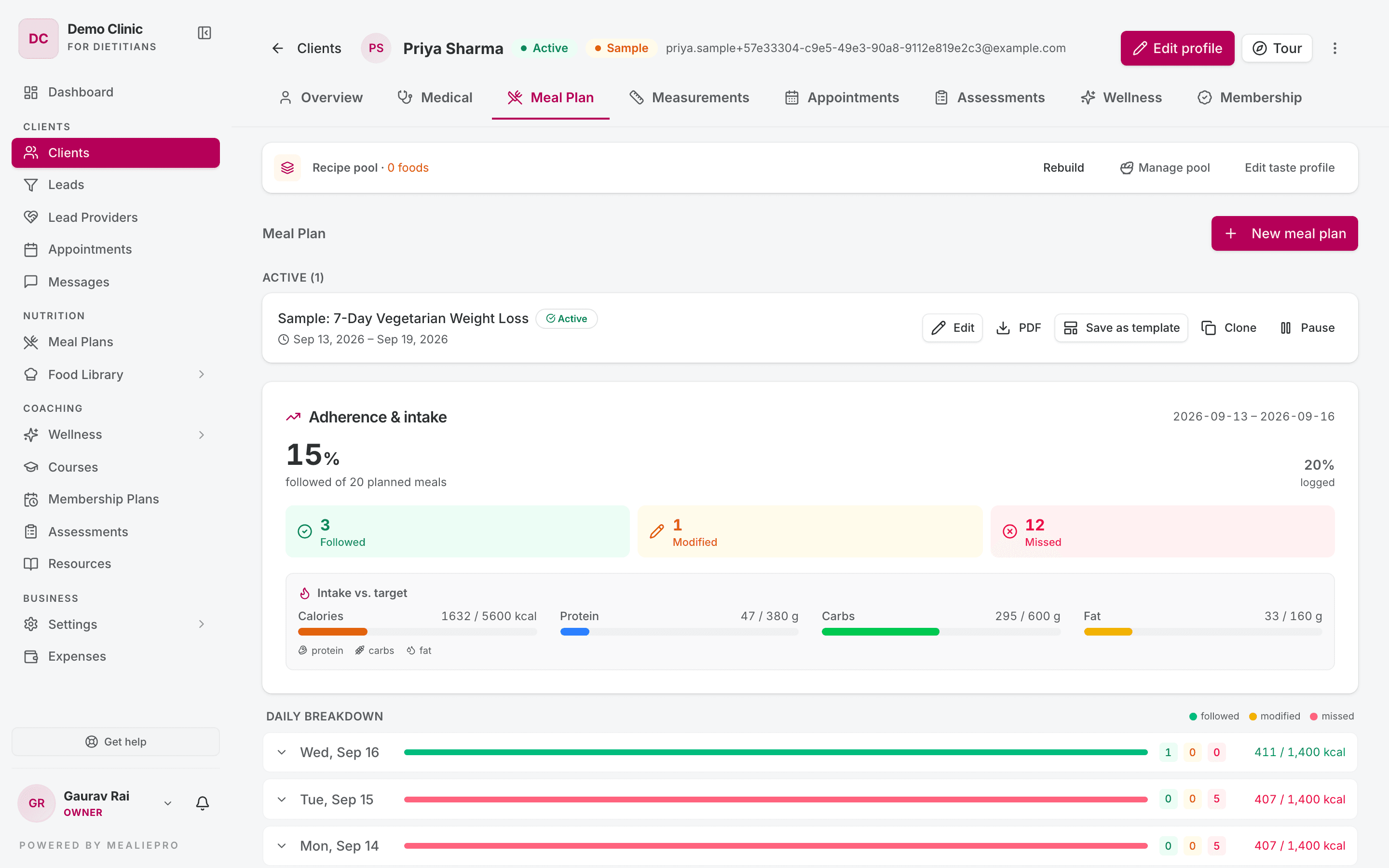
Click New meal plan. The dialog asks how you want to start:
- Generate a fresh plan — the app builds a plan from the client's targets, conditions and taste profile. Set the number of days and the season.
- Start from a template — start from one of your meal plan templates. The app then checks it against this client.
- Blank plan — start with an empty grid.
The client's diet type must be set before you can generate a plan. If it is not set, the tab shows a Diet type not set banner with a Set diet type button.
The tab lists the client's plans in groups: Active, Scheduled and Draft. Older plans are in Past plans. Each row has its own actions, for example Edit, Assign, Clone, Pause and Activate now.
The Recipe pool card shows how many foods this client's plans can use, after their conditions, allergies and taste profile are applied. Manage pool opens the Food Pool dialog. Rebuild builds the pool again. Edit taste profile opens the taste profile.
For the full walkthrough, see Meal plans and AI meal plans.
Measurements
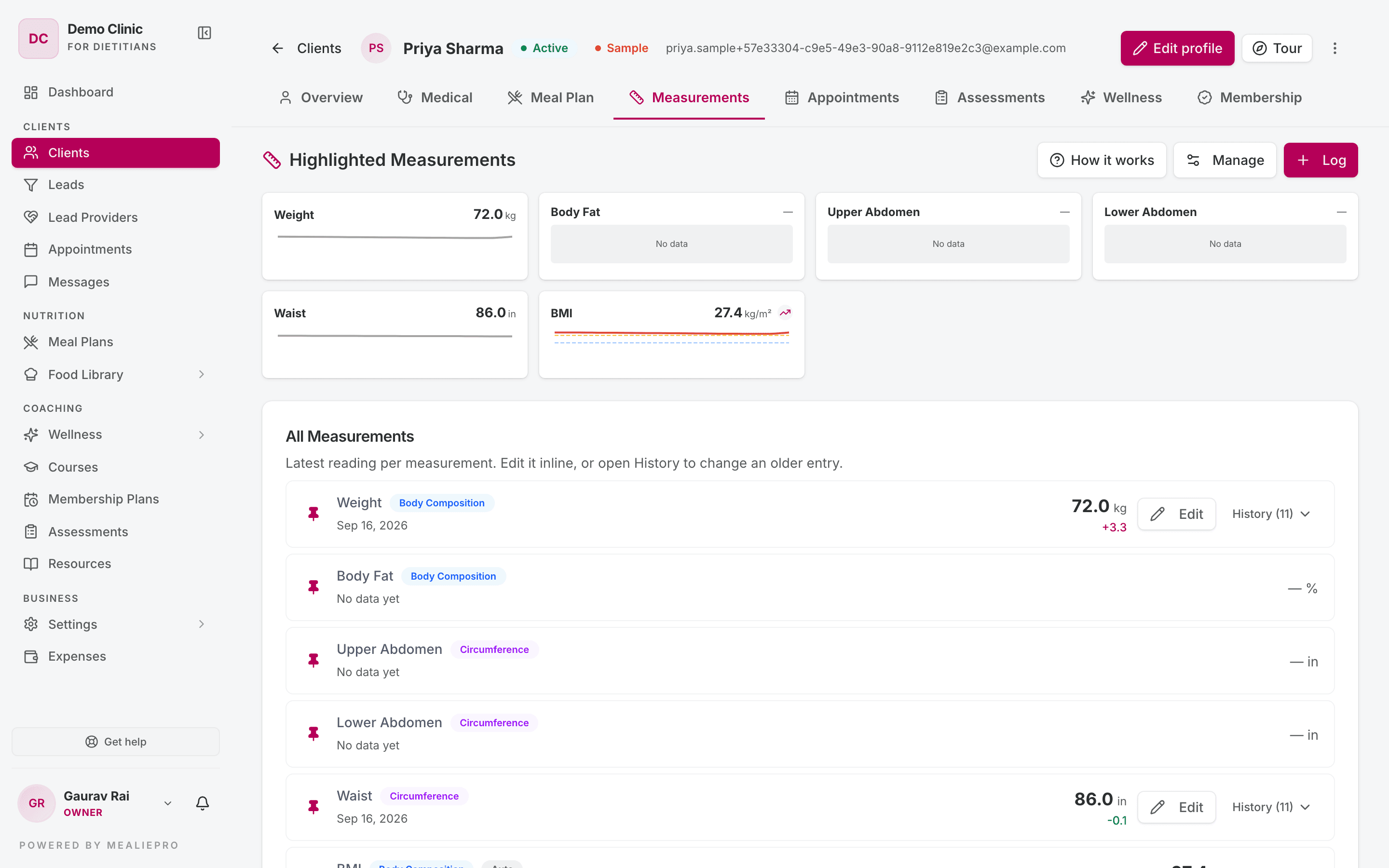
The All Measurements list has one row for each measurement type, for example weight or waist.
- Log — adds a new reading.
- Edit on a row — changes the latest reading.
- History — shows the chart and every past reading. Use Edit or Delete on a past reading to correct it.
- Manage — picks the measurements that show as highlights on the client's dashboard.
BMI is calculated from height and weight, so you cannot edit it. Its row shows Trend instead of History.
Appointments
This tab lists the client's appointments under Upcoming and Past sessions. The Schedule button opens the Appointments page. To book the client, pick an open slot there.
Assessments
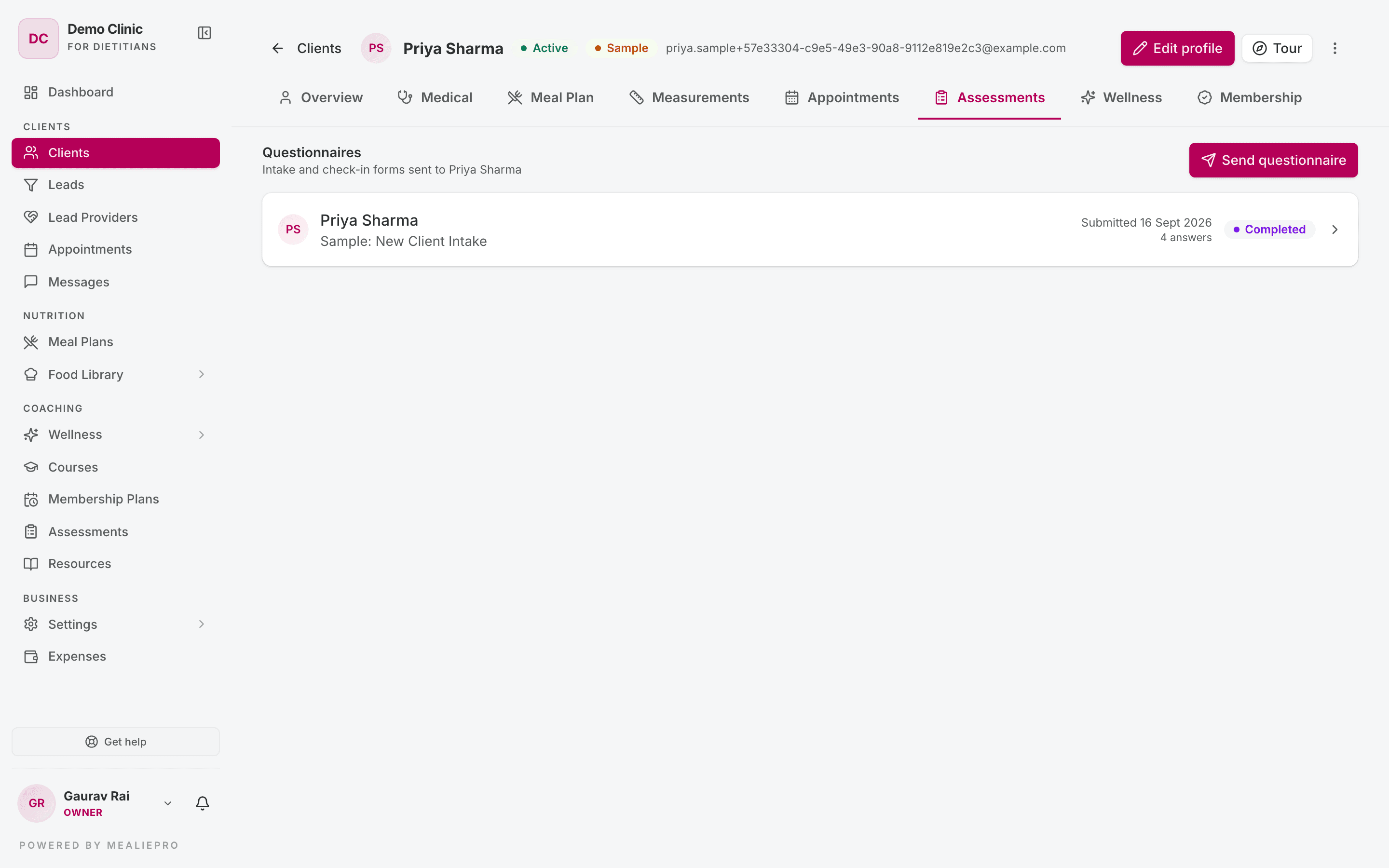
This tab lists the questionnaires you sent to the client. Click Send questionnaire to send a new one. Click a row to read the answers. See Assessments.
Wellness
The client's wellness tasks, tracking fields, affirmations and check-in history. See Wellness.
Membership
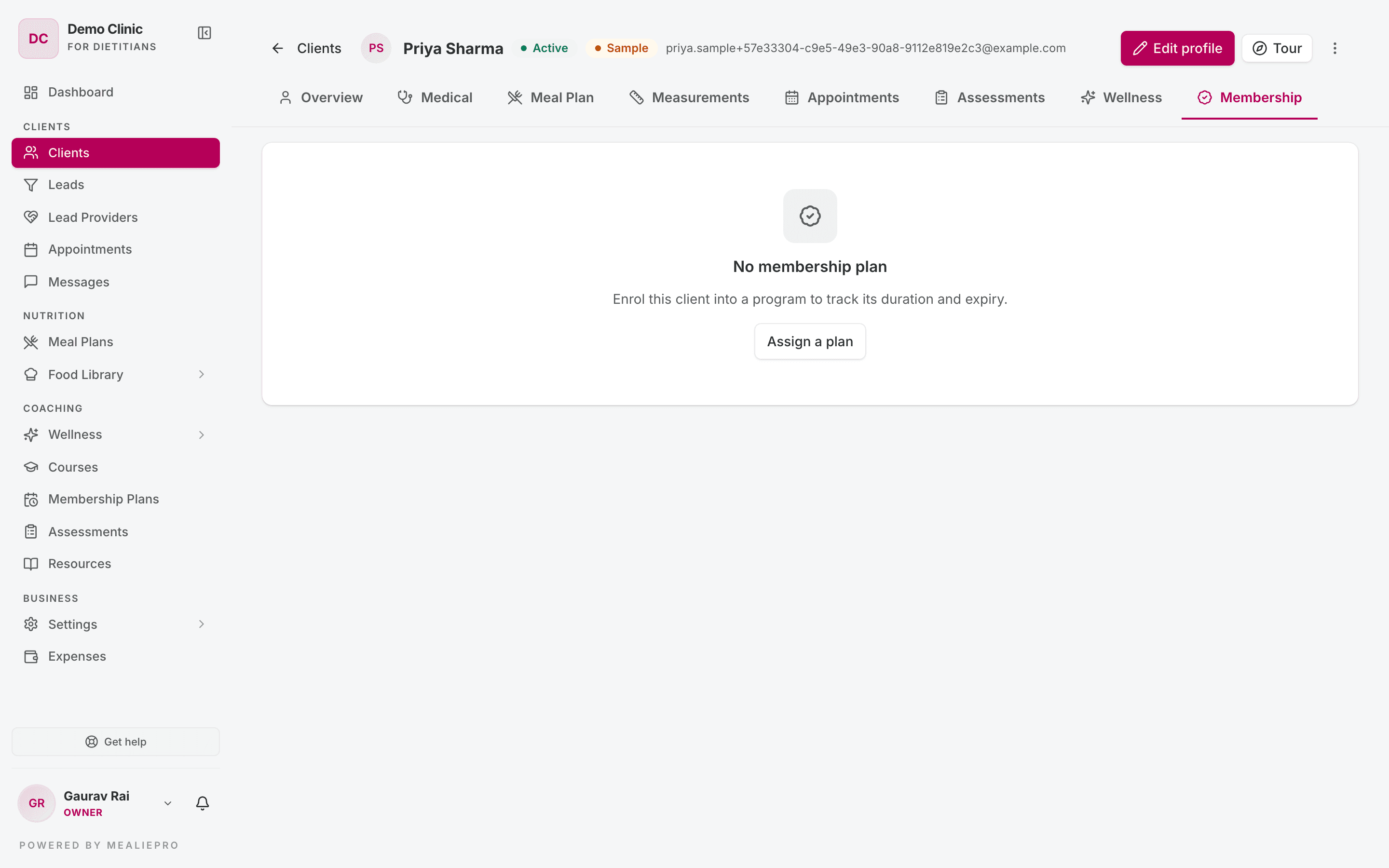
This tab shows the client's current membership plan, its dates and the days left.
- If the client has no plan, click Assign a plan.
- If the plan is active, click Change plan to move the client to a different plan.
- If the plan expired, click Renew plan to start a new enrolment.
The Payments section records what the client paid, and lets you create an invoice. Plan history lists earlier enrolments. For payments and invoices, see Membership plans.
Deactivate or delete a client
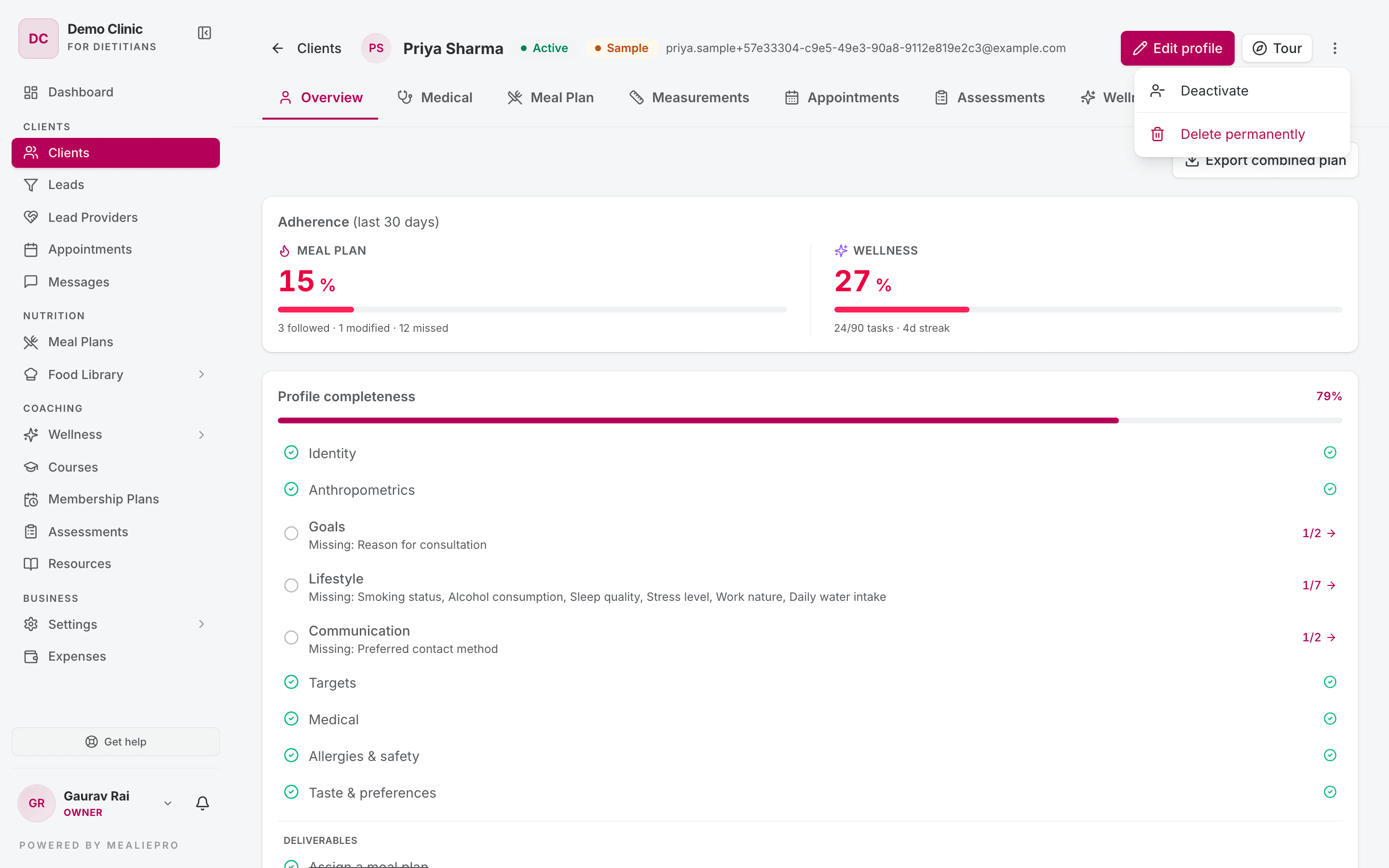
The ⋮ menu is on each row of the Clients list and in the profile header.
| Action | What it does |
|---|---|
| View profile | Opens the client. This item is on the list rows only. |
| Deactivate | Asks Deactivate [client name]? The client's status changes to Archived. No data is lost. Reactivate reverses it. |
| Delete permanently | Deletes the client and all their data. |
Delete permanently removes meal plans, progress, appointments, assessments, medical records, food logs, wellness tasks and the plan enrolment. You cannot undo it. To confirm, type the client's name.
Tip: Use Deactivate for a client who stops. It frees a place on your client limit and keeps the history. Use Delete permanently only for a record you added by mistake.
Bulk import (CSV)
Use Import to add many clients at the same time, for example from another tool.
- Click Import.
- Click Download sample CSV. The sample has the correct header row and two example rows.
- Put your clients in the file, one client on each row.
- Upload the file.
The header row is:
email,full_name,phone,date_of_birth,gender,height_cm,weight_kg,goal_weight_kg,activity_level,health_goal,clinical_notesemailandfull_nameare required on each row. The other columns are optional.- The app ignores the case of header names and extra spaces. It skips extra columns.
- Upload up to 500 rows in one file. The file must be smaller than 2 MB.
The app checks each row separately. It creates the valid rows and lists the rows that failed, with the row number and the reason. Correct those rows and upload them again.
The app skips a row if the email is already a client, or if the same email is on an earlier row. Skipped rows are not errors.
Imported clients get no email. An import sends no portal invitations. To invite a client, open their profile and use the sign-up banner.
Imported clients have no diet type. Set the diet type on each client before you generate a meal plan.
Common workflows
I have a new client in the room
- Click Add client.
- Enter the name, email and diet type. Click Create & continue.
- Enter height, weight, activity and goal. Click Next.
- Select their plan, set Sold at, and record the payment if they paid. Click Done.
- On the profile, use Send invite so they can log in to the client portal.
I want the client to fill in their own details
- Click Invite. Enter their email.
- Tick Also send them an invite email, then click Create invite link.
- The client signs up and completes the onboarding wizard. Their answers fill the profile.
A client stopped coming
- Open the client and click ⋮.
- Click Deactivate.
- The client moves to Archived. To find them again, set the Status filter to Archived.
What's next
- Membership plans — plans, payments and invoices.
- Meal plans — build and assign a meal plan.
- Wellness — assign daily habits and tracking fields.
- Medical reports — turn an uploaded lab report into an intake.
- Leads — the people who are not clients yet.
- Client portal — what your clients see.