Getting started
Sign in, learn the sidebar, and set up your practice before you add your first client.
Do these steps after your practice account is ready. They take about ten minutes.
1. Sign in
Open the professional portal. Enter your Work email and Password, then click Log in.
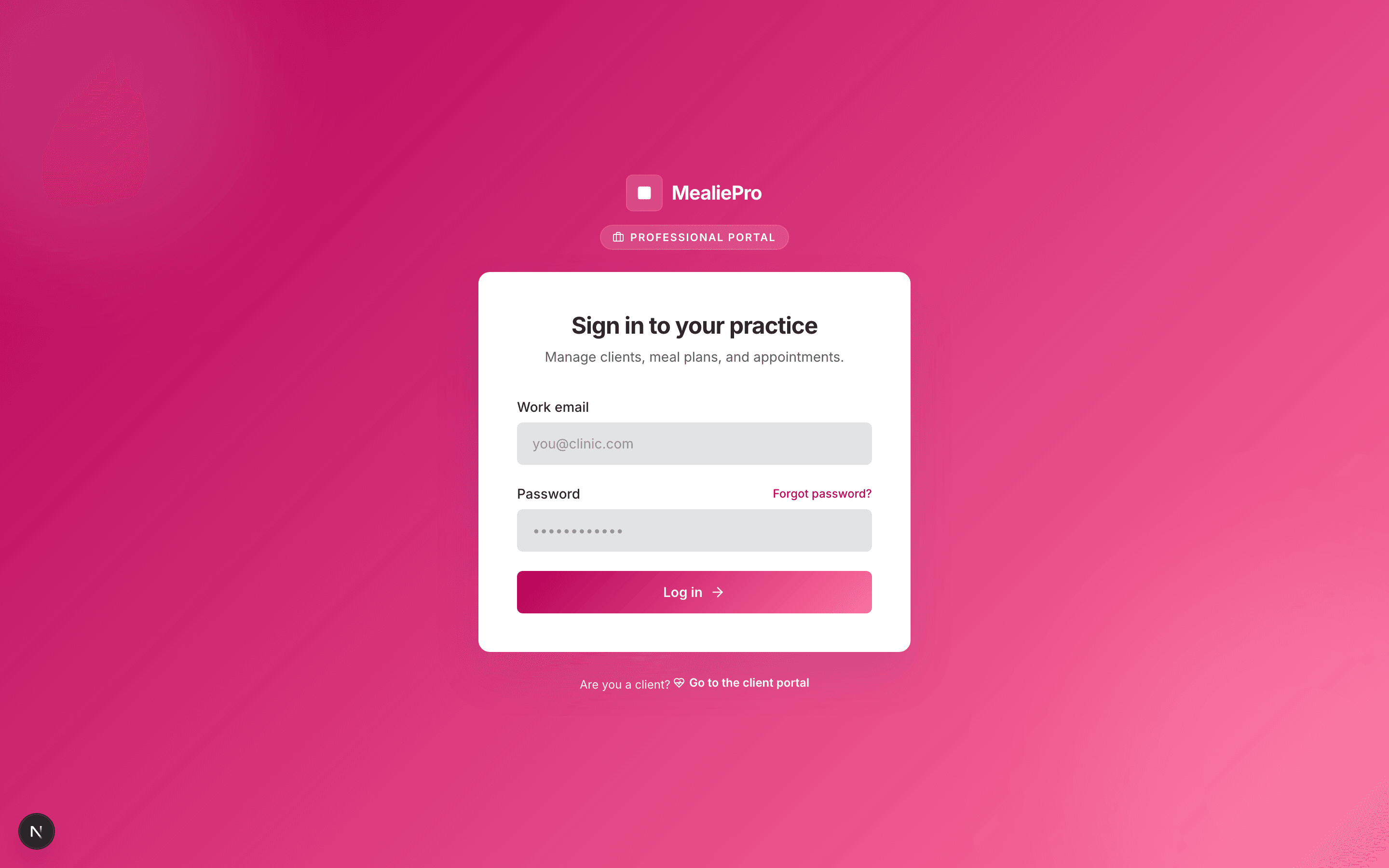
- If you forget your password, click Forgot password?. We send a reset link to your email.
- Clients use a different portal. The link Go to the client portal at the bottom of the form takes them there.
Tip: On your own white-label domain, the client-portal link does not show. That domain serves only your clients. See White label.
2. Take the tour
When you sign in for the first time, a short tour starts on the dashboard. It points at the real controls on your screen:
- Welcome — click Show me around.
- Your day at a glance — the dashboard cards.
- Clients, Appointments, Meal plans and the Food library.
- Settings — where you set up your practice.
- Get help — how to contact us.
- You're ready to roll — click Add my first client to start.
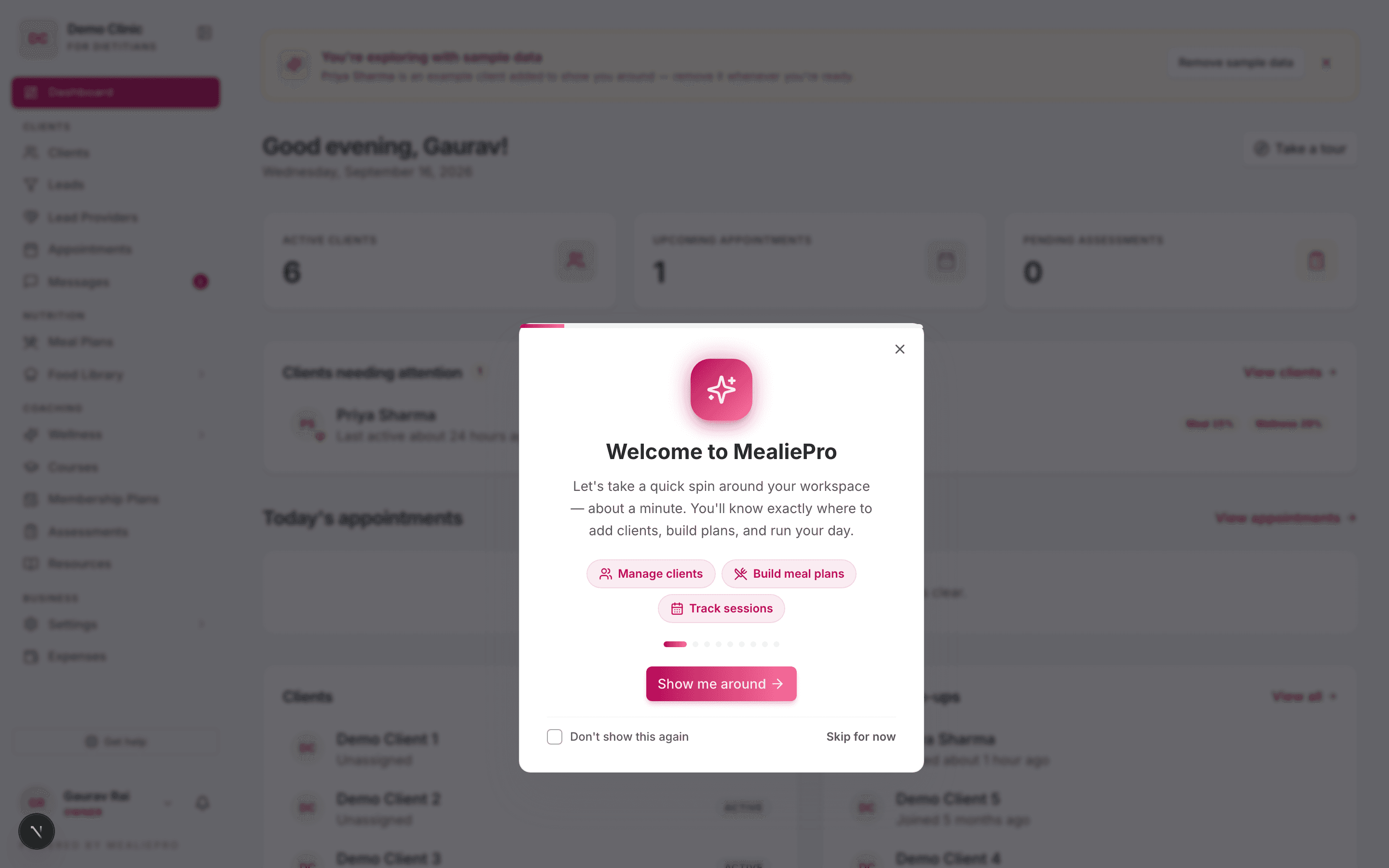
To see the tour again, click Take a tour on the dashboard.
Other pages have their own short guides. They start the first time you open the page. To stop a guide, tick Don't show this again. To turn guides on or off later, open your user menu (your name at the bottom of the sidebar) and click Tutorials.
3. Learn the dashboard
The dashboard is your home page. It shows three cards: Active clients, Upcoming appointments and Pending assessments. Below them, it shows the clients who need attention and the plans that expire soon.
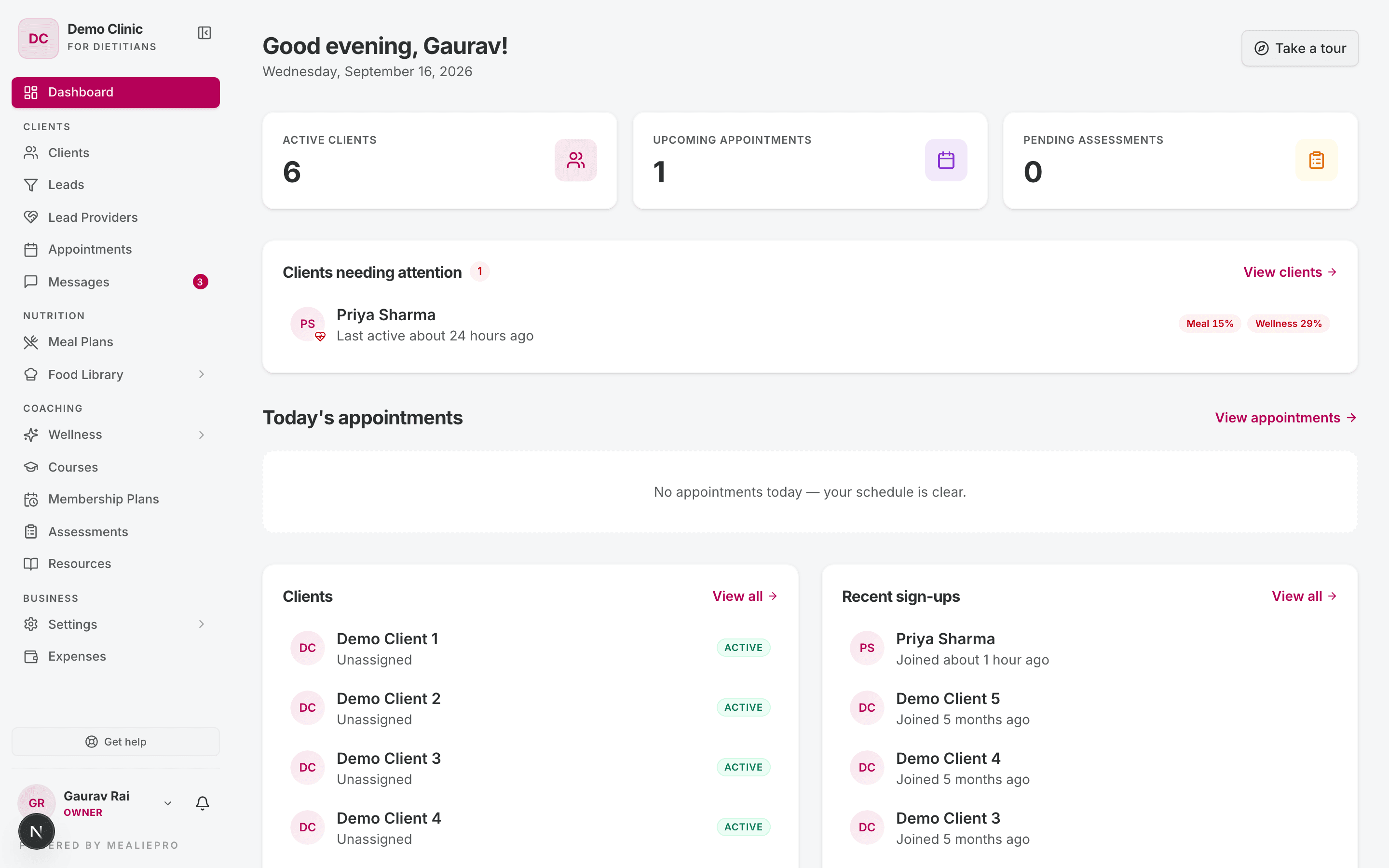
Full walkthrough: Your dashboard.
4. Learn the sidebar
The sidebar groups the pages by the type of work. Dashboard is at the top.
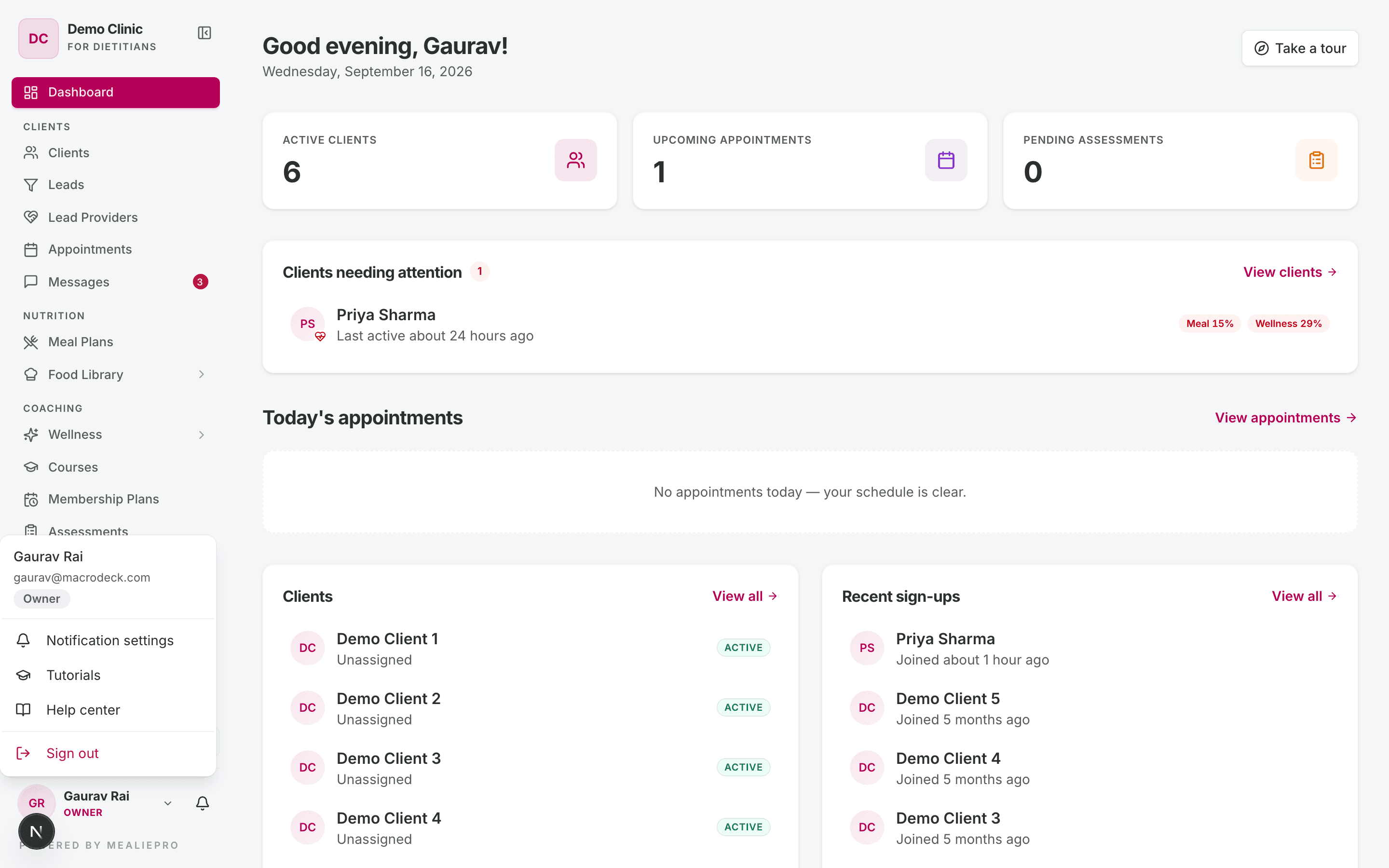
| Group | Pages |
|---|---|
| Clients | Clients · Leads · Lead Providers · Appointments · Messages |
| Nutrition | Meal Plans · Food Library (tabs: Foods, Ingredients) |
| Coaching | Wellness (tabs: Tasks, Programs, Tracking Fields) · Courses · Membership Plans · Assessments · Resources |
| Business | Settings · Expenses (coming soon) |
| Affiliate | Affiliate · Plans |
Some items show only for some people. So a coach and an owner can see different sidebars. This is correct.
| Item | Who sees it |
|---|---|
| Leads | Owner, admin, dietician, nutritionist, coach and receptionist. If your plan does not include Leads, the page shows a preview. |
| Lead Providers | Owner and admin. |
| Wellness | Everyone, if your plan includes the Wellness module. If not, the item does not show. |
| Courses | Everyone. If your plan does not include Courses, the page shows a preview. |
| Settings, Expenses | Owner and admin. |
| Affiliate, Plans | Affiliate partner accounts only. |
| My Referrals | Lead providers only. They see only this page. See Lead providers. |
The bottom of the sidebar has these controls:
- Get help — sends a question or a bug report to our support team. It records the page you are on. We reply by email.
- The bell — your notifications. See Notifications.
- Your name — opens the user menu: Notification settings, Tutorials, Help center (this site) and Sign out.
5. Set up your practice
If you are an owner or an admin, open Settings (in the Business group) before you add clients.
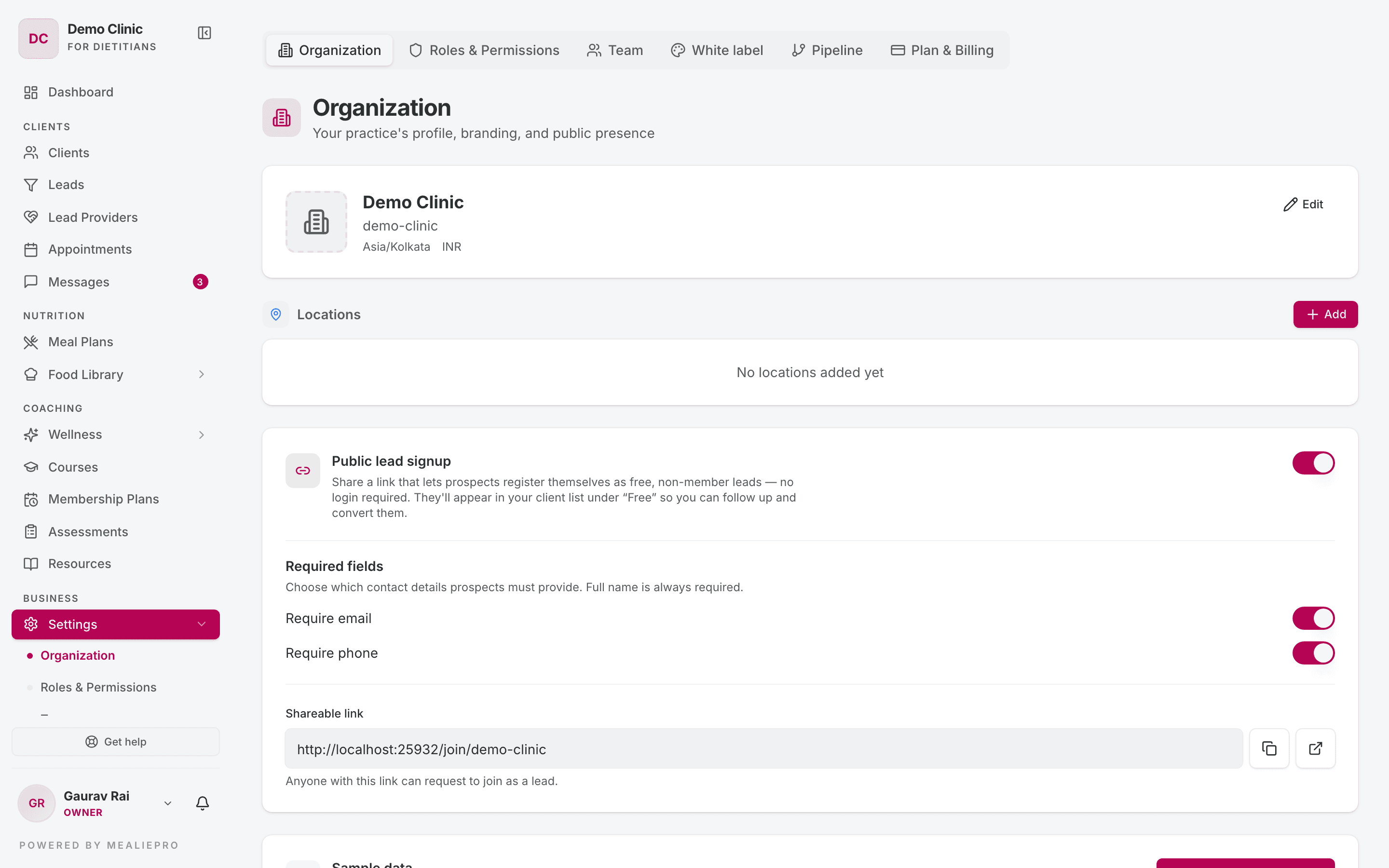
Do these three things first:
- Organization — add your practice name, logo, contact details, timezone, currency and theme color.
- Team — invite your staff. A staff member must have an account before they can hold appointment slots.
- Roles & Permissions — if you have more than one staff member, check what each role can do.
You can change these settings at any time. They do not stop you from adding clients.
Full walkthrough: Settings & team.
Tip: Your account can start with sample data: an example client called Priya Sharma. Use it to explore. To remove it, go to Settings → Organization → Sample data.
6. Check your plan
Open Settings → Plan & Billing. This page shows your subscription, your add-ons, and your limits for clients and staff. It also holds your GST & invoicing details.
If you see a message like "Your plan allows N clients", you are at a limit. Archive inactive clients, or contact us to change your plan.
Full walkthrough: Billing & invoicing.
Tip: Do not confuse Plan & Billing with Membership Plans. Plan & Billing is your subscription to this product. Membership Plans are the programs that you sell to your clients. See Membership plans & payments.
Common workflows
I am the owner and I want to start today
- Set your Organization details and upload your logo.
- Invite your team from Settings → Team.
- Create one membership plan in Membership Plans.
- Add your first client. See Clients.
I am a coach and my sidebar is short
This is correct. Your role controls what you see. Ask an owner or an admin if you need more access.
I want to know what my clients see
Read What your clients see. It explains each page of the client portal.
What's next
- Clients — add your first client with the 3-step wizard.
- Meal plans — build a plan and assign it.
- Membership plans & payments — sell a program and record payments.
- What your clients see — the client portal, page by page.