Meal plans
Build reusable meal plan templates, give each client a plan, schedule it, and export it as a PDF.
A meal plan is a grid of days and meals. You fill each meal with foods from the Food library. This page shows how to build plans, assign them to clients, and export them.
To let the app compose a plan for you, see Generating & checking plans.
How meal plans work
There are two kinds of meal plan:
| Kind | What it is | Where you find it |
|---|---|---|
| Meal plan template | A reusable plan with no client. | Meal Plans in the sidebar (page title Meal Plan Templates). |
| Client plan | A plan that belongs to one client. | The client's Meal Plan tab. |
When you assign a template to a client, the client gets their own copy. The copy is named "<template> (for <client>)". If you change the template later, the client's plan does not change. If you change the client's plan, the template does not change.
Tip: Clients never see the name of the template that their plan came from. The client portal and the PDF do not show it.
1. The Meal Plan Templates page
Open Meal Plans in the sidebar, under Nutrition.
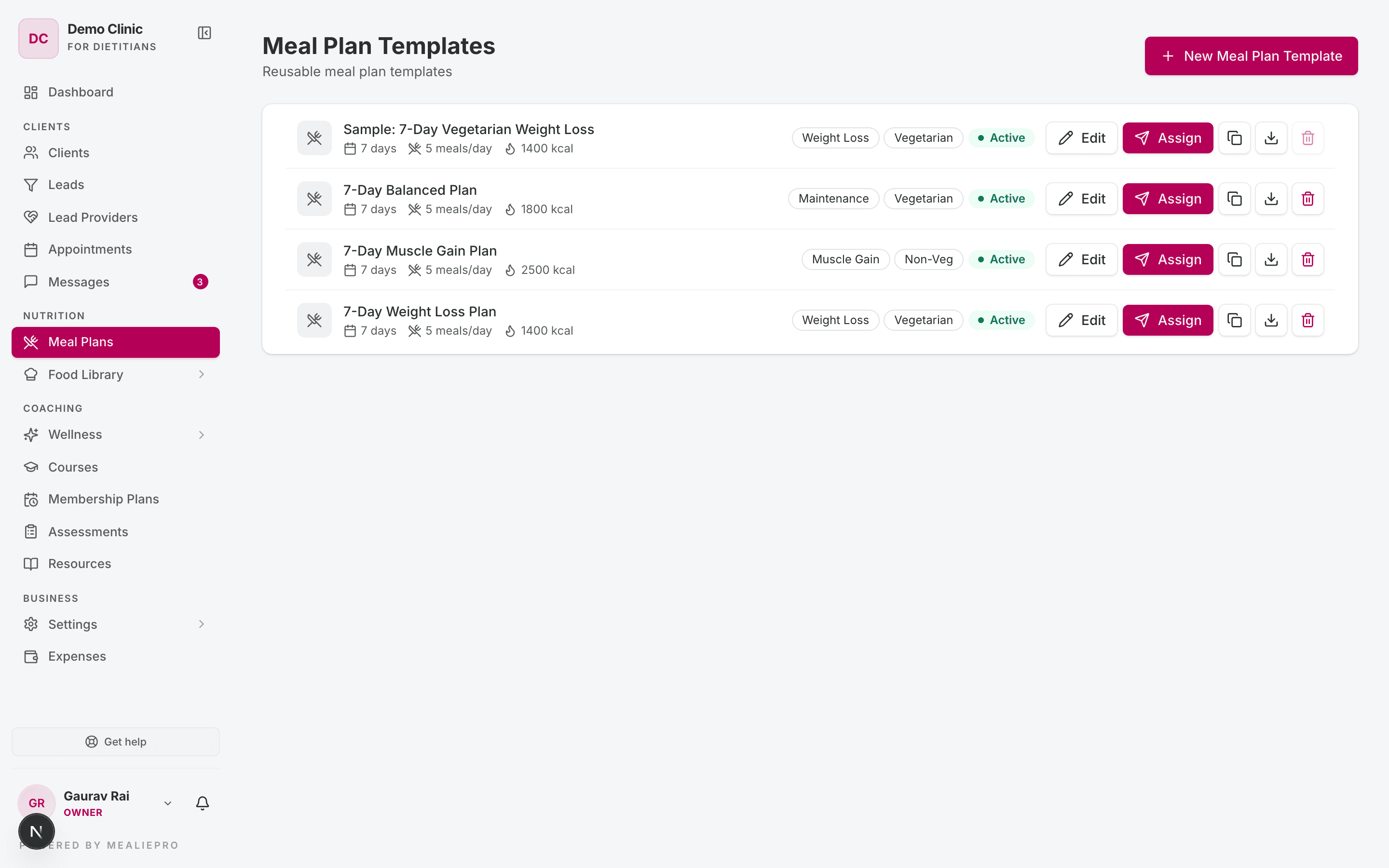
Each row shows the template name, the number of days, meals per day, the calorie target, the goal and diet badges, and Active or Inactive. Each row has these controls:
| Control | What it does |
|---|---|
| Edit | Opens the template in the editor. |
| Assign | Opens the Assign Meal Plan dialog. See Assign and schedule a plan. |
| Copy icon (Clone template) | Makes a new template from this one. |
| Download icon (Export PDF) | Opens the export options. See Export a PDF. |
| Trash icon (Delete template) | Deletes the template and all its days and meals. You cannot undo this. |
Clone a template
- Click the copy icon on the row.
- In New template name, type a name. The default is "<name> (Copy)".
- Click Clone.
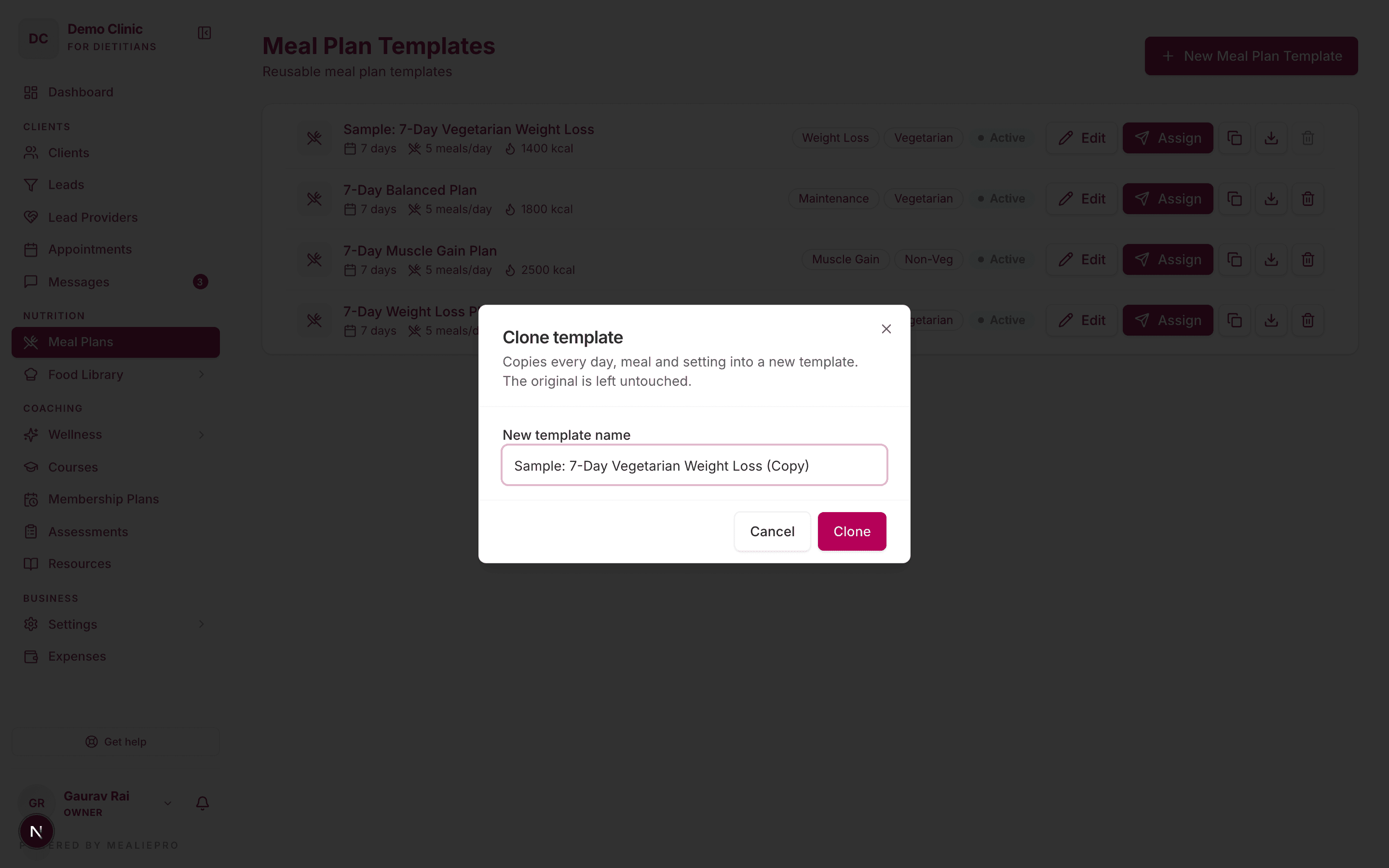
The clone copies every day, meal and setting. The original does not change. The clone is always active, even if the original is inactive.
Delete a template
If a client is assigned to the template, the trash icon is disabled. The tooltip tells you how many clients use it. Remove those assignments first.
Tip: To stop using a template but keep it, do not delete it. Clone it or leave it unused instead.
Start a new template
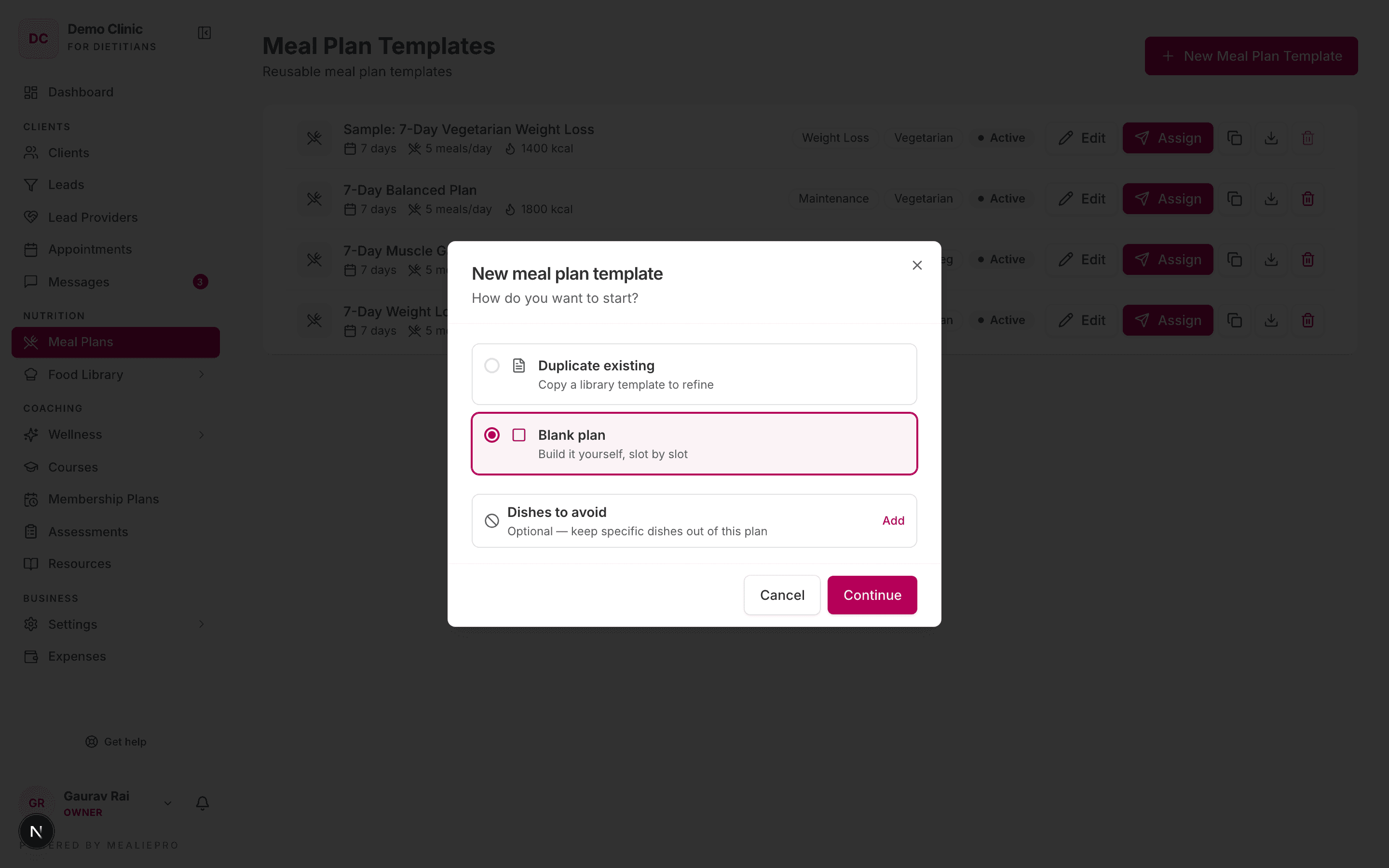
- Click New Meal Plan Template.
- Select Duplicate existing or Blank plan.
- Optional: open Dishes to avoid and select dishes to keep out of this plan.
- Click Continue.
Tip: The library dialog has no "generate" option, because a template has no client to build from. To generate a plan, start from a client. See Generating & checking plans.
A new template starts Inactive. Click Publish in the editor to make it available for assignment.
2. The plan editor
The editor shows one column for each day and one row for each meal.
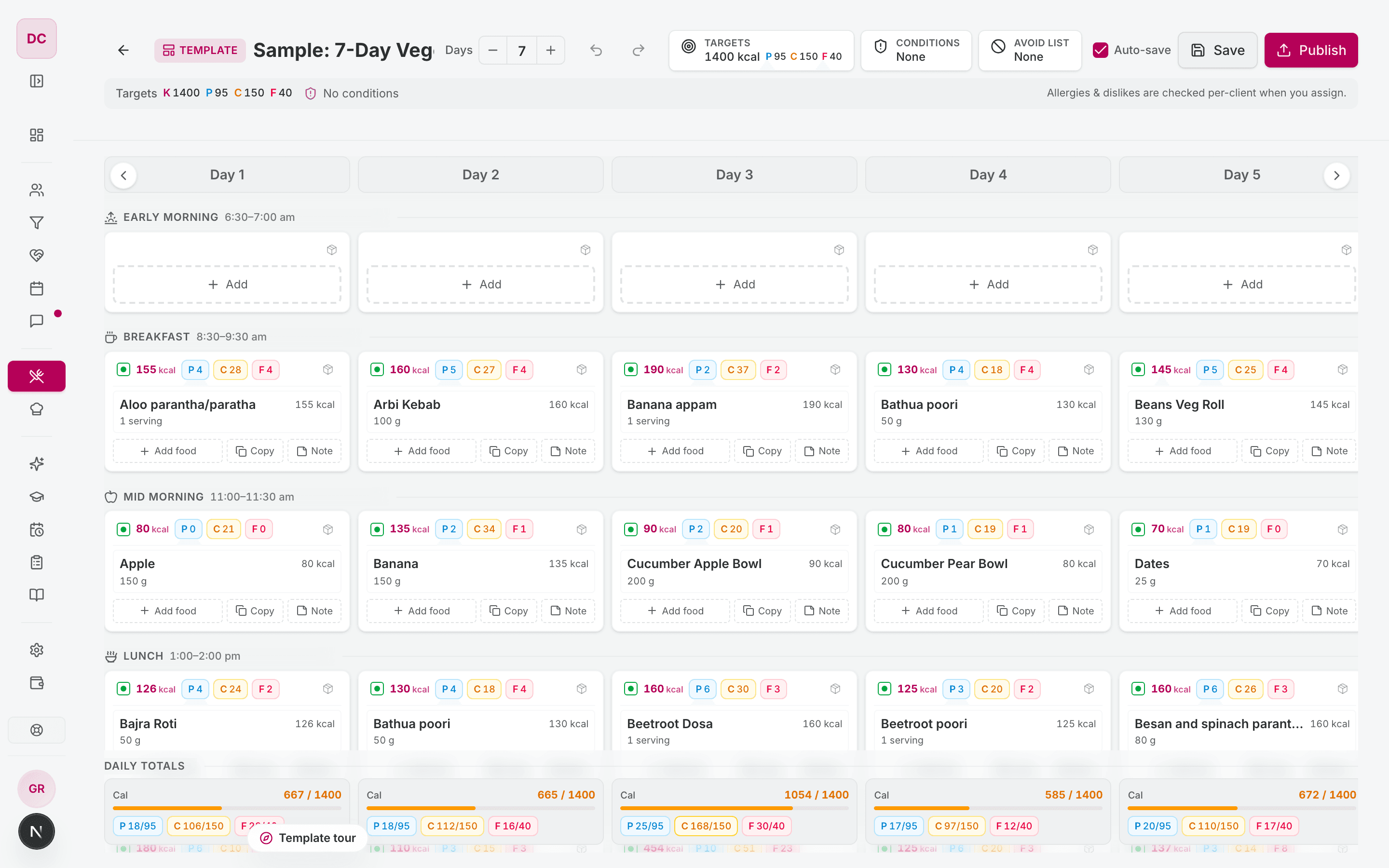
The header has these controls:
| Control | What it does |
|---|---|
| Template badge and name | Click the name to change it. |
| Days − / + | Sets the plan length, from 1 to 90 days. If you remove days that contain food, the app asks you to confirm. |
| Undo / Redo | Undoes or redoes your last edits (⌘Z / ⌘⇧Z). |
| Targets | Sets the daily calories, protein, carbs and fat for the template. |
| Conditions | Sets the health conditions that this template is written for. |
| Avoid list | Lists dishes to keep out of this plan. The Avoiding strip shows them as chips. Click a chip to remove it, or click Clear all. |
| Auto-save | Saves your edits automatically. See below. |
| Save | Saves the template now. |
| Publish | Saves the template and makes it active, so you can assign it. |
The line below the header shows the targets and conditions. It also says: "Allergies & dislikes are checked per-client when you assign."
Auto-save
Auto-save is on by default. The app remembers your choice in this browser.
When auto-save is on, the app saves about one second after your last edit. If you are typing in a field, it waits until you leave the field. It also saves when you go to a different page.
The text next to the check box shows the save status:
| Status | Meaning |
|---|---|
| Saving… | The app is saving now. |
| Saved 14:32 | The last save was at this time. |
| Saves when you finish | You are typing. The app saves when you leave the field. |
| Saving shortly… | The app will save in a moment. |
| Unsaved changes | Auto-save is off. Click Save to keep your edits. |
| Not saved | The last save failed. Click Save to try again. |
Tip: If auto-save fails, the app shows "Auto-save failed — use Save to try again." It does not try again by itself. Click Save.
Auto-save works in the template editor and in the plan workspace for templates. A client plan does not need it, because the app saves each edit to a client plan immediately.
3. Fill the grid
Each cell is one meal on one day. A cell holds one or more foods.
Add a food
- In an empty cell, click + Add. In a filled cell, click Add food.
- In the Add a food dialog, search for a food.
- Optional: use the slot filter and the All / Veg / Non-Veg tabs.
- Click a food to add it.
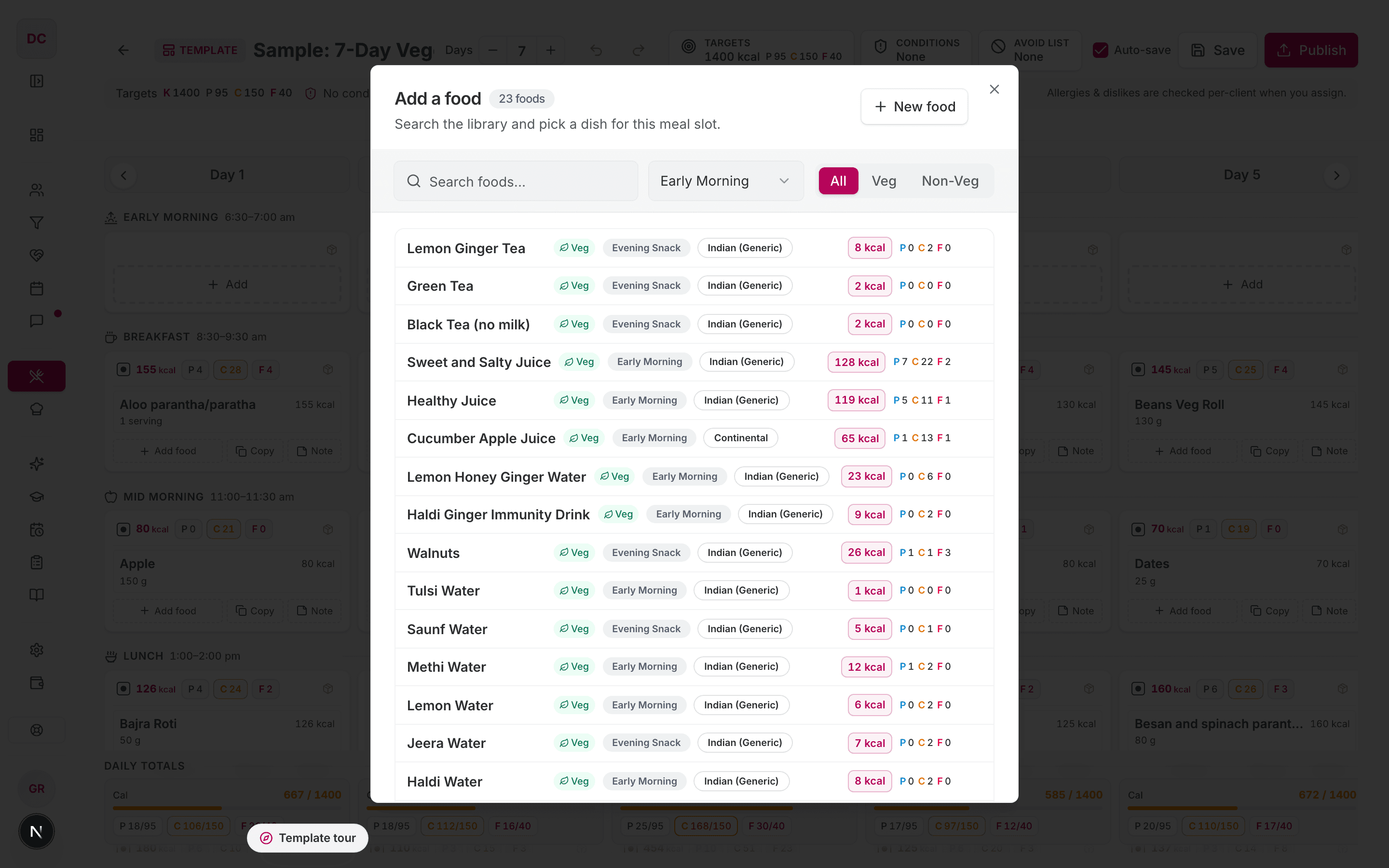
If a food is already in the meal, the row says In this meal · +1. Click it to add one more serving.
Create a new food from the grid
If the food is not in the library, add it without leaving the plan:
- In the Add a food dialog, click New food.
- Type the Title, the serving size and unit, and the Nutrition per serving.
- Click Create & add.
The new food goes straight into the meal. You need permission to create foods.
Change a food in a meal
Click a food in a cell to open its details. You can:
- Change Servings with the − and + buttons, or type a number.
- Click Replace to pick a different food.
- Click Exclude from this plan to add the food to the avoid list. A regenerate will not use it again.
- Click Remove to take the food out of this meal.
- Click Open food detail to open the food in the library.
Add a note to a meal
- In the cell, click Note.
- Type a short instruction, for example "have this an hour before your workout".
- Click Save note, or press ⌘/Ctrl + Enter.
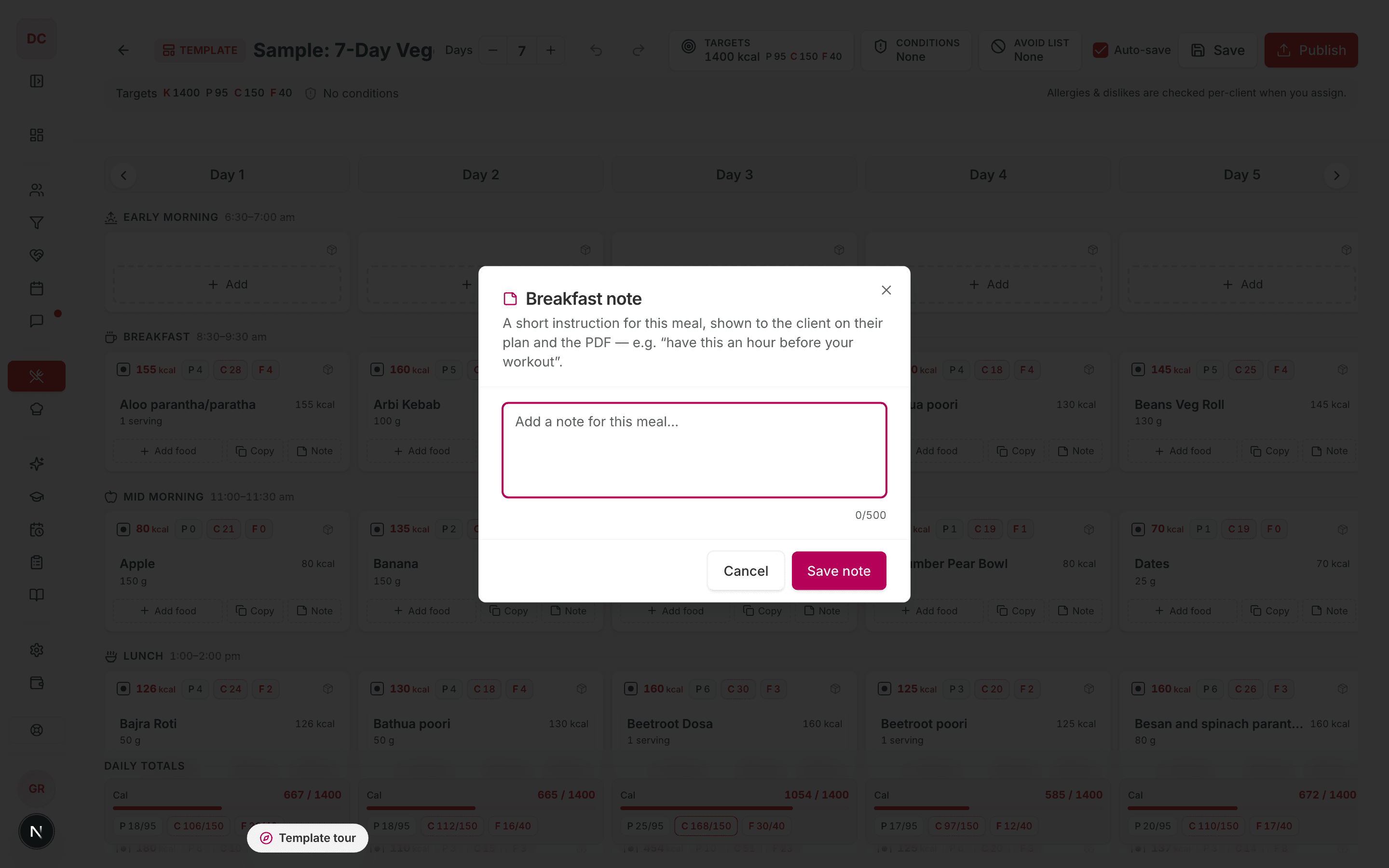
A note can have up to 500 characters. The client sees the note on their plan and on the PDF. To change a note, click the note text in the cell.
Copy a meal to other cells
- In a filled cell, click Copy. The button changes to Copied.
- Click each cell that you want to fill. An empty cell shows Paste here. A filled cell shows Replace.
- The cells that you select show Pending. To remove a cell from the selection, click Undo on it.
- In the bar at the top, click Confirm. To stop, click Cancel or press Esc.
The app changes all the selected cells at the same time.
Daily totals
The Daily totals row at the bottom shows calories, protein, carbs and fat for each day, against the targets.
4. Customise the meal rows
Each plan has its own set of meal rows. You can rename, add, move and remove rows.
Change a row
Put the pointer on a row name, then click the settings icon (Slot settings).
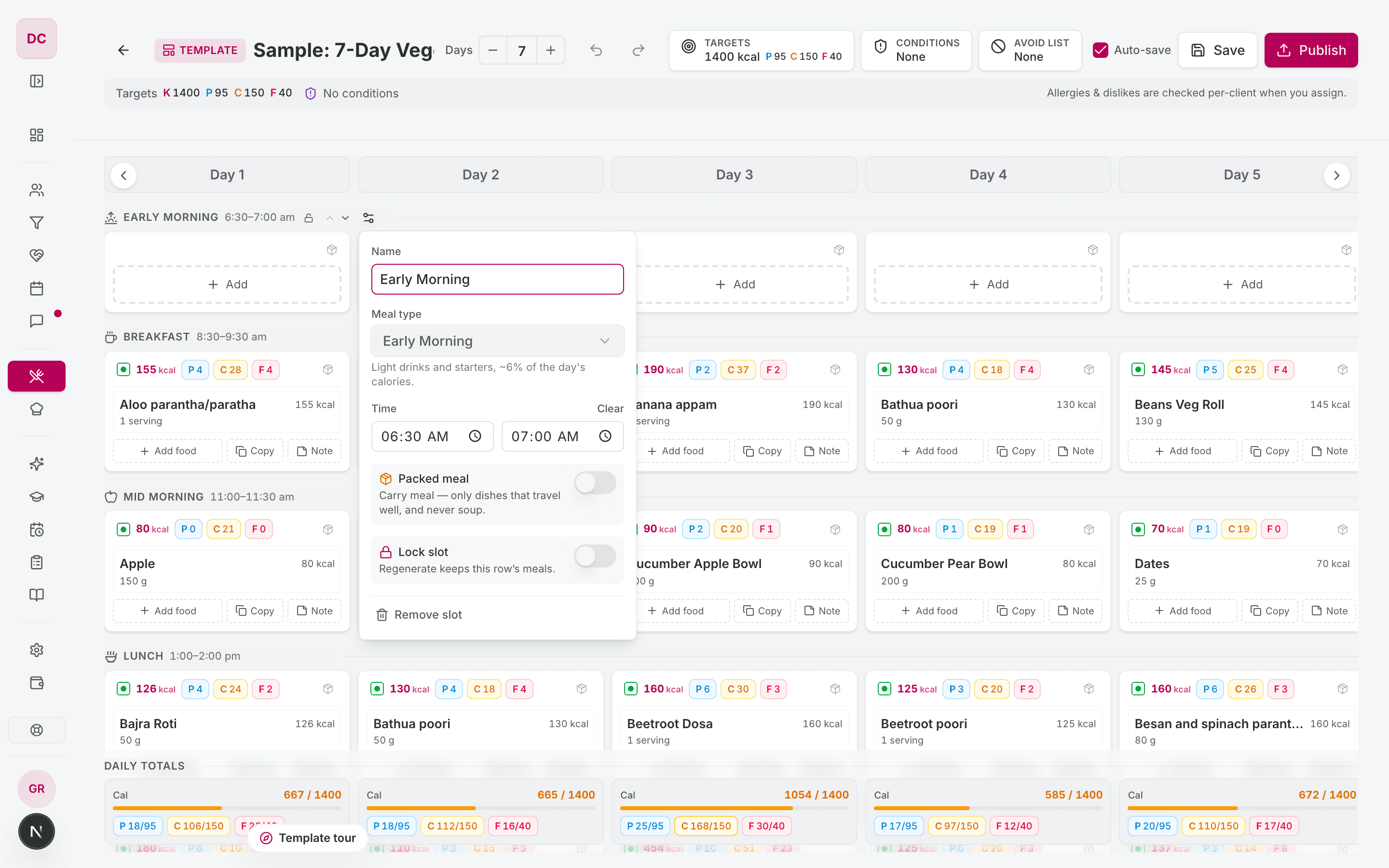
| Setting | What it does |
|---|---|
| Name | The name that you and the client see. Up to 60 characters. |
| Meal type | Tells the app what kind of food to put in this row. See the table below. |
| Time | A start and end time. The client sees it. Click Clear to remove it. |
| Packed meal | "Carry meal — only dishes that travel well, and never soup." |
| Lock slot | "Regenerate keeps this row's meals." |
| Regenerate this row | Picks new meals for this row on every day. Only in the plan workspace. |
| Remove slot | Removes the row. A plan must keep at least one row. |
Use the up and down arrows next to the row name to move a row earlier or later.
Meal types
| Meal type | What the app puts in the row |
|---|---|
| Early Morning | Light drinks and starters, about 6% of the day's calories. |
| Breakfast | Breakfast dishes, about 22%. Never meat or fish. |
| Mid Morning | Mid-morning snacks, about 9%. |
| Lunch | Full lunch plates, about 33%. Can hold non-veg. |
| Evening Snack | Evening snacks, about 8%. Can hold non-veg. |
| Dinner | Dinner plates, about 22%. Can hold non-veg. |
| Snack | Either snack style, about 8.5%, picked to suit the time of day. |
| Custom | The app never fills this row. You pick the food. A regenerate does not change it. |
Add a row
- Put the pointer on the space between two rows.
- Click Add a slot here.
- Type a name, for example "Office lunch".
- Select a Meal type. The default is Snack.
- Click Add slot.
Use your rows for all new plans
After the last row, click Save as org default. All new plans in your organisation then start with these rows. You need permission to edit meal plans.
If you do not set a default, new plans start with six rows: Early Morning (6:30–7:00), Breakfast (8:30–9:30), Mid Morning (11:00–11:30), Lunch (13:00–14:00), Evening Snack (16:30–17:00) and Dinner (19:30–20:30).
Packed meals and locks on one cell
Each cell has a package icon. Click it to select Packed, Not packed, or follow the row setting.
Each cell also has a lock icon. It shows when you put the pointer on the cell. A locked meal stays the same when you regenerate, and its icon stays visible. You can lock an empty cell to keep it empty. If the row is locked, all its cells show "Locked by the row".
5. Assign and schedule a plan
You can assign a template from the Meal Plan Templates page, or a client plan from the plan workspace (Assign…).
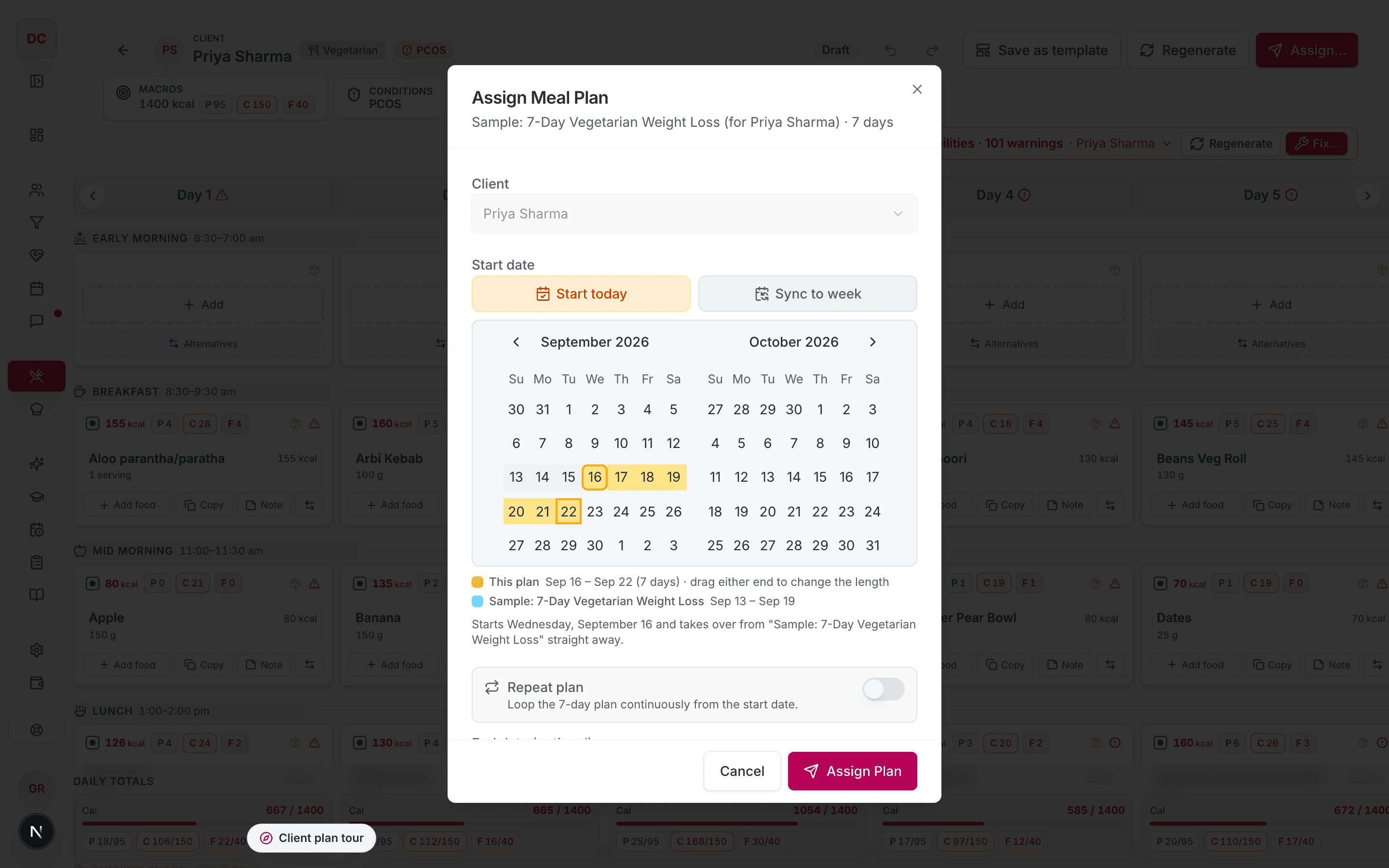
The Assign Meal Plan dialog has these fields:
| Field | What it does |
|---|---|
| Client | The client. Only active clients show. If you start from a client, this field is locked. |
| Start date | Click Start today or Sync to week (the next Monday, or today if today is Monday). You can also click a date in the calendar. |
| Calendar | Shows this plan and the client's other plans. Drag either end of this plan to change its length. |
| Repeat plan | Repeats the plan from the start date. |
| End date (optional) | The last day. If you leave it empty, the plan runs for one cycle. If Repeat plan is on, it runs with no end. |
| Notes (optional) | A note for the client. |
The text below the calendar tells you what will happen. For example:
- "Starts Wednesday, September 16 — the client sees it right away."
- "Starts … and takes over from "<plan>" straight away."
- "Scheduled for … Nothing else is booked then."
If the start date is in the future, the button changes from Assign Plan to Schedule Plan. The client's current plan continues until the new start date. The app then changes to the new plan automatically. Only a plan with the same start date is replaced.
6. Manage a client's plans
Open the client, then open the Meal Plan tab.
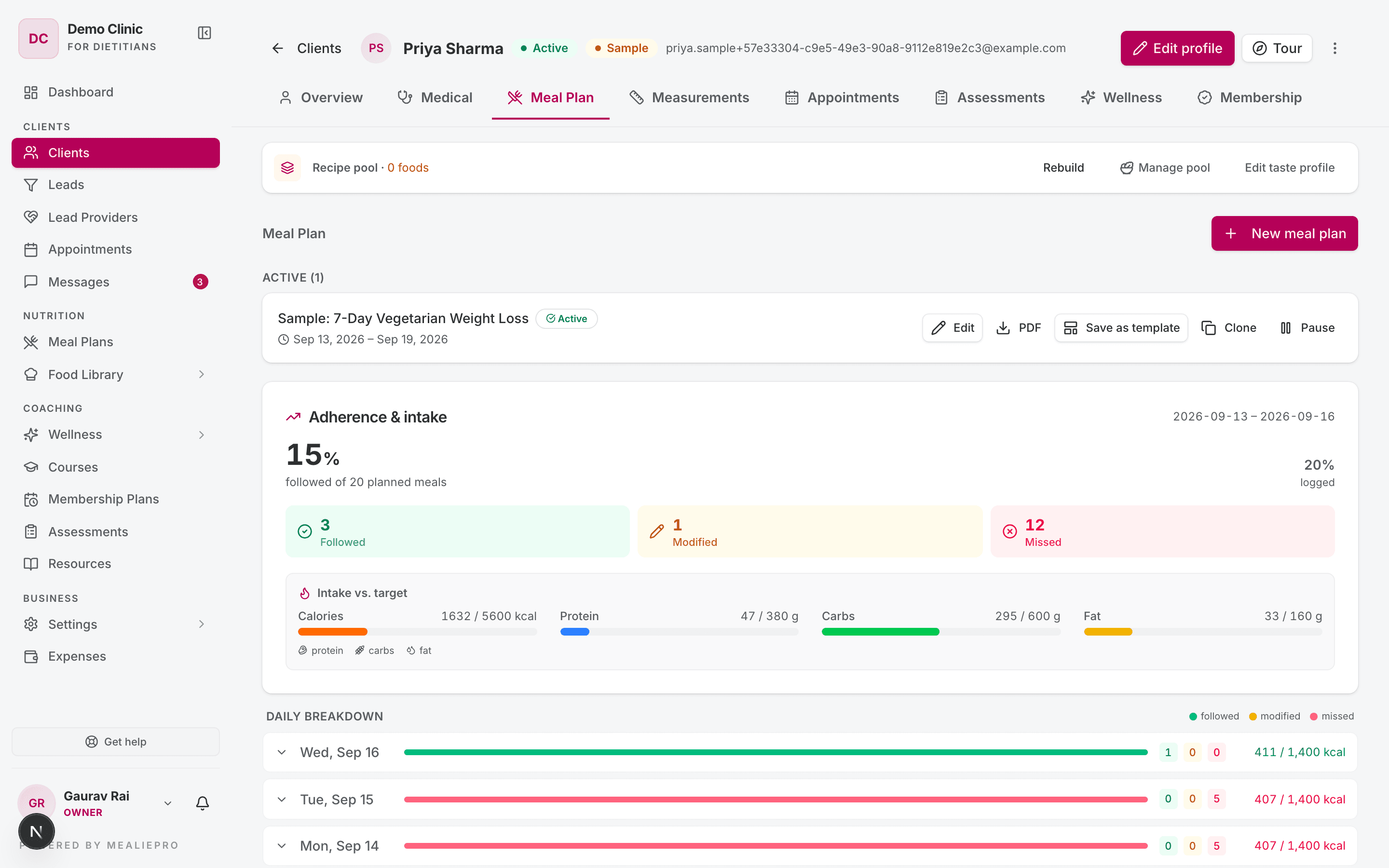
The tab has:
- A Recipe pool card with Rebuild, Manage pool and Edit taste profile. The pool is the set of foods that are safe for this client.
- The New meal plan button. See Generating & checking plans.
- The plans, in groups: Active, Scheduled, Draft and Past plans.
- An Adherence & intake summary of what the client logged.
Each plan row has actions that depend on its status:
| Status | Actions |
|---|---|
| Draft | Edit, Save as template, Clone, Assign, Discard draft |
| Active | Edit, PDF, Save as template, Clone, Pause |
| Scheduled | Edit, PDF, Save as template, Clone, Activate now |
| Past | PDF, Save as template, Clone, Make active |
- Edit changes this client's plan. It does not make a copy.
- Clone makes a new draft for the same client, named "<plan> (copy)", and opens it.
- Pause asks you to confirm. The client then has no active plan.
If the client has no active plan, a No active meal plan banner shows. Click Activate latest plan to start the most recent plan again.
Tip: If the client has no diet type, the tab shows Diet type not set. The app does not generate a plan until you set it. Click Set diet type to go to the Overview tab.
Save a client plan as a template
- On a plan row, or in the plan workspace, click Save as template.
- In Template name, type a name. The app removes the client's name from the suggestion.
- Click Save template.
The meals, notes, targets and avoid list go into the new template. The client's plan does not change. Click View in the message to open the new template.
7. Export a PDF
Click an export button (Export PDF on a template, PDF on a client plan). The Export meal plan dialog opens.
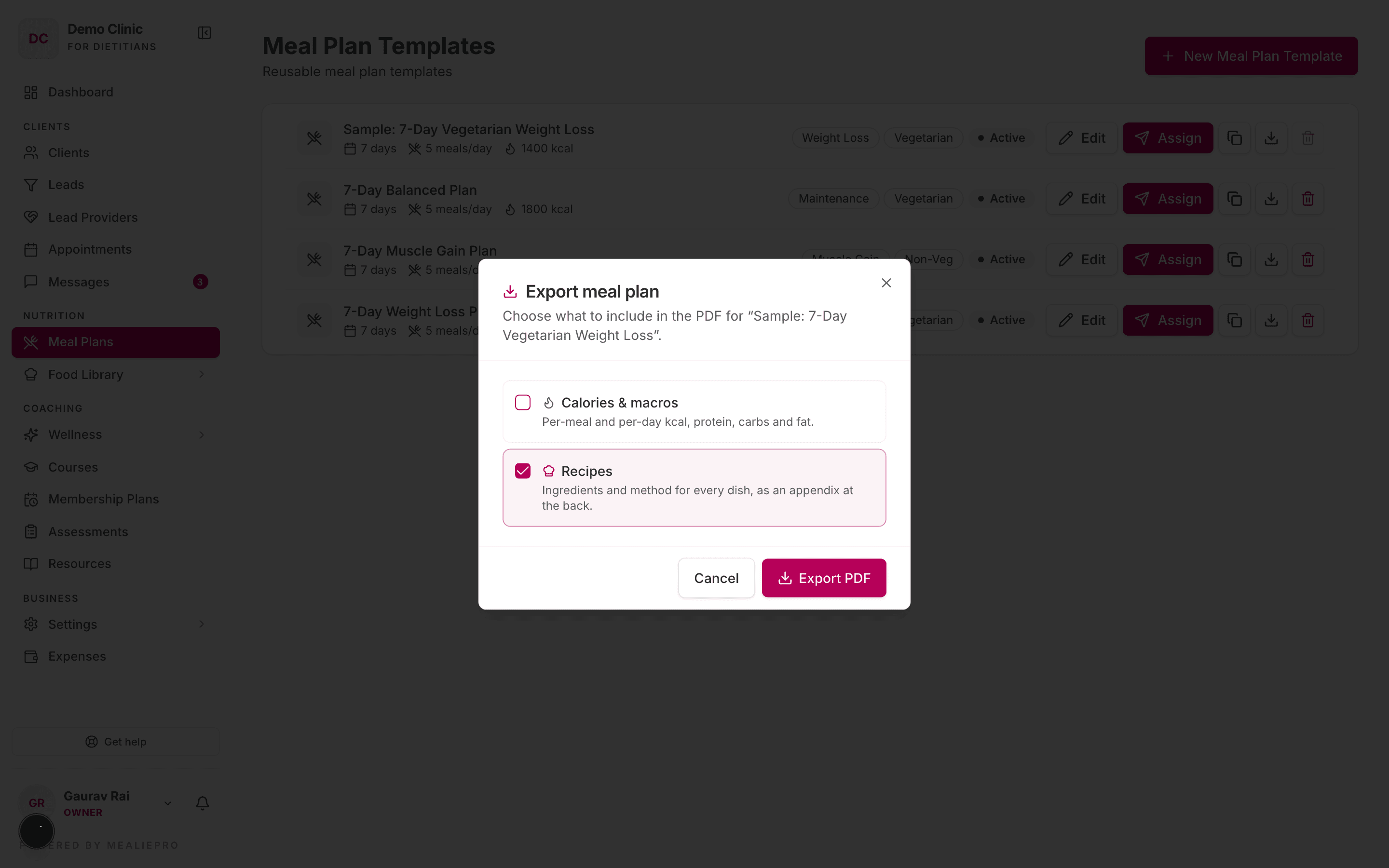
| Option | Default | What it adds |
|---|---|---|
| Calories & macros | Off | Calories, protein, carbs and fat for each meal and each day. |
| Recipes | On | The ingredients and method for each dish, at the back of the PDF. |
| Wellness tasks | On | Each day's wellness tasks and the client's affirmations. Only for client plans. |
Click Export PDF.
- A client plan's PDF includes the meal plan, wellness tasks and affirmations in one file.
- On the client's Overview tab, Export combined plan makes the same PDF for the active plan.
- The PDF does not show the source template name. It does not mention AI.
- If your clients download the plan from their portal, their PDF never shows calories or macros.
To change the PDF design, your logo and the cover, see White label.
8. Who can do what
These are the default roles. An owner can change them in Settings › Roles & Permissions.
| Action | Owner / Admin | Dietician | Nutritionist | Coach | Receptionist |
|---|---|---|---|---|---|
| View plans | ✓ | ✓ | ✓ | ✓ | – |
| Create and edit plans, assign | ✓ | ✓ | ✓ | – | – |
| Generate plans and open the plan workspace | ✓ | ✓ | – | – | – |
| Delete a template | ✓ | – | – | – | – |
For library editors
Library editors also see Meal Templates in the sidebar. A meal template is one reusable meal (for example, a breakfast combination). Other users do not see this page. If they open /meal-templates, the app sends them to Foods.
The app does not use meal templates to build plans. It builds each meal from single foods.
Common workflows
"I want to reuse a plan that worked well for one client"
- Open the client's Meal Plan tab.
- On the plan row, click Save as template.
- Type a name without the client's name, then click Save template.
- Open Meal Plans and click Assign on the new template for the next client.
"My client starts a new plan next Monday"
- Click Assign on the plan.
- Click Sync to week, or click next Monday in the calendar.
- Click Schedule Plan.
The current plan continues until Sunday.
"My client carries lunch to the office"
- In the plan, open the lunch row's Slot settings.
- Turn on Packed meal.
- If one day is different, click the package icon on that cell and select Not packed.
"I want the same breakfast on all seven days"
- Fill Day 1 breakfast.
- Click Copy on that cell.
- Click the breakfast cell on Days 2 to 7.
- Click Confirm.
What's next
- Generating & checking plans — let the app build a plan, then check it against the client's health.
- Food library — the foods and ingredients in every plan.
- Clients — set the diet type, targets and conditions that a plan uses.
- White label — choose the PDF design.
- What clients see — the plan in the client portal.