Messages
Start a conversation with a client or a teammate, reply, and find old threads.
Messages are one‑to‑one conversations inside the product. The history stays next to the client's record, not in your personal WhatsApp.
Open Messages in the sidebar, under Clients. A badge on the item shows how many messages you have not read.
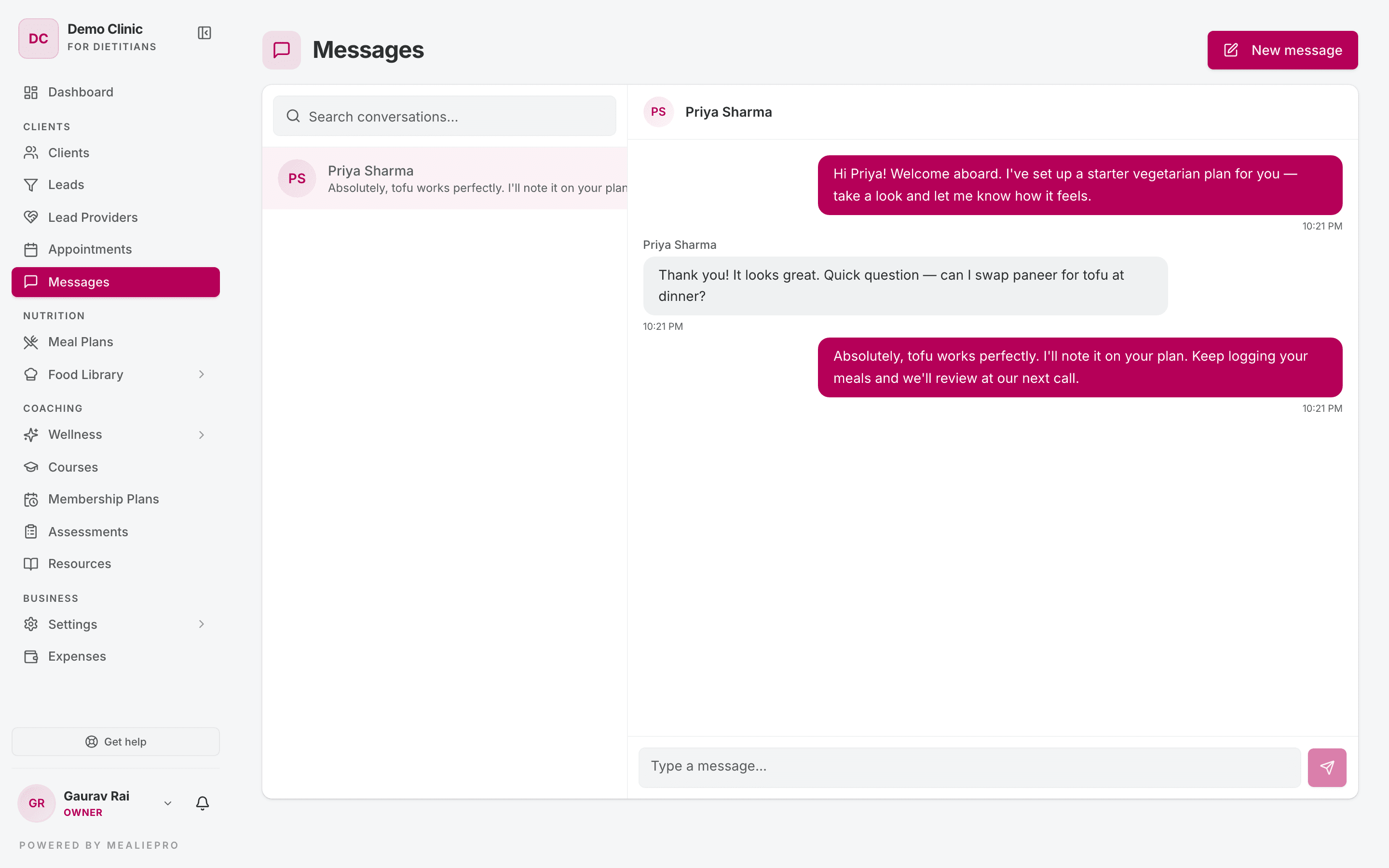
The layout
The page has two panels:
- Left — your conversations, newest first. Use Search conversations to find a person by name or by the text of their last message. Each row shows the time of the last message and the number of unread messages.
- Right — the conversation you selected.
On a narrow screen, the page shows one panel at a time. Tap a conversation to open it. Tap the back arrow to go back to the list.
Start a conversation
- Click New message. The button is in the page header. It also shows when your list is empty.
- The dialog says "Pick someone to start a conversation with." Search by name or email.
- Click the person.
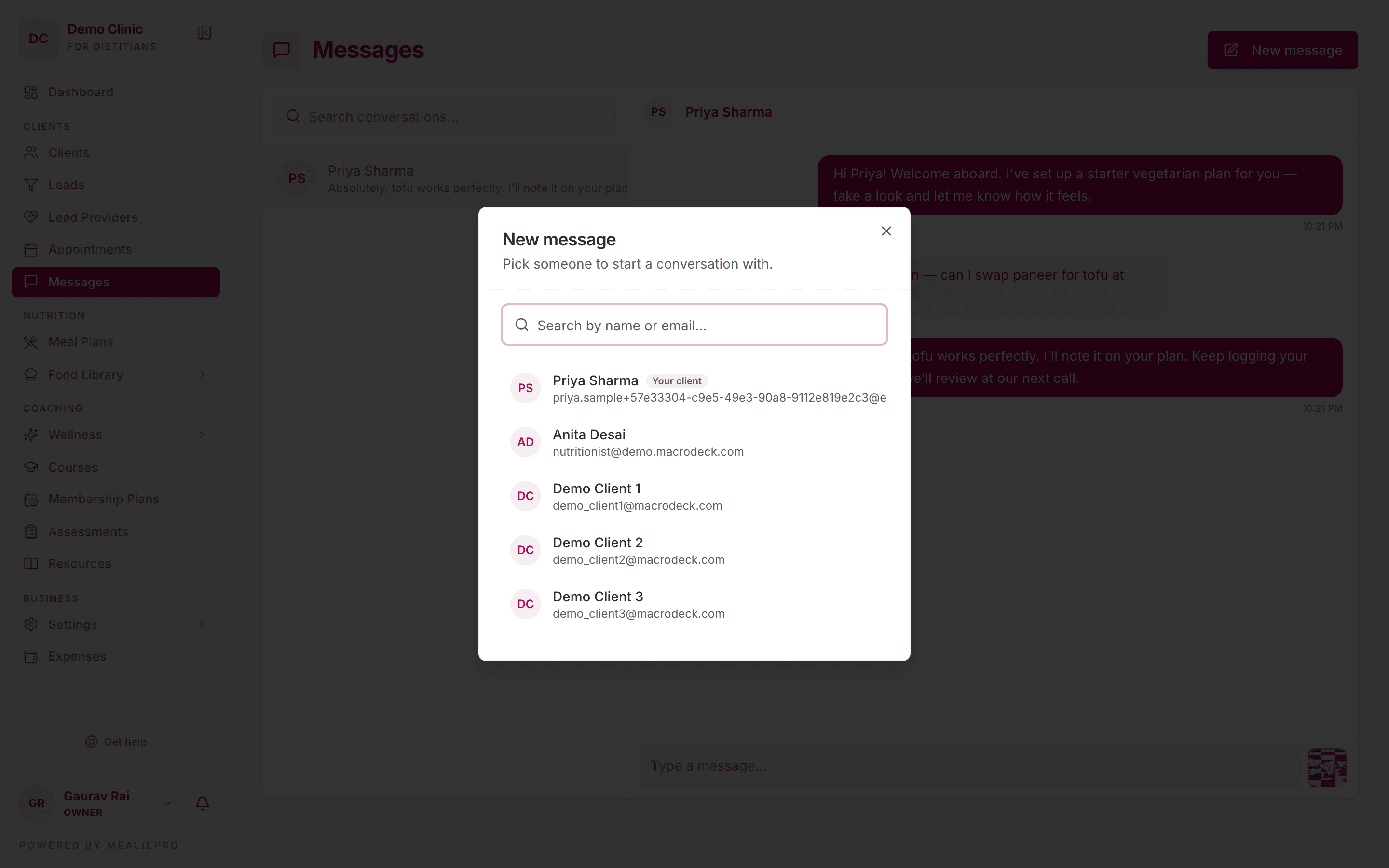
If you already have a conversation with that person, the app opens it. It does not make a second one.
Who you can message
| You are | You can message |
|---|---|
| Staff | Your assigned clients, and all your teammates. If your role can see all clients, you can message any client. |
| A client | Any active staff member of the practice. |
- The list shows the most relevant person first, with a badge: Your client for staff, Your dietician for clients.
- Archived clients do not show in the list.
- Group conversations are not available in the app.
Send and read messages
- Type in the box at the bottom ("Type a message...").
- Press Enter, or click the send button (the paper plane).
To add a new line without sending, press Shift+Enter.
When you open a conversation, the app marks its messages as read.
Note: The page is not live. It checks for new messages every 15–30 seconds. A new message can take a short time to show.
Notifications
When someone sends you a message, you get a "New message" notification in the app only. Messages do not send email. To change this notification, open Notification settings from your user menu — see Notifications.
What clients see
Clients have the same page under Messages in their portal. They see the same conversations and history. Every client can use Messages, whatever their membership plan. More detail: Client portal › Appointments, courses & messages.
Common workflows
"Send a new client a welcome message"
- Click New message.
- Search for the client and click their name.
- Type the message and press Enter.
"Ask a teammate about a client"
Click New message and pick your teammate. Staff‑to‑staff conversations work the same way.
"A client asked a question about a course chapter"
Chapter questions do not come to Messages. They go to the Discussion tab of the course. See Courses › Discussion.
What's next
- Clients — phone and email details are on the client profile.
- Appointments — book a call when a message is not enough.
- Courses — private questions about a chapter.
- Settings › Team — add the teammates you want to message.