Medical reports
Review the lab reports that clients upload, and turn the values into a structured medical intake.
Clients upload lab results and other health documents from their portal. The documents come to a queue for you to review. Your job is to turn each PDF or photo into structured values that the rest of the app can use.
A PDF in a folder is only a document. When you capture its values into an intake, they become part of the client's medical record. They show on the client's profile, and they are available to the meal plan rules.
Open the queue
The queue is at /medical-reports. Add this path to the address of your professional portal, then open it.
The queue has no sidebar item. No notification links to it either. Bookmark the page in your browser, and open it each day.
To open the queue, your role must be able to view clients.
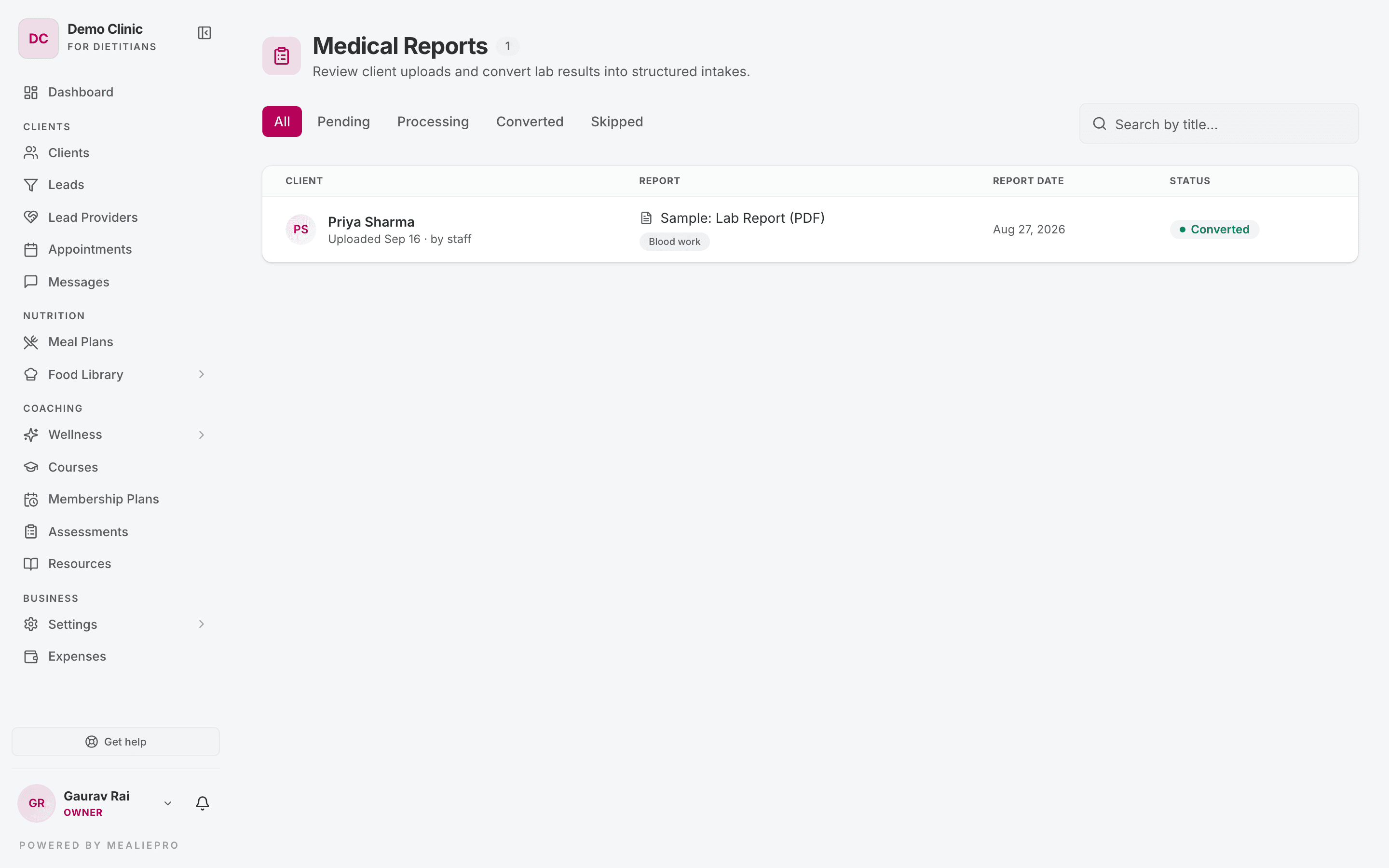
The page title is Medical Reports — "Review client uploads and convert lab results into structured intakes."
The queue
The tabs group the reports by status: All · Pending · Processing · Converted · Skipped. Use Search by title… to find one report.
| Status | Meaning |
|---|---|
| Pending | Uploaded. Nobody has reviewed it yet. This is your inbox. |
| Processing | A team member started to capture it. |
| Converted | Its values are saved as an intake. It is done. |
| Skipped | A team member set it aside on purpose. |
Each row shows:
- the client,
- the upload date, and by staff if a team member uploaded it,
- the title and the type: Blood Work, Body Composition, Medical or Other,
- the date on the report,
- the status.
To see who handled a report and when, open it. The Status section shows the name and the date.
Work a report
Click a report to open it. The file shows on the left. The actions are on the right.
1. Start processing
A pending report shows Ready to review?. Read the file. Then click Start processing. The report moves to Processing, and the Capture intake form opens.
2. Capture the intake
The app fills in the title, date and source from the upload. You enter the values from the report.
The form is the same as the intake form on the client's Medical tab:
- Enter each value under Measurements.
- If a value has no field, click Add field.
- If a value is far outside the normal range, the field turns amber. The usual cause is the wrong unit. If the app can convert the value, click Use ….
Click Save as intake. The report moves to Converted. A Converted to intake card shows. Click View on client record to open the intake on the client's profile.
3. Or skip it
Some uploads do not need an intake, for example a duplicate, a scan you cannot read, or a document that is not a lab report.
- Click Skip this report. While a report is processing, the button is Skip.
- Optionally, enter a Reason, for example "Duplicate upload".
- Click Skip report.
Enter a reason when you can. It tells your team why the report was set aside.
You cannot open a skipped report again. The app keeps it under the Skipped tab. If you skipped a report by mistake, ask the client to upload it again.
Recent intakes
While you capture, the panel shows Recent intakes for this client. Use it to compare the new values with the last ones. For example, see if a marker went up since the last test.
How clients upload a report
Clients upload from Medical Records in their portal. They enter a title, the type (Blood work, Body composition, Medical record or Other), the date on the report, and the file. The file can be a PDF or an image, up to 20 MB.
A client can delete a report only while it is Pending review. After you process a report, the client sees its values under Medical history.
Medical Records is available on every membership plan. See Client portal › Records & profile.
Common workflows
Work through this morning's uploads
- Open
/medical-reportsand select the Pending tab. - Open the first report and click Start processing.
- Read the file, enter the values, and click Save as intake.
- If a report is not a lab result, click Skip this report and give a reason.
- Repeat until Pending is empty.
A client says they uploaded a report, but I cannot see it
- Select the All tab. A team member may have converted or skipped it already.
- Open the report. The Status section shows who handled it.
- If the report is not in the list, ask the client to check Medical Records in their portal.
What's next
- Clients › Medical — where captured intakes go.
- AI meal plans — how conditions and medications shape a meal plan.
- Client portal — what clients see.