Records, questionnaires & profile
How clients upload lab reports, fill in questionnaires, open resources, manage notifications, and edit their profile and food preferences.
This page covers the rest of the client portal: lab reports, questionnaires, resources, notifications and the client's own details.
Medical records
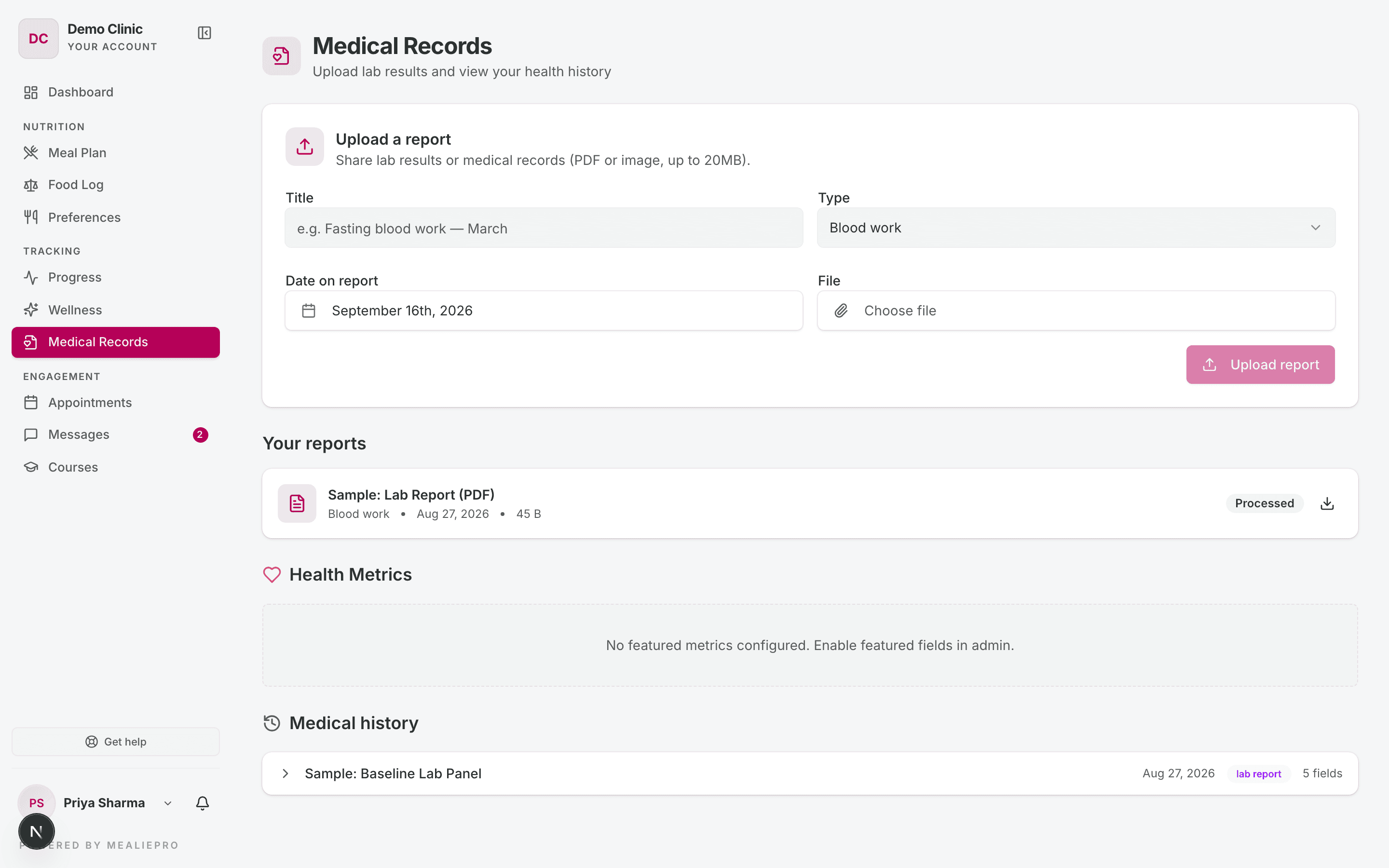
The Medical Records page has the subtitle "Upload lab results and view your health history". It is always available, whatever the plan.
Upload a report
- In Upload a report, the client enters a Title, for example "Fasting blood work — March".
- They pick the Type: Blood work, Body composition, Medical record or Other.
- They set the Date on report.
- They choose the File. The file must be a PDF or an image, up to 20 MB.
- They click Upload report.
The client sees "Report uploaded — your coach will review it shortly." The report goes into your review queue. See Medical reports.
Your reports
Each report shows a status:
| Status | Meaning |
|---|---|
| Pending review | Nobody has opened it yet. The client can still delete it. |
| Being processed | A staff member is entering the values. |
| Processed | The values are on the client's record. |
| Skipped | Your team did not enter values from this report. |
The client can download any report. The client can delete a report only while it is Pending review.
Medical history
Health Metrics shows trends for key lab values. Medical history lists the intakes on the client's record, with their values. If there are none, the section reads "No processed records yet".
Assessments and resources
These two pages have no sidebar item. The client opens them from a notification or from a link you send. Each page also needs the matching module on the client's membership plan.
Assessments
When you send a questionnaire, the client gets a "New assessment assigned" alert. The alert has a Start assessment button.
The Assessments page lists the client's questionnaires. The button on each one reads Start, Continue or View.
- The client answers the questions. A required question with no answer shows "Please answer this question."
- The client clicks Submit Assessment.
- The page shows "Assessment submitted successfully!".
After the client submits, the answers are read-only. You read them in your portal. See Assessments.
The dashboard shows a Pending Assessments count. The count is not a link.
Resources
The Resources page lists articles, links, videos and documents. Each card has an Open button.
The client sees:
- Every resource that your practice marks as public. New resources are public by default.
- Resources you assigned to this client.
- Resources you assigned to all clients.
See Resources.
Tip: Because there is no sidebar item, send the client the page link: your client address followed by
/my/resourcesor/my/assessments.
Notifications
The bell icon at the bottom of the sidebar shows new alerts. See all notifications opens the full list, with the tabs All and Unread and a Mark all read button.
The client chooses their alerts in the user menu → Notification settings:
- Mute everything — stops all optional alerts. Required alerts still arrive.
- Quiet hours — holds alerts between two times.
- For each alert, In-app and Email switches. An alert marked Required cannot be turned off.
The client gets alerts for these events:
| Alert | When |
|---|---|
| New meal plan assigned | You assign a meal plan. |
| Your meal plan has expired | The plan ends. |
| Upcoming appointment, Appointment booked | Before a session, and when a session is booked. |
| New assessment assigned | You send a questionnaire. |
| New wellness program assigned | You assign a wellness program. |
| New message | Someone sends the client a message. In the app only. |
| Daily wellness check-in | The daily reminder you set. |
| Replies to your course questions | A staff member answers a chapter question. |
My profile
The user menu → My Profile opens "View and update your personal information".
| Field | Can the client change it? |
|---|---|
| Full Name, Email | No. Change them on the client's profile in your portal. |
| Date of Birth, Gender, Height (cm), Weight (kg) | Yes |
| Health Goal, Activity Level, Occupation | Yes |
| Allergies — "Food items you are allergic to" | Yes. This is the same allergy list as in onboarding. |
The client clicks Save Changes. A change to height, weight, goal or activity can change the client's calorie targets.
Preferences
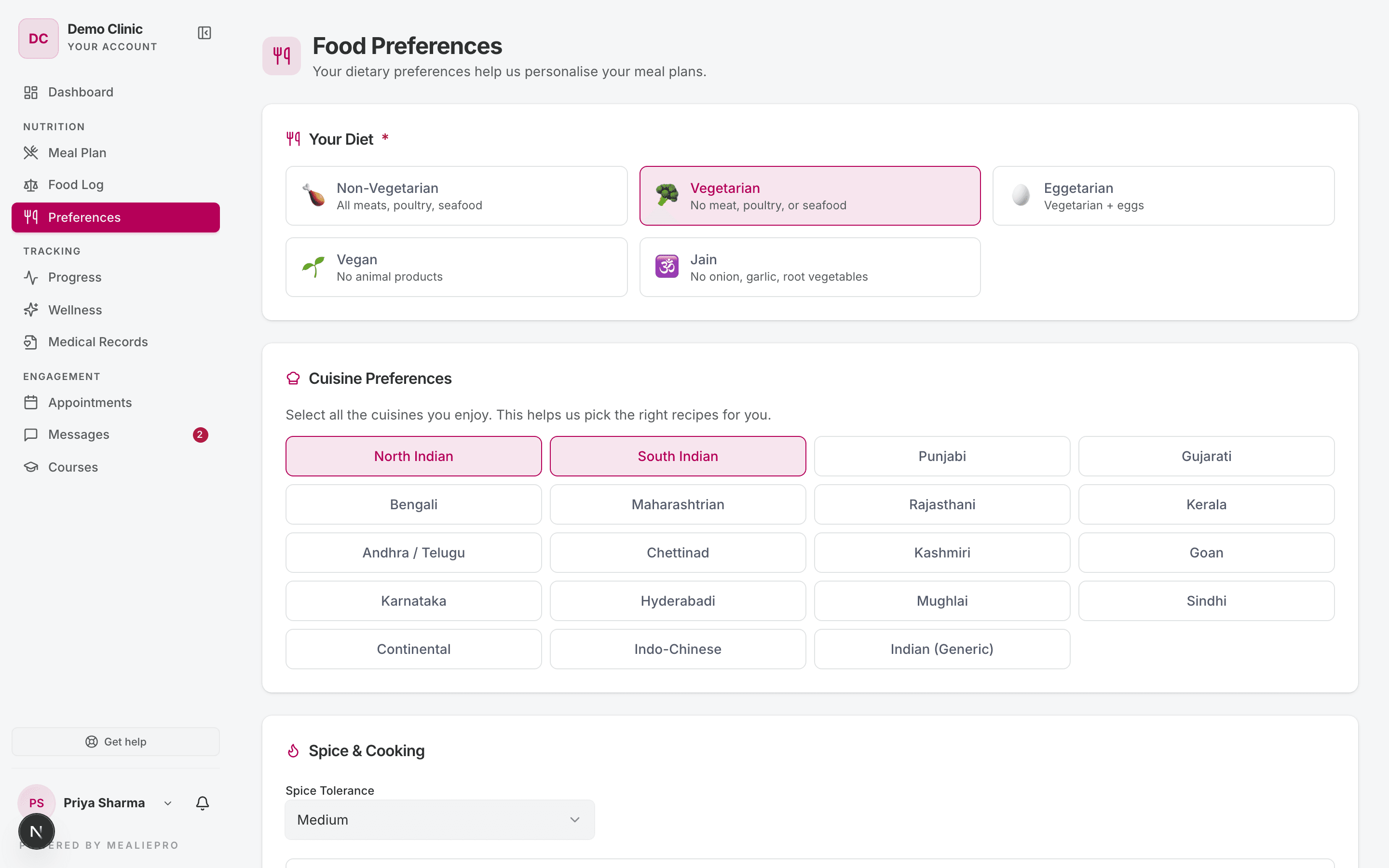
The Preferences item opens Food Preferences — "Your dietary preferences help us personalise your meal plans." It is always available.
| Card | What the client sets |
|---|---|
| Your Diet (required) | Non-Vegetarian, Vegetarian, Eggetarian, Vegan or Jain. |
| Non-Veg Frequency | How many days a week they eat non-veg, and which days they avoid it. Shows only for diets that include meat. |
| Cuisine Preferences | The cuisines they enjoy. |
| Spice & Cooking | Spice Tolerance, I prefer simple cooking and Max Cook Time (minutes). |
| Foods You Like & Dislike | Ingredients they like or dislike, plus free-text notes. |
The client clicks Save Changes. If no diet is picked, the page shows "Pick your diet first — your meal plans are built from it."
These answers are the same data as the Taste Profile card on the client's profile. Your next generated plan uses them. See AI meal plans.
Tutorials and help
- The user menu → Tutorials turns the guided walkthroughs on or off.
- Get help at the bottom of the sidebar sends a support ticket to us. Clients can use it for problems with the portal. For questions about their plan, they should message you.
What's next
- What your clients see — the portal map and plan modules.
- Medical reports — review the reports clients upload.
- Assessments — build and send questionnaires.
- Notifications — your own alerts in the staff portal.