Meal plan & food log
What the client sees on My Meal Plan and Food Log — the active plan, recipes, your meal notes, the PDF, logging meals and extras, and where calories do show.
The Meal Plan page shows the plan you assigned. The Food Log page is where the client ticks off what they ate. The food log feeds the adherence numbers you see on the client's profile.
Both pages need the matching module on the client's membership plan.
My Meal Plan
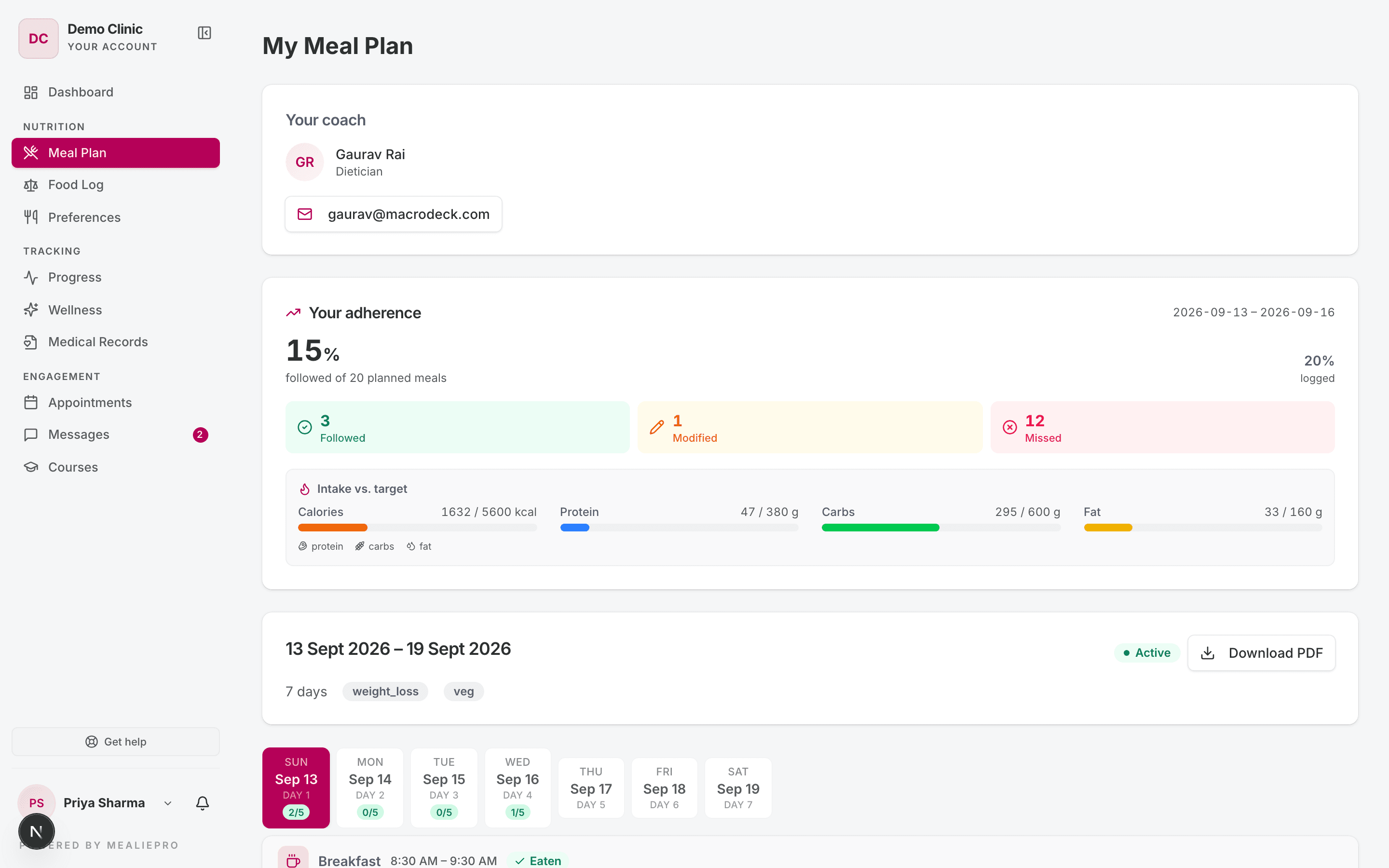
From top to bottom, the page shows:
- Your coach — the assigned staff member's contact details.
- Your adherence — how many planned meals the client Followed, Modified or Missed, and Intake vs. target.
- The plan header — the plan's dates, its length, a status badge and Download PDF.
- A tab for each day. Each tab shows how many meals the client logged, for example "2/5".
- The day's meals.
Only the plan in effect today
The page shows only the active plan. The client does not see draft, paused or past plans. A scheduled plan shows from its start date.
If no plan is active, the page reads "No active meal plan". The text asks the client to message their coach. To start a plan, see Meal plans.
The client does not see the plan's template name. The header shows the plan dates instead.
Each meal
Each meal card shows:
- The meal name and its time, for example "Breakfast 8:30 AM – 9:30 AM".
- A Packed badge, if you marked the meal as one to carry.
- A status, for example Eaten, from the food log.
- Your meal note, if you wrote one. See Meal plans.
- Each dish, with its portion, for example "1 serving" or "150 g".
Your notes on single dishes are for staff only. The client does not see them.
Recipes
If a dish has a recipe, the client can tap the dish name or the chef-hat icon (View recipe). The recipe window shows the client's portion, the ingredients and the method.
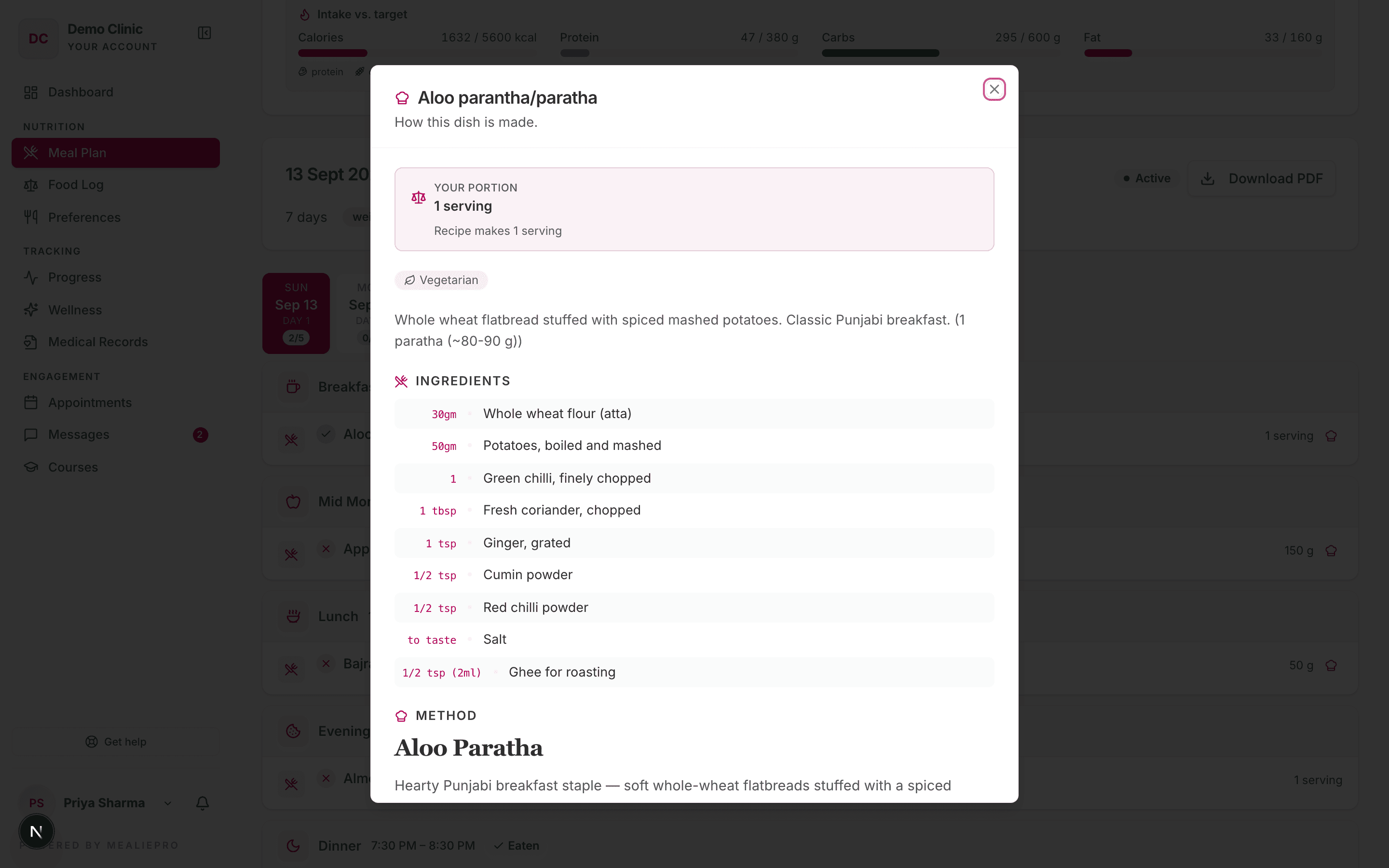
To add or fix a recipe, edit the food in the Food library.
Calories: what the client sees
On the meal plan itself, the client does not see calorie or macro numbers for dishes, meals or days. The macro target chips are also hidden.
The client does see calories in two places:
| Place | What it shows |
|---|---|
| Your adherence card on My Meal Plan | Intake vs. target — calories, protein, carbs and fat, logged against the targets. |
| Food Log | Today's intake bars, and the calories of each dish. |
Tell clients about this if you do not want them to count calories.
Download PDF
Download PDF opens an export window. The client can turn two parts on or off:
- Recipes — ingredients and method for each dish, at the back.
- Wellness tasks — each day's habits and the client's affirmations.
The client PDF never includes calories or macros. The PDF uses your practice's branding. See White label.
Food Log
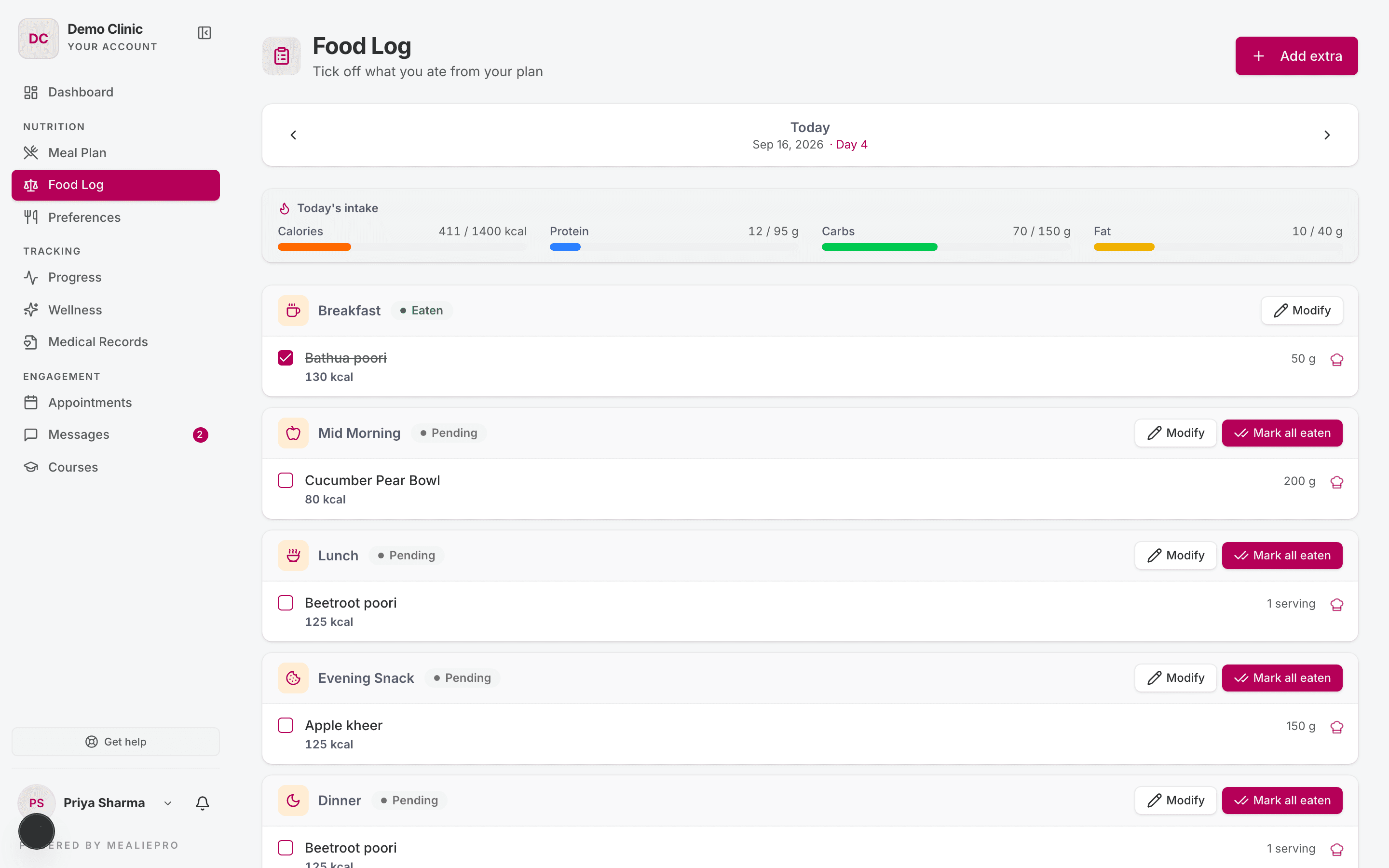
The page subtitle reads "Tick off what you ate from your plan". The top bar shows the date and the plan day, for example "Sep 16, 2026 · Day 4". The arrows go to the previous or next day.
Log a planned meal
- To log one dish, the client ticks its box.
- To log all dishes of a meal, the client clicks Mark all eaten.
- To change a meal, the client clicks Modify. The window Edit meal name lets them change servings, remove a dish, or use Swap or add a food…. Then they click Save changes.
A meal the client changed counts as Modified in adherence.
Log an extra
To log food that is not in the plan, the client clicks Add extra. The window Add an extra has a Meal picker and two modes:
- From library — the client searches the food library with Search the food library….
- Custom food — the client types the food, the portion, the unit and an estimated calorie count.
Days with no plan
If no plan is active, the page reads "No active meal plan". The client can still log extras.
When the membership expires
If the client's membership plan expired, the Food Log shows "Your plan has expired — food logging is paused. Please contact your coach to renew." The client can read past logs, but cannot add or change entries.
To unlock the food log, renew the client's membership.
The dashboard meal card
The Upcoming Meals card on the dashboard shows the day's meals. If the client has the Food Log module, each meal has a Mark eaten button. The card also links to View meal plans and Open food log.
Common workflows
A client says their plan disappeared
Check the client's Meal Plan tab. If the plan is paused, or its end date passed, the client sees "No active meal plan". Activate a plan, or assign a new one.
A client says the food log is locked
Their membership expired. Renew it on the client's Membership tab. See Membership plans.
What's next
- Meal plans — build and assign the plan the client sees.
- Progress & wellness — measurements and daily habits.
- Food library — add recipes that show to clients.
Client onboarding
The setup steps a new client completes after the first sign-in — what each step asks, what is required, and where the answers show up for you.
Progress & wellness
How clients log measurements, what the Energy tab shows, and how they complete daily wellness tasks, trackers and affirmations.