How clients get in
Invite links, the public sign-up link, the client sign-in page and password resets — what the client sees at each step.
A client gets a portal account in one of two ways. You send them an invite link, or they use your public sign-up link. After that, they sign in on the client sign-in page.
1. Invite a client
Use this when you already work with the person.
- Open Clients and click Invite.
- In Invite a client, enter the name, email and phone. All three are optional.
- To send the link by email, enter an email and tick Also send them an invite email.
- Click Create invite link.
- Copy the link. You can also send it in WhatsApp or another chat.
An invite link is valid for 30 days. If you resend an invite, the client gets the same link with a new expiry date.
If you entered an email, the client shows in your Clients list with an Invited badge. They do not need to accept the invite before you start work on their profile.
What the client sees
The invite link opens Create your account, with the text "Join your practice to start your health journey".
| Field | Notes |
|---|---|
| Full Name | Prefilled if you entered a name. |
| Email address | Locked if the invite has an email. The client must use that email. |
| Password | At least 8 characters. |
The client clicks Create Account. The portal then opens the onboarding steps.
When the invite link does not work
| The client sees | Why | What to do |
|---|---|---|
| Invalid Invite | The link is wrong or incomplete. | Copy the link again and resend it. |
| You've already accepted this invitation | The account exists. | Tell the client to click Sign In. |
| This invitation was cancelled | The invite was removed. | Create a new invite. |
| This invite link has expired | More than 30 days passed. | Resend the invite. |
| You already have an account | The email already has a password. | Tell the client to sign in. |
2. The public sign-up link
Use this for people who find you first — on your website, on Instagram, or from a referrer. You turn the link on in Settings → Organization → Public lead signup. The link has the form …/join/your-practice.
The page title is Request to join as a client. The person enters Full name, Phone and Email. You choose in Settings whether email and phone are required.
What happens next depends on your plan:
- If your plan includes Leads: the button reads Request to join. The person sees "You're on the list!". They go on your Leads board. They do not get a portal account yet. When you convert the lead, invite them as a client.
- If your plan does not include Leads: the button reads Continue. The person can then set a Password and Confirm password, and click Create account. The portal opens the onboarding steps. They can also click Skip for now. In both cases, they show in your Clients list as a Free client.
If you turn the link off, the page shows "Not accepting signups right now".
Tip: A referrer's QR code or link adds their code to this same sign-up page. The new lead or client is then credited to that referrer. See Lead providers.
3. Sign in
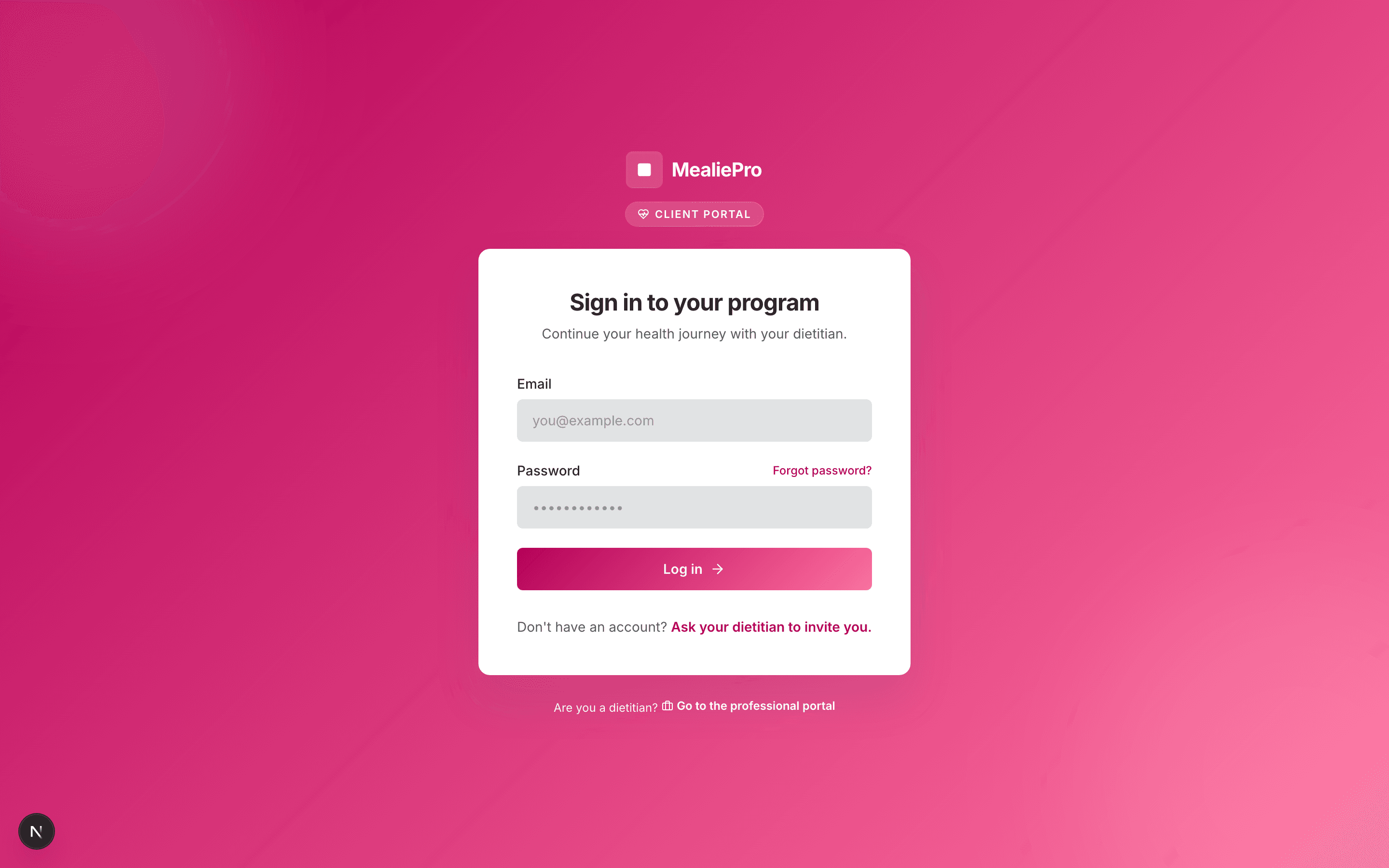
The client sign-in page shows the Client portal badge and the heading Sign in to your program.
- The client enters their Email and Password.
- They click Log in.
Under the form, the page shows "Don't have an account? Ask your dietitian to invite you." On the platform address, it also shows a link for professionals: Go to the professional portal. On your own domain, this link does not show.
If your practice has the White label add-on, the sign-in page can use your colours and design. See White label.
4. Reset a password
- On the sign-in page, the client clicks Forgot password?.
- On Reset your password, they enter their email and click Send reset link.
- The page shows Check your email.
- The email link opens Set a new password. The client enters the new password twice and clicks Reset password.
You cannot see or set a client's password. If the reset email does not arrive, tell the client to check their spam folder.
Common workflows
A client lost their invite email
Open the client's profile. The banner "This client hasn't signed up yet" has Copy link and Resend invite. Copy the link and send it in chat.
A client signed up with the wrong email
If the client has not claimed their account yet, change the email on their profile. See Clients. If they already signed in, open a ticket with Get help.
What's next
- Onboarding — the setup steps after the first sign-in.
- Invitations — invites for staff and clients in one place.
- Leads — work the people who use your public link.
What your clients see
A map of the client portal — the sidebar, the modules each membership plan unlocks, and the settings you control from the staff side.
Client onboarding
The setup steps a new client completes after the first sign-in — what each step asks, what is required, and where the answers show up for you.