Lead providers
Give trainers, doctors and studios their own QR code and referral link, and pay them a share of what their referred clients spend.
A lead provider is a person or business that sends clients to you — for example a gym trainer, a doctor or a yoga studio. Each provider gets a QR code and a referral link. People who enquire through that link are credited to the provider. When those clients pay for a membership, the provider earns a commission.
Open Lead Providers in the sidebar, in the Clients group.
Who can see this: owners and admins only. Other staff do not see the item. Commissions are money that your practice owes, so the page is limited to the people who manage money.
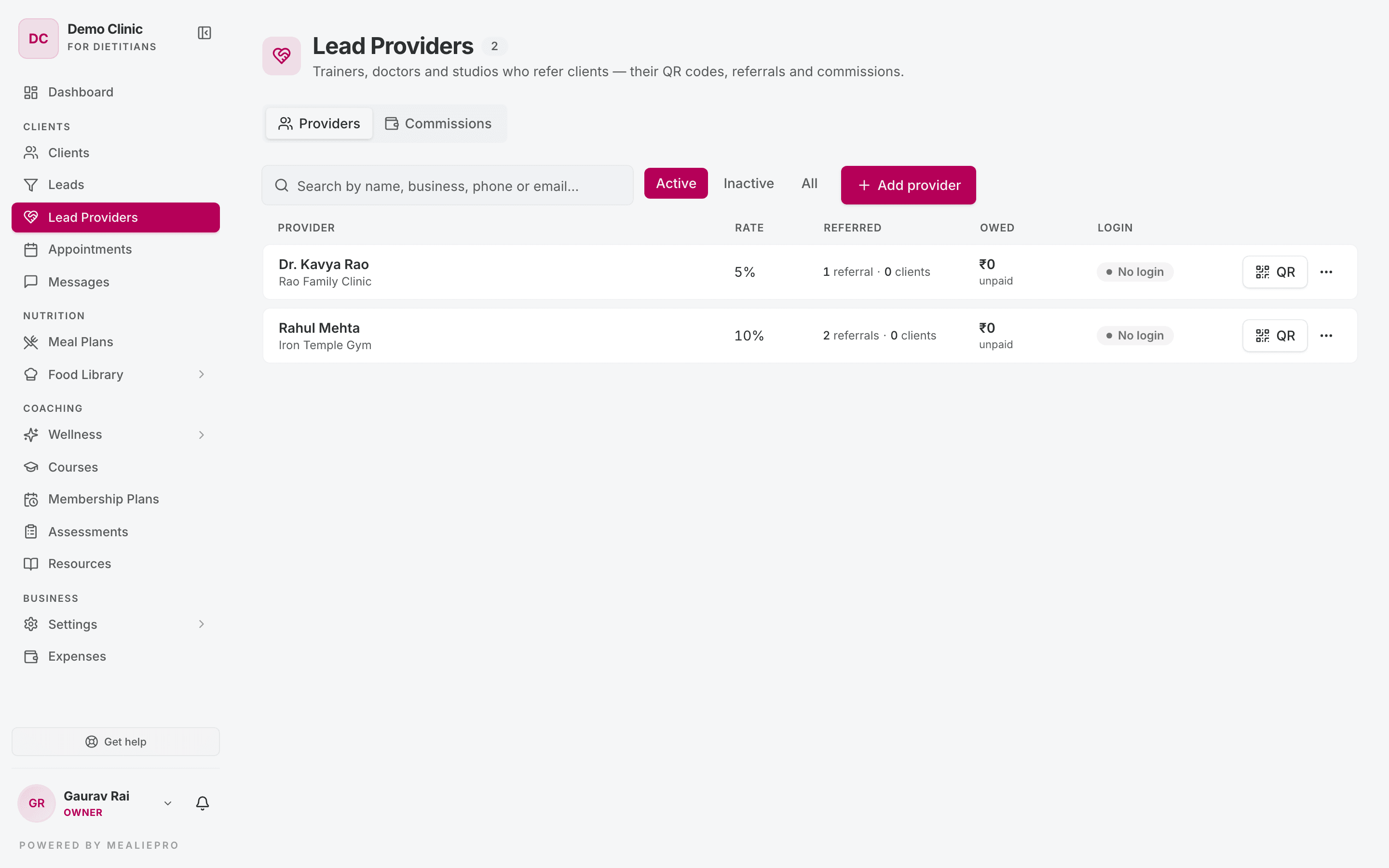
The page has two tabs: Providers and Commissions.
Lead providers are not affiliates. A lead provider sends clients to your practice. The Affiliate program is for partners who send businesses to us.
Add a provider
- Click Add provider.
- Fill in the form.
- Save.
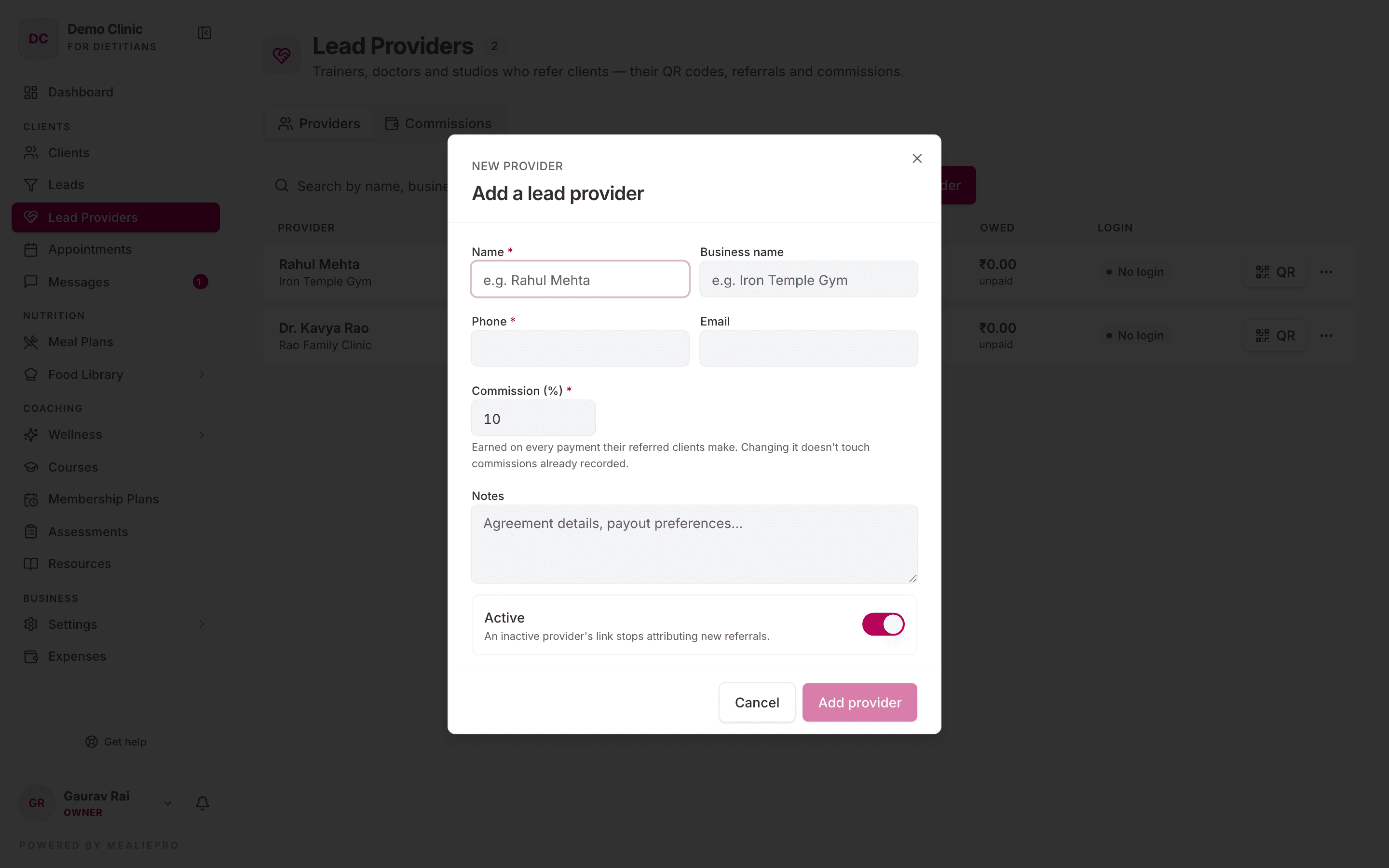
| Field | Notes |
|---|---|
| Name * | The person, for example "Rahul Mehta". |
| Business name | Their business, for example "Iron Temple Gym". If empty, the list shows Independent. |
| Phone * | How you reach them. |
| Needed to give them a login. | |
| Commission (%) * | A value from 0 to 100. The provider earns this share of every payment their referred clients make. |
| Notes | Private notes, for example the agreement details or payout preferences. |
| Active | Turn off to stop new referrals. See Deactivate a provider. |
A rate change is not retroactive. The app records the rate on each commission when it creates it. If you change the rate, commissions that exist keep their old rate.
The Providers tab
Each row shows the provider, their business, the number of referrals, the number of clients, and the commission that is unpaid. The login badge shows if the provider can log in:
| Badge | Meaning |
|---|---|
| Has login | The provider can log in and see their referrals. |
| Invite pending | You sent a login invite. The provider has not accepted it yet. |
| No login | The provider has no login. |
Use Active · Inactive · All to filter the list. Search by name, business, phone or email.
Click a provider's name to open their details. The details panel shows their commission totals — Pending, Approved, Paid and Unpaid — and their referrals.
The ⋮ menu on a row has these actions:
- Edit — change the provider's details or rate.
- Invite to log in — see Give the provider a login. After you send an invite, this item is Re-invite to log in.
- Deactivate / Activate — see below.
- Delete — removes the provider and their referral link. You cannot delete a provider who has commissions. Deactivate them instead.
Share the QR code and link
Click QR on a provider's row. The dialog shows the provider's QR code and referral link.
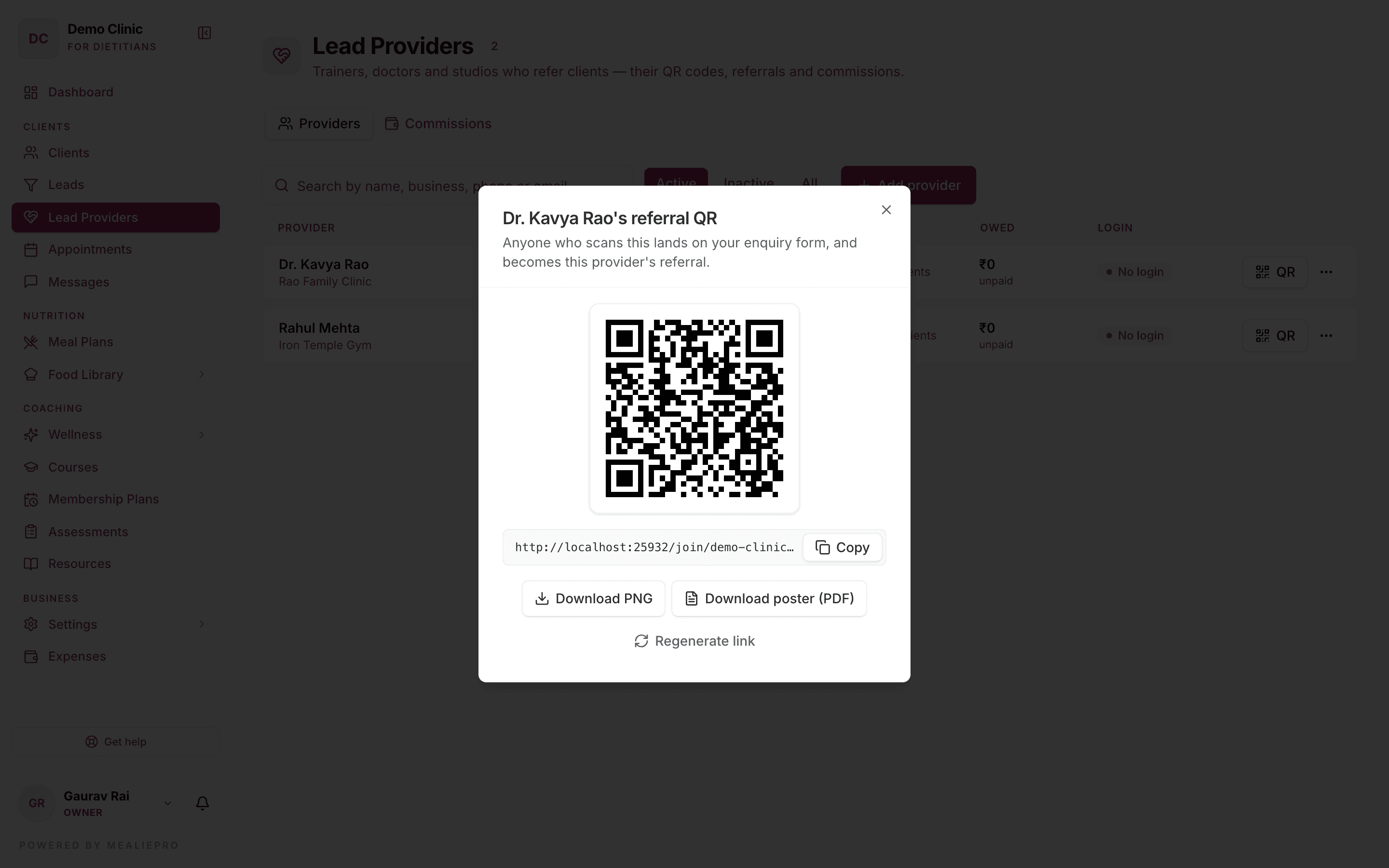
- Copy the link — send it by WhatsApp or email.
- Download PNG — an image of the QR code, for social media.
- Download poster (PDF) — a one-page A4 poster with your logo, your colour and the QR code. Print it for the provider's gym or clinic.
A person who scans the code opens your enquiry form. The form says Referred by and the provider's business name. If the provider has no business name, it shows their name. The enquiry is credited to that provider.
The link works when your public form is off. A referral link from an active provider opens the enquiry form, even if Public lead signup is off in Settings › Organization. So you can use provider posters without a public form.
Where the enquiry goes depends on your plan:
- If your plan includes Leads, the enquiry becomes a lead in your pipeline.
- If not, the enquiry becomes a Free client in your Clients list.
Regenerate a link
If a link is shared too widely, create a new one. In the QR dialog, click Regenerate link.
The app asks Regenerate this referral link? After you confirm, the old link and all printed posters stop crediting referrals. People who were already referred stay with the provider. Print new posters after you regenerate.
Credit a referral by hand
Sometimes a person mentions a provider but does not use the link. You can credit the provider yourself:
- Open the lead or the client.
- In Referred by a lead provider?, select the provider.
- Confirm Credit [provider] with [person]?
You can credit a referral one time only. After you save, you cannot change or remove the provider. Payments that exist before you credit the provider do not earn commission.
The app always keeps the first provider. A person who is already a lead or a client is never credited again, even if they use a different provider's link later.
Commissions
When a referred client pays for a membership, the app records the provider's commission. This happens for each payment you record on the client's Membership tab. The app calculates each commission to the paisa. For example, 12.5% of ₹9,999 is ₹1,249.88.
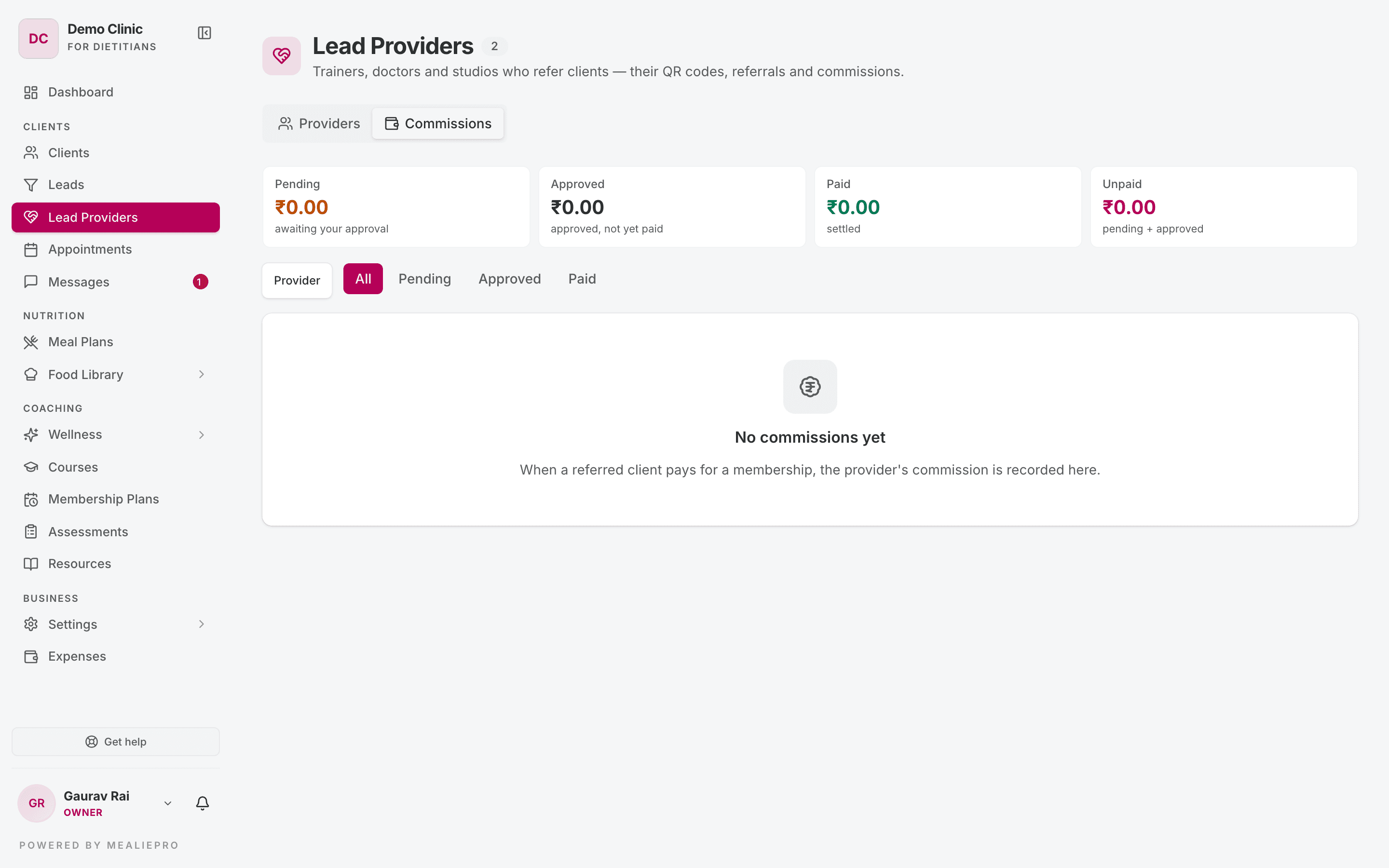
The tiles at the top show the totals:
| Tile | Meaning |
|---|---|
| Pending | Recorded. Waiting for your approval. |
| Approved | Approved. Not paid yet. |
| Paid | Paid to the provider. |
| Unpaid | Pending plus approved. This is what you owe. |
Filter the list by provider, and by All · Pending · Approved · Paid.
Approve and pay
Approval is optional. Use it if someone must check a commission before it is paid.
- To approve a commission, click Approve on its row.
- To pay, tick the commissions you paid. The tick box in the header selects all unpaid commissions on the page.
- Click Mark paid in the bar at the bottom.
- Enter the Payout reference, for example a UPI reference.
- Confirm.
You can mark a pending commission paid directly. You do not have to approve it first.
A paid commission is protected. You cannot delete a payment or a client if a paid commission depends on it. An unpaid commission is removed together with its payment.
A commission rate of 0% records nothing. To stop a provider earning, set their rate to 0.
Deactivate a provider
Use Deactivate when a provider stops sending referrals.
- Their link stops crediting new enquiries.
- Clients they already referred keep earning commission for them.
To stop all future commission too, set their Commission (%) to 0.
Give the provider a login
A provider with a login can see their own referrals and earnings. They cannot see your clients or anything else in your practice.
- On the provider's row, click ⋮ → Invite to log in.
- Enter or check their email.
- Click Send invite.
- Optionally, copy the invite link and send it yourself.
A provider login does not use a staff seat.
What the provider sees
When the provider logs in, their sidebar has one item: My Referrals.
The page shows:
- Their QR code and link, with Download PNG and Download poster (PDF).
- Totals: Referrals, Became clients, Owed to you, Pending, Approved and Paid to you.
- People you referred — each referral and its status.
- Your earnings — each commission and its status.
The provider does not see the payment amounts, contact details or health information of the people they referred.
Common workflows
I agreed a 10% deal with a local gym
- Click Add provider. Enter the trainer's name, the gym name, their phone, their email and 10 for Commission (%).
- Click QR on their row, then Download poster (PDF).
- Give the poster to the gym.
- Click ⋮ → Invite to log in so the trainer can follow their referrals.
I pay my providers at the end of each month
- Open Commissions and filter by Pending.
- Check the list and pay each provider.
- Tick the commissions you paid and click Mark paid.
- Enter the payout reference so you can match it to your bank statement.
A client says a doctor sent them, but they did not use the link
- Open the client's profile.
- In Referred by a lead provider?, select the doctor.
- Confirm. Only payments from now on earn commission.
What's next
- Leads — where referred enquiries go.
- Membership plans — record the payments that earn commission.
- Settings › Organization — your public signup form.
- Settings › Roles & permissions — what each role can see.