Affiliate program
Invite businesses with signup links, track the ones that join, and see your licence bill and your revenue share.
The affiliate program is for partners who bring new businesses to the product. You send each business a personal signup link. When the business signs up, it gets its own practice on the plan you chose.
Open Affiliate in the sidebar, under Affiliate.
Who can see this: The Affiliate group shows only for partner accounts. We turn this on for you. If you open the page without it, you see "Affiliate access only". To join the program, click Get help at the bottom of the sidebar.
Who sees what
The page has four tabs. Two of them show money, so only the owner of the partner account sees them.
| Tab | Who sees it | What it shows |
|---|---|---|
| Signup Links | All staff | Your invitations to businesses. |
| Signed-up Businesses | All staff | The businesses that signed up. |
| Billing & invoices | Owner only | What you owe us for licences. |
| Earnings | Owner only | What we owe you as revenue share. |
Admins do not see the two money tabs. All staff in the partner account share one list of invitations.
1. Signup links
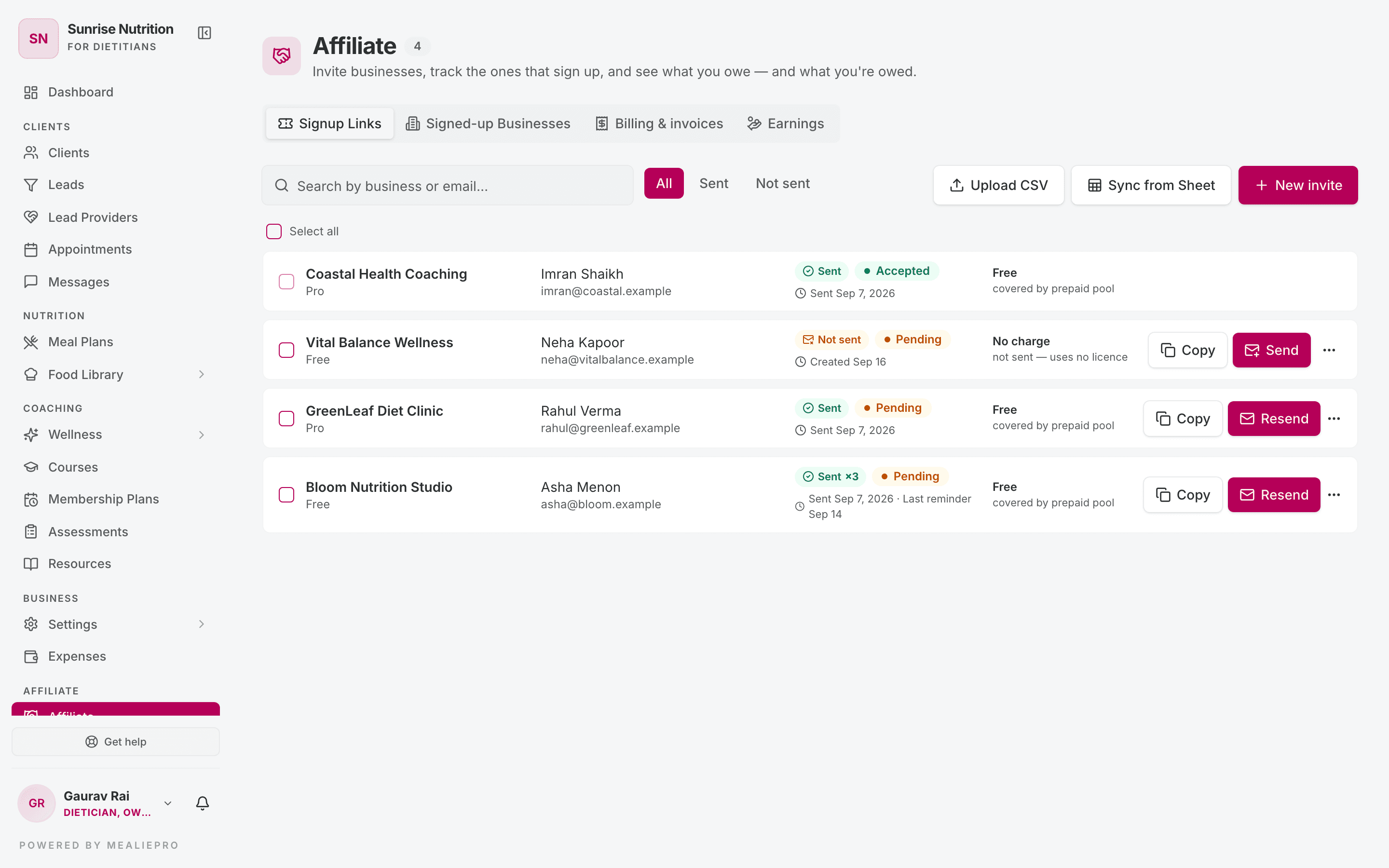
Each row is one business that you invited.
| Part of the row | What it shows |
|---|---|
| Business and plan | The business name and the plan it signs up on. |
| Contact | The owner's name and email address. |
| Sent label | Sent, Sent ×3 (the first email plus 2 reminders), or Not sent. |
| Status | Pending, Accepted, Expired or Revoked. |
| Dates | When you sent it, the last reminder, and the end date if you set one. |
| Licence | What the invitation costs. See Licences and billing. |
Use the search box ("Search by business or email…") and the All, Sent and Not sent filters to find a row.
Actions on a pending invitation
- Copy: copies the signup link. Send it yourself, for example on WhatsApp.
- Send or Resend: emails the link to the business.
- ⋯ › Edit: change the business details before they accept.
- ⋯ › Revoke invite: stops the link. You cannot undo this.
You cannot delete an invitation. You also cannot edit an invitation after the business accepts it.
Send many emails at once
- Tick the box on each pending row, or tick Select all.
- In the bar at the bottom, click Send emails.
- Click Clear to remove the selection.
The selection covers only the rows on the current page.
Automatic reminders
If a business does not sign up, we email the link to them again about every 3 days. Reminders stop when the business signs up, or when you revoke the invitation.
- We never send a reminder for an invitation that you did not send.
- Reminders are free. They do not use another licence.
2. Add businesses
One business
Click New invite.
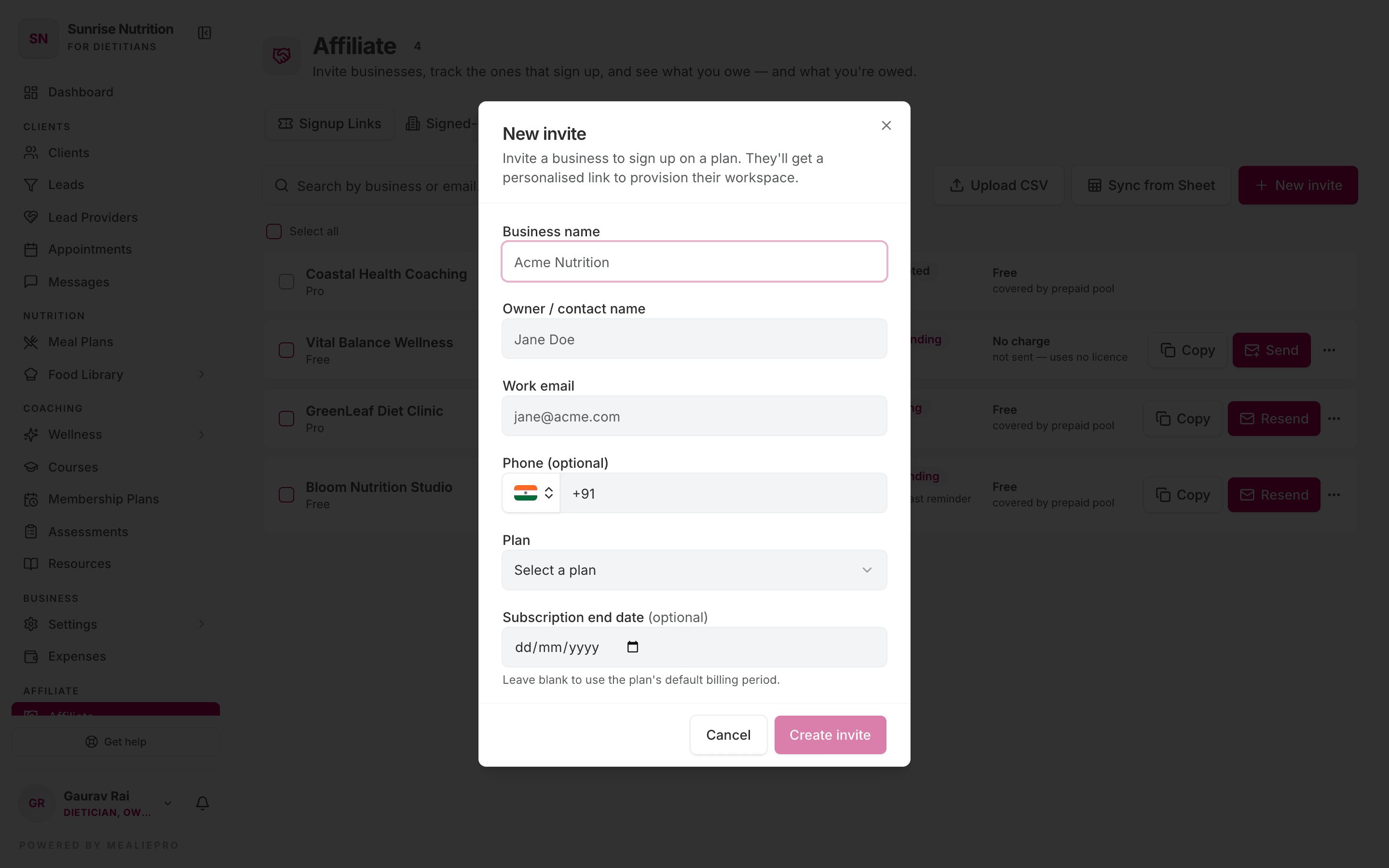
| Field | Notes |
|---|---|
| Business name | Required. |
| Owner / contact name | Required. |
| Work email | Required. |
| Phone (optional) | |
| Plan | Required. The plan the business signs up on. |
| Subscription end date (optional) | Leave it empty to use the plan's normal billing period. |
Click Create invite. The invitation is not sent yet. Then click Send, or Copy the link.
Many businesses from a file or a sheet
Click Upload CSV or Sync from Sheet. The Import businesses window opens.
- CSV file: use these columns:
NAME,NUMBER,EMAIL ID,PLAN OPTED,END DATE. The app ignores other columns. - Google Sheet: paste the sheet link. Share the sheet with "Anyone with the link" first.
Click Preview. The Preview import window shows how many rows will be added, how many are already invited, and any errors. Click Add to import.
Tip: An import does not send any email. It uses no licences. Send the emails from the list when you are ready.
3. What the business sees
The business opens the link and sees Create your business. The form has the business details that you entered. The business can change them.
After Create business, the new practice starts on the plan you chose. It has a free subscription and one example client. See Accepting an invitation.
4. Licences and billing
Open the Billing & invoices tab.
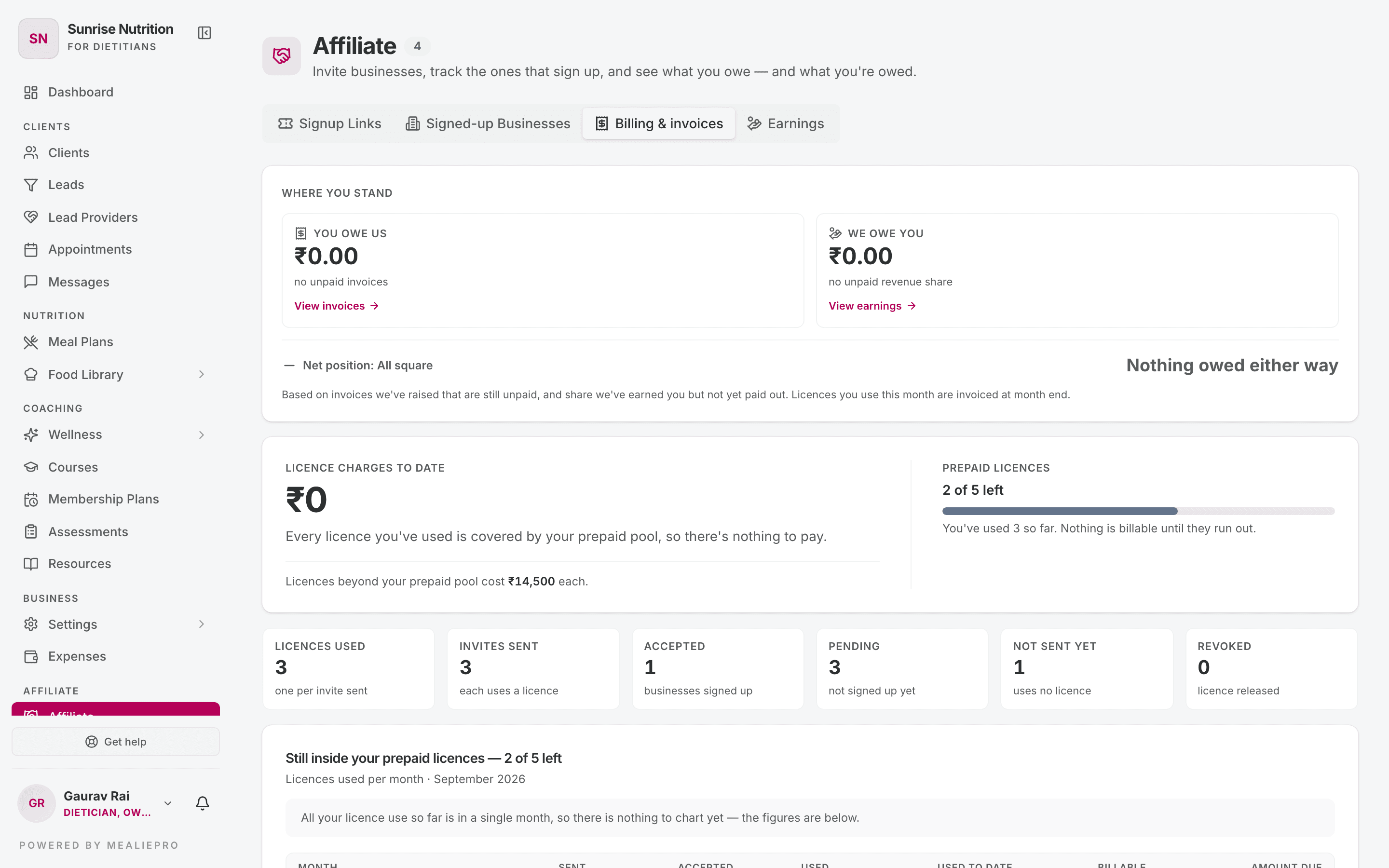
Where you stand
- You owe us: unpaid licence invoices. Click View invoices to see them.
- We owe you: revenue share that we have not paid yet. Click View earnings to see it.
- Net position: the difference, or "Nothing owed either way".
How your bill works
| Rule | Details |
|---|---|
| Sending uses a licence | Each invitation that you send uses one licence. An invitation that you create but do not send uses none. |
| Prepaid licences | Your first licences can be prepaid. This is a one-time pool, not a monthly allowance. |
| Extra licences | After the pool is used, each licence costs a fixed amount. We charge it in the month you created the invitation, not the month you sent it. |
| Revoking | Revoking an invitation releases its licence. |
The licence column on each row shows the result: Free (covered by the prepaid pool), a charge, or No charge (not sent, or revoked).
The tab also shows your licence totals, a chart of licences used each month, and a table with the amounts for each month.
Invoices
On the 1st of each month, we raise one invoice for the licences of the month before. If all licences were free, there is no invoice. The Invoices card lists your invoices.
- Filter by All, Unpaid, Being checked, Paid or Cancelled.
- Click an invoice to see the details. If TDS applies, the invoice shows the TDS amount and the Net payable amount.
- Click Download PDF to save the invoice.
Tell us that you paid
- Open the invoice.
- Click I've paid this.
- Enter the Transaction reference (UTR), How you paid and Date you paid. Add a note if needed.
- Click Report payment.
The invoice shows "We're checking your payment" until we confirm it. To fix a mistake, open the invoice and click Correct payment details.
We send the owner a reminder 3 days before the due date, on the due date, and 7, 14 and 30 days after it. Reminders continue after you report a payment. They stop when we confirm the payment. These reminders are required. You cannot turn them off.
5. Earnings
Open the Earnings tab. You earn a share when a business that you referred renews its plan or buys an add-on.
- Pending: we recorded the payment. We have not agreed your share yet.
- Approved: we agreed your share. We have not paid it yet.
- Paid to you: we paid it.
The tab shows your rates On renewals and On add-ons, a monthly chart and a table. Months are counted by the date when the business paid us.
We record all earnings. You cannot add them yourself.
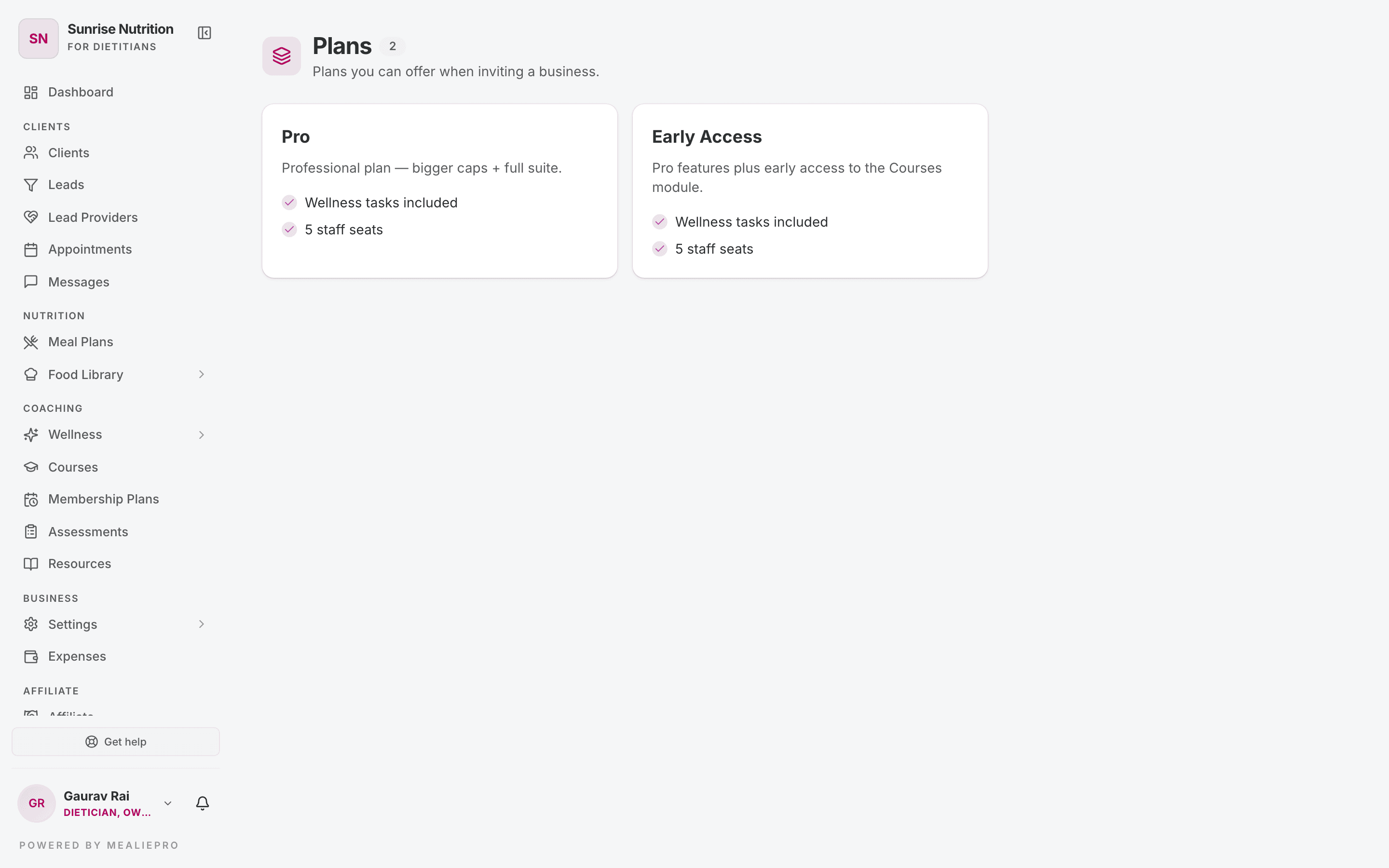
6. Plans
Click Plans under Affiliate in the sidebar. The page shows the plans that you can offer to a business. It does not show prices.
7. Signed-up businesses
The Signed-up Businesses tab lists each business that signed up with your link. Each row shows the plan, the owner's email, the number of staff and clients, the signup date and the subscription status.
This tab is read-only.
What you cannot change
We set these terms for you. To change them, contact us:
- Plan prices and the licence price.
- The size of your prepaid pool.
- TDS.
- Your revenue share rates.
Common workflows
Invite 50 businesses from our sheet
- Click Sync from Sheet and paste the sheet link.
- Click Preview. Fix any rows with errors.
- Click Add.
- Tick Select all and click Send emails. Repeat for each page.
A business lost the email
- Find the business in Signup Links.
- Click Copy and send the link yourself, or click Resend.
I paid an invoice
- Open Billing & invoices.
- Open the invoice and click I've paid this.
- Enter the payment details and click Report payment.
What's next
- Accepting an invitation: what the business sees.
- Notifications: invoice alerts.
- Billing & invoicing: the GST details on your own invoices.
- Settings: your practice settings.