Accepting an invitation
What a new staff member or client sees when they open an invitation link, and how to fix a link that does not work.
You add people to your practice with an invitation link. This page shows what the person sees when they open the link. It also explains each message they can get.
There are three kinds of public link:
| Link | Who uses it | Where you make it |
|---|---|---|
Invitation link (/invite/…) | A new staff member or a new client of your practice | Settings › Team for staff. Clients › Invite for clients. See Clients. |
Public lead signup link (/join/…) | Anyone who wants to become your client | Settings › Organization. See Leads. |
Business signup link (/signup/…) | A new business that joins as a customer of an affiliate | Affiliate program |
1. Send the invitation
- For staff: open Settings › Team and click Invite Member. Enter the email address and the roles. Click Send Invitation. See Settings › Team.
- For a client: open Clients and click Invite. Click Create invite link. Copy the link, or tick Also send them an invite email. See Clients.
2. What the person sees
The link opens a page with the title Create your account. Below the title, the page says "Join" and the name of your practice.
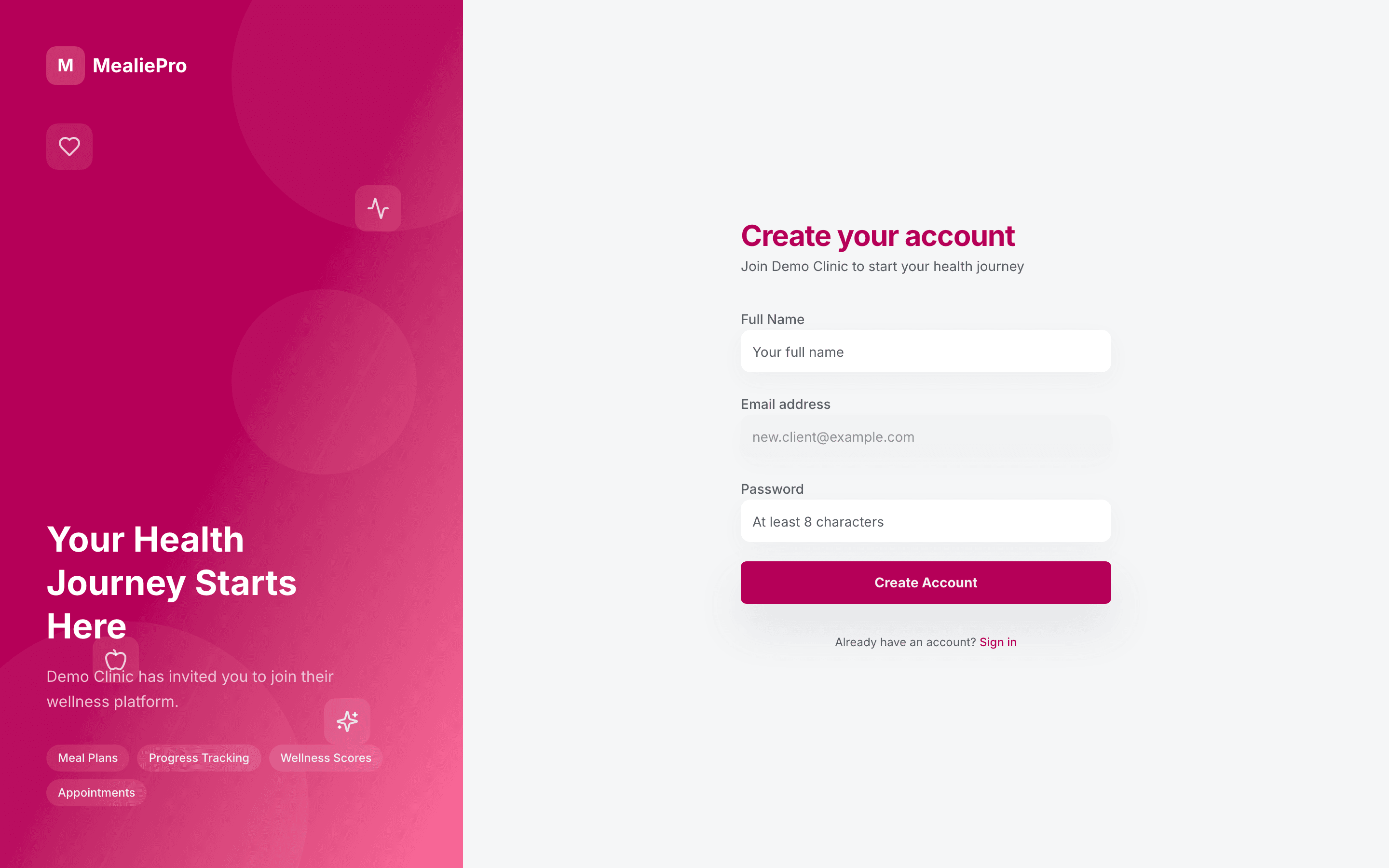
The person enters:
| Field | Notes |
|---|---|
| Full Name | Their name. |
| Email address | If you invited a specific email, this field is locked to that address. |
| Password | At least 8 characters. |
They click Create Account. Then:
- A staff member goes to the staff Dashboard.
- A client goes to the client onboarding steps. See Client portal › Onboarding.
Note: The invitation page uses the same text for staff and clients. It talks about a "health journey" also for a staff member. The "Sign in" link at the bottom opens the client sign-in page. Staff must sign in on the professional portal.
3. Messages the person can see
| Message | What it means | What to do |
|---|---|---|
| Invalid Invite | The link is wrong or incomplete, or you deleted the invitation in Settings › Team. | Send a new invitation. Make sure the person copies the full link. |
| You've already accepted this invitation | The person already made an account with this link. | Tell them to click Sign In. |
| This invitation was cancelled | The invitation was cancelled. This is rare. | Send a new invitation. |
| This invite link has expired | The link is older than 30 days. | Send the invitation again. |
| You already have an account | An account with this email already exists. | Read Existing accounts. |
4. How long a link works
- An invitation link works for 30 days.
- If you invite the same email again, you send the same link. The 30 days start again. The link in the person's older email also works.
- If you invite a staff member again, you can change their roles. The newest roles are used.
- You can send an invitation again even when your plan has no free places. The limit is checked when the person accepts.
Tip: When a staff member accepts, the app checks your staff limit again. If your plan has no free seat at that time, the person cannot join. Remove or deactivate a staff member first. See Settings › Team.
Existing accounts
If the email already has an account with a password, the page says You already have an account. The person clicks Sign In.
Important: The invitation link does not add an existing account to your practice. Signing in does not add it either. To add a person who already has an account, click Get help at the bottom of the sidebar and ask us.
This rule protects accounts. Anybody who has a link can type any email address into the form.
There is one exception. If you added a client by hand and the client never set a password, the link lets them set a password. They then join your practice as normal.
The public lead signup link
The /join/… link lets people ask to become your clients. They do not need an invitation.
- The first step asks for Full name, Phone and Email. You choose which of these are required.
- The second step lets them set a password, or skip it.
- If your plan includes Leads, they show in Leads. If not, they show in Clients with the Free label.
Turn on the link in Settings › Organization.
The business signup link
An affiliate sends the /signup/… link to a new business. The page title is Create your business.
- The fields are Business name, Your full name, Work email, Phone (optional), Password and Confirm password.
- The person clicks Create business. They go to the new practice's Dashboard.
- If the email already has an account, the page says "This email already has an account. Enter your existing password to add this business, or log in." The person can add a second business to their account.
See Affiliate program.
Common workflows
A client says the link has expired
- Open the client's profile.
- On the banner "This client hasn't signed up yet", click Resend invite.
- The client gets the same link, with a new 30-day limit.
A new staff member cannot join
- Open Settings › Plan & Billing. Check the staff limit. See Billing & invoicing.
- If the limit is full, deactivate a staff member in Settings › Team.
- Ask the new staff member to open the link again.
What's next
- Settings › Team: invite and manage staff.
- Clients: add and invite clients.
- Client portal: what your clients see after they join.
- Leads: work the people who sign up with your public link.