Billing & invoicing
Check your plan, add-ons and usage, and set up the GST details and invoice design that your client invoices use.
Plan & Billing is a tab in Settings. It has two jobs:
- It shows your subscription — what you pay us for, and how much of it you use.
- It holds your GST & invoicing details — the business identity that prints on the invoices you raise to your clients.
Open Settings → Plan & Billing. Only owners and admins can open it.
Do not confuse this with Membership plans. Plan & Billing is your subscription to the product. Membership plans are the programs that you sell to your clients.
Your subscription
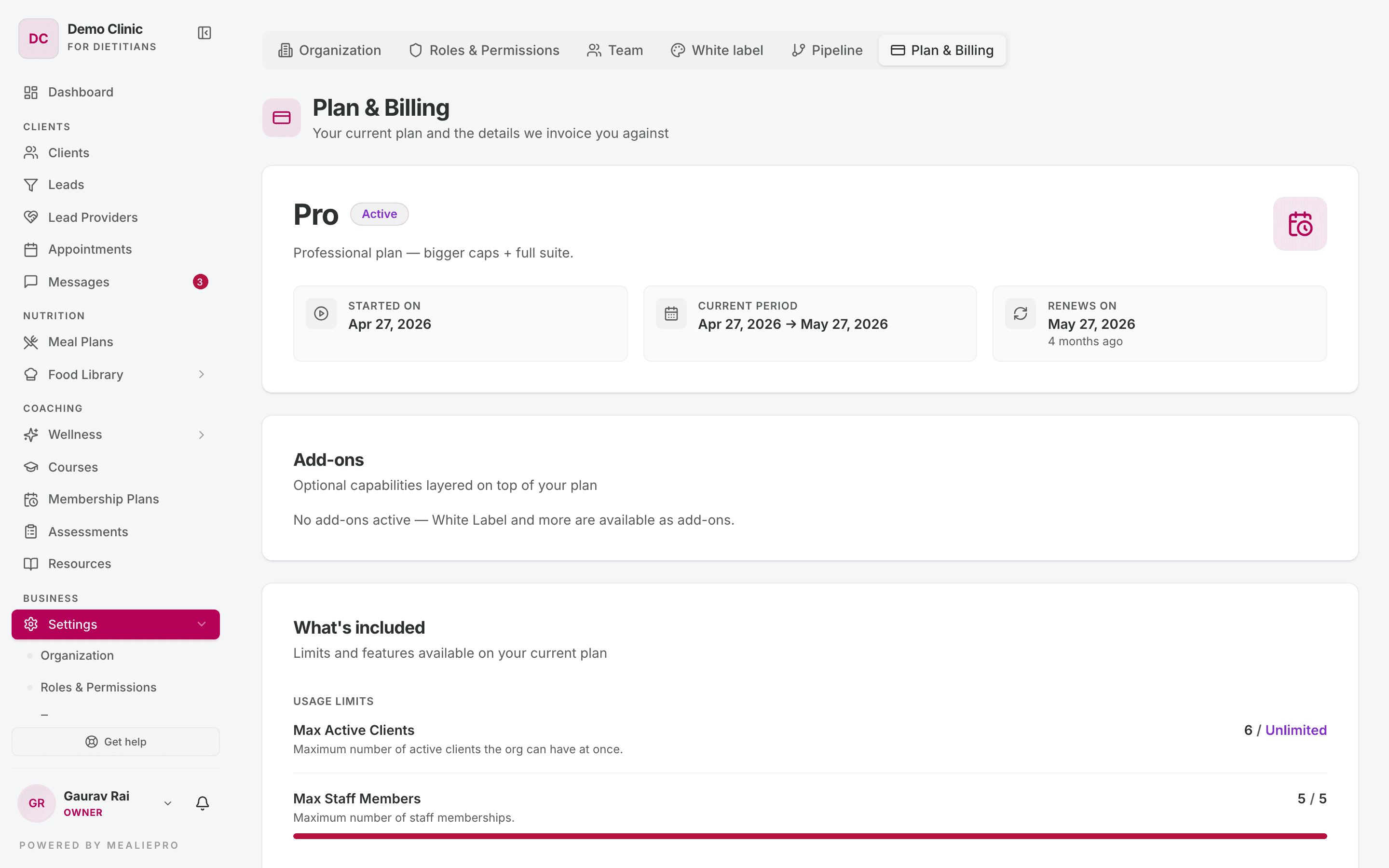
The top card shows your plan name, its status and its dates.
| Status | Meaning |
|---|---|
| Active | Your plan is running. |
| Trial | You are in a trial period. The card shows Trial ends. |
| Past due | A payment is late. |
| Canceled | The plan is canceled. The card shows Canceled on and Ends on. |
| Expired | The plan has ended. The card shows Expired on. |
| Paused | The plan is on hold. |
The dates are Started on, Current period and Renews on.
Add-ons
The Add-ons card lists the extra capabilities on top of your plan. Each row shows its price (or Included), its start date and its renewal date. White label is sold as an add-on.
If you have no add-ons, the card says "No add-ons active — White Label and more are available as add-ons."
What's included
This card lists your plan's limits and features.
- Usage limits show used / limit with a progress bar, for example Max Active Clients and Max Staff Members. Unlimited means there is no cap.
- Features show a tick for each module that your plan includes. A crossed-out feature is not in your plan.
If you see a "Plan limit reached" or "Your plan allows N …" message when you add a client or invite a staff member, the matching limit here is full.
- To free a client place, deactivate clients that you no longer work with.
- To free a staff seat, deactivate a staff member. Inactive members do not use a seat.
There are no upgrade, cancel or payment buttons in the app. To change your plan, click Get help at the bottom of the sidebar and ask us.
If your organization has no plan, the tab says No active plan. Contact support to get started.
GST & invoicing details
This is your business's billing identity. It shows as:
- the supplier on the invoices you raise to your clients, and
- the recipient on the invoices we raise to you.
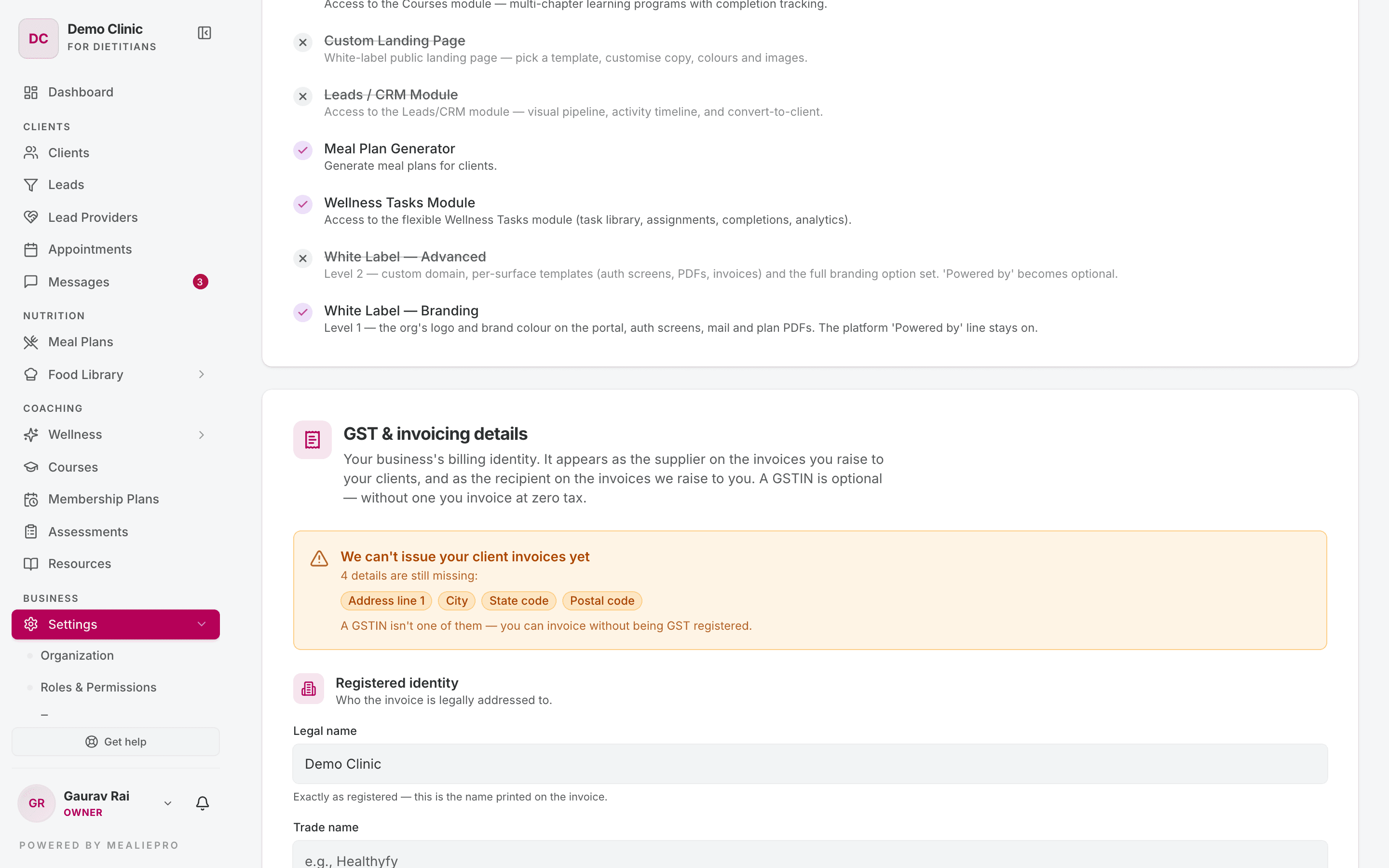
The status banner
A banner at the top tells you if you can invoice clients:
- Ready to invoice clients — all required details are set.
- With a GSTIN, your invoices are GST tax invoices at the standard rate.
- Without a GSTIN, your invoices have zero tax. That is correct for a practice that is not GST registered.
- We can't issue your client invoices yet — the banner lists the missing details.
A GSTIN is optional. You can invoice clients without GST registration. The fields that you must fill are marked Required to invoice.
The fields
| Group | Fields |
|---|---|
| Registered identity | Legal name (required — exactly as registered), Trade name |
| Tax registration | GSTIN (optional), PAN, CIN (companies only) |
| Registered address | Address line 1 (required), Address line 2, City (required), State (required), Postal code (required), Country |
| Contact | Billing email, Phone |
| Bank details | Account name, Bank, IFSC, Account number |
- State: If you enter a GSTIN, the app reads the state from its first two digits, and you cannot change it by hand. Without a GSTIN, pick your state from Select your state.
- GSTIN: The app checks the number. It refuses a mistyped GSTIN, or one whose state does not match your address.
- Bank details: These print on every invoice so that clients know where to pay. Check the account number carefully.
Click Save details to save, or Discard to undo your edits.
Invoice design
Below the details, Invoice design sets how your invoices look.
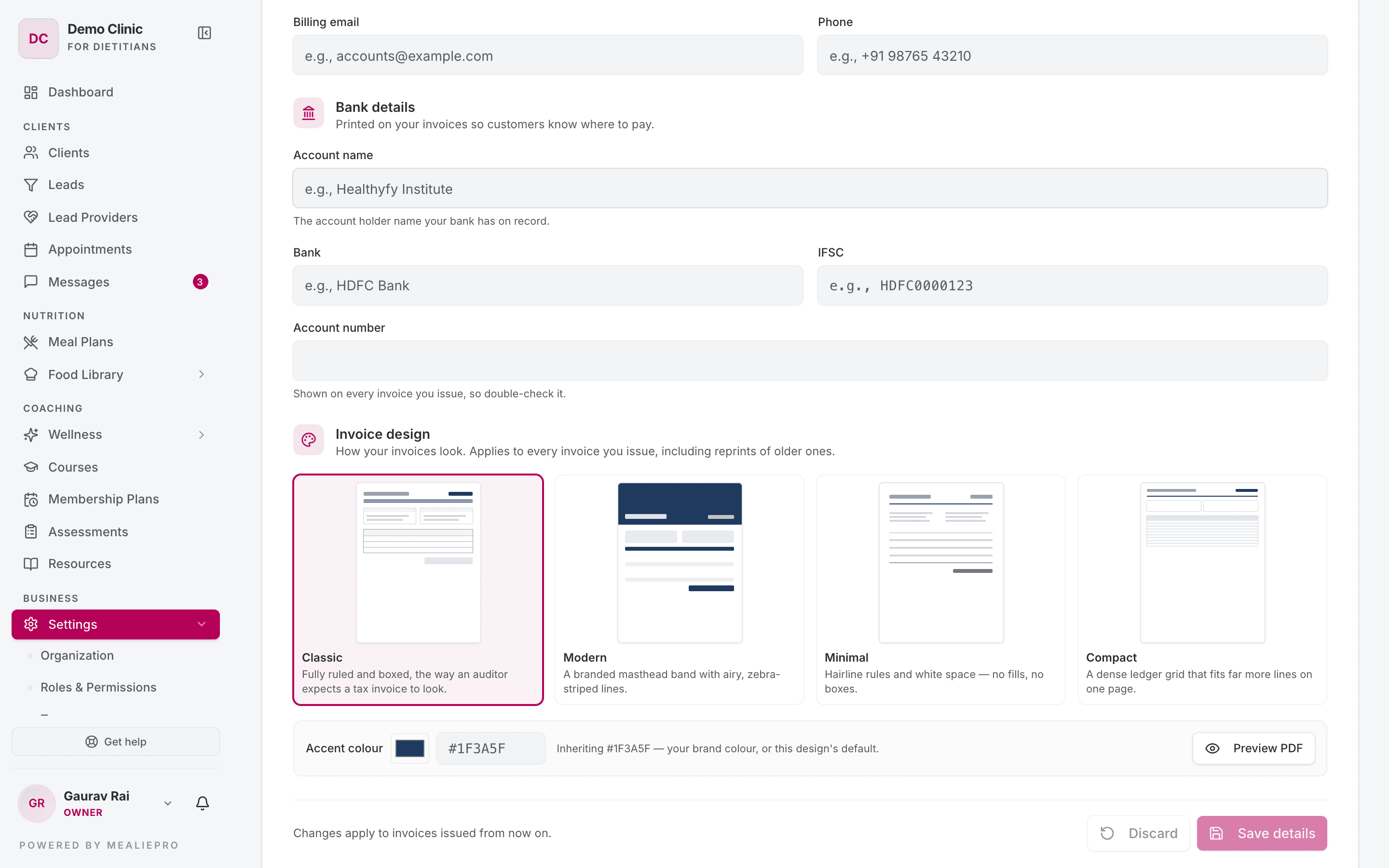
| Design | Look |
|---|---|
| Classic | Fully ruled and boxed, the way an auditor expects a tax invoice to look. This is the default. |
| Modern | A branded band across the top, with airy, striped lines. |
| Minimal | Thin lines and white space, with no fills or boxes. |
| Compact | A dense grid that fits many more lines on one page. |
All four designs show the same tax details. Only the look changes.
- Accent colour colours the header, the table headings and the total. Pick a colour, or type a hex value.
- If you leave the accent empty, the invoice uses your brand colour (from Organization → Theme Color), or the design's default.
- Click Inherit to clear a colour that you set.
- Click Preview PDF to see a sample invoice in the selected design.
Your logo from Settings → Organization prints at the top of the invoice.
What changes when you edit
Invoices are tax documents, so some details are fixed when an invoice is issued.
| Detail | When you edit it |
|---|---|
| Legal name, GSTIN, address and other identity details | Only new invoices change. Issued invoices keep the details they were issued with. |
| Bank details | All invoices change, including unpaid ones that you issued before. |
| Invoice design, accent colour and logo | All invoices change, including reprints of older ones. |
Tip: If you change bank accounts, clients who still owe you see the new account on their invoice. That is usually what you want.
Invoicing your clients
You raise client invoices from a client's Membership tab, not from this page. For the steps, see Membership plans.
A few rules come from the details on this page:
- With a GSTIN, an invoice is a TAX INVOICE with GST at the standard rate.
- Without a GSTIN, an invoice is a plain INVOICE at zero tax, with no GST columns.
- Invoices are numbered in order for your practice, one series for each financial year. For example,
INV/2627/0001is your first invoice of FY 2026–27. - An invoice is due 7 days after its date. You cannot change this.
Troubleshooting
"Create invoice" says my billing details are incomplete
- Open Settings → Plan & Billing.
- Read the We can't issue your client invoices yet banner. It lists what is missing.
- Fill in those fields, then click Save details.
- Go back to the client's Membership tab and try again.
Only owners and admins can edit these details. If you are a dietician, ask an owner. If your role cannot manage billing, the section says "Your role can't manage billing details."
I am not GST registered
Leave GSTIN empty. Fill in the required fields. Your invoices are issued at zero tax.
I registered for GST after I started invoicing
Add your GSTIN and click Save details. New invoices are GST tax invoices. Invoices that you issued before stay as they were.
What's next
- Membership plans — sell programs, take payments and raise invoices.
- White label — your brand on the client portal, emails and PDFs.
- Settings & team — your practice profile, where your logo and theme colour live.
- Affiliate program — for partner accounts, the invoices we raise to you.