Leads
Your pipeline of prospects — capture enquiries, move them through your stages, and convert the right ones into clients.
A lead is a person who is interested but is not a client yet. The Leads page is the start of your funnel: capture → qualify → convert. Use it so that no enquiry is lost because nobody followed up.
Open Leads in the sidebar, in the Clients group.
Who can see this: the owner, admin, dietician, nutritionist, coach and receptionist roles. Your plan must also include the Leads feature. If it does not, the page shows a preview of the feature.
What each role can do:
| Action | Roles |
|---|---|
| See leads | Owner, admin, dietician, nutritionist, coach, receptionist |
| Add a lead | All of the above, except coach |
| Assign an owner | All of the above |
| Log activity, move stages, disqualify, convert | Owner, admin, dietician, nutritionist, coach |
| Change the pipeline stages and sources | Owner and admin |
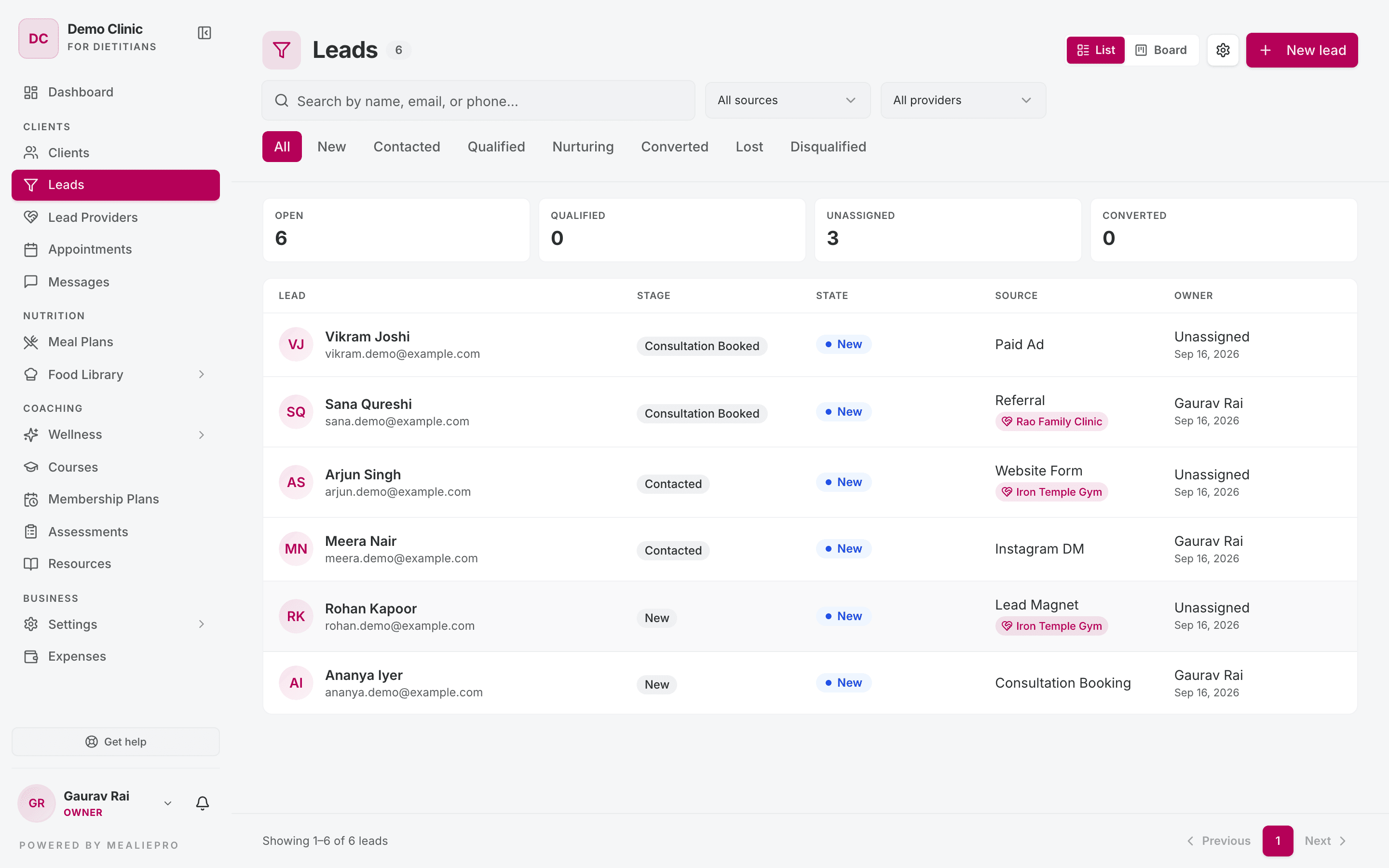
The list
Four tiles show the state of your funnel: Open, Qualified, Unassigned and Converted. Watch Unassigned. Those leads have no owner, and nobody will follow them up.
Below the tiles:
- Search — by name, email or phone.
- Status — All · New · Contacted · Qualified · Nurturing · Converted · Lost · Disqualified.
- Source — show the leads from one lead source.
- Lead provider — show the leads that one lead provider referred.
A lead from a lead provider shows the provider's name on its row.
Rotting leads
A lead is rotting if it stays in a stage longer than that stage allows. The row shows a flag with the tooltip "Rotting — no movement past this stage's threshold". Follow up the lead, or move it to Lost.
Each stage has its own limit, Rotting days. Set it in Settings › Pipeline. If you leave it empty, that stage never rots.
List or board
Use the toggle to change the view:
- List — easy to search. Use it to find one person.
- Board — one column for each stage, one card for each lead. Use it to see where all your leads are.
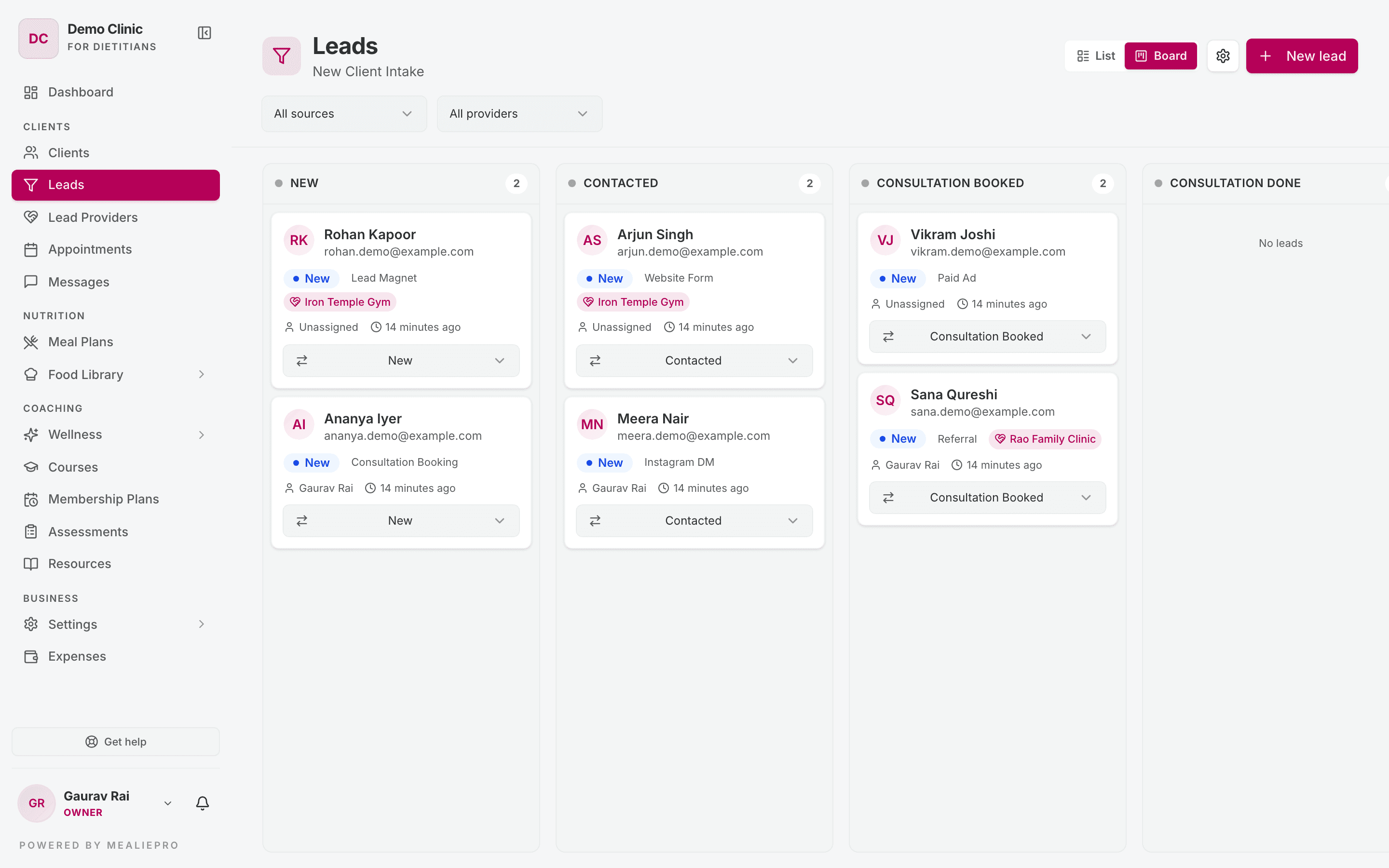
The board has no drag-and-drop. To move a lead, open the stage menu at the bottom of its card, and select the new stage. Each column shows how many leads it has. A long column ends with +N more.
Add leads
Automatically
People who fill in your public signup form come in as leads. Turn on the form in Settings › Organization › Public lead signup. That section also has the Required fields:
- Require email and Require phone — both are on by default.
- Full name is always required.
The form refuses an enquiry that is missing a required field.
Tracking links tell you where each lead came from. Each lead source has a link code. Add it to your signup link as ?src=<code>, for example /join/your-practice?src=instagram. Copy the full link from the source row in Settings › Pipeline. The lead page then shows which code the lead used.
If a source is inactive, its code no longer matches. Leads from that link are tagged Website Form.
A source can also skip the board. If its When someone joins from this link setting is Create client and send invite, people who use its link become clients straight away and get an email invite. See Settings › Pipeline.
A lead provider's QR code also brings people in as leads, credited to that provider.
No Leads feature? If your plan does not include Leads, people who use your signup form become Free clients in your Clients list.
By hand
- Click New lead.
- Enter the Full name. This is the only required field.
- Optionally, enter Email, Phone, Source, Health goal and Notes.
- Save.
Use this for a phone enquiry, or for a referral that a client tells you about.
Work a lead
Click a lead to open its page.
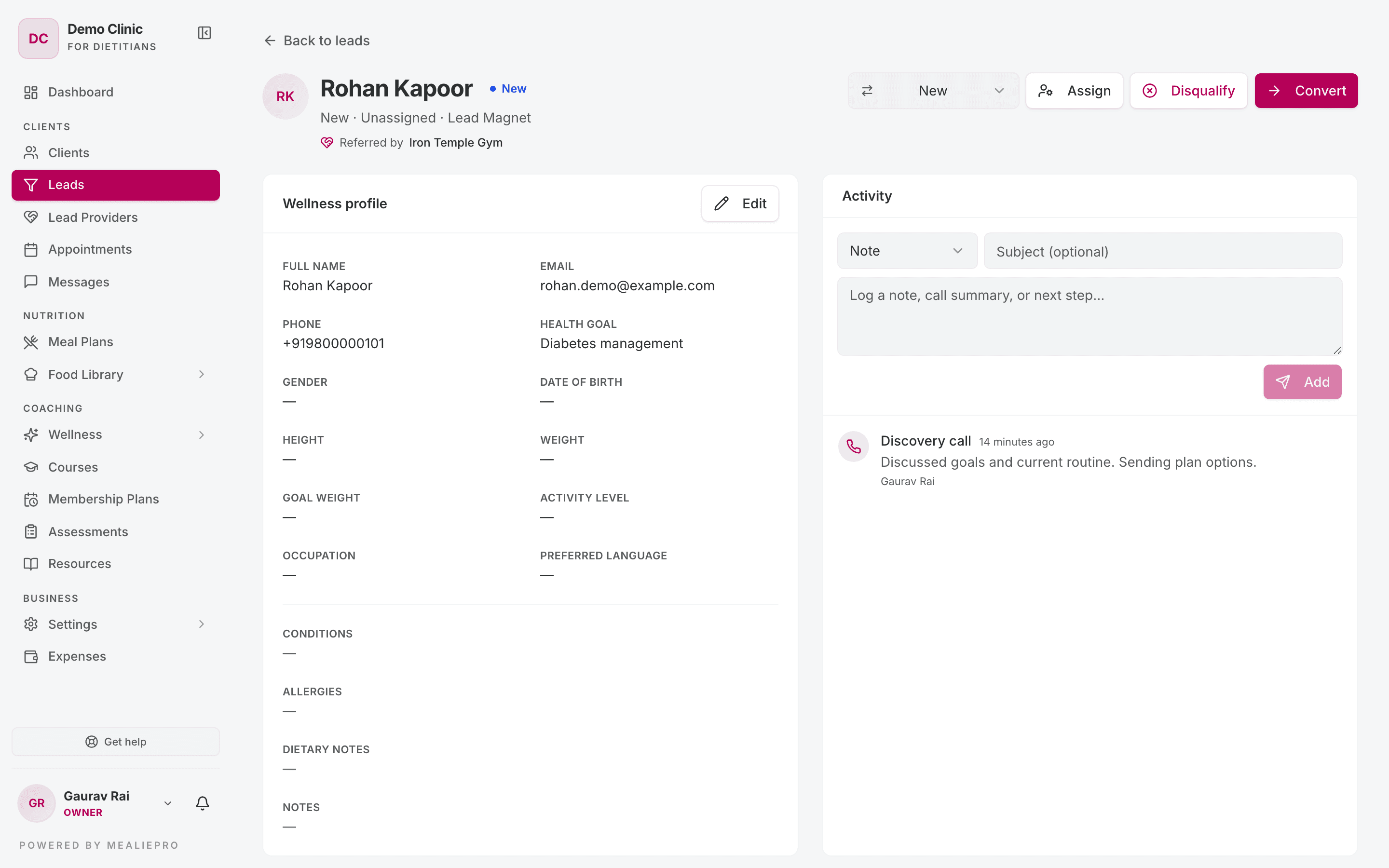
Owner
Click Assign to open Assign owner. Select the staff member who follows up this lead, or Unassigned.
Activity
The Activity section is the lead's history. Record each contact when it happens:
- Select the activity type: Note, Call, Email, WhatsApp, SMS or Meeting.
- Optionally, enter a Subject.
- Write what happened, for example a call summary or the next step.
- Click Add.
Record each call immediately after you make it. Three weeks later, you will see exactly what was said and when.
Stage
The stage menu at the top of the page shows the lead's current stage. Select a different stage to move the lead.
Lost or disqualified
These two outcomes are different. Keep them separate in your records:
- Lost — the lead was a good fit, but did not buy.
- Disqualified — the lead was never a good fit.
To mark a lead as lost, move it to a Lost stage with Move to…. The dialog Move [lead name] to Lost asks for a reason. Click Mark as lost.
To disqualify a lead, click Disqualify. Select a Reason. This is required. A note is optional.
The app keeps lost and disqualified leads. You can open them again later.
Convert a lead to a client
When a lead is ready to start, click Convert. The dialog Convert [lead name] to a client opens.
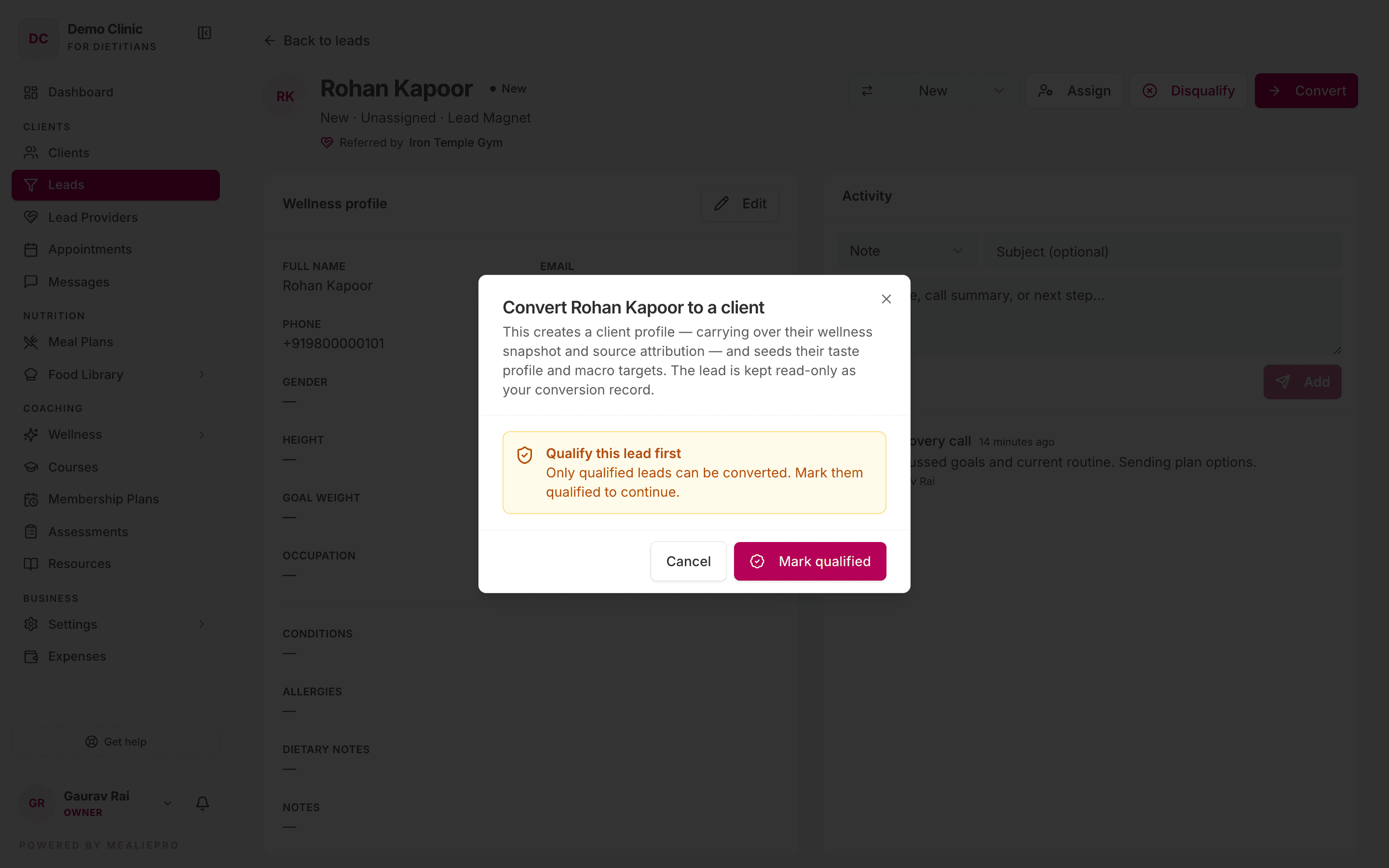
- If the lead is not qualified, the dialog says Qualify this lead first. Click Mark qualified.
- Click Convert to client.
- When the dialog says Converted to client, click Open client.
Conversion creates a client profile. It copies the lead's details, their source and their lead provider. It also sets up the client's taste profile and macro targets. The lead stays as a record that you cannot edit, with a View client button.
Moving a lead to a Won stage also opens the conversion dialog. You can only reach a Won stage through conversion.
Things to know before you convert:
- The lead needs an email. A client must have an email, so a lead without one cannot convert. Add the email to the lead first.
- The client counts toward your client limit.
- The new client gets an owner. The app assigns the client to the lead's owner. If the lead has no owner, it uses your practice's only coach. If neither exists, it assigns the person who converted the lead.
- Set the diet type next. A converted client has no diet type. Set it before you generate a meal plan.
After you convert, enrol the client on a membership plan.
Set up your pipeline
The default stages are a starting point. Owners and admins can change them. Click Customize stages on the Leads page, or go to Settings › Pipeline.
For each stage, you can set:
| Field | Meaning |
|---|---|
| Name | The column name. |
| Type | Active, Won or Lost. |
| Probability % | How likely a lead in this stage is to buy. |
| Rotting days | How long a lead can stay here before it rots. Leave empty for no alert. |
| Color | The column colour. |
| Funnel stage (for reporting) | Where this stage sits in your funnel reports. |
For each lead source, you can set the Name, the Link code, the Kind, When someone joins from this link and a Description.
Common workflows
Set up the pipeline for the way I sell
- Open Settings › Pipeline.
- Rename the stages to your real steps, for example Enquiry → Discovery Call → Proposal → Signed.
- Add a lead source for each channel you use, for example Instagram, referrals and your website.
- Copy each source's tracking link and use it in that channel.
- Work the board from left to right.
Follow up the leads that went quiet
- Open Leads and look for the rotting flags.
- For each one, log a call or a WhatsApp message.
- If a lead is not going to buy, move it to Lost and record the reason.
A trainer sends me clients
- Add the trainer as a lead provider.
- Give them their QR poster.
- Use the Lead provider filter to see the leads they sent.
What's next
- Settings › Pipeline — stages and lead sources.
- Lead providers — referral partners and their commission.
- Clients — where a converted lead goes.
- Membership plans — enrol the new client.
- Appointments — book the discovery call.