Notifications
The bell, the notification feed, your notification settings, the "What's new" window and the Tutorials switches.
Notifications tell you when something happens that needs you. For example: a new client joins, or a client asks a question in a course. You choose which updates you get, and where you get them.
1. The bell
The bell is at the bottom of the sidebar, next to your name. A number on the bell shows how many notifications you have not read.
Click the bell to see your latest notifications.
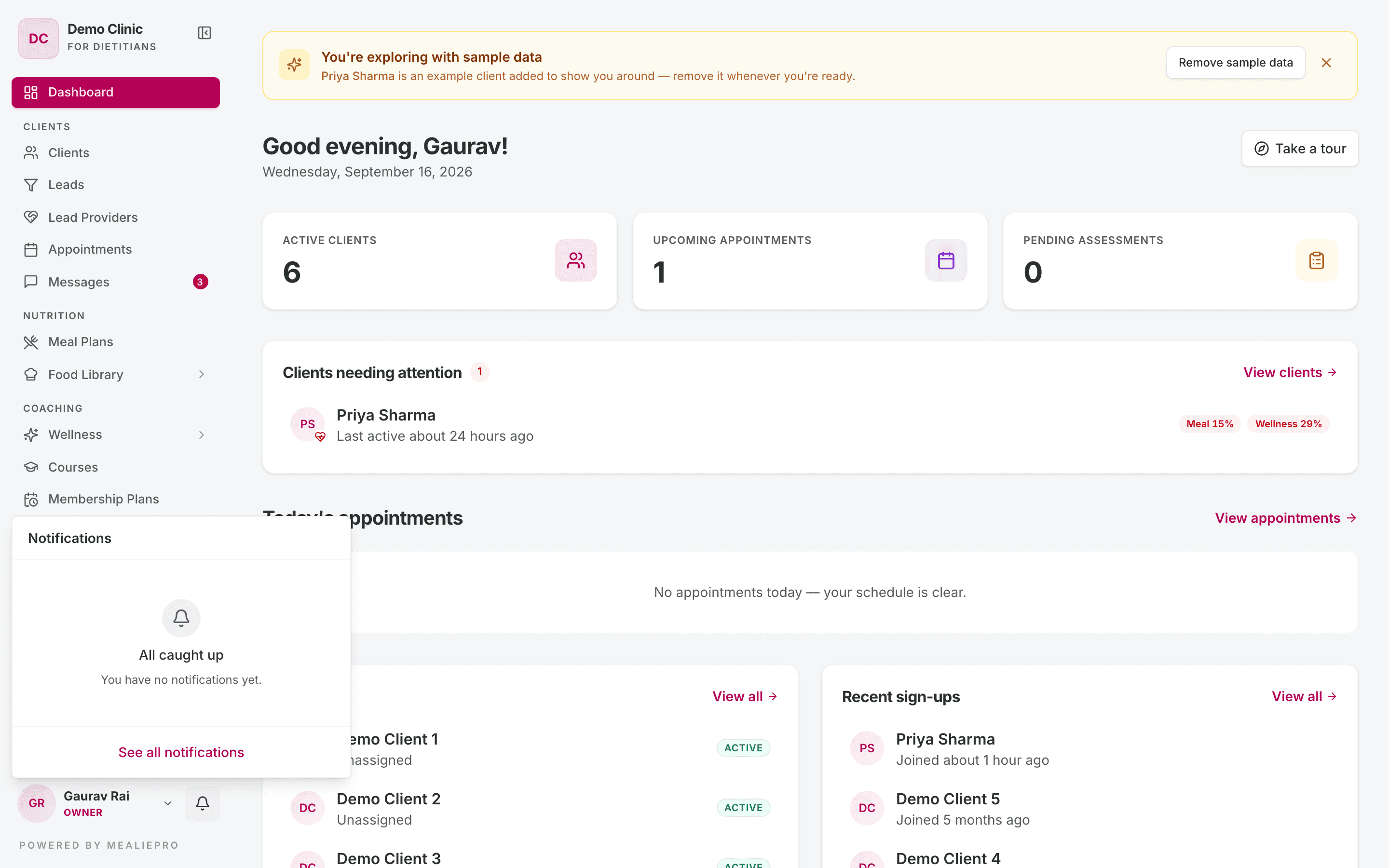
- Click a notification to open the page it is about. This also marks it as read.
- Click Mark all read to clear the number.
- Click See all notifications to open the full feed.
If you have nothing new, the list says "All caught up".
When a notification arrives while you work, a short message says "You have a new notification".
2. The notification feed
The feed page is Notifications, with the text "Updates, reminders, and activity".
- Use the All and Unread tabs to filter the list.
- Click Mark all read to mark every notification as read. The button shows only when you have unread notifications.
- The feed shows 20 notifications on each page.
You cannot delete a notification.
3. Choose what you get
Open the account menu at the bottom of the sidebar. Click Notification settings.
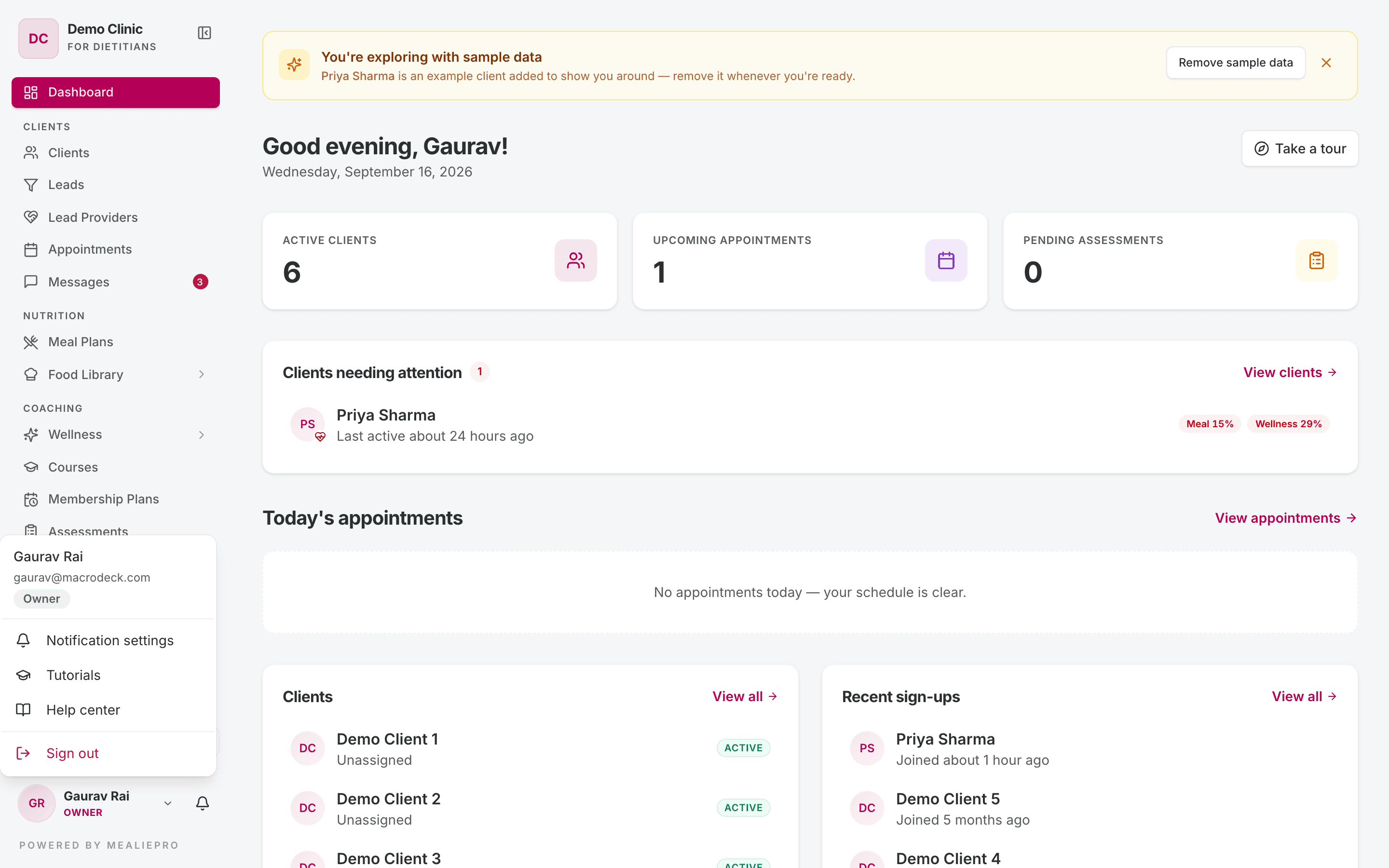
The page title is Notifications, with the text "Choose which updates you receive and how".
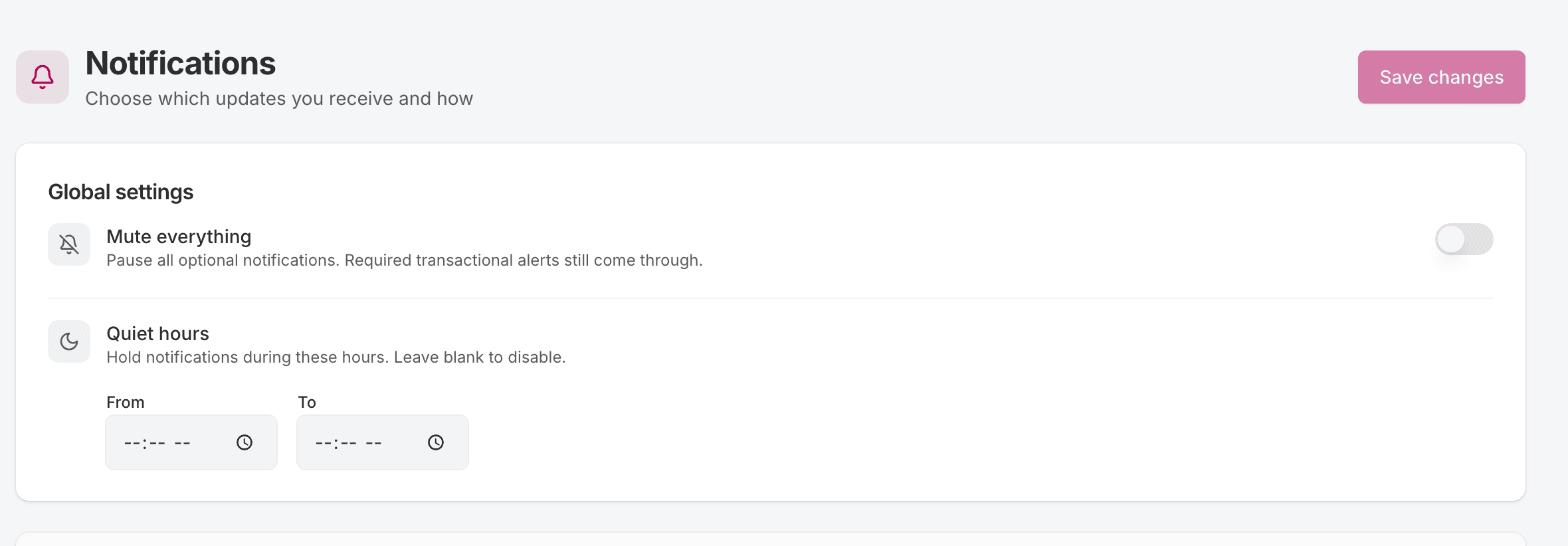
Global settings
| Setting | What it does |
|---|---|
| Mute everything | Stops all optional notifications. Required alerts still arrive. |
| Quiet hours | Holds notifications between the From and To times. Leave both empty to turn it off. |
Settings for each notification
Below the global settings, notifications are in groups, for example Courses or Billing. Each notification has two switches:
- In-app: show it on the bell and in the feed.
- Email: send it to your email address.
Use the All switch on a group to turn every notification in that group on or off.
Some notifications show a Required label. You cannot turn these off. The page says "Transactional alerts can't be turned off."
Click Save changes when you are done.
Tip: These settings are for you only. Each staff member sets their own. Your clients have their own settings page in the client portal. See Client portal.
4. What you are notified about
| Notification | Who gets it | Can you turn it off? |
|---|---|---|
| New client joined, when a client accepts an invitation or a new lead signs up | Owners and admins | Yes |
| Welcome to the team, when you join a practice | The new staff member | No |
| Course comments from clients, for example "Asha asked a question" | The client's assigned staff member | Yes |
| New product updates | Staff | Yes |
| A membership plan expired | The client's assigned staff member | Yes |
| Invoice issued, due or overdue (affiliate licence invoices) | The owner | No |
Tip: If a client has no assigned staff member, nobody gets their course questions or their plan expiry notice. Assign every client. See Clients.
5. The "What's new" window
When we release updates that you have not seen, a What's new window opens after you sign in. It says how many updates there are since your last visit.
- Updates are in groups by date and by product area.
- Each update has a label: feature, improvement or fix.
- Click See all release notes to open the full release notes in a new tab.
- Click Got it to close the window.
The window opens only once for each set of updates. After you click Got it, it does not open again on your other devices.
6. Tutorials
Some pages have a guided walkthrough. It starts the first time you open the page. To choose which walkthroughs run, open the account menu and click Tutorials.
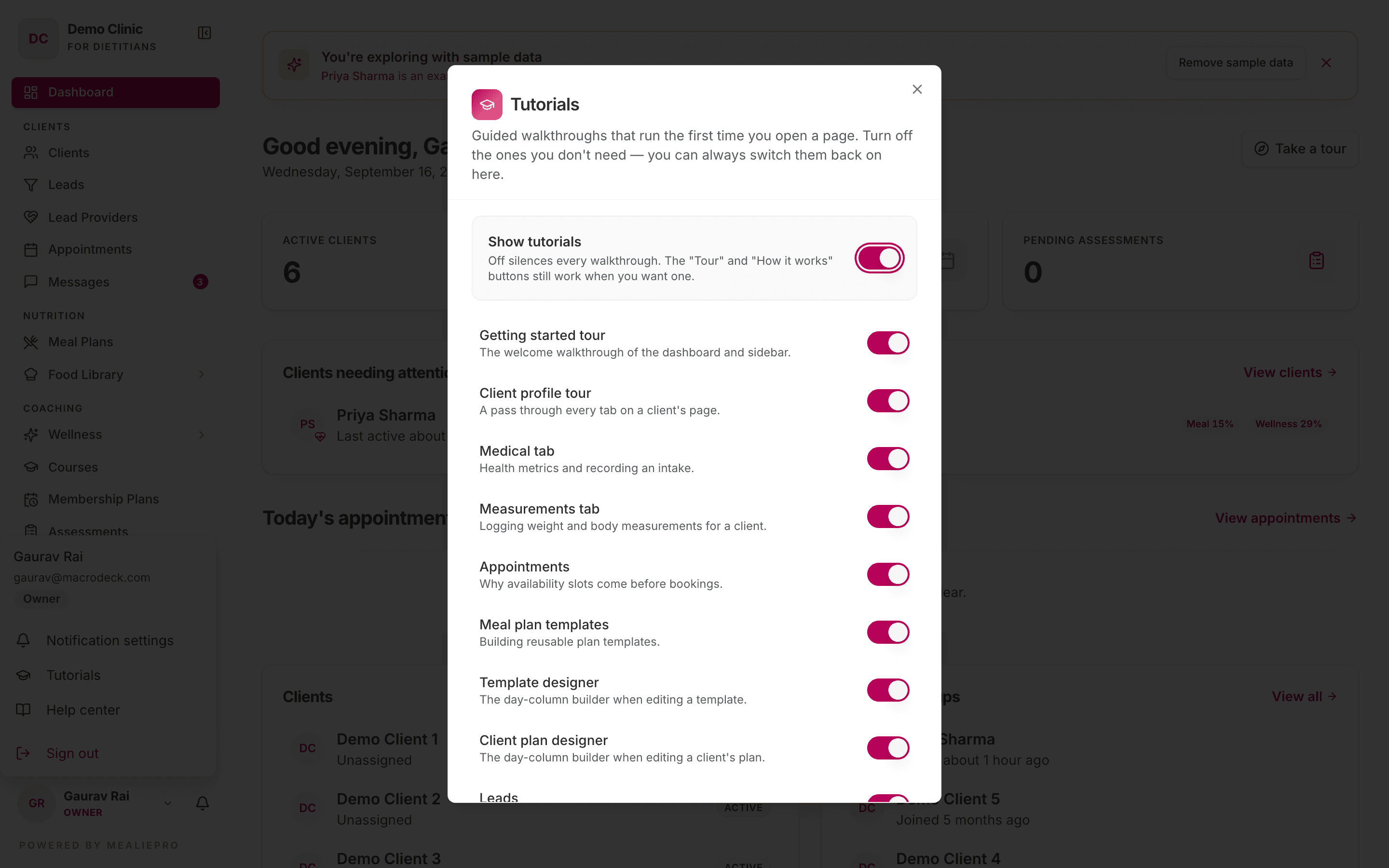
- Show tutorials turns every walkthrough on or off. The Tour and How it works buttons on pages still work when it is off.
- Each walkthrough has its own switch. For example: Getting started tour, Client profile tour, Appointments, Meal plan templates, Leads, Courses and Membership plans.
- Click Show all again to turn every walkthrough back on.
A walkthrough can also have a Don't show this again box. If you tick it, that walkthrough stops. Turn it back on in Tutorials.
Tip: Tutorial settings are stored in your browser. If you use a different browser or computer, set them again there.
7. Help center link
The account menu also has Help center. It opens this help center in a new tab.
Common workflows
I get too many emails
- Open the account menu. Click Notification settings.
- Turn off Email for the notifications you do not need.
- Click Save changes.
I don't want notifications at night
- Open Notification settings.
- Under Quiet hours, set From and To.
- Click Save changes.
A walkthrough keeps starting
- Open the account menu. Click Tutorials.
- Turn off the switch for that walkthrough.
What's next
- Your dashboard: the daily summary of your practice.
- Getting started: sign in and set up your practice.
- Courses: answer questions from clients.
- Affiliate program: licence invoices and reminders.