Courses
Build multi-chapter courses with text, video, PDF and quiz chapters, share them with clients, and answer their questions.
A course is your knowledge, written once and given to every client. Write the explanation of insulin resistance one time, as a chapter. Then use the consultation for the client, not for the explanation.
Open Courses in the sidebar, under Coaching. All staff see the item. If your subscription does not include courses, the page shows a preview of the feature.
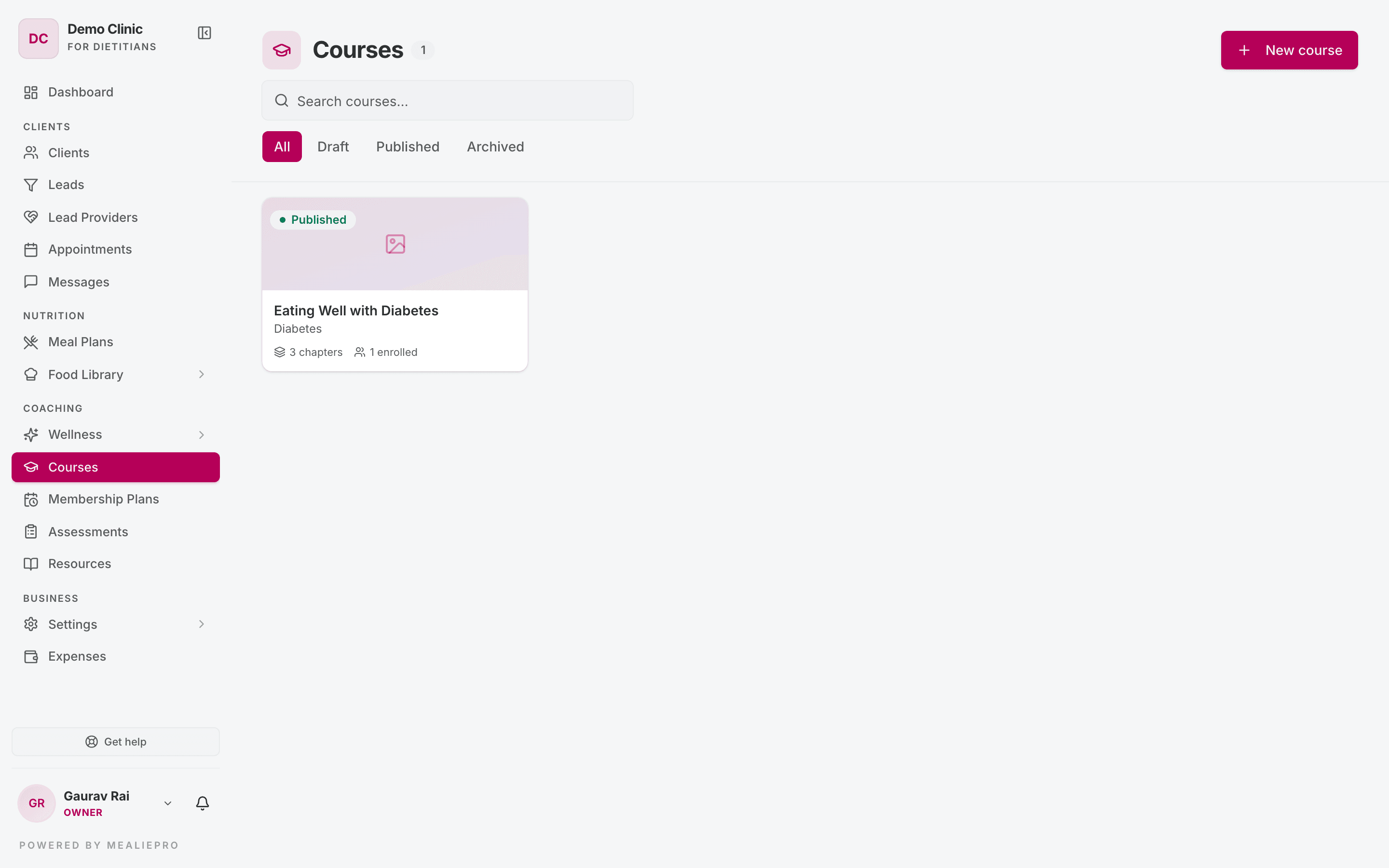
Each card shows the cover image, category, status, number of chapters and number of enrolled clients. Use "Search courses…" to find a course by title. Filter by All · Draft · Published · Archived.
1. Create a course
- Click New course.
- Enter the Title, Category and Description. Add a Cover image (optional).
- Click Create course.
The course opens in the builder. The builder has five tabs: Content · Details · Sharing · Discussion · Analytics.
Tip: The first time you open Courses, a banner says "New to Courses? Package your expertise." Click Show me how for a short tour.
2. Content — build the chapters
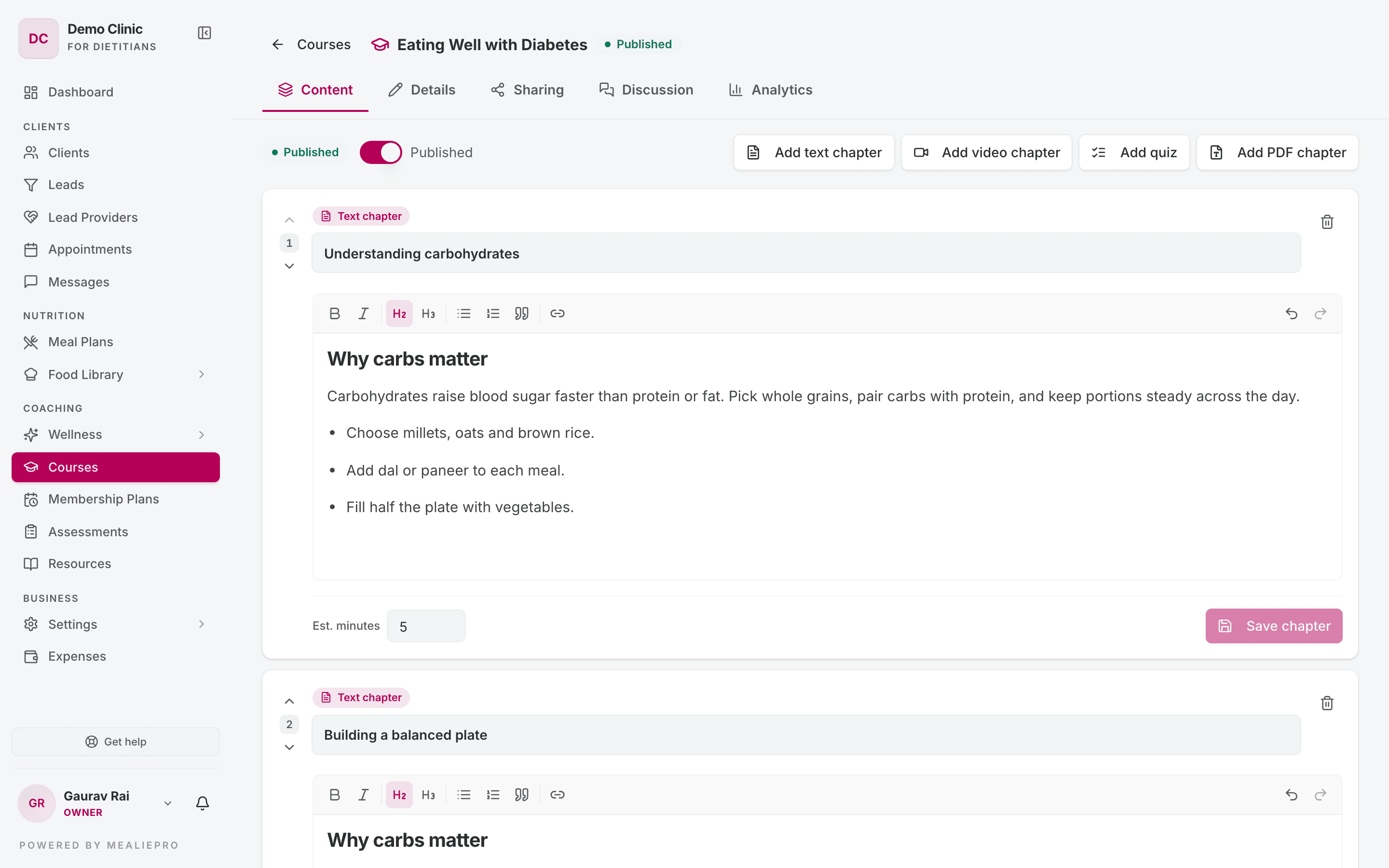
Add chapters with the four buttons:
| Button | Chapter type |
|---|---|
| Add text chapter | A lesson in a rich‑text editor. You can add headings, lists, emphasis and links. |
| Add video chapter | A YouTube video. Enter the YouTube URL, and optional Caption / notes (optional). |
| Add quiz | Questions that the client must pass to complete the chapter. See Quiz chapters. |
| Add PDF chapter | A PDF that the client reads in the app. See PDF chapters. |
The app adds the chapter at once, with a placeholder title such as "New text chapter". Then:
- Change the title.
- Set Est. minutes — the time the chapter takes to read or watch.
- Add the content.
- Click Save chapter. Until you save, the chapter shows "Unsaved changes".
Use the up and down arrows to change the order of chapters. To remove a chapter, click delete and confirm "Delete this chapter?".
Note: You can save a video chapter without a URL while the course is a draft. If you enter a URL that is not a valid YouTube link, the app shows "Enter a valid YouTube URL for this video chapter."
Quiz chapters
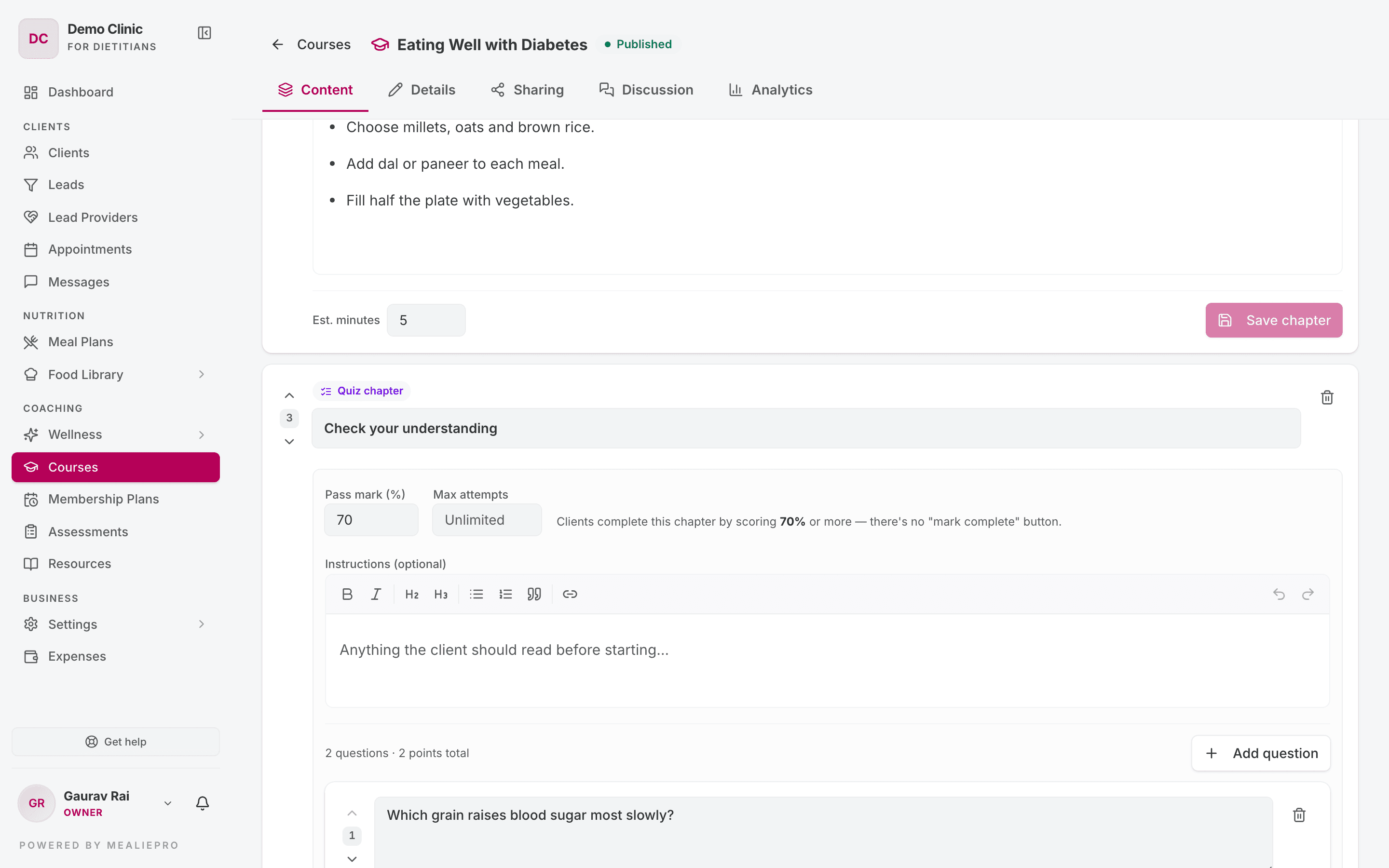
A quiz chapter has its own settings:
| Setting | What it does |
|---|---|
| Pass mark (%) | The score the client needs. The client completes the chapter only by reaching this score. There is no "Mark complete" button on a quiz. |
| Max attempts | How many times the client can try. Leave it empty for unlimited attempts. |
| Instructions (optional) | Text that the client sees before they start. |
Click Add question for each question:
- Pick the type: Single choice, Multiple choice or True / False.
- Set the Points.
- Enter the options and tick the correct answer or answers.
- Add an Explanation (shown after they answer).
- Click Save question.
A question gives full points or zero points. There is no partial credit on multiple‑choice questions. After a client passes, a later failed attempt does not remove the pass.
PDF chapters
- In the Document section, click Choose PDF. The file must be a PDF of 25MB or less.
- Add Caption / notes (optional) if you want.
- To change the file, click Replace. To remove it, click Remove.
The client reads the PDF in the app and can Download it or Open in new tab. Only clients enrolled in the course can open the file.
Before you publish
The Content tab shows an amber banner when a chapter is not ready, for example "One chapter isn't ready to publish". The banner lists the problems. A chapter is not ready when:
- a video chapter has no URL,
- a quiz has no questions, or a question has no correct answer,
- a PDF chapter has no file.
Fix each problem, then publish.
3. Publish
Use the Publish switch on the Content tab. When the course is live, the switch shows Published. Turn it off to move the course back to draft.
While a course is a draft, the builder shows "This course is a draft — clients can't see it yet." Clients cannot see a draft course, even if you shared it.
Note: The app has no Archive or Delete button for a course. If you need a course removed, ask us through Get help. An archived course is hidden from every enrolled client, also clients who are in the middle of it.
4. Details — cover, text and website
The Details tab has three cards:
- Cover image — PNG, JPEG, WebP or GIF, up to 5MB. You can replace it or remove it.
- Title, Category and Description — click Save changes, or Reset to undo your edits.
- Your website:
- Feature on my website — shows the course on your landing page. It works only when the course is published.
- Free to join — "Anyone who signs up can start this course themselves, without being on a plan." Visitors can start a free course from your landing page.
5. Sharing — enrol clients
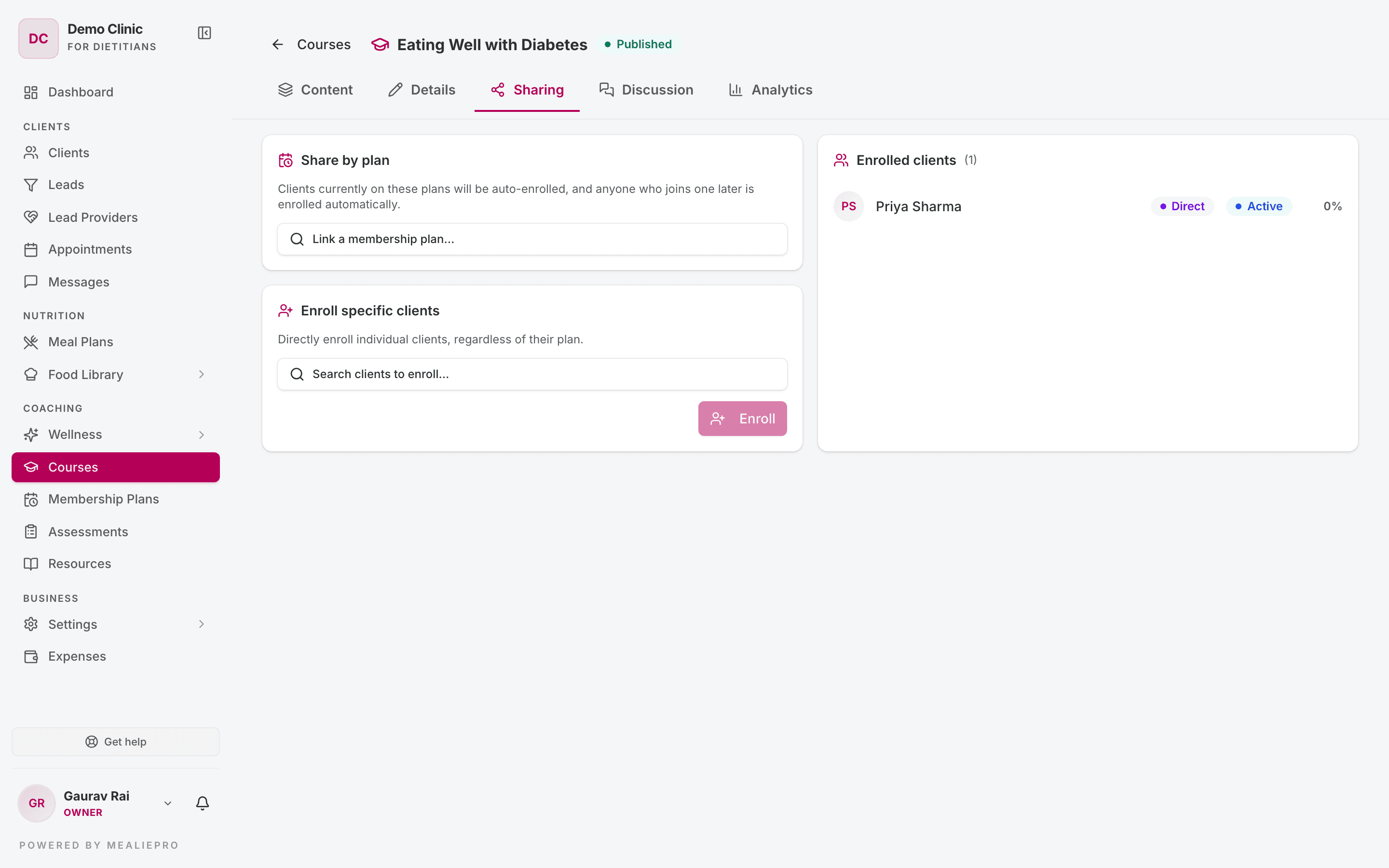
There are two ways to enrol clients:
Share by plan — pick one or more membership plans in "Link a membership plan…". Clients on those plans are enrolled. Clients who join the plan later are enrolled automatically.
Important: Publish the course before you link a plan. If you link a plan to a draft course, the app does not enrol the clients who are already on that plan.
Enroll specific clients — search in "Search clients to enroll…", pick the clients and click Enroll. Use this for single exceptions.
Below the two cards, the list of enrolled clients shows how each client was enrolled (plan or direct), their status and their progress.
6. Discussion — answer client questions
Under each chapter, clients have a Questions for your coach box. Their question is private. Only the client and your team can see it.
The Discussion tab lists every conversation, for example "3 threads · 1 unread". Each conversation is between you and one client.
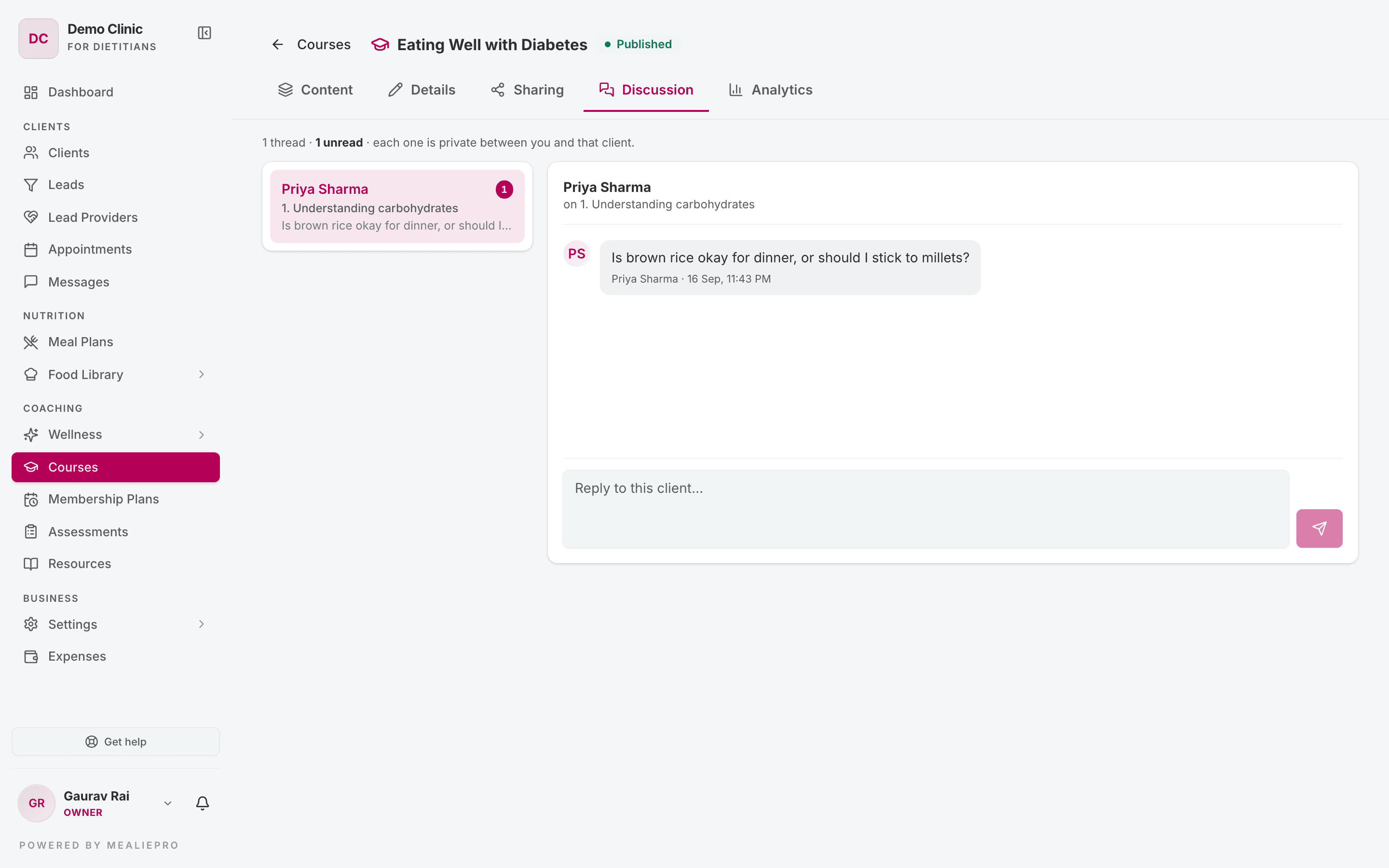
- Click a conversation.
- Type in "Reply to this client…" and send.
You can delete a message. The app removes it from the client's view too.
When a client asks a question, the client's assigned staff member gets a notification in the app and by email. The client gets a notification when you reply.
Note: If the client has no assigned staff member, nobody gets the notification. Check the Discussion tab from time to time.
7. Analytics — check progress
The Analytics tab shows:
- Enrolled, In progress, Completed, Completion and Avg progress.
- Per-chapter completion — find the chapter where clients stop.
- Enrollments — a table with Client, Source, Progress, Status, Last activity and Completed. Filter by All · Active · Completed · Archived.
- Quiz performance — Attempted, Passed, Pass rate and Avg score for each quiz.
Tip: Publish a short course first. A course of three chapters that clients finish is better than twelve chapters that they leave. The Analytics tab shows you which one you built.
Who can do what
| Action | Default roles |
|---|---|
| Create and edit courses | Owner, Admin, Dietician, Coach |
| Share courses | Owner, Admin, Dietician, Coach |
| See analytics and read discussions | Owner, Admin, Dietician, Coach |
| Reply to discussions | Owner, Admin, Dietician, Coach |
The Nutritionist and Receptionist roles have no course permissions by default. Change this in Settings › Roles & Permissions.
What clients see
Clients find their courses under Courses in their portal. Their membership plan must include Courses.
- Each card shows "x/y chapters" and a Start course, Continue or Review course button.
- A text, video or PDF chapter counts as done when the client clicks Mark complete.
- A quiz chapter counts as done when the client passes the quiz.
- The player opens at the first chapter that is not done.
More detail: Client portal › Appointments, courses & messages.
Common workflows
"Give every new client the same three lessons"
- Click New course, name it Getting Started, and add three chapters.
- Turn on Publish.
- On Sharing, link the course to every plan you sell.
- Every future client on those plans is enrolled on the day they join.
"Check that clients understood a lesson"
- After the lesson chapter, click Add quiz.
- Set Pass mark (%) to 70 and add three questions.
- Look at Quiz performance on the Analytics tab after a week.
"Share a handout as a course"
- Create a course with one PDF chapter.
- Publish it.
- On Sharing, use Enroll specific clients.
"Offer a free taster course on my website"
- Publish the course.
- On Details, turn on Feature on my website and Free to join.
- Visitors can start it from your landing page.
What's next
- Membership plans — how plans enrol clients automatically.
- Wellness — daily habits to go with the lessons.
- Resources — single files and links.
- Messages — general conversations, outside a course.
- Landing page — where featured courses show.
Wellness
Build a library of habits, programs and tracking fields, assign them to clients, curate daily affirmations and follow each client's progress.
Membership plans & payments
Create the programs you sell, enrol clients, record payments, raise client invoices and control what each client sees in their portal.