Wellness
Build a library of habits, programs and tracking fields, assign them to clients, curate daily affirmations and follow each client's progress.
Food is one part of a plan. Wellness covers the other daily habits: sleep, movement, meditation, water and mood. These habits often decide if a meal plan works.
You build a library one time, then assign items from it. Open Wellness in the sidebar, under Coaching. It has three tabs:
| Tab | What it holds |
|---|---|
| Tasks | Single habits — Daily Meditation, 10k Steps, 2L Water. |
| Programs | Groups of tasks that you assign in one step. |
| Tracking Fields | Daily values the client records — Hours of sleep, Energy. |
Every task belongs to one of five pillars: Mind · Physical · Emotional · Social · Spiritual. The pillars help you give a balanced plan.
Note: Wellness shows in the sidebar only if your subscription includes it. The client profile's Wellness tab has the same condition.
Tasks
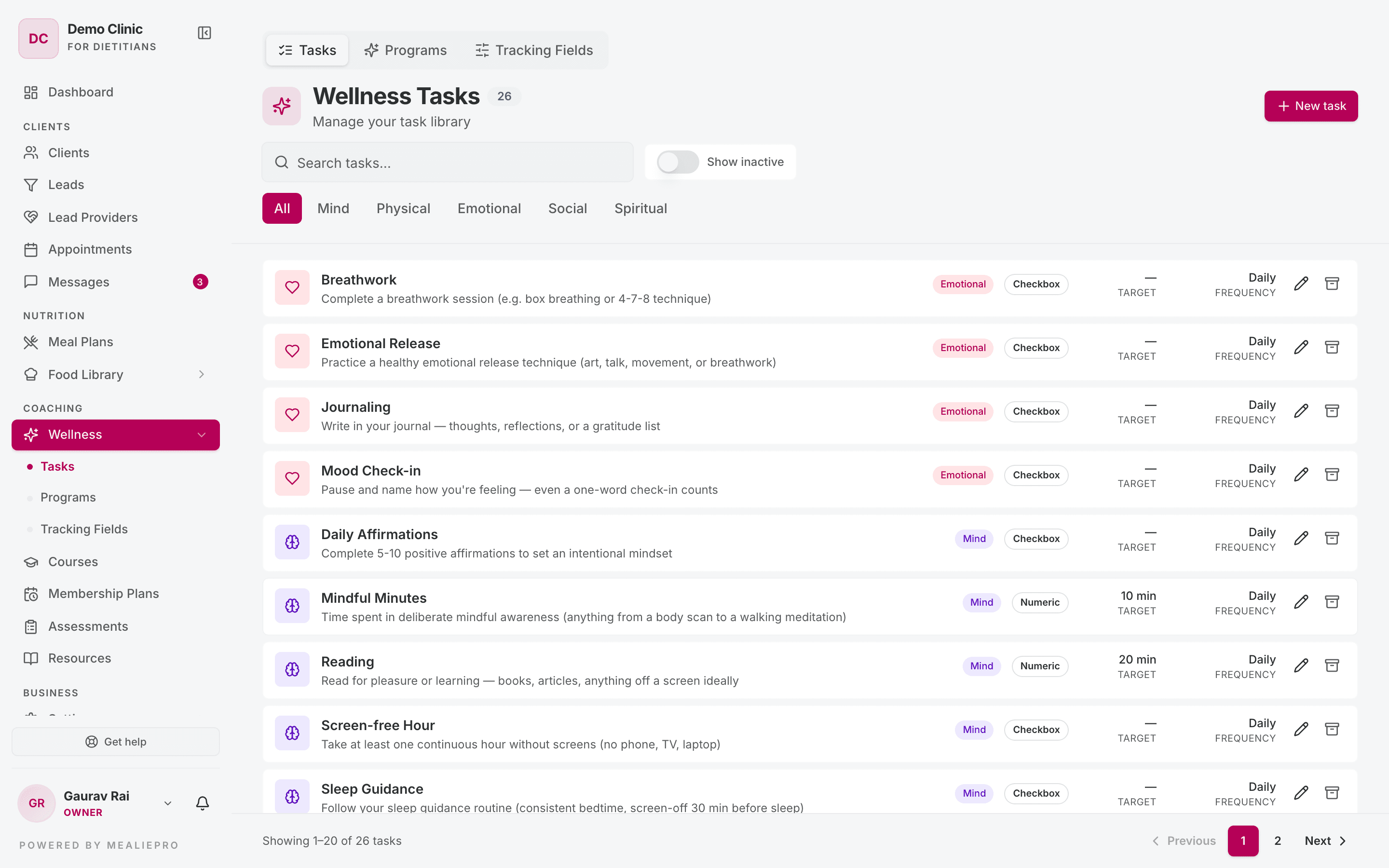
Filter the list with All · Mind · Physical · Emotional · Social · Spiritual, or search by name. Turn on Show inactive to see archived tasks.
Click New task. The form has these parts:
Basics
- Title — what the client sees, for example Daily Meditation. Required.
- Description — a short explanation. The client sees it too.
- Pillar — one of the five pillars.
- Type — Checkbox (done or not done) or Numeric (a number to reach).
Target — for Numeric tasks only. Enter the Target value and the Unit, for example 2 and L, or 10000 and steps.
Default frequency — Daily or Weekly. For Weekly, pick Days of week or set Times per week (1–7). You cannot use both. Each assignment starts from this default, and you can change it for each client.
Appearance — an Icon (an emoji such as 💧, or an icon name such as droplets) and a Color (hex).
Status — the Active switch. "Inactive tasks are hidden from new client assignments."
Archive, do not delete. Click archive on a task and confirm "Archive this task?". The task leaves new assignments, but every client's history stays. To use the task again, turn on Show inactive, edit the task and turn Active on.
Programs
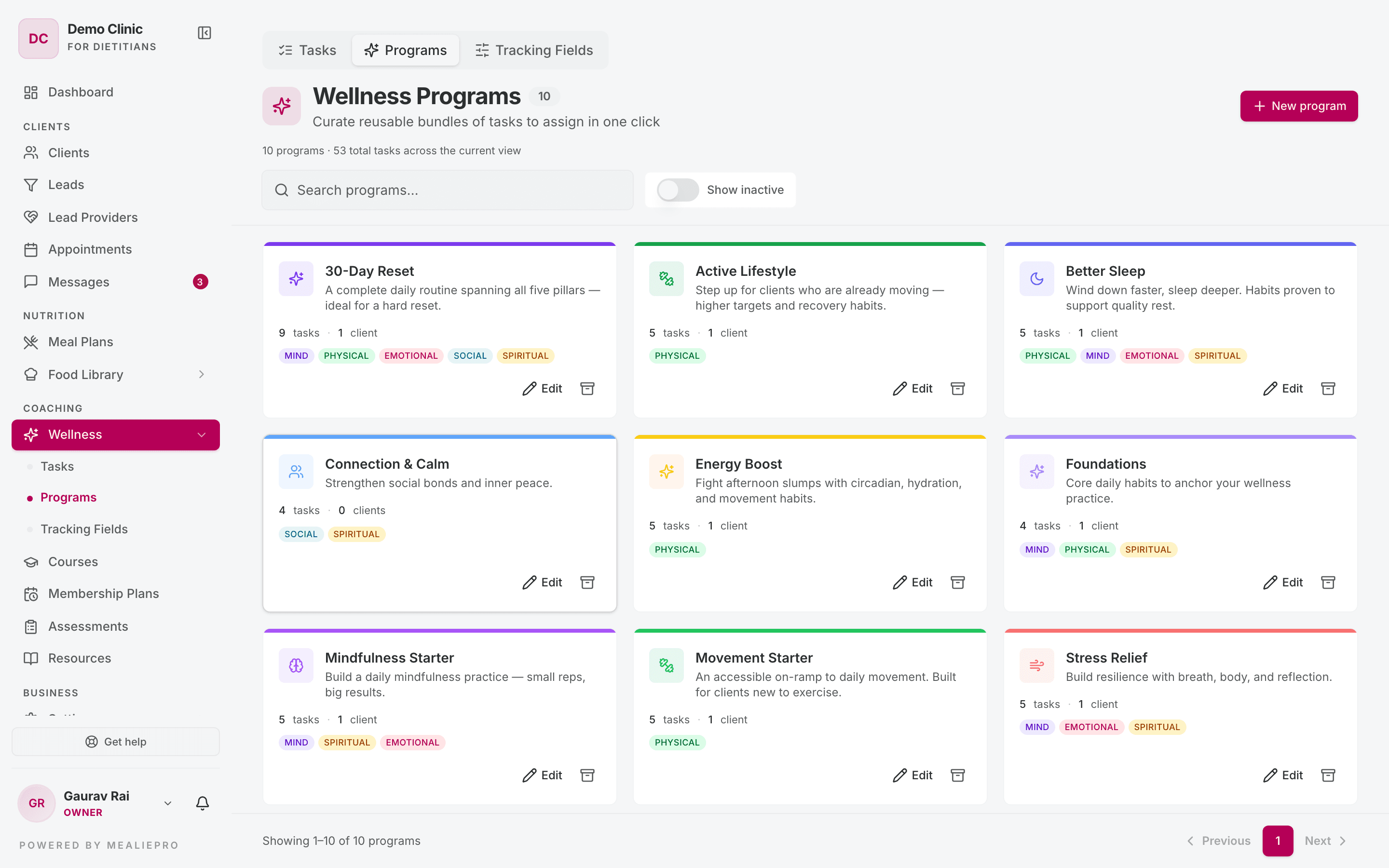
A program is a group of tasks, for example "Sleep Reset" or "Beginner Movement". Assign the program in one step. You do not need to pick fifteen tasks for each client.
Each program card shows its pillars, "N tasks · N clients", and an Archived badge if it is inactive. Use "Search programs…" and Show inactive to find a program.
Click New program. The drawer has:
- Name, Description, Icon and Color.
- Active — "Inactive programs are hidden from the assign flow."
- Tasks in this program — click Add task for each task. Use the arrows to change the order.
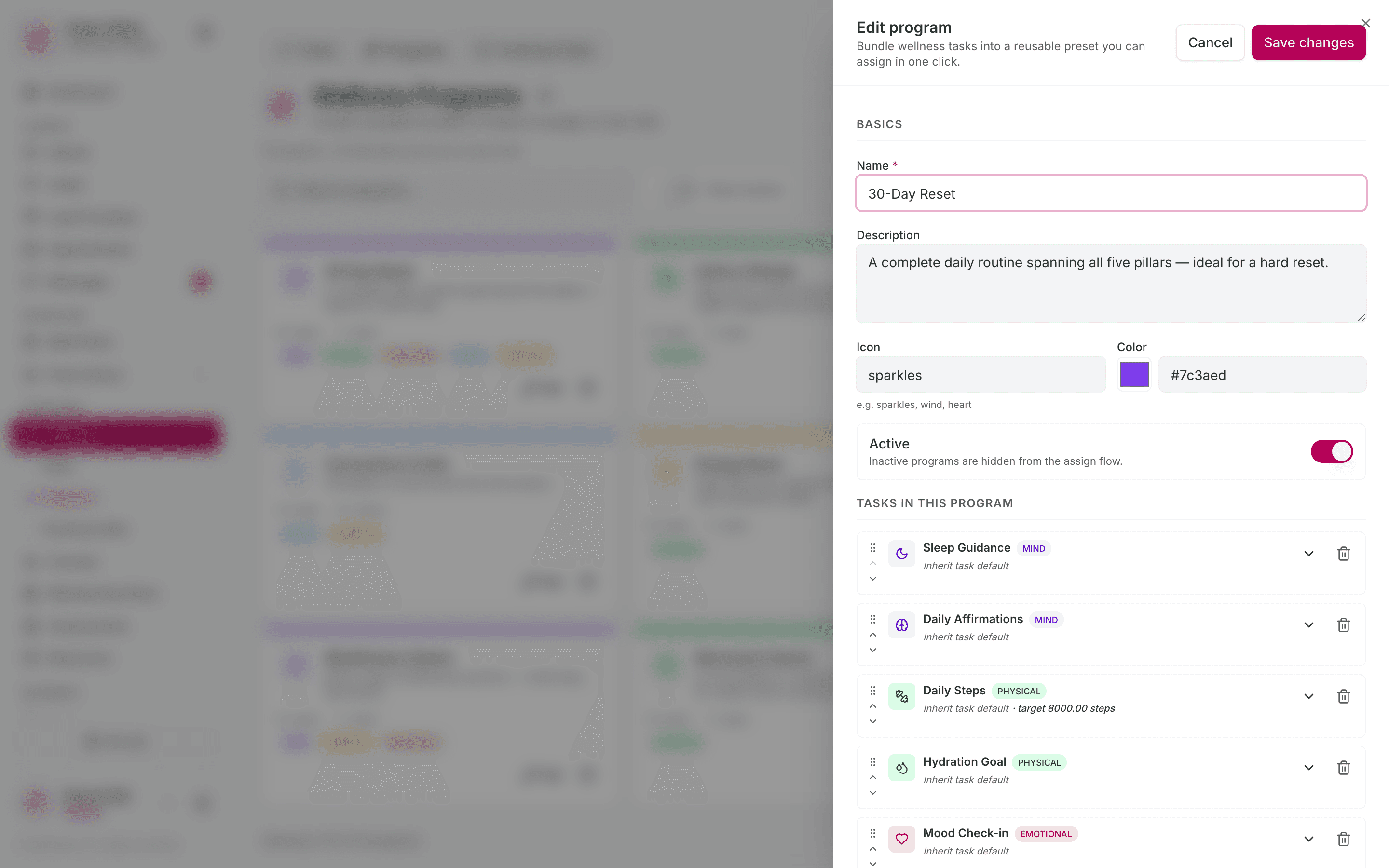
For a task inside a program, click Override frequency or target to change it only in this program:
- Frequency — Inherit, Daily or Weekly.
- Target override — a different target value.
- Reset to task default — remove the override.
Click Create, or Save changes when you edit.
Tip: Build the five programs that you prescribe most. After that, you set up a client's habits in one step.
Tracking fields
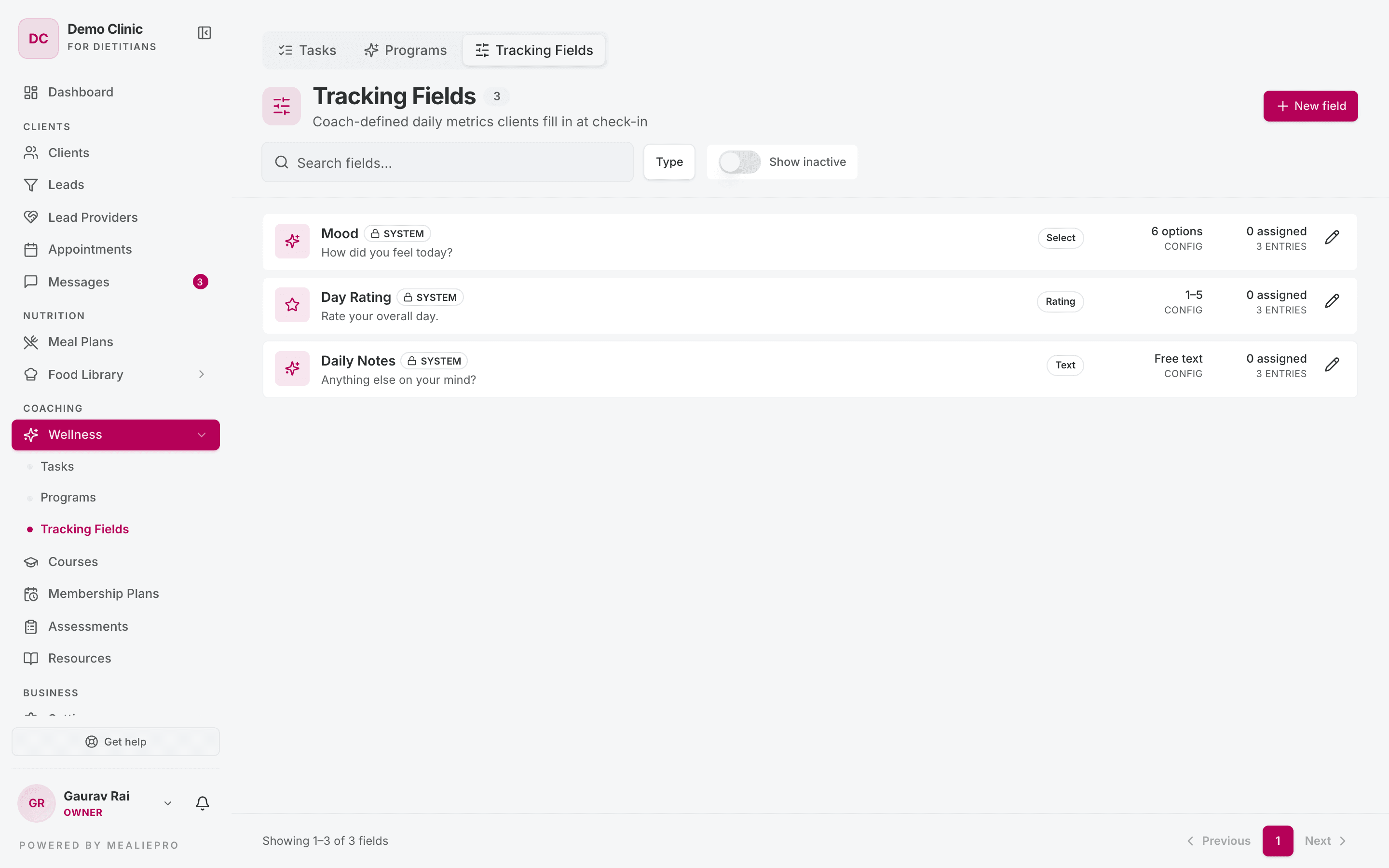
A task asks did you do it? A tracking field asks how was it? The client fills in tracking fields every day.
Click New field. The drawer is called New tracking field.
- Label — required. The app makes a Key from it.
- Description — optional.
- Type — you cannot change the type after you create the field.
| Type | Use it for | Extra settings |
|---|---|---|
| Rating | Energy, soreness, stress. | Scale max (2–10) — the client rates from 1 to this number. Optional Unit. |
| Number | A measured value. | Unit, Decimal places (0–4), Reference min and Reference max. |
| Yes / No | A simple flag. | — |
| Text | A short journal line. | — |
| Select | A fixed list of answers. | Add each option with a Label. The value is optional. |
For a Number field, set Reference min and Reference max. The app flags values outside that range. For example, set 7 and 9 on Hours of sleep. Then six hours shows as low.
Use "Search fields..." and the Type filter to find a field. Turn on Show inactive to see archived fields.
System fields
Three fields are built in: Mood, Day Rating and Daily Notes.
- Every client tracks them. You do not need to assign them.
- They have a System badge.
- You cannot archive them. You can change only the label and appearance.
Assign wellness to a client
Open the client and go to the Wellness tab.
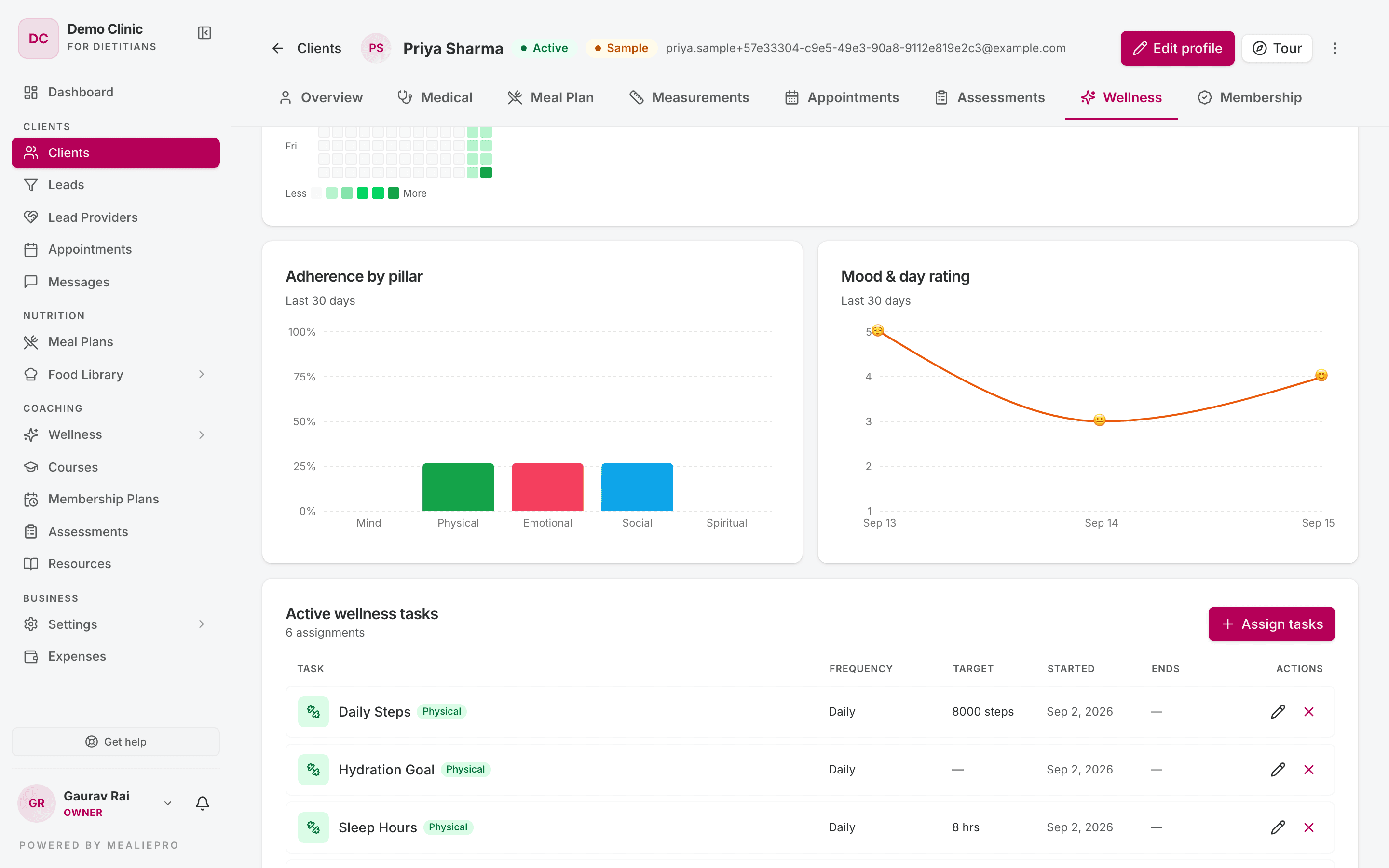
Assign tasks or a program
- On the Active wellness tasks card, click Assign tasks.
- The Assign wellness tasks drawer opens. It has two tabs.
Individual tasks
- Pick one or more tasks.
- Set the Start date. Set an End date, or tick Open-ended (no end date).
- Set the Frequency: Daily or Weekly. For weekly, pick Specific days or Times per week.
- Optional: enter a Target value override. It applies to every selected task.
- Optional: add Staff notes.
- Click Assign.
Programs
- Pick a program in Choose a program.
- Set the Start date, and an End date or Open-ended.
- Turn on Replace conflicting tasks if the client already has some of the same tasks.
- Click Assign program.
If you have no programs yet, the tab shows Open Programs library.
The client gets a "New wellness program assigned" notification.
Assign tracking fields
- On the Assigned tracking fields card, click Assign fields.
- Pick the fields. The system fields show under Always-on (system fields).
- Set the Start date, and an End date or Open-ended.
- Optional: add Staff notes.
- Click Assign.
The client fills in tracking fields every day. They have no frequency or target.
Change or end an assignment
- To change an assignment, click the pencil icon (Edit assignment). You can change the dates, Frequency, Target value override and Staff notes. Click Save changes.
- To stop an assignment, click the end icon. Confirm "End this assignment?" with End assignment.
Follow the client's progress
The client's Wellness tab also shows how the client is doing:
- A strip with Adherence (30d), Current streak, Best streak and Last logged.
- Completion heatmap — the last 90 days.
- Adherence by pillar and Mood & day rating — the last 30 days.
- Field trends — a chart for each tracking field.
- Recent activity — the last 14 days, with each task marked Completed or Skipped.
Daily affirmations
At the top of the client's Wellness tab, two cards control the client's daily affirmation.
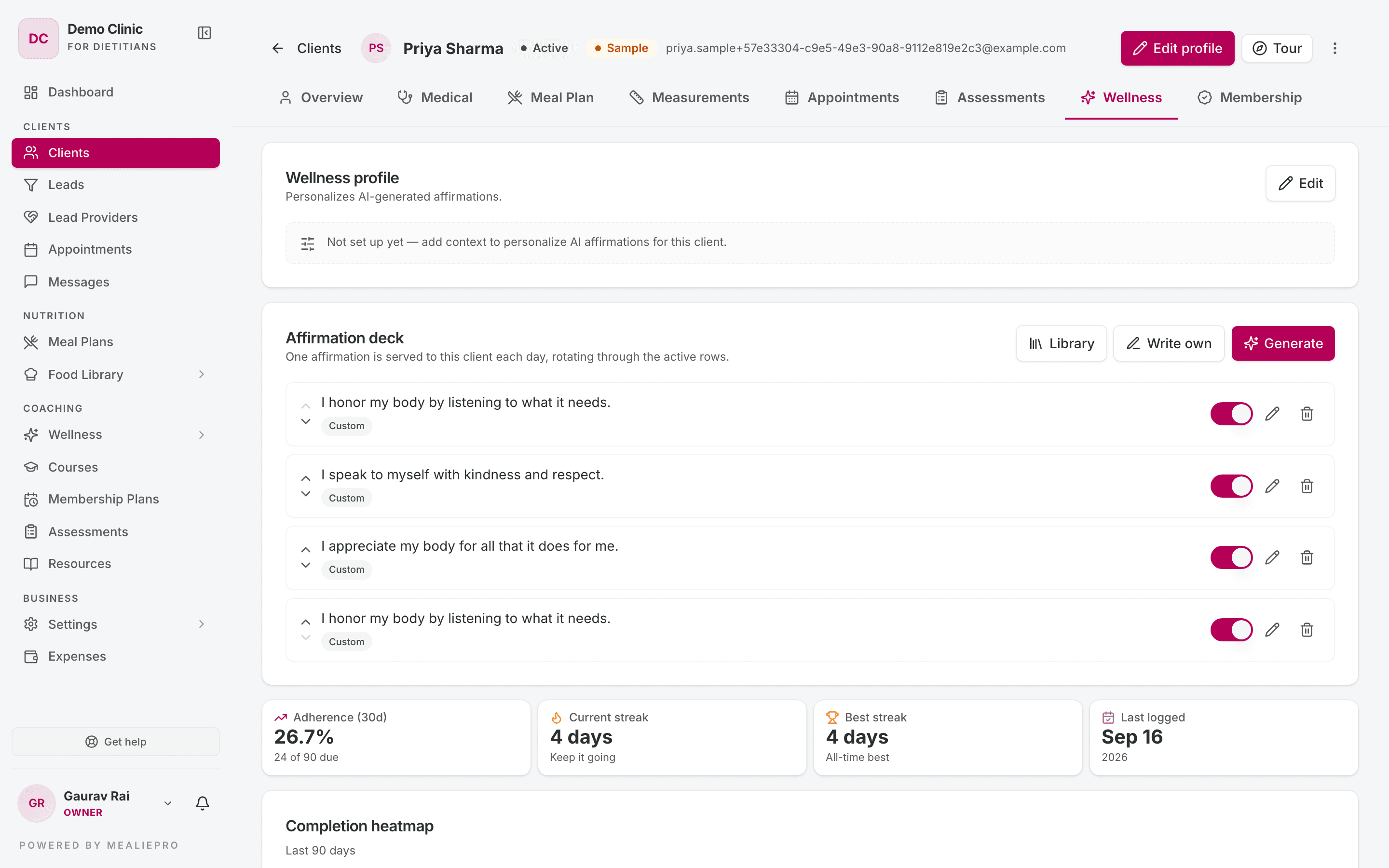
Wellness profile — "Personalizes AI-generated affirmations." Click Edit and fill in Focus areas, Tone, Goals summary, Avoid and Extra context. Click Save profile.
Affirmation deck — "One affirmation is served to this client each day, rotating through the active rows." Add affirmations in three ways:
| Button | What it does |
|---|---|
| Library | Opens Add from library. Filter by theme or search, then click Add to deck. |
| Write own | Opens Write your own. Type the Affirmation and click Add to deck. |
| Generate | Opens Generate with AI. Set Count, Theme and Tone. Keep Use wellness profile on to personalise the text. Click Generate. |
Generated text is only a suggestion. The app saves only the suggestions that you keep.
For each row in the deck, you can:
- move it up or down,
- turn it on or off,
- edit it — this changes only this client's deck, not the library,
- remove it ("Remove affirmation?").
Tip: The Individual tasks tab has a Set up affirmations link. It takes you to these cards.
Who can do what
| Action | Default roles |
|---|---|
| Create and edit tasks, programs and fields | Owner, Admin, Dietician |
| Assign wellness to clients and see progress | Owner, Admin, Dietician, Coach |
The Nutritionist and Receptionist roles have no wellness permissions by default.
Note: A coach sees the New task and New program buttons. If a coach saves, the app shows an error, because the default Coach role cannot change the library.
What the client sees
Clients open Wellness in their portal. Their membership plan must include Wellness Plan. The page has three tabs:
- Today — the tasks for the day, grouped by pillar, with a progress ring and a streak. The Daily Trackers section holds the tracking fields. A date strip lets the client fill in the last six days.
- History — a heatmap of the last 90 days, and Top days.
- Insights — Adherence, By pillar, Mood trend and tracker trends, for 7, 30 or 90 days.
The daily affirmation shows on the Today tab and on the client's dashboard. You can hide the dashboard card in White label.
More detail: Client portal › Progress & wellness.
Common workflows
"Set up habits for a new client"
- Go to Wellness → Programs. Check if a program already fits.
- Open the client, go to the Wellness tab and click Assign tasks.
- On the Programs tab, pick the program and click Assign program.
- Click Assign fields and add one or two tracking fields.
- Set frequencies that the client can really reach. A short list that the client follows is better than a long list that they ignore.
"Build the library from the start"
- On Tasks, add the 8–12 habits that you prescribe most. Use all five pillars.
- On Programs, group them into the 3–5 programs that you sell.
- On Tracking Fields, add Hours of sleep (Number, 7–9) and Energy (Rating).
"Give a client daily motivation"
- Open the client's Wellness tab.
- On Wellness profile, click Edit and set the focus areas and tone.
- On Affirmation deck, click Generate and keep the best suggestions.
What's next
- Clients — the Wellness tab is on the client profile.
- Membership plans — a plan decides if a client sees Wellness.
- Courses — teach the reason behind a habit.
- Meal plans — the food part of the same plan. The combined PDF includes wellness tasks.
- Settings › Roles & Permissions — change who can edit the library.