Progress & wellness
How clients log measurements, what the Energy tab shows, and how they complete daily wellness tasks, trackers and affirmations.
Two pages cover day-to-day tracking. Progress is for body measurements. Wellness is for the daily habits you assign.
Progress
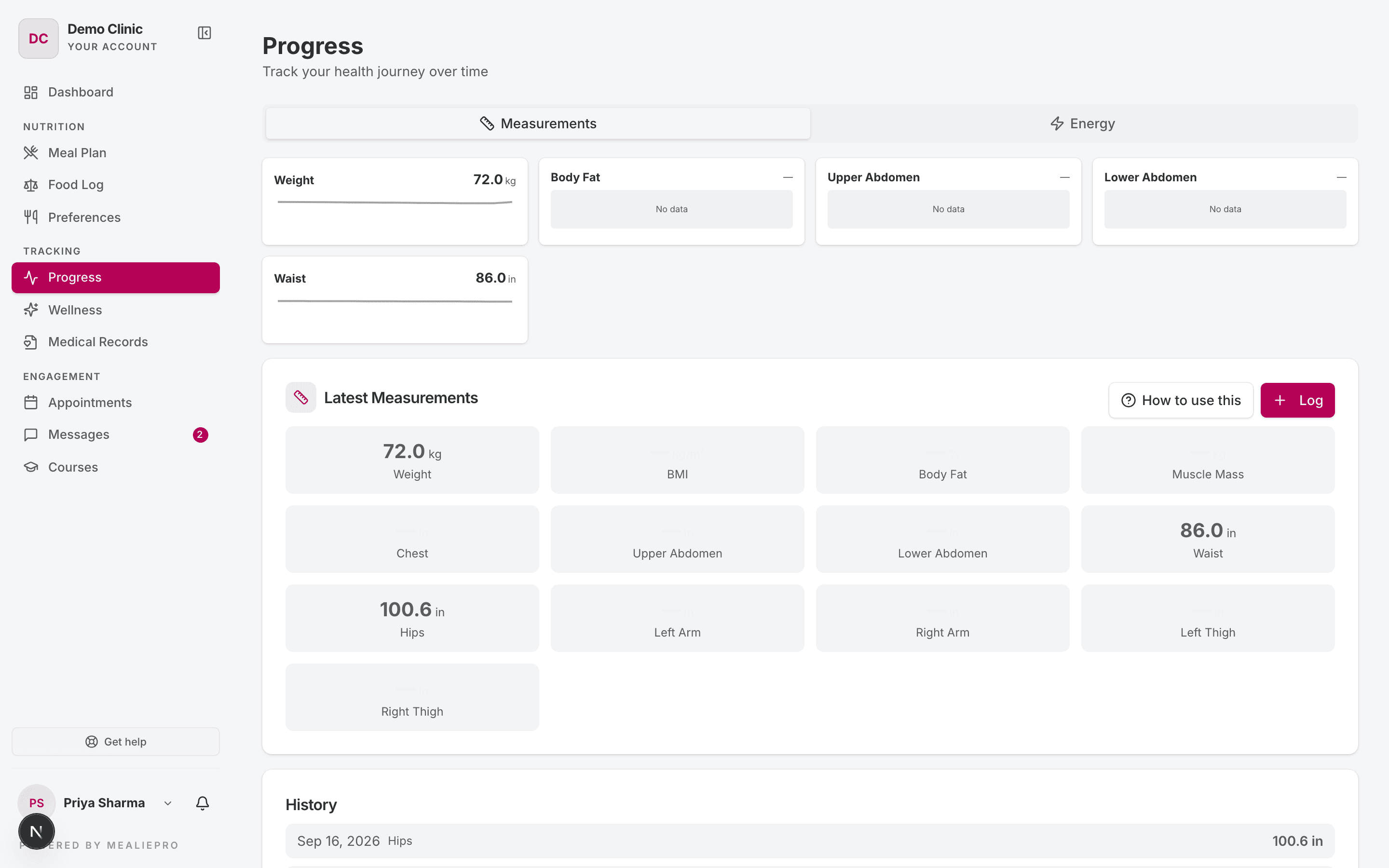
The page title is Progress, with the subtitle "Track your health journey over time". It has two tabs: Measurements and Energy.
Measurements tab
The tab shows, from top to bottom:
- Small trend charts for the highlighted measurements.
- Latest Measurements — the last value of each measurement type.
- History — the most recent entries.
To log a value:
- The client clicks Log.
- In Log Measurement, they pick the Measurement Type and enter the value.
- They click Log Measurement.
The rules for client entries:
- Today only. The date is always today. A client cannot log a past day.
- One value per type per day. If the client logs the same type twice on one day, the second value replaces the first.
- No edits. The client cannot change or delete past entries. If an entry is wrong, fix it on the client's Measurements tab in your portal.
The client sees only the measurement types that your practice marks as active and open to clients.
How to use this starts a short guided walkthrough of the tab.
Energy tab
The Energy tab shows the latest energy score out of 10, with a label (Low, Moderate, Good or Excellent), an Energy Trend chart and Recent Entries.
The tab is read-only. The portal has no form to log energy today, so most clients see "No energy levels logged yet".
What you control
| Client sees | You change it here |
|---|---|
| Which charts show at the top | The client's Measurements tab → Manage → Manage Highlighted Measurements |
| A wrong past value | The client's Measurements tab → Edit |
See Clients for the Measurements tab.
Wellness
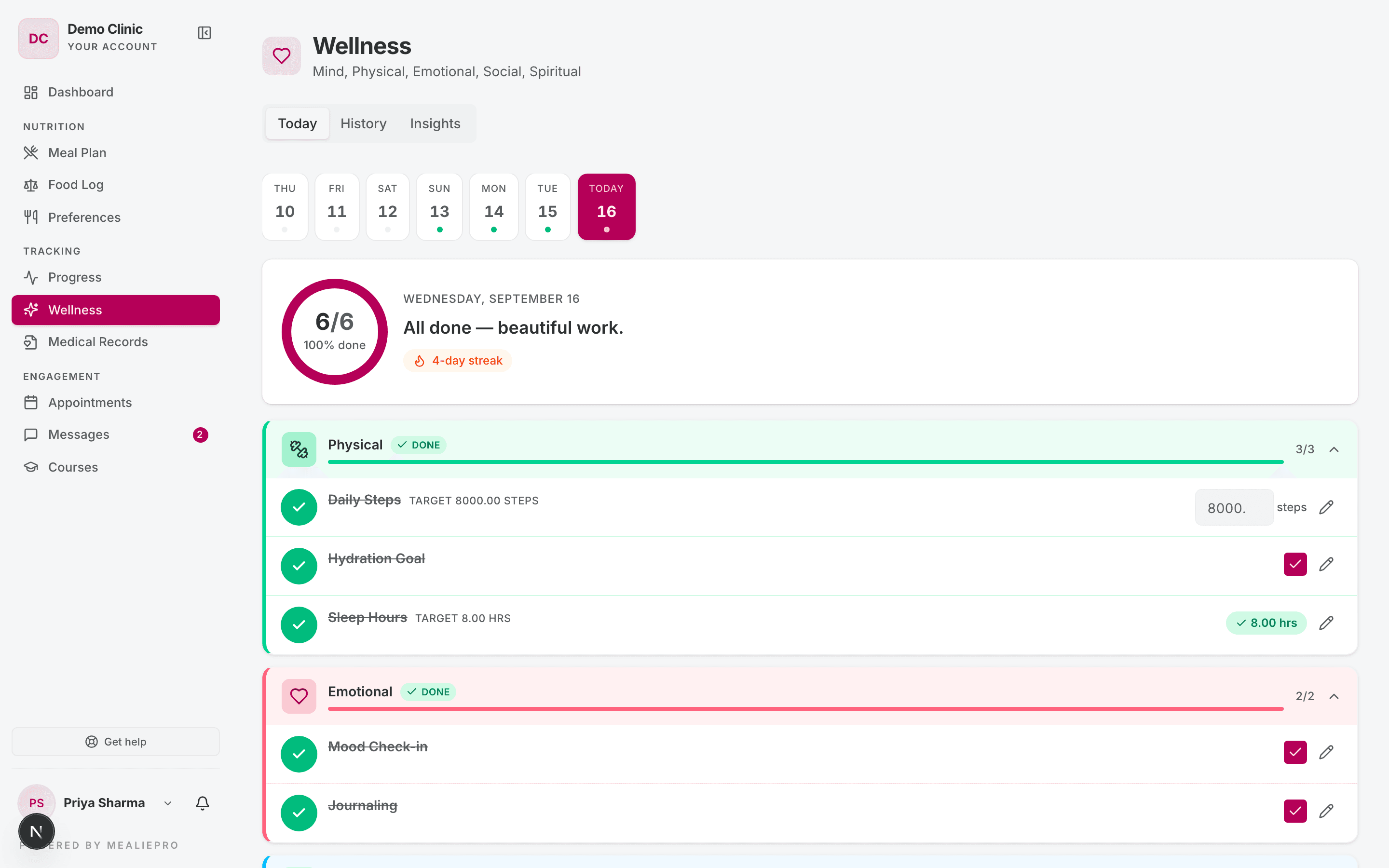
The page title is Wellness, with the subtitle "Mind, Physical, Emotional, Social, Spiritual". It has three tabs: Today, History and Insights.
Today
- A row of days. The row shows the last six days and today. The client can open a past day and fill it in, if the task was assigned on that day.
- Today's affirmation. One affirmation from the client's deck.
- A progress ring. It counts done tasks. When all are done, it reads "All done — beautiful work." and shows the streak.
- Tasks by pillar. The client ticks a task, or enters a number for a numeric task. They can also add a note with Add a note (auto-saves)….
- Daily Trackers. The tracking fields you assigned — ratings, yes/no, numbers and short text. Mood, day rating and daily notes are always included.
Each entry saves when the client makes it. There is no save button.
If the client has no tasks for the day, the tab reads "No tasks for today".
History
Last 90 days shows a heatmap of completed tasks. Top days lists the client's best days.
Insights
The client picks 7 days, 30 days or 90 days. The tab then shows Adherence, By pillar, Mood trend and Tracker trends.
Reminders
A client gets these wellness alerts:
- "New wellness program assigned" — in the app and by email, when you assign a program.
- "Daily wellness check-in" — an in-app reminder.
You set the daily reminder time, not the client. Open the client's profile, then Edit profile → Communication → Wellness reminder and Wellness reminder time.
What you control
| Client sees | You change it here |
|---|---|
| Tasks, programs and targets | The client's Wellness tab → Assign tasks. See Wellness. |
| Daily Trackers | The client's Wellness tab → Assign fields |
| Today's affirmation | The client's Wellness tab → Affirmation deck |
| The Wellness page at all | The client's membership plan → Wellness Plan module |
Common workflows
A client logged the wrong weight
The client cannot fix it. Open the client's Measurements tab in your portal and edit the entry.
A client forgot to tick yesterday's tasks
The client opens Wellness, clicks yesterday in the row of days, and ticks the tasks. This works for up to six days back.
What's next
- Wellness — build tasks, programs and trackers.
- Appointments, courses & messages — sessions, learning and chat.
- Clients — the Measurements and Wellness tabs on the client profile.
Meal plan & food log
What the client sees on My Meal Plan and Food Log — the active plan, recipes, your meal notes, the PDF, logging meals and extras, and where calories do show.
Appointments, courses & messages
How clients request and join sessions, work through courses and quizzes, ask chapter questions, and message your team.