Assessments
Build questionnaires, send them to clients, read the answers and mark them reviewed.
An assessment is a questionnaire that a client fills in from their portal. Use it for intake forms, lifestyle audits and follow‑up check‑ins. The answers stay on the client's record, so you get data that you can compare over time.
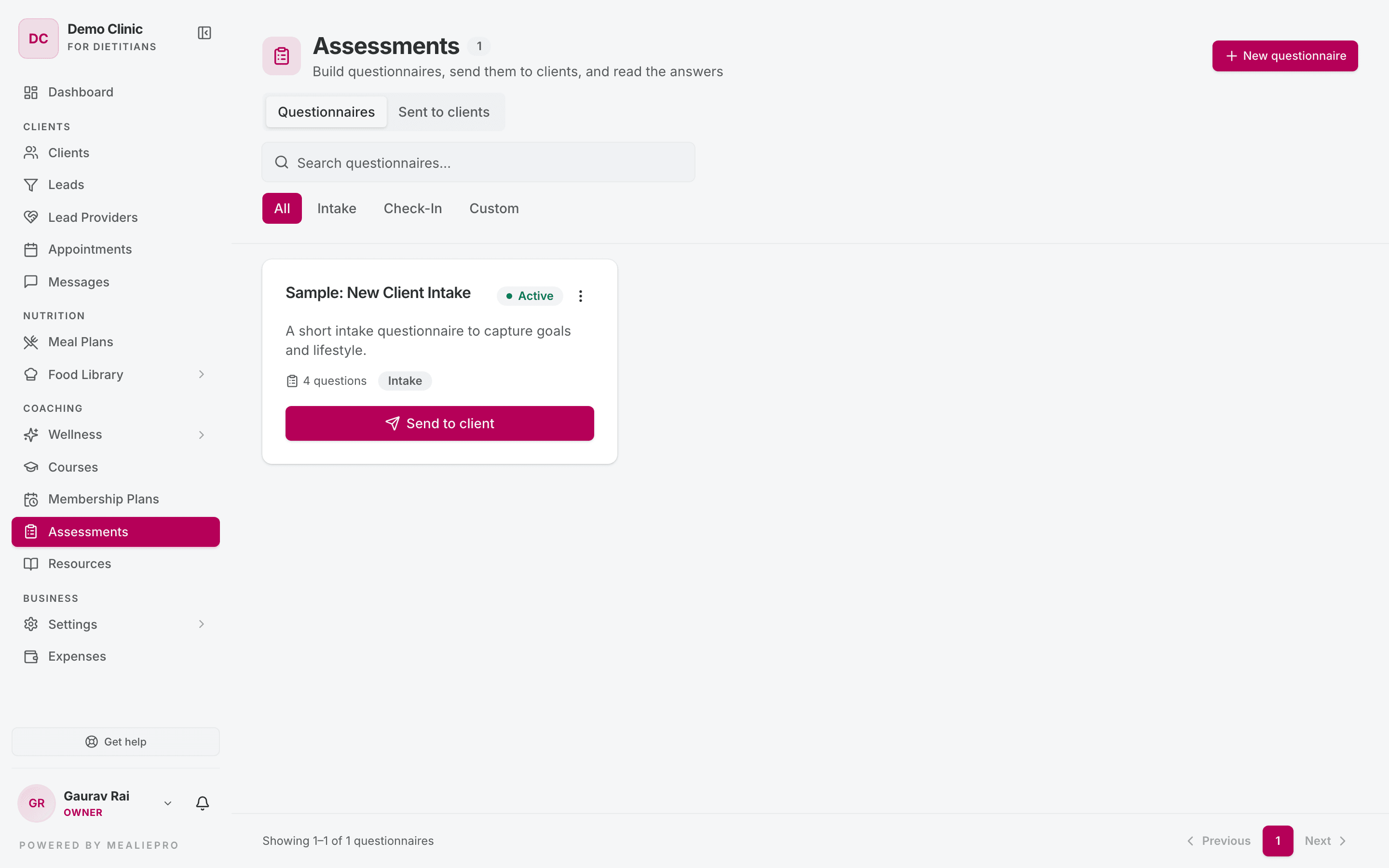
Open Assessments in the sidebar, under Coaching. The page subtitle is "Build questionnaires, send them to clients, and read the answers".
The page
The page has two tabs:
| Tab | What it shows |
|---|---|
| Questionnaires | Your questionnaire library. Each card shows the title, description, number of questions, type (Intake, Check-In or Custom) and an Active or Inactive badge. |
| Sent to clients | Every questionnaire you sent. Each row shows the client, the questionnaire, the date sent or submitted, the number of answers and the status. |
Filters:
- Questionnaires — search ("Search questionnaires…") and a type filter: All · Intake · Check-In · Custom.
- Sent to clients — search by client or questionnaire, and a status filter: All · Pending · Completed · Reviewed.
A sent questionnaire has one of four statuses: Pending, In Progress, Completed or Reviewed.
1. Build a questionnaire
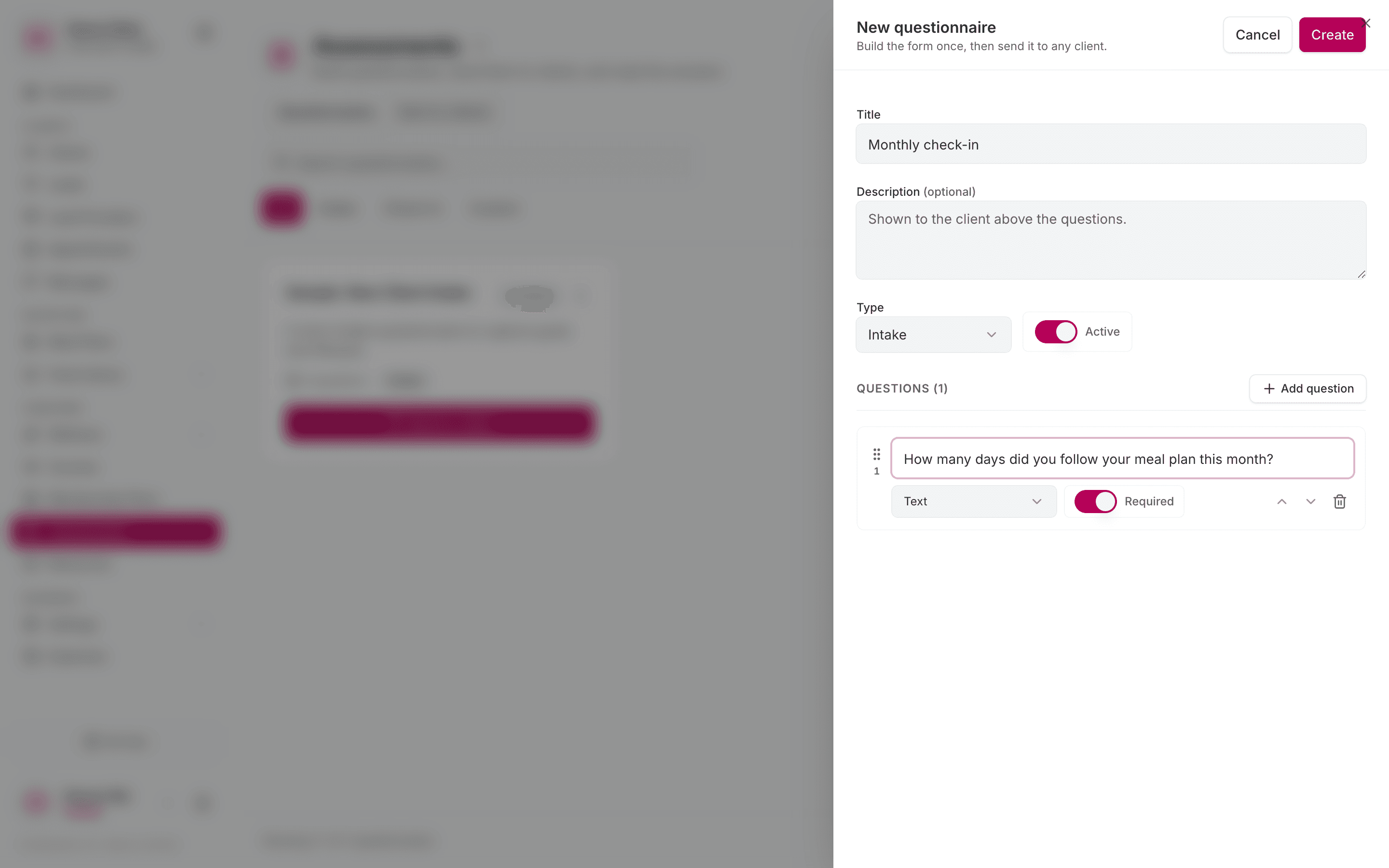
Click New questionnaire. A side panel opens.
| Field | Notes |
|---|---|
| Title | For example New Client Intake. Required. |
| Description | "Shown to the client above the questions." |
| Type | Intake, Check-In or Custom. Use it to filter the library. |
| Active | If you turn it off, the questionnaire stays in the library. It does not show in the picker on a client's profile. |
Click Add question for each question. For each question, set:
- The question text.
- The type: Text, Number, Scale, Yes / No, Single choice or Multiple choice.
- Required — the client cannot submit until they answer it.
- Options — for choice types only. Click Add option for each answer.
Click Create. To change a questionnaire later, open the ⋮ menu on its card and click Edit, then Save.
Tip: Editing a questionnaire keeps the answers that clients already submitted. If you remove a question that has answers, the question disappears from the form. The old answers stay readable in past submissions.
Duplicate or delete
The ⋮ menu on each card also has Duplicate and Delete.
- Duplicate opens a copy in the editor. Use it to make a variant, for example a 3‑month check‑in from a 1‑month one.
- Delete asks "Delete this questionnaire?". It removes the questionnaire and every answer that clients submitted to it. You cannot undo this.
Warning: Do not delete a questionnaire that clients already answered. Turn Active off, or duplicate it and edit the copy.
2. Send it to a client
You can send a questionnaire from two places:
- From the library — click Send to client on the card. Search for the client and click Send. The button is not available when the questionnaire has no questions.
- From the client's profile — open the client, go to the Assessments tab and click Send questionnaire. The client is already selected. Pick the questionnaire and click Send.
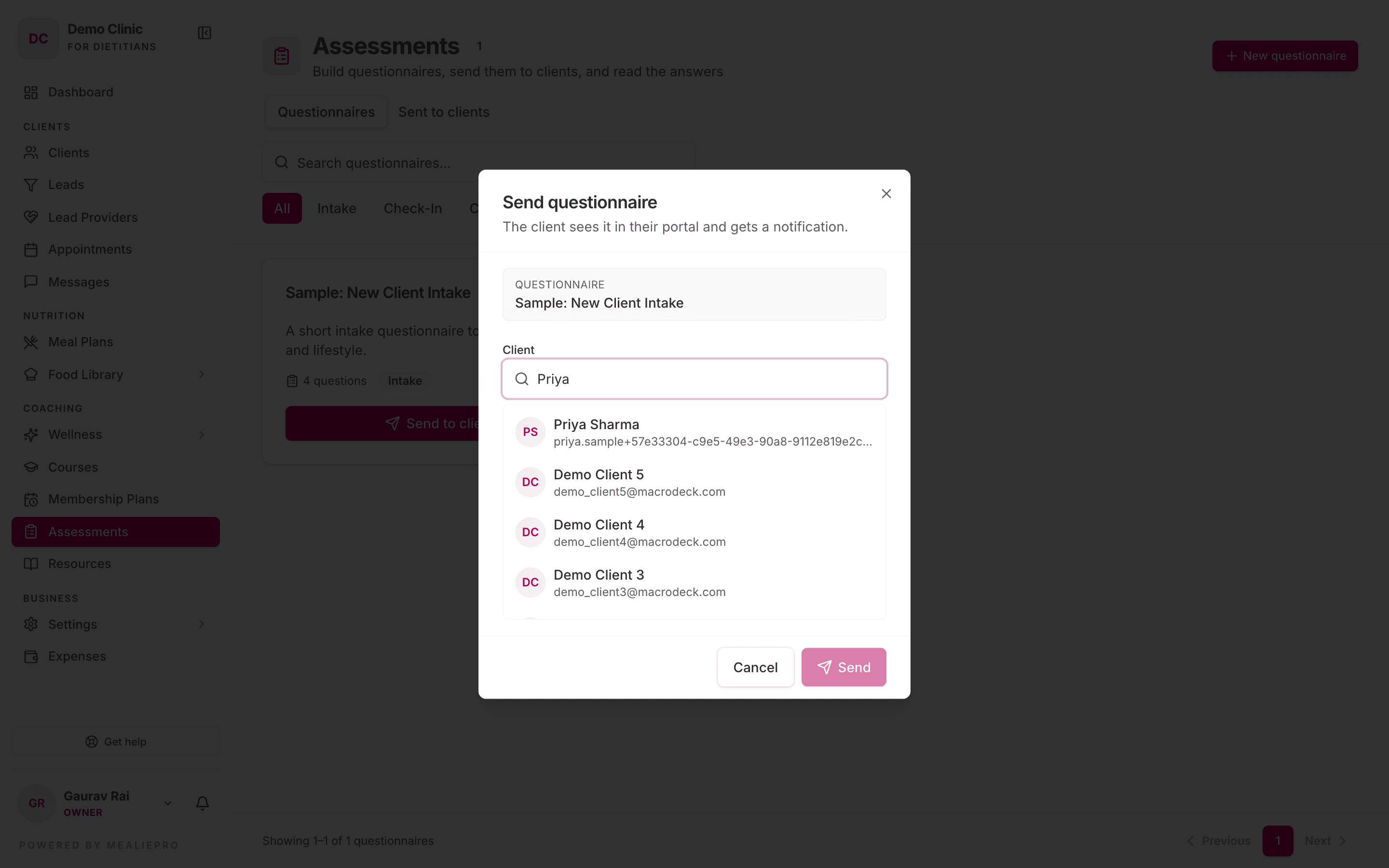
The client gets a "New assessment assigned" notification, in the app and by email.
If the client already has that questionnaire, the dialog tells you. If you send it again, the client gets a second copy. This is correct for repeat check‑ins.
3. Read the answers
Click a row on Sent to clients, or on the client's Assessments tab. A side panel opens.
- The questions show in order. Required questions are marked.
- A question the client skipped shows Not answered.
- If the client has not submitted yet, the panel shows Not submitted yet.
When you finish reading, click Mark reviewed. The status changes to Reviewed. Use this status to see which submissions still need your attention.
The Pending assessments card on your dashboard counts questionnaires with the status Pending. It does not count In Progress ones.
Who can do what
The default roles have these permissions. An owner can change them in Settings › Roles & Permissions.
| Action | Default roles |
|---|---|
| Create, edit and delete questionnaires | Owner, Admin, Dietician |
| Send questionnaires | Owner, Admin, Dietician, Nutritionist, Coach |
| Read answers and mark them reviewed | Owner, Admin, Dietician, Nutritionist, Coach |
Note: A coach sees the New questionnaire button. If a coach clicks it and saves, the app shows an error, because the default Coach role cannot create questionnaires.
What the client sees
A client opens /my/assessments from the notification. The client portal has no sidebar item for assessments. The client also needs a membership plan that includes Assessments — see Membership plans.
- The client sees the list and clicks Start, Continue or View.
- They answer the questions. A required question that is empty shows "Please answer this question."
- They click Submit Assessment.
A submission is final. After that, the client can only view their answers. More detail: Client portal › Records & profile.
Common workflows
"Send the same intake form to every new client"
- Build a questionnaire with the type Intake.
- When you add a client, open their profile.
- Go to the Assessments tab and click Send questionnaire.
"Run a monthly check‑in"
- Build one questionnaire with the type Check-In.
- Each month, send it again from the client's Assessments tab.
- Each copy is a separate row, so you can compare the answers month by month.
"I need to change a question that clients already answered"
Edit the questionnaire and save. Past answers stay. If the change is large, duplicate the questionnaire and edit the copy.
What's next
- Clients — the Assessments tab on the client profile.
- Wellness — tracking fields collect daily data. Use them together with periodic questionnaires.
- Messages — follow up on an answer with the client.
- Medical reports — the other source of structured client data.